

Apple Wallet vs Google Wallet Passes: What's Different?
 By the Kemicard team
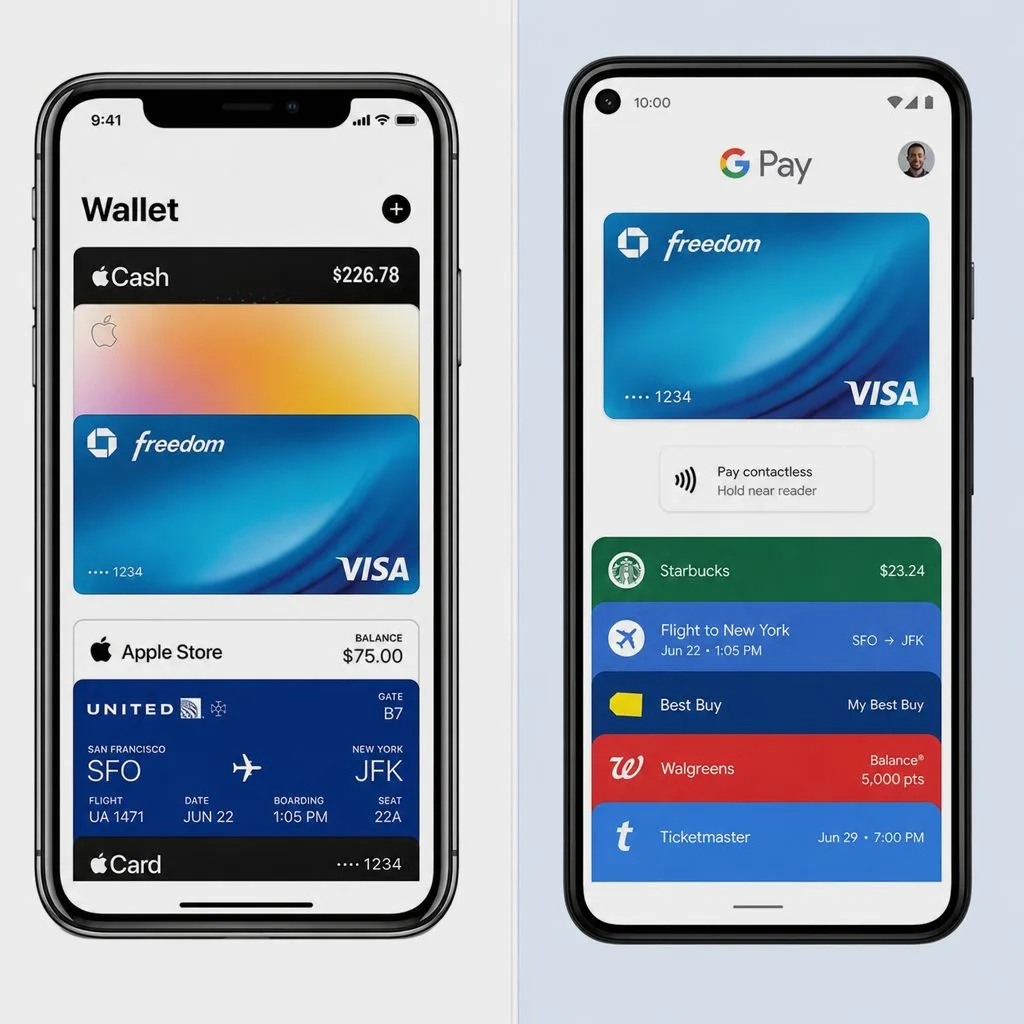
Your members carry both kinds of phones, so your pass program has to speak both mobile wallets. Here's what a wallet app actually is, how the two platforms differ — and what it means for your templates.
What is a mobile wallet app?
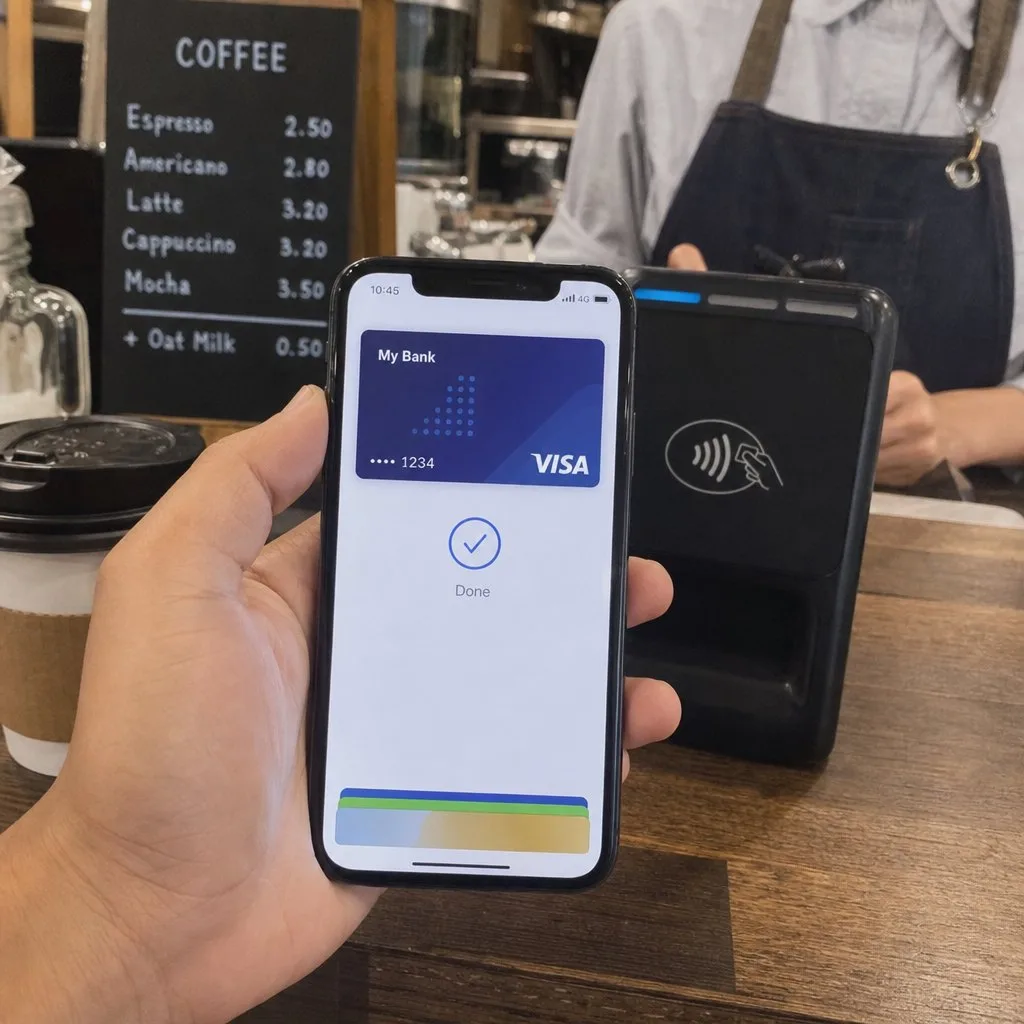
A mobile wallet app is a virtual version of a physical wallet that lives on a smartphone or smartwatch. Wallet apps securely store payment cards, transit passes, boarding passes, event tickets, loyalty cards, membership cards, student IDs — even car keys. The two dominant mobile wallet apps are pre-installed on nearly every phone sold today: Apple Wallet on iOS and Google Wallet on Android. For your members there is nothing to download, which is precisely why wallet passes outperform standalone membership apps.
It helps to separate a mobile wallet application from a digital banking app. A banking app manages actual bank accounts — balances, transfers, bill payments. A mobile wallet acts as a secure digital container: it holds card details and passes and presents them at the right moment, without exposing sensitive data to the merchant or venue.
Payments and passes: two sides of every wallet
Every mobile wallet has two halves, and it's worth knowing which one your program uses:
- Mobile wallet payment systems — the tap-to-pay side. Payment cards are tokenized (the wallet stores an encrypted device account number, never the real card number) and every transaction requires biometric authentication over NFC. This is the Apple Pay / Google Pay half.
- Mobile wallet passes — the content side. Membership cards, tickets, coupons, IDs and permits with barcodes, live fields and push updates. This is the half Kemicard drives from Salesforce.
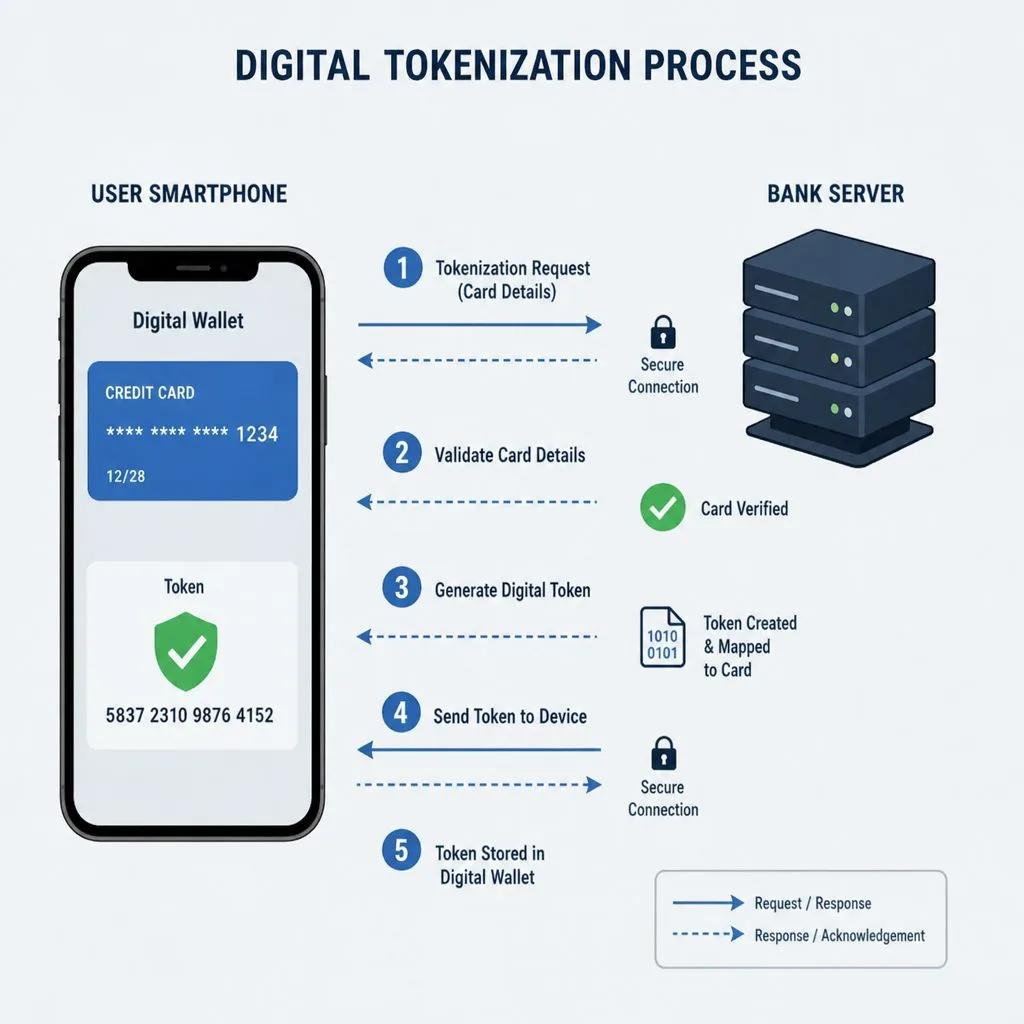
Under the hood, both halves ride the same rails: NFC for tap interactions, QR codes where cameras rule, and tokenization so real card numbers never touch the merchant. The security model benefits both halves: passes are cryptographically signed, can be device-bound, and verify at scan time — dramatically harder to counterfeit than plastic or a PDF.
Device ecosystems and compatibility
The most defining difference between the two mobile wallet platforms is reach. Apple Wallet is exclusive to the Apple ecosystem — iPhone, Apple Watch, iPad — with famously integration. Google Wallet is the default on Android and Wear OS. Google integrates deeply with Gmail and can auto-import flight confirmations and loyalty registrations as passes; Apple excels at surfacing the right pass on the lock screen at the right place and time.
For an issuer the conclusion is simple: your audience is split across both, so any serious mobile wallet solution has to issue to both from one place.
Mobile wallet layouts: pass format compared
Apple Wallet uses signed .pkpass files with five fixed layouts and label-over-value fields. Google Wallet passes are cloud objects defined through Google's API, with rounded cards, a circular logo, and a hero image at the bottom. The same content fits both mobile wallet layouts, but image sizes and field placement differ — Kemicard Studio maintains one design and renders each wallet correctly.
Mobile wallet delivery methods: installation compared
Apple installs a file; Google saves a link. In practice both delivery methods are one tap, and a smart add-to-wallet link detects the device: iPhones get Add to Apple Wallet, Android gets Add to Google Wallet. One link per member covers everyone — sent by email, SMS, QR code, or a Salesforce Experience Cloud page.
Updates and notifications
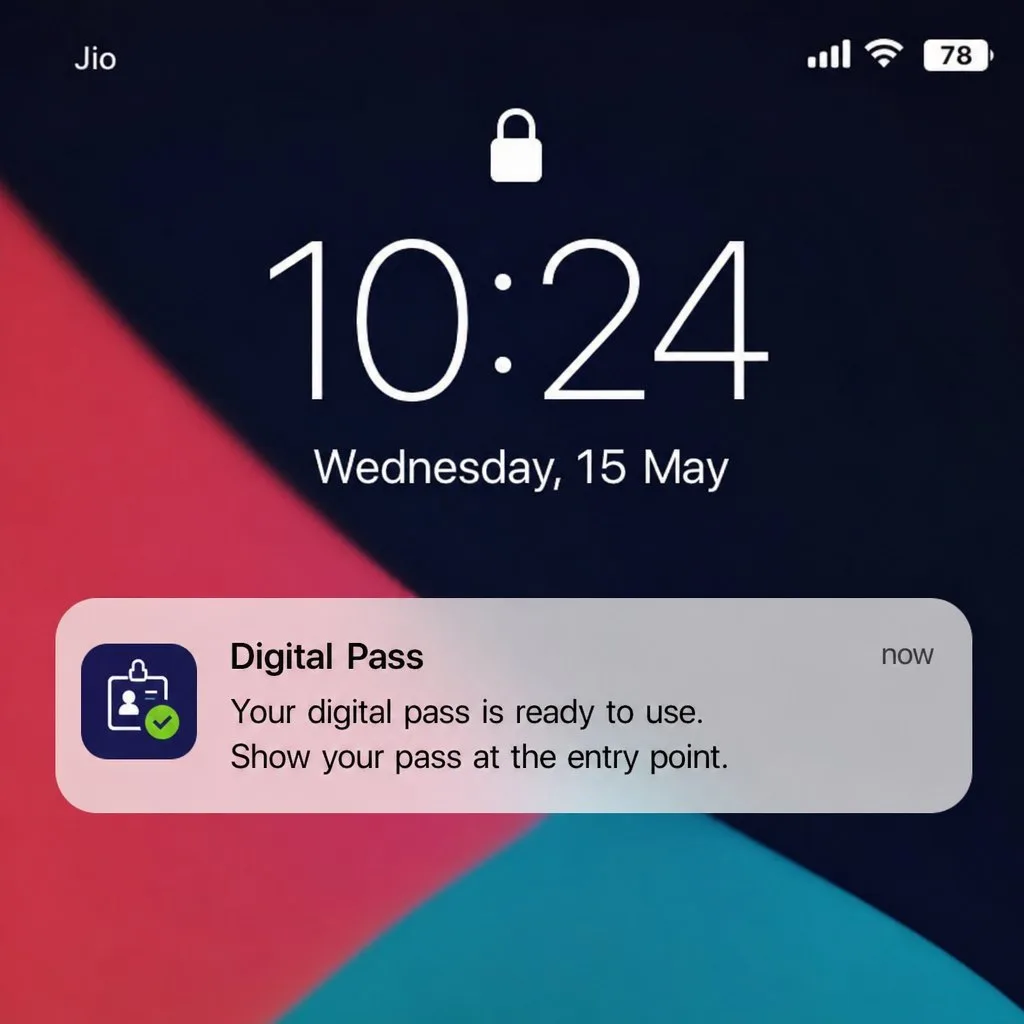
Both wallets support silent content updates and lock-screen messages, with quirks: Apple suppresses a push whose text matches the previous one and shows messages on the back of the card if Wallet is open; Google surfaces update notifications with its own timing. Location-triggered lock-screen reminders are an Apple strength; Google support is more limited today.
Sharing and fraud controls
Google Wallet can restrict a pass to the device that first saved it, auto-invalidating shared copies. On Apple, sharing is controlled at the template level. Either way, unique identifiers plus scan-time validation in Salesforce catch duplicates at the door.
How to compare mobile wallet platforms as an issuer
Consumer reviews compare wallet apps on payment features — but if you issue passes, the checklist is different. What matters across mobile wallet services is:
- Coverage — does one template reach both Apple and Google Wallet?
- Data source — do passes render from your live CRM data, or a copy synced to a third-party cloud?
- Updates — can you change every issued pass instantly, with push notifications?
- Verification — do scans write back to your system of record?
That's the comparison we go deeper on in Kemicard vs standalone wallet pass platforms.
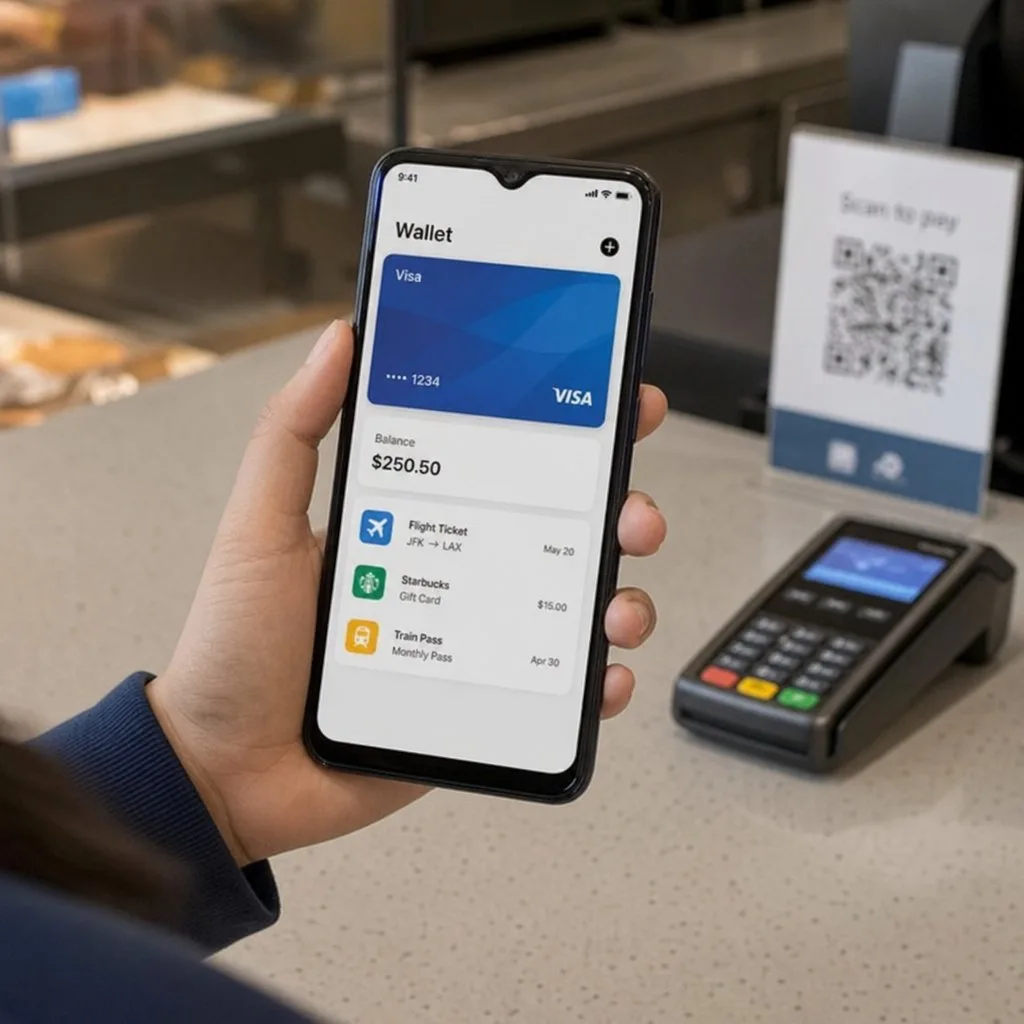
What each wallet holds beyond passes
Both apps have grown well past the pass. Knowing what else is in there is useful mainly because it explains why your pass is competing for attention in a crowded list.
- Payment cards on both, tokenised so the merchant never receives the real number.
- Transit — stored-value and contactless travel cards, with express modes that work without unlocking.
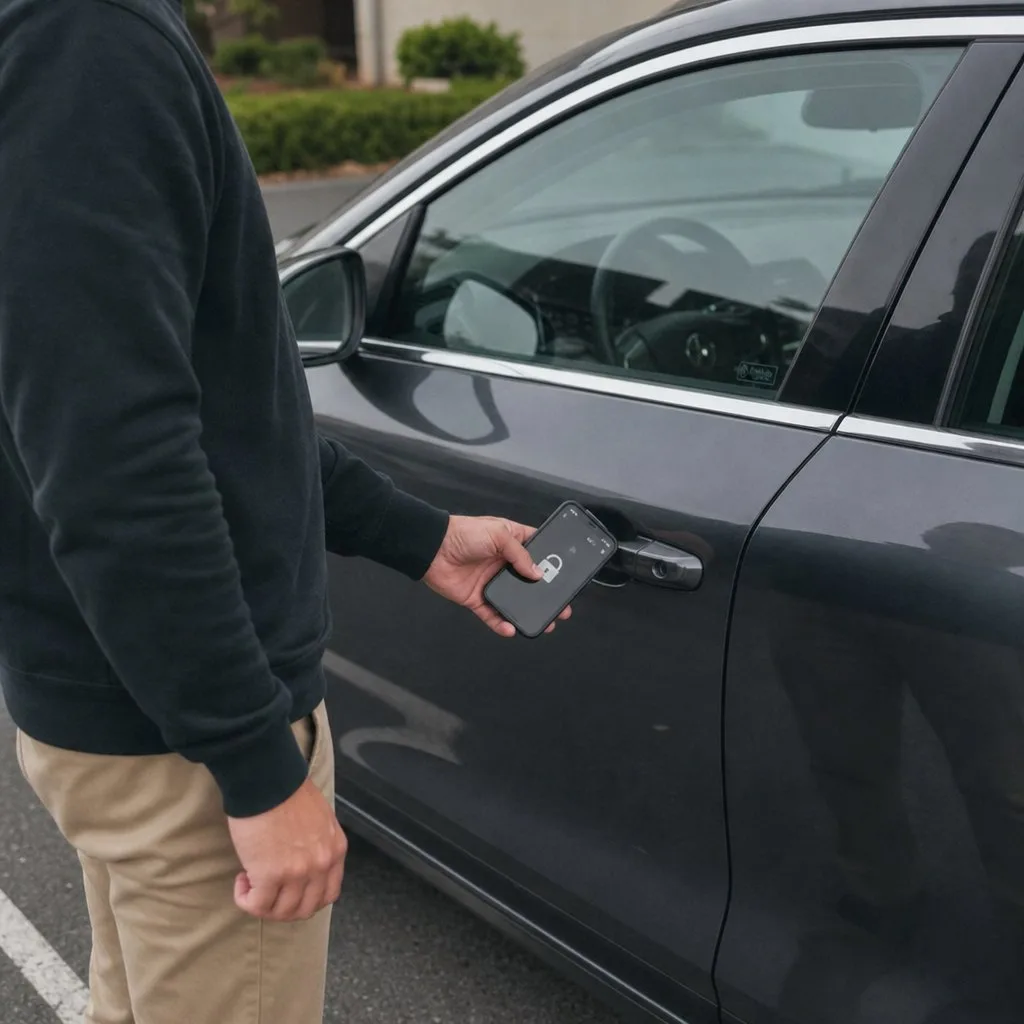
- Keys — car keys, hotel rooms and office access on supported hardware.
- Government ID — driving licences and state IDs in a limited and slowly growing set of jurisdictions on both platforms.
- Loyalty, tickets and gift cards — the pass category, which is the only one you can issue into without a platform partnership.
Setup and device differences that reach your support inbox
Two platform behaviours generate most of the confusion, and neither is a bug.
- Check the screen lock first. Google Wallet requires a device screen lock for payments, and a missing one is a common reason a save fails on Android. Users report it as a broken link; saying so on the add-to-wallet page heads off most of these.
- Apple Wallet is preinstalled and cannot be removed; Google Wallet is preinstalled on most Android devices but not all, and availability varies by region.
On accessibility both are solid — system text sizing, screen readers and auto-brightness at scan time all work — provided your pass has adequate contrast to begin with. That is a design decision you own, not a platform feature.
The practical answer
Don't pick a wallet — design once and issue both. That's exactly what Kemicard does from a Salesforce record: one template, both formats, one add-to-wallet link, updates flowing to each platform's rules. A mobile wallet solution that lives where your data already lives. See the full feature set.
Sources: Apple's Wallet Passes documentation and Wallet design guidelines; Google's Google Wallet API documentation.
Explore Kemicard
Product & solutions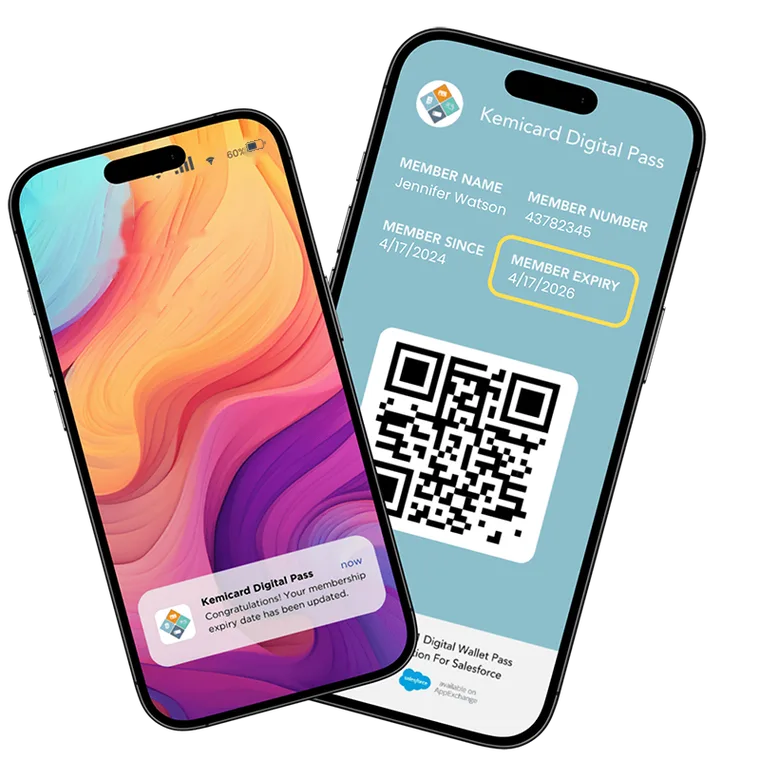
Put Your Salesforce Data in Every Wallet
Book a demo, test drive Kemicard, or start a free 30-day trial.
 Start Free Trial