
Screenshots, Sharing and Secure Photos: What's New in Kemicard v2.29
 By the Kemicard team
Digital passes are only as secure as their weakest link — and for most wallet-based systems, that weak link is the screenshot. Someone snaps a picture of their membership card, texts it to a friend, and suddenly one pass is doing the work of two.
Version 2.29, released on 3 September 2026, closes that gap with three new Google Wallet controls, plus a faster, smarter scanning experience at the door. Here's what's new.
1. Rotating barcode: screenshots that go stale
Static QR codes carry one problem no template design fixes. Once someone has a photo of the code, that photo keeps working — long after the visit it was issued for.
The new Rotating Barcode replaces the static code on a Google Wallet pass with one that automatically refreshes every few seconds. Every pass issued from an enabled template gets its own secret, and the code is validated live at the scanner. A screenshot taken a minute ago is already useless by the time someone tries to use it.
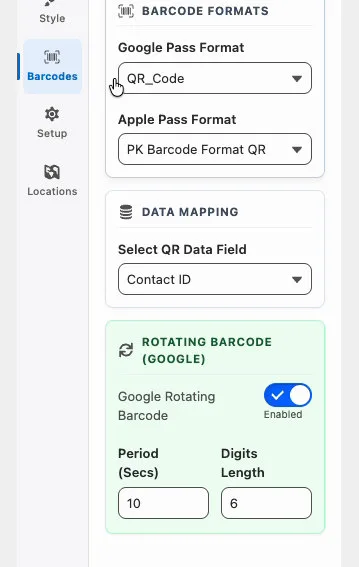
How it works. Turn it on per template in Kemicard Studio, under Settings → Barcodes → Rotating Barcode. You control the refresh interval (5–600 seconds, default 20) and the code length (6–8 digits, default 6). Shorter intervals are harder to share but need a steady connection at the door; longer intervals are more forgiving in low-connectivity venues. Choose for the venue you actually have.
2. Pass sharing controls: decide who can hold your pass
Not every pass should be shareable — and now you get to decide, wallet by wallet.
Apple Wallet gets a simple on/off switch. Turning sharing off removes the Share button from the pass. Worth knowing: this restricts sharing, not installation. A pass forwarded another way, like an AirDropped file or an emailed link, can still be added. That's Apple's design, not a Kemicard limitation.
Google Wallet gives you four levels of control:
| Level | What it does |
|---|---|
| Fully Shareable (default) | Anyone with the link can add the pass, on any device. |
| Single User (Multiple Devices) | Locks to the first account that saves it, but that person can install it on several of their own devices. |
| Single User (Single Device) | Locked to one account, one device — no exceptions. |
| Sharing Prohibited | Locked to the first account; nothing else can add it. |
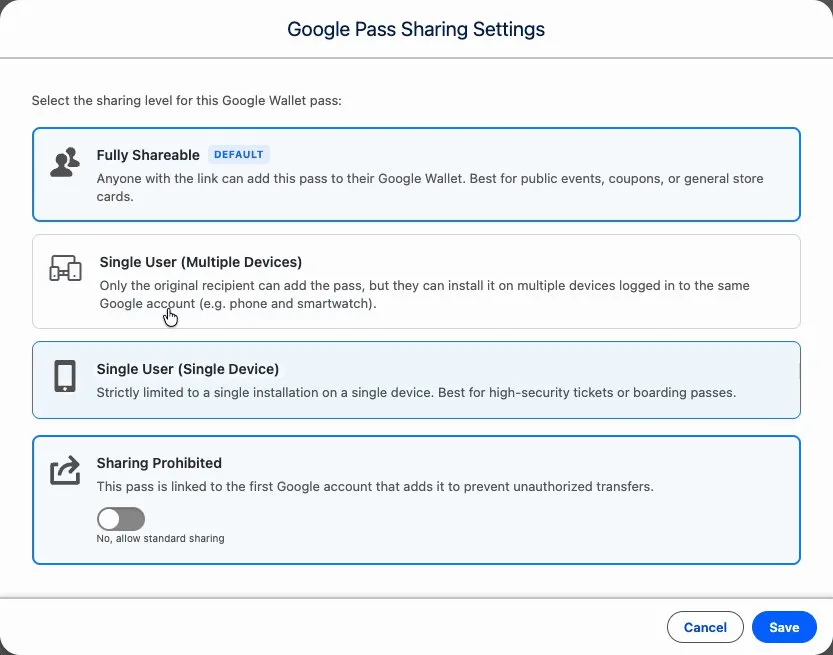
This makes it easy to match the restriction to the risk: leave a coupon fully shareable, lock a transit pass to one device, and prohibit sharing entirely on an ID.
3. Private photos without the screen-lock
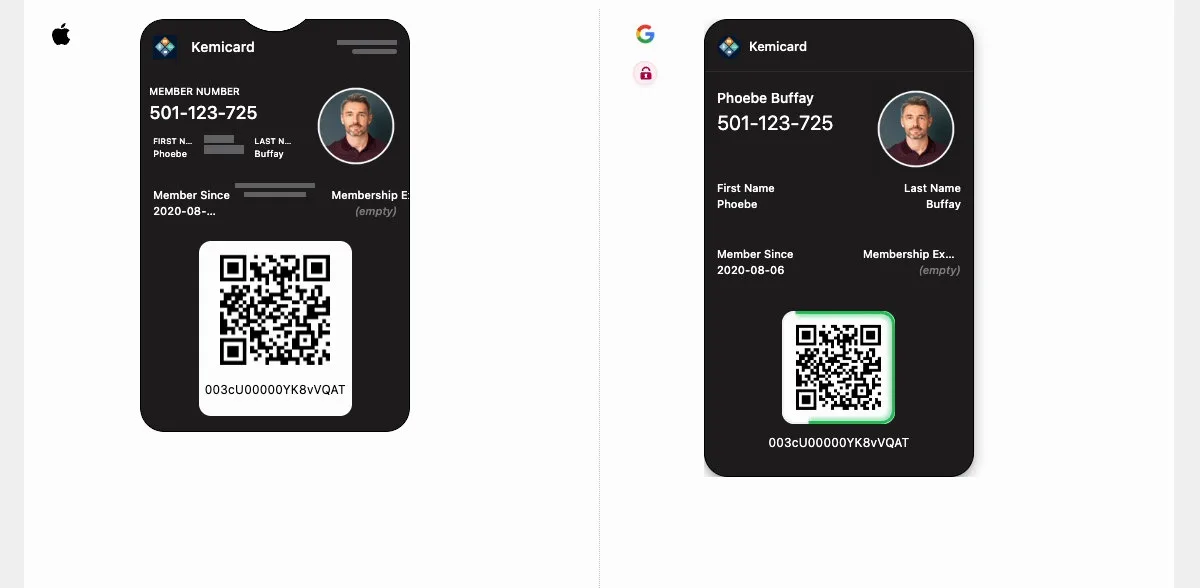
Member photos add a valuable layer of verification at the door — but until now, showing a private image on a Google Wallet pass required a Secure Pass, which forces the member to unlock their phone just to display it. That's a real cost when someone is holding up a queue.
The new Private Image type shows the photo on a standard pass, with the image still kept private to the pass holder, but without any unlock prompt. If you do want screen-lock verification for something more sensitive, Secure Private Image is still available as a separate option.
For everyday use cases — ID badges, membership cards, event credentials — Private Image means faster verification without asking your members to unlock their phone every time someone glances at their pass.
Faster, smarter scanning at the door
The Kemicard Scanner update rounds things out on the check-in side.
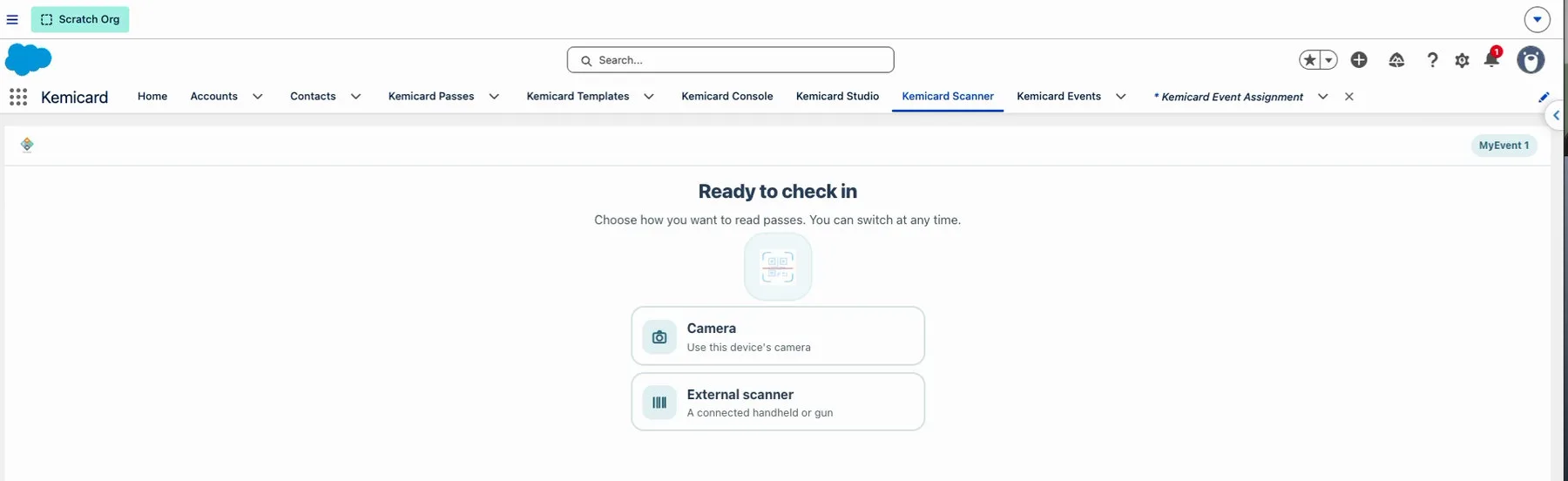
- Choose your method once. Pick camera or an external handheld/gun scanner, and Kemicard remembers your choice — no more re-selecting a camera before every scan.
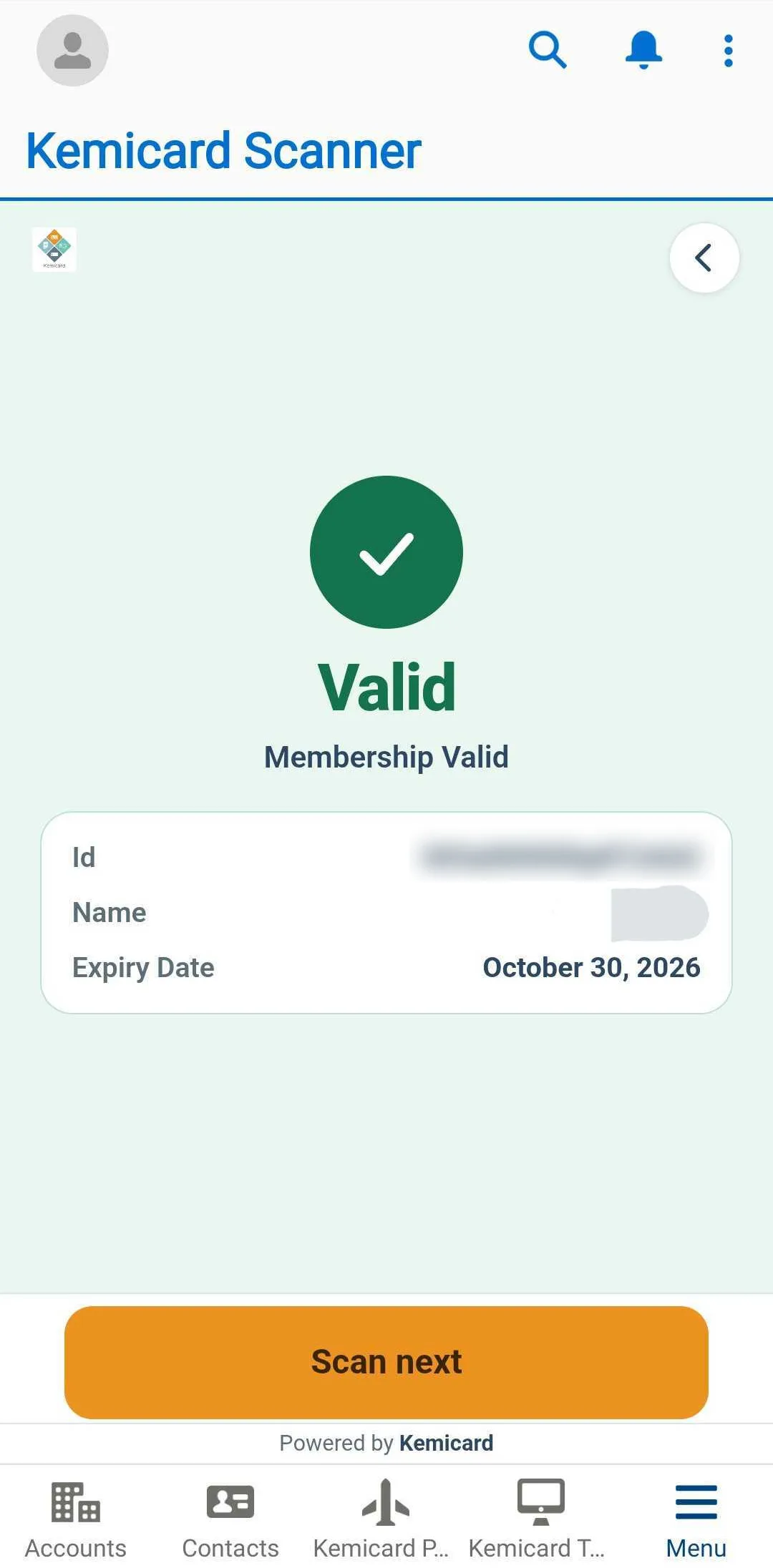
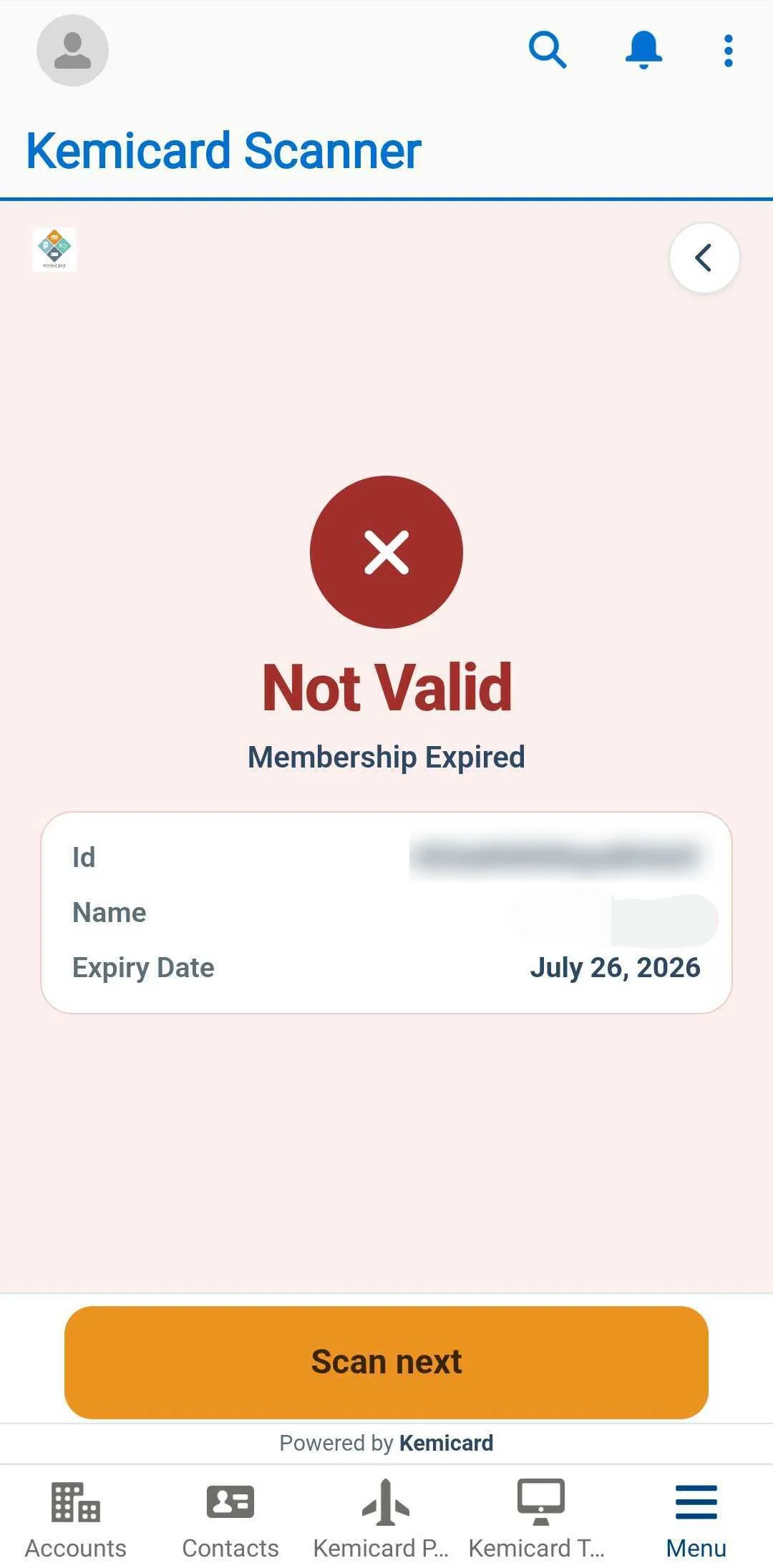
- Fast check-in. Point and scan, or pull the trigger; the result appears instantly, with a green Valid check and the member's details.
- Confirm identity and open links. Scan results can now show a profile photo for visual verification, plus clickable links and extra images — all configured through your scanner flow.
And one for the admin: upgrade steps you run yourself
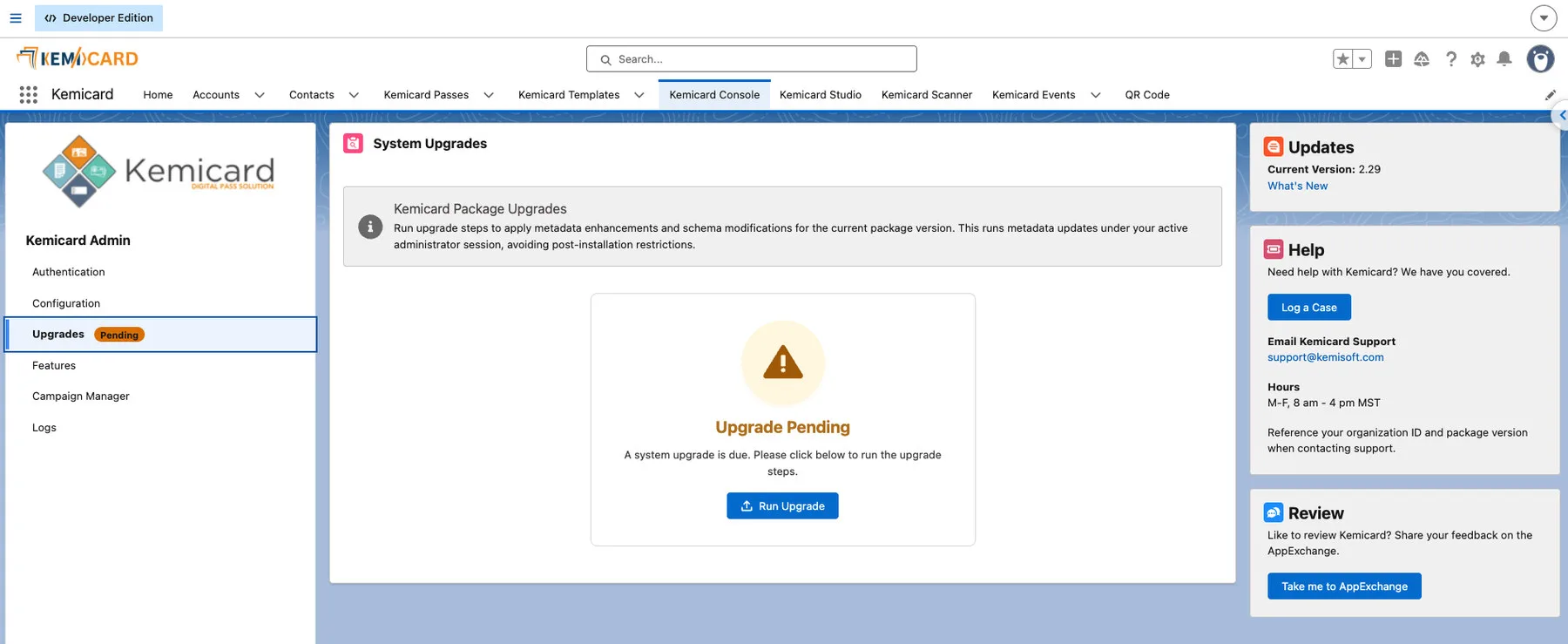
Installing a new package version does not, on its own, apply Kemicard's metadata and schema changes — Salesforce restricts what a package can do post-install. Those steps have to run under an administrator's own session. In v2.29 the Console tells you when that is outstanding: the Upgrades nav item carries a Pending badge, and the panel offers a single Run Upgrade button. No support case, and no wondering whether the org is actually fully upgraded.
Why the three go together
They solve different halves of the same problem. The rotating barcode handles a photographed code; the sharing levels handle a forwarded pass; the private image handles the question of whether the person at the door is the person the pass was issued to. On a high-value credential — a staff badge, a season ticket, a transit pass — all three together mean the barcode expires, the pass cannot be re-installed elsewhere, and the attendant can see whose face should be in front of them.
Set it up
All three Google Wallet features live in Kemicard Studio, configured per template, so you can decide exactly which passes get which protections. The scanner updates are ready out of the box the next time you open the Kemicard Scanner tab — there is nothing to install.
The step-by-step is in the Advanced Google Wallet features guide and the Scanner & Check-In guide. If anything looks off, the troubleshooting guide covers the most common questions — or write to supportkemicard.com.
Earlier versions are listed in the Kemicard release notes, and what comes next is on the product roadmap — v2.30, with Kemicard Connect and bulk processing, is scheduled for October 2026. The controls behind these features are described in the security and compliance overview.
Turn the new controls on
Rotating barcodes, sharing levels and private photos are configured per template in Kemicard Studio.
 Get It on AppExchange