

Google Wallet Passes: The Complete Guide
 By the Kemicard team
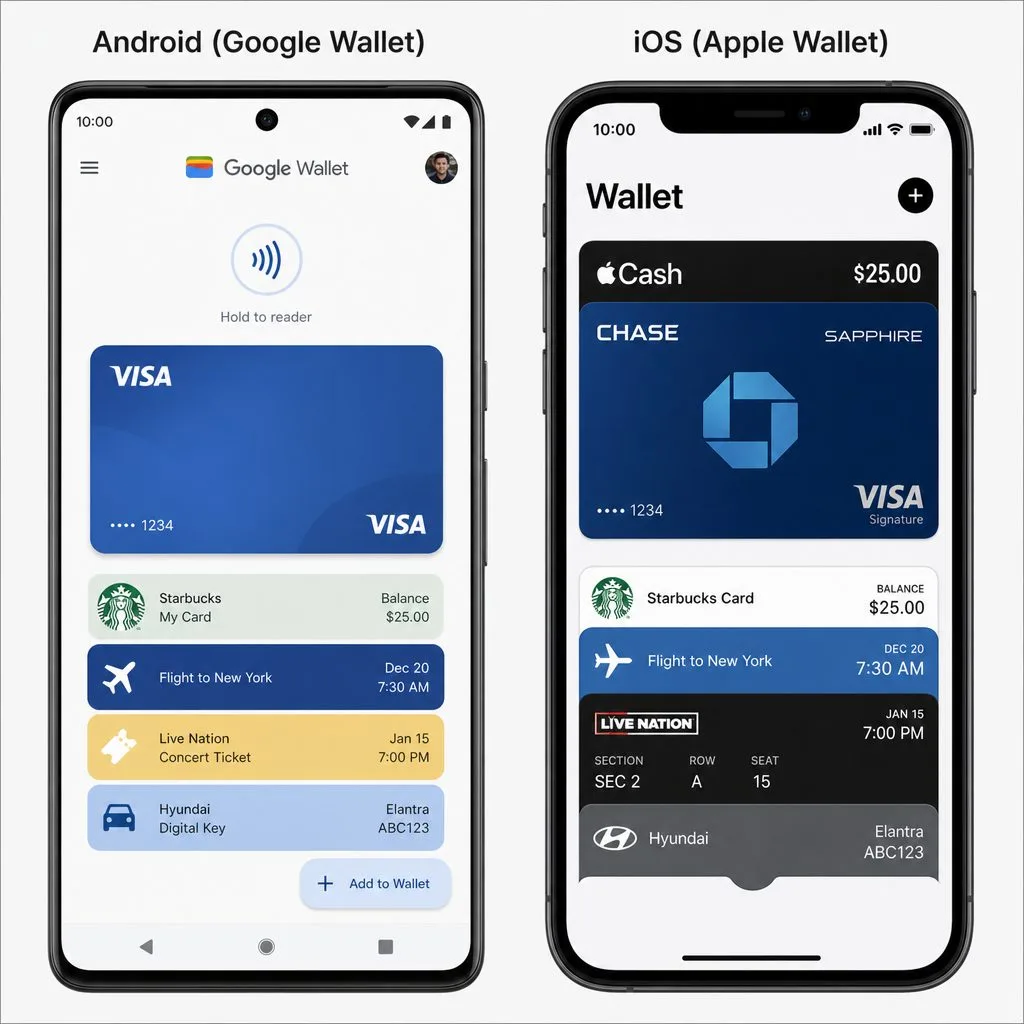
Google Wallet has grown from a payments app into Android's home for everything that used to fill a pocket: transit cards, boarding passes, loyalty cards, tickets, student IDs, even car keys. Here's what it holds, how passes behave, and what that means if you issue them.
What lives in Google Wallet
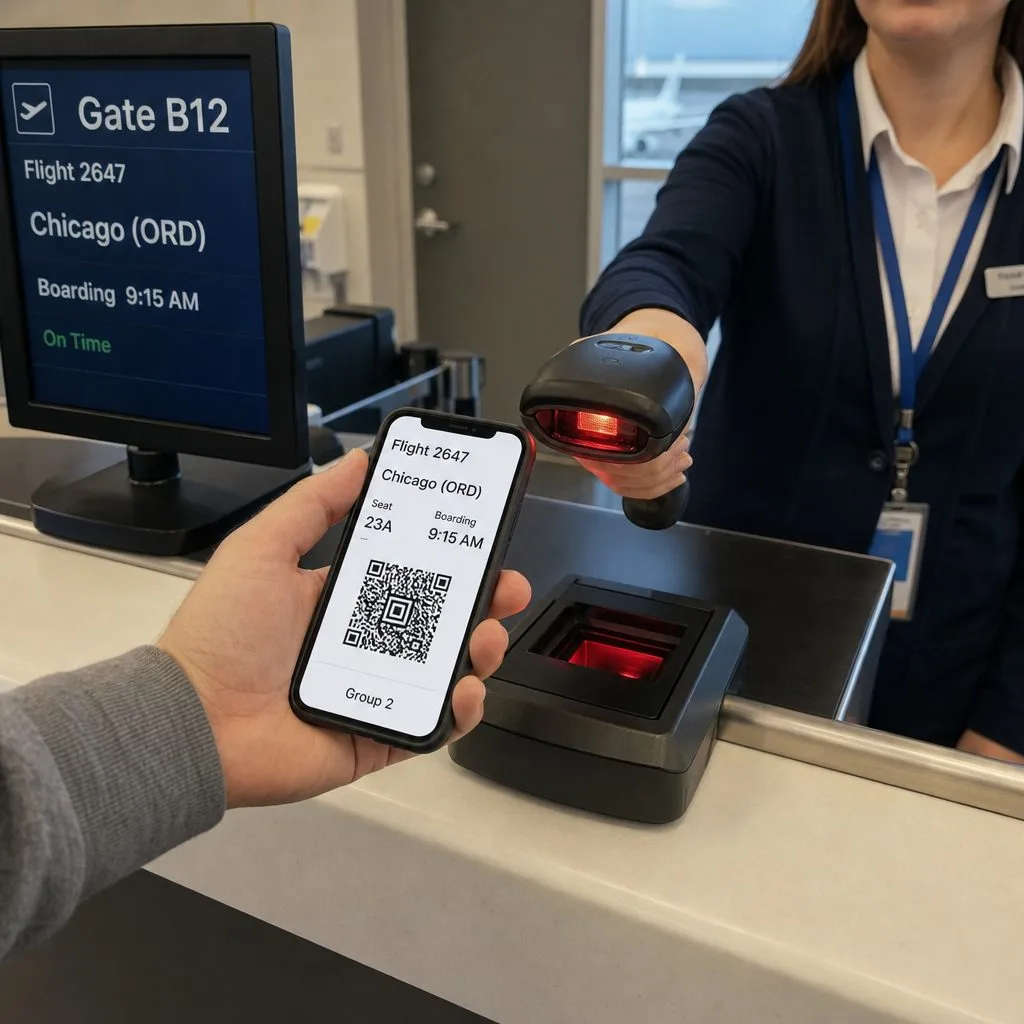
Beyond payment cards: boarding passes (added from airline apps, or imported automatically from Gmail confirmations), transit cards for tap-to-ride, event tickets, loyalty and gift cards, and identity passes. A physical printed ticket is static; a Google Wallet pass is alive — a gate change or delay updates the pass and notifies the traveler.
How passes behave on Android
Passes surface contextually — the boarding pass ahead of the flight, the loyalty card near the store — and sync across devices signed into the same Google account. NFC handles tap interactions; QR and barcodes cover everything else. Google's sharing settings can tie a pass to the account that saved it, which is why sharing controls are stronger on Google Wallet than most issuers expect.
Practical troubleshooting
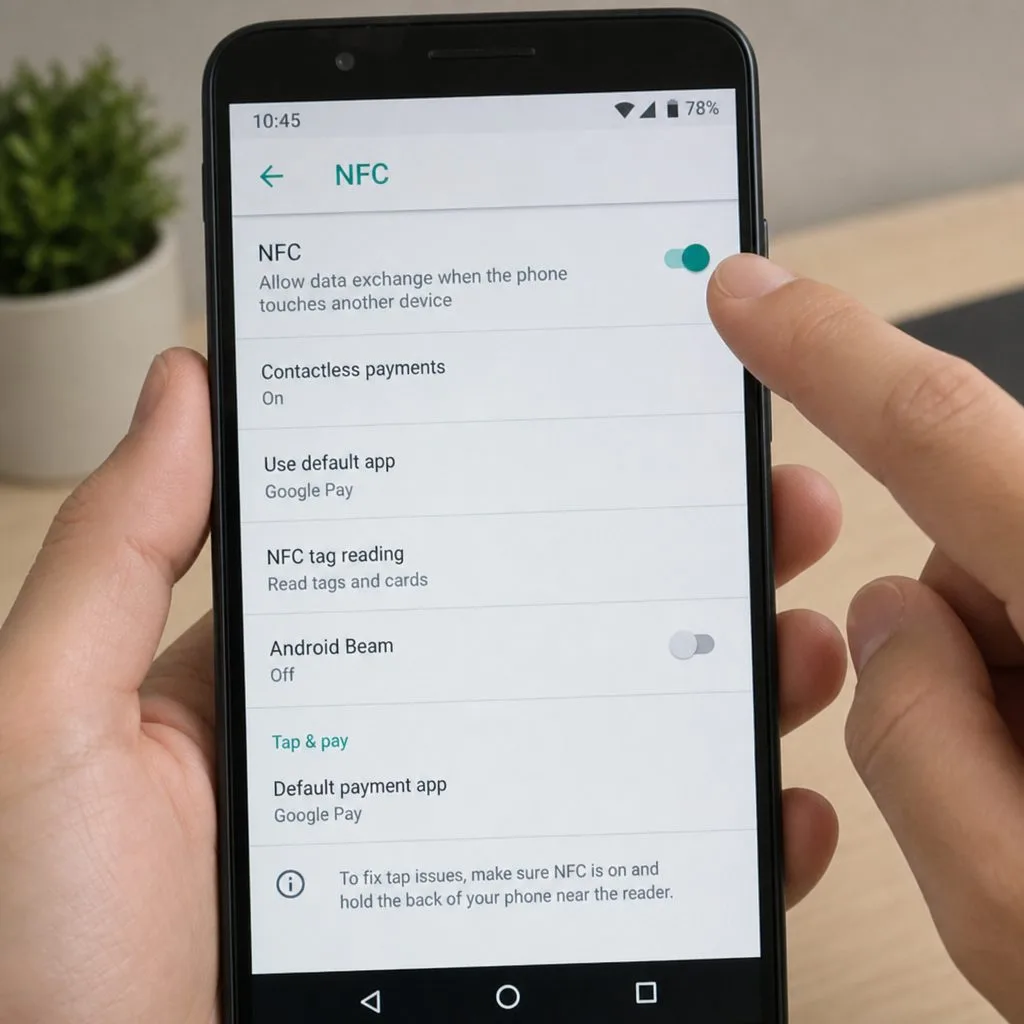
The three fixes that solve most pass problems: turn on NFC (Settings → Connections), ensure the screen is on and unlocked when scanning, and maximize brightness for barcode readers in sunlight. If a pass won't update, a pull-to-refresh in the Wallet app forces a sync.
For issuers: one template, both wallets
Google Wallet passes are cloud objects created through Google's API — different plumbing from Apple's .pkpass files, same job. Kemicard renders one Apple Wallet and Google Wallet template from your Salesforce data, delivered by a single smart link that detects the device. The full comparison is in Apple Wallet vs Google Wallet; Android-specific wallet differences in Google Wallet vs Samsung Wallet.
Sources: Google's Google Wallet API documentation; and its overviews of loyalty cards, event tickets and boarding passes.
Explore Kemicard
Product & solutions
Issue to Every Android in One Tap
Book a demo, test drive Kemicard, or start a free 30-day trial.
 Start Free Trial