
Kemicard 2.30: Schedule Every Pass and Message, and Catch Problems Before Your Members Do
 By the Kemicard team
Kemicard 2.30 introduces Kemicard Connect: send wallet passes and push messages to anyone in a Salesforce report, right away or on a one-time or recurring schedule, and follow every run on a calendar. Template Studio adds a Validation Report that flags errors and warnings while you design, shows when your passes expire, and lets you add tappable links to the back of Google passes.
A daily connection check warns admins before pass delivery stops, and more Google Wallet barcode formats are supported. Here's what's new, and what to do after you upgrade.
1. Kemicard Connect: reach members at the right moment
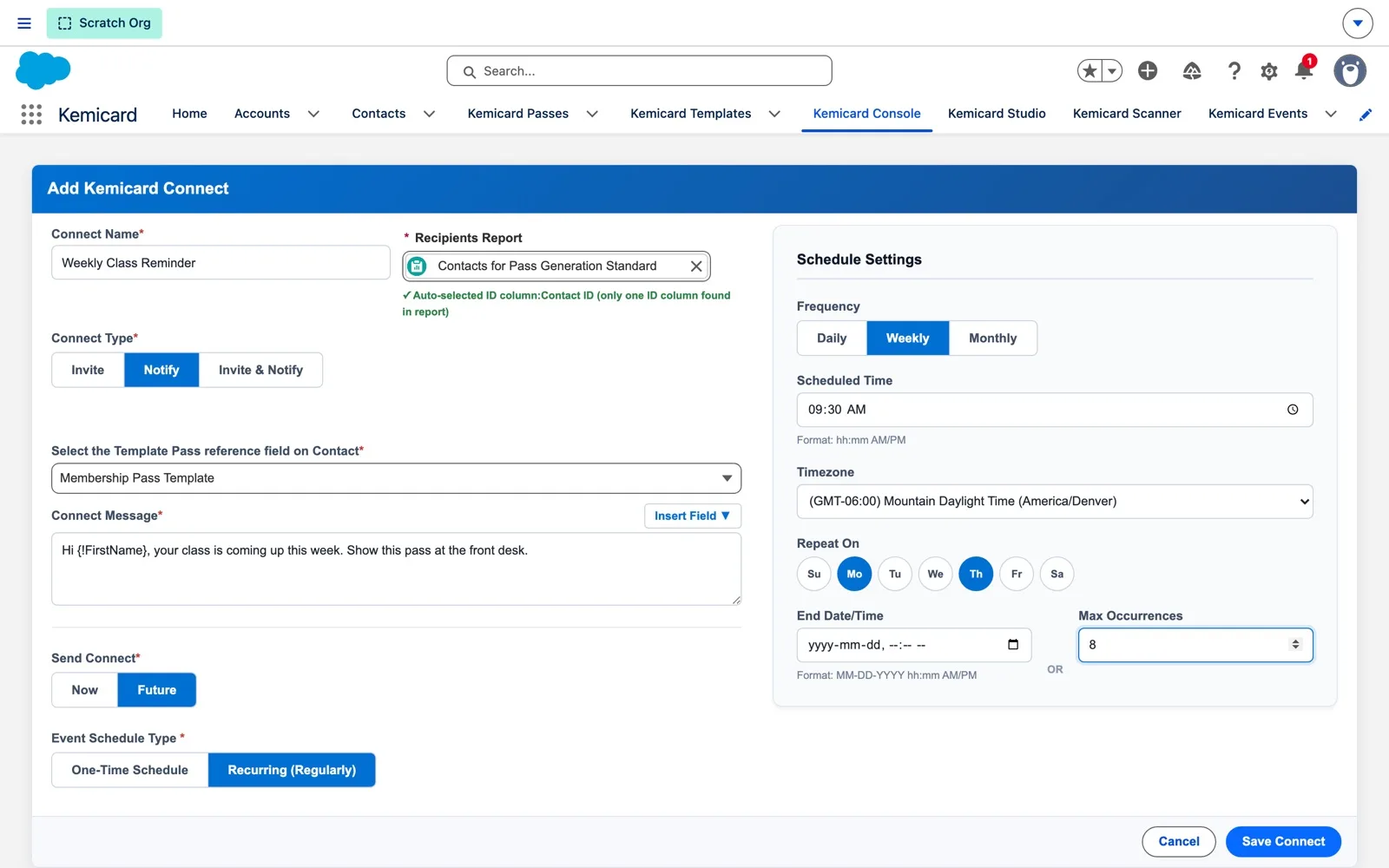
Kemicard Connect replaces Campaign Manager. A Connect is one send: who receives it (a Salesforce report), what they receive, and when.
- Invite generates passes from a template and sends each person their Add to Apple Wallet and Google Wallet links.
- Notify sends a push message to the passes people already have, with merge fields such as their first name.
- Invite & Notify does both in one send.
Send it now, once at a set time, or daily, weekly or monthly in the timezone you choose, ending on a date or after a set number of runs. The Connect calendar marks every day with a send, and each run reports its successes, failures and the passes it generated. A recurring series can be paused, resumed or cancelled.
It's built for large audiences too. Passes are generated in batches, failed records are logged against their run, and reports of up to 50,000 rows are read through Salesforce's Reports API, so Connect keeps working in orgs that require step-up authentication. Read the Kemicard Connect guide, with a six-minute demo.
2. Validation Report: design with confidence
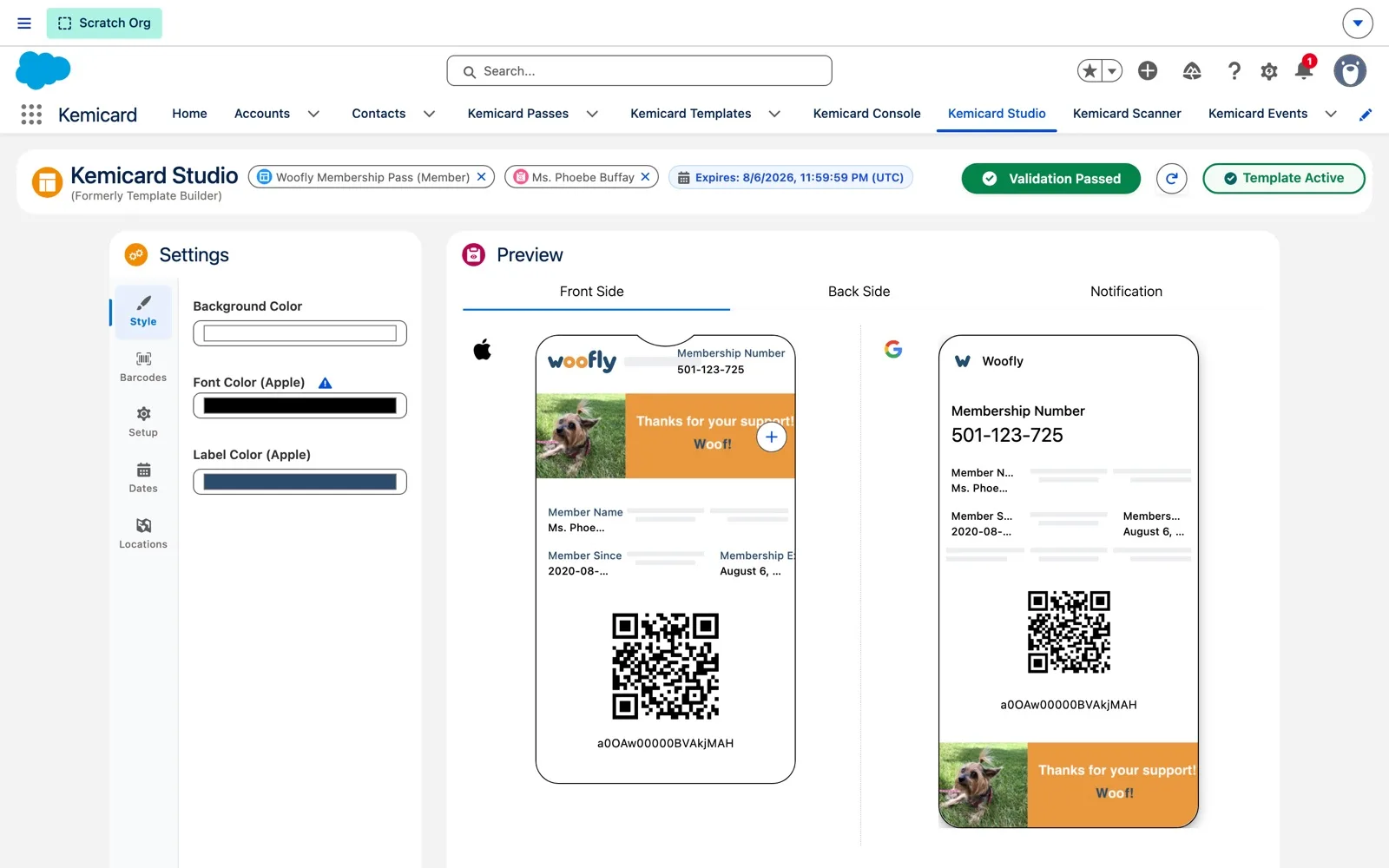
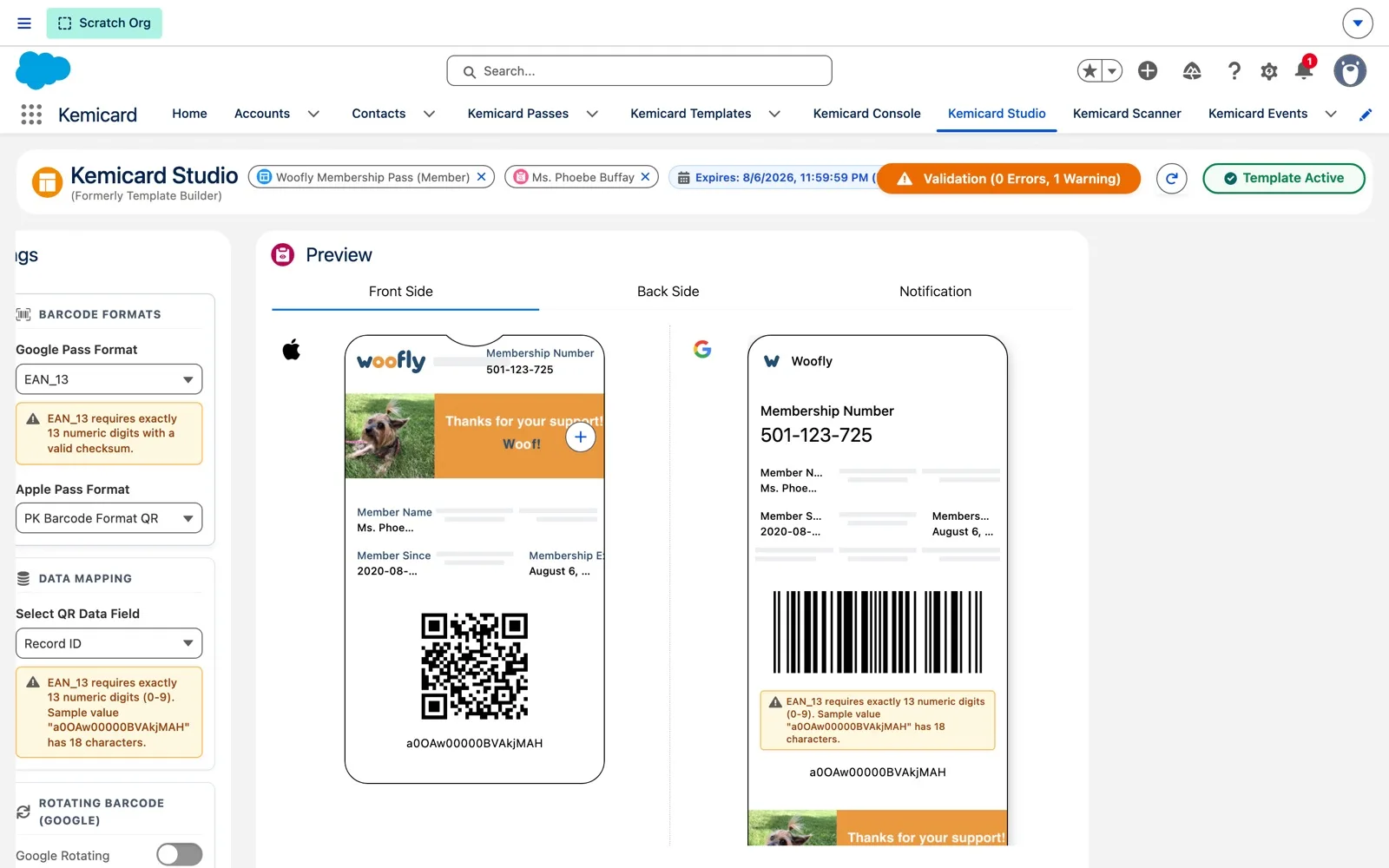
A validation button now sits in the Studio header. It reads Validation Passed when the template is ready, or shows a count such as 0 Errors, 1 Warning. Click it to open the Validation Report beside the preview, with errors and warnings listed separately and barcode checks included. The template record shows the same result in a banner, so you can check a template without opening Studio.
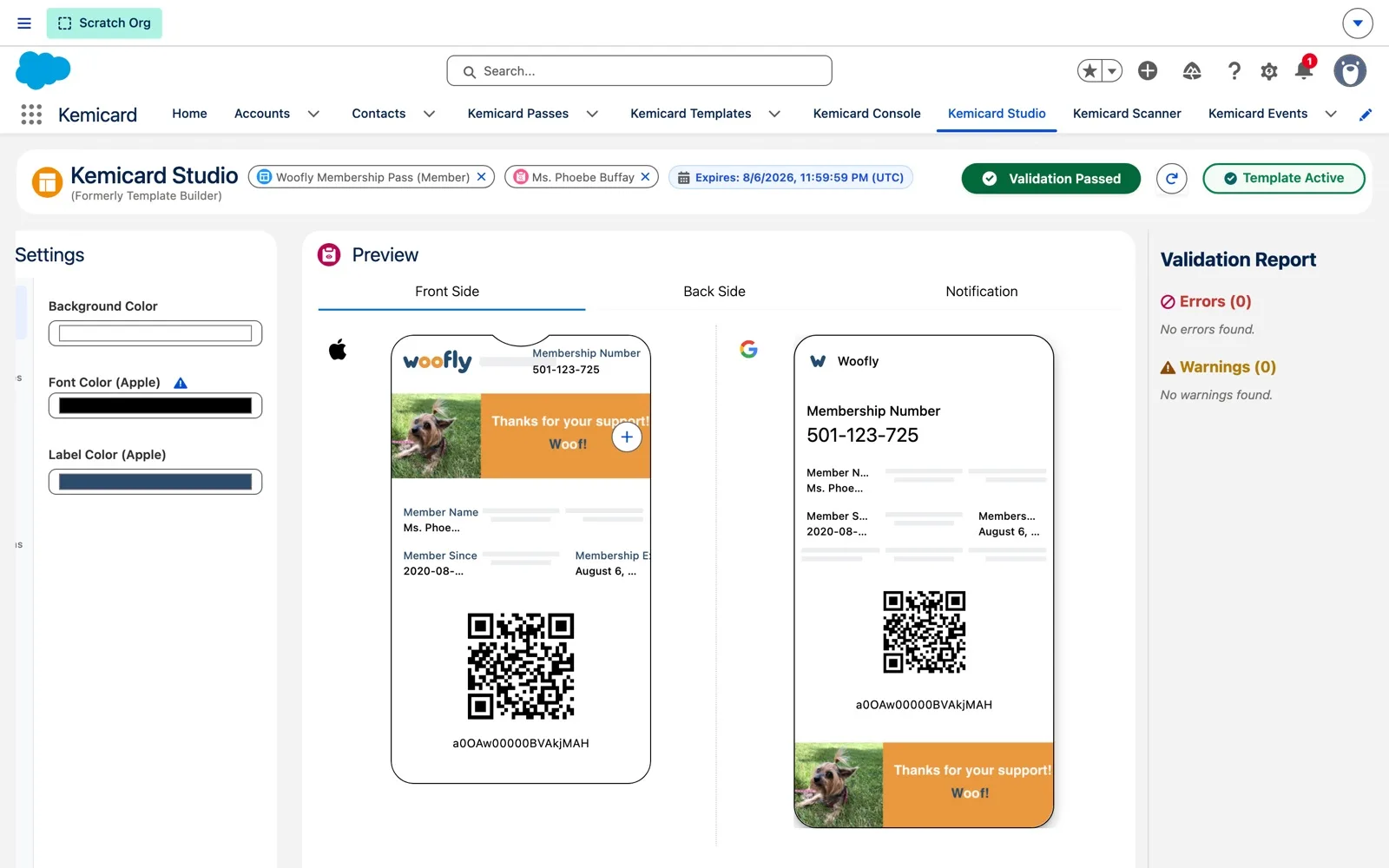
Studio also has two save buttons now: Save Draft keeps you in Studio without activating the template, and Save & Close validates, saves and returns you to the record. Validation Report guide.
3. Pass dates you can see
Customers told us passes were moving to the Expired section without anyone realizing an expiry date was set. Studio now shows the expiry date in its header, and Settings › Dates lists the Expiry date, the Relevant date and the Configuration they come from.
Manage Dates overrides either date with a fixed date and time for a template, which suits events, camps and seasons. The relevant date applies to Apple Wallet only and decides when a pass appears on the lock screen, and Kemicard won't apply an expiration date that falls before it.
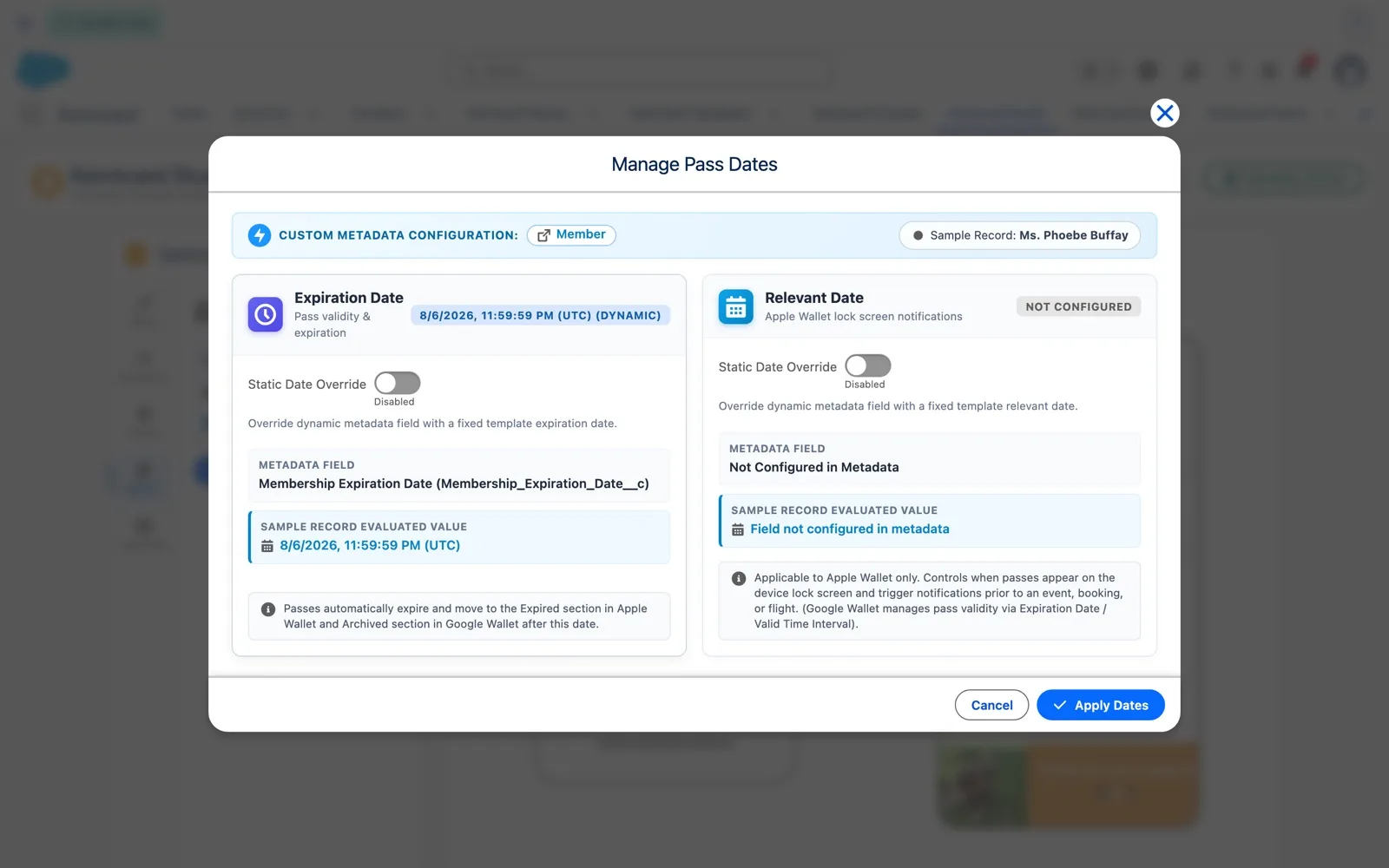
Pass dates guide, with a four-minute demo.
4. Tappable links on Google passes, and plain text on Apple
In Field Selection, the back of a Google pass now has a Links & Actions section: add a link field, give it a label, use a static value or a field from the record, and choose Url, Phone or Email. Google Wallet shows it as a tappable link.
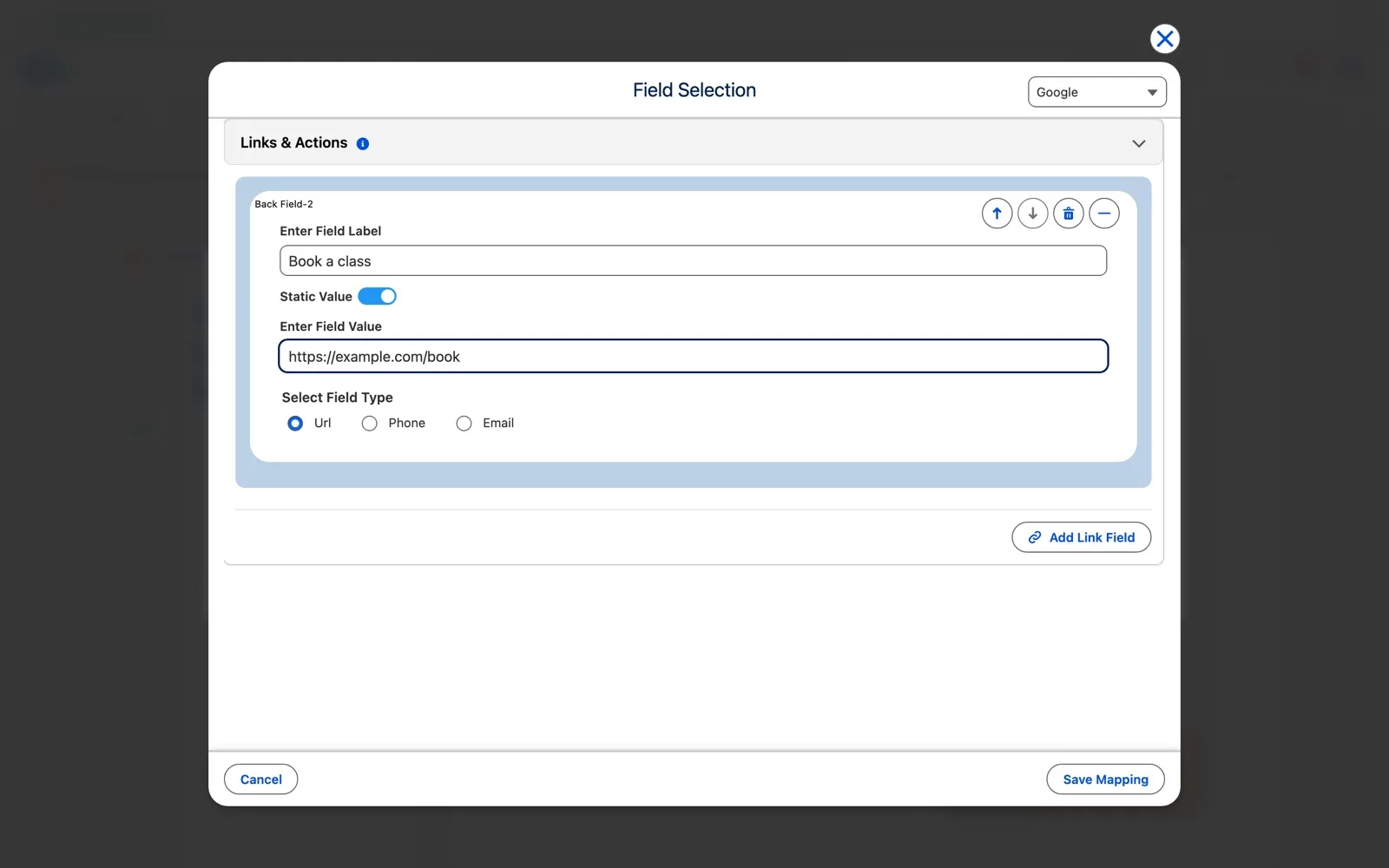
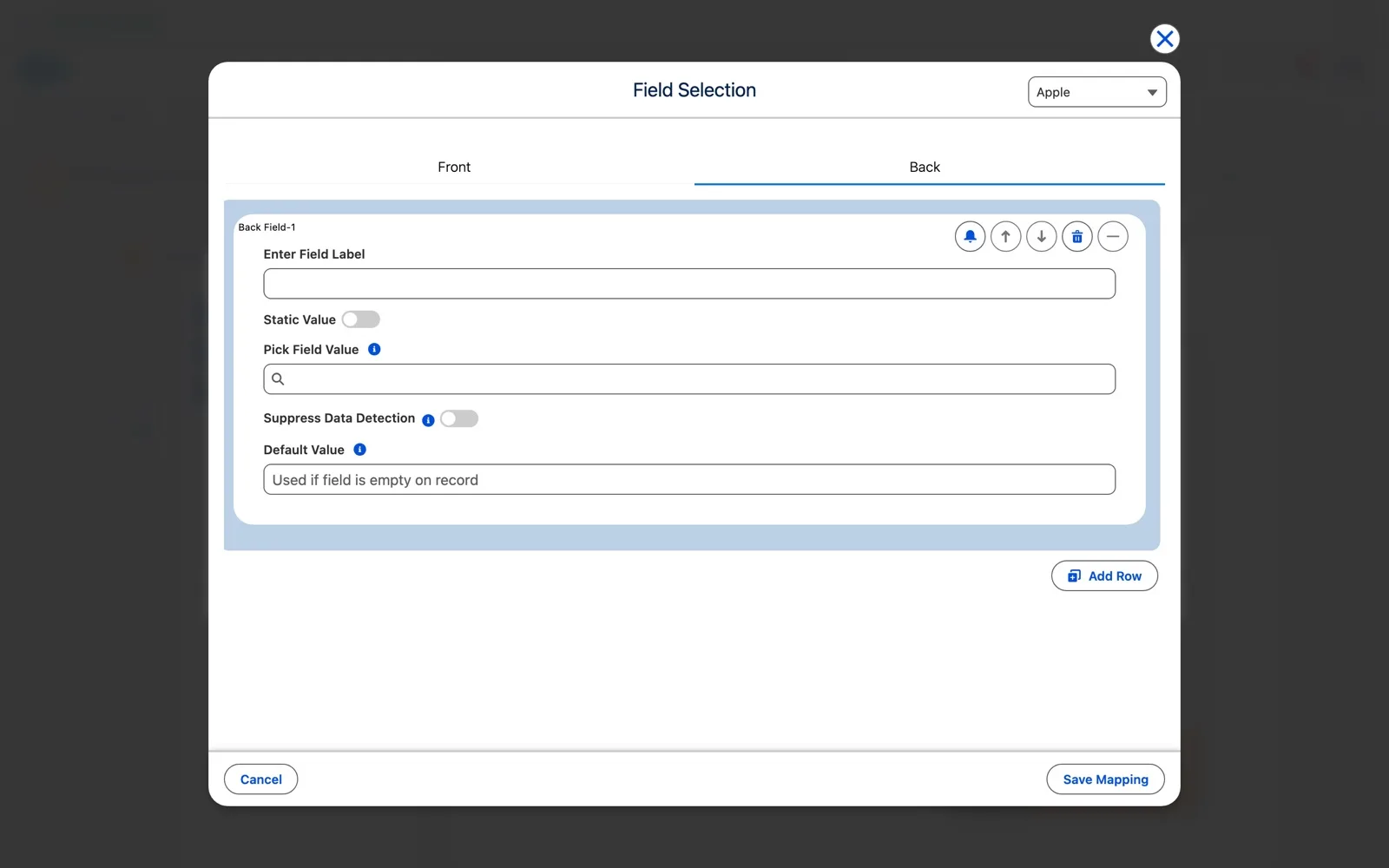
On Apple passes, Wallet automatically turns links, phone numbers and addresses on the back into tappable items. Turn on Suppress Data Detection for a back field to keep its text plain.
5. More Google Wallet barcode formats
Google Wallet passes using CODABAR, EAN_8, EAN_13 and ITF_14 barcodes now generate correctly. When you pick one of these formats, Studio explains what the barcode value must contain and checks your sample record's value, so you see a problem before you send.
6. For admins: peace of mind
- Connection health check. Kemicard checks its connection once a day. If authorization has expired, the Console shows an Action Required warning and the admin and integration user get an email, before members notice anything.
- Authorization and support in the Console. Request Credentials asks our team for the named-credential details, and Contact Support opens a ticket form without leaving Salesforce.
- Simpler permissions. Generating passes no longer needs View Setup and Configuration, and users without access see a clear message instead of an error.
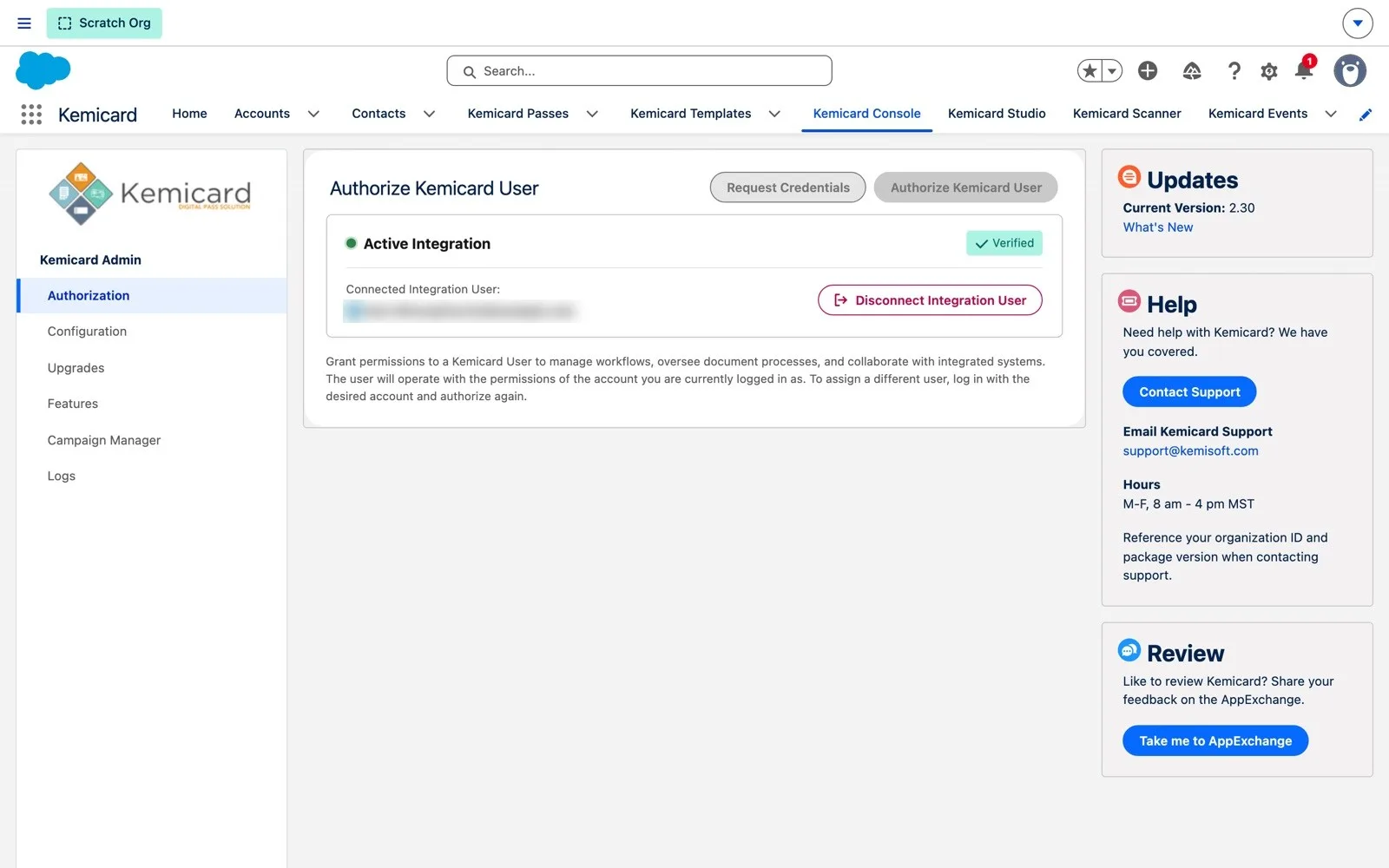
After you upgrade
- Open Kemicard Console › Upgrades and run any listed steps. They schedule the daily connection check and prepare the Kemicard Connect scheduler.
- Check that Console › Connect Scheduler shows Active.
- Give anyone who will run Connects the Kemicard Digital Pass User and Kemicard Connect permission sets. Existing Campaign Manager assignments carry over.
The full list of fixes, admin notes and permission set changes is in the 2.30 release notes. The previous release, v2.29, added rotating barcodes and pass sharing controls.
Explore Kemicard
Product & solutions
See Kemicard Connect on Your Own Data
Book a demo, or install from the AppExchange and try 2.30 in your sandbox.
 Start Free Trial