Kemicard Studio checks every pass template for anything Apple Wallet or Google Wallet would reject, and tells you exactly what to fix, before a single pass goes out. New in Kemicard 2.30.
Watch the demo
Woofly Dog Daycare finds a missing logo, fixes it, catches a barcode that wouldn't scan, and activates the template.
Read every on-screen caption (21)
How validation works
Studio runs the checks when you open a template and whenever you click refresh. The result decides whether the template can be activated.
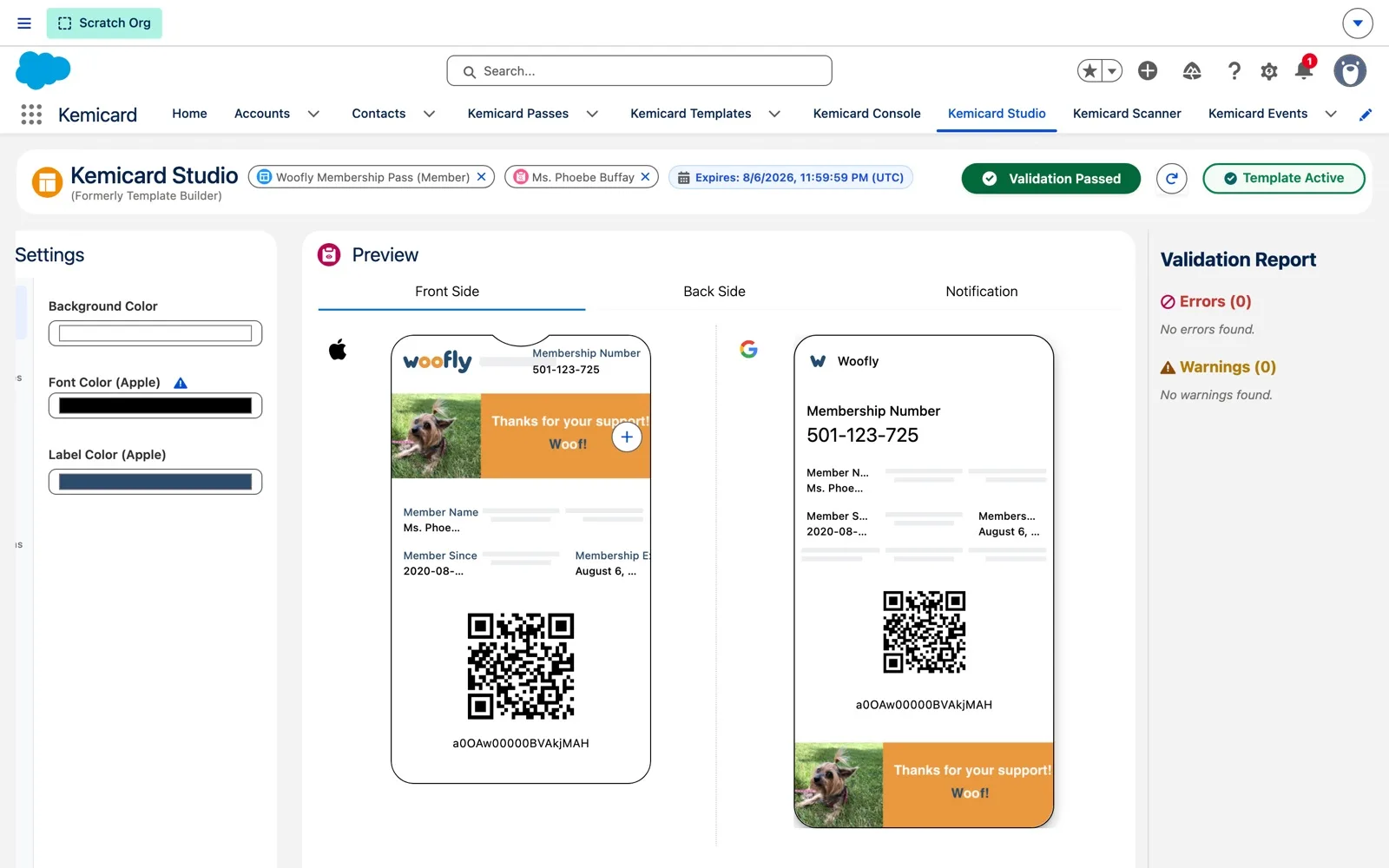
- Green — Validation Passed. No errors or warnings. Save & Close activates the template.
- Orange — Warnings. The template can be saved and activated, but something may not work on a phone, such as a barcode that won't scan.
- Red — Errors. Something Apple Wallet or Google Wallet requires is missing or invalid. The template stays inactive until it's fixed.
- On the template record. The record page shows the latest result in a banner, so you can check a template without opening Studio.
Before you start
- A pass template. The demo uses Woofly Puppy Class Pass, a copy of the membership pass whose Google logo is missing.
- Images ready to upload: PNG for Apple, PNG or JPG for Google, each under 100 KB.
- Permissions: editing templates in Studio needs the Kemicard Template Configuration permission set (admins have it through Kemicard Digital Pass). Users without Studio access see “You do not have sufficient permissions to access Kemicard Studio…” with a prompt to contact their System Administrator.
Step 1 — Spot problems at a glance
- Open the template in Kemicard Studio.
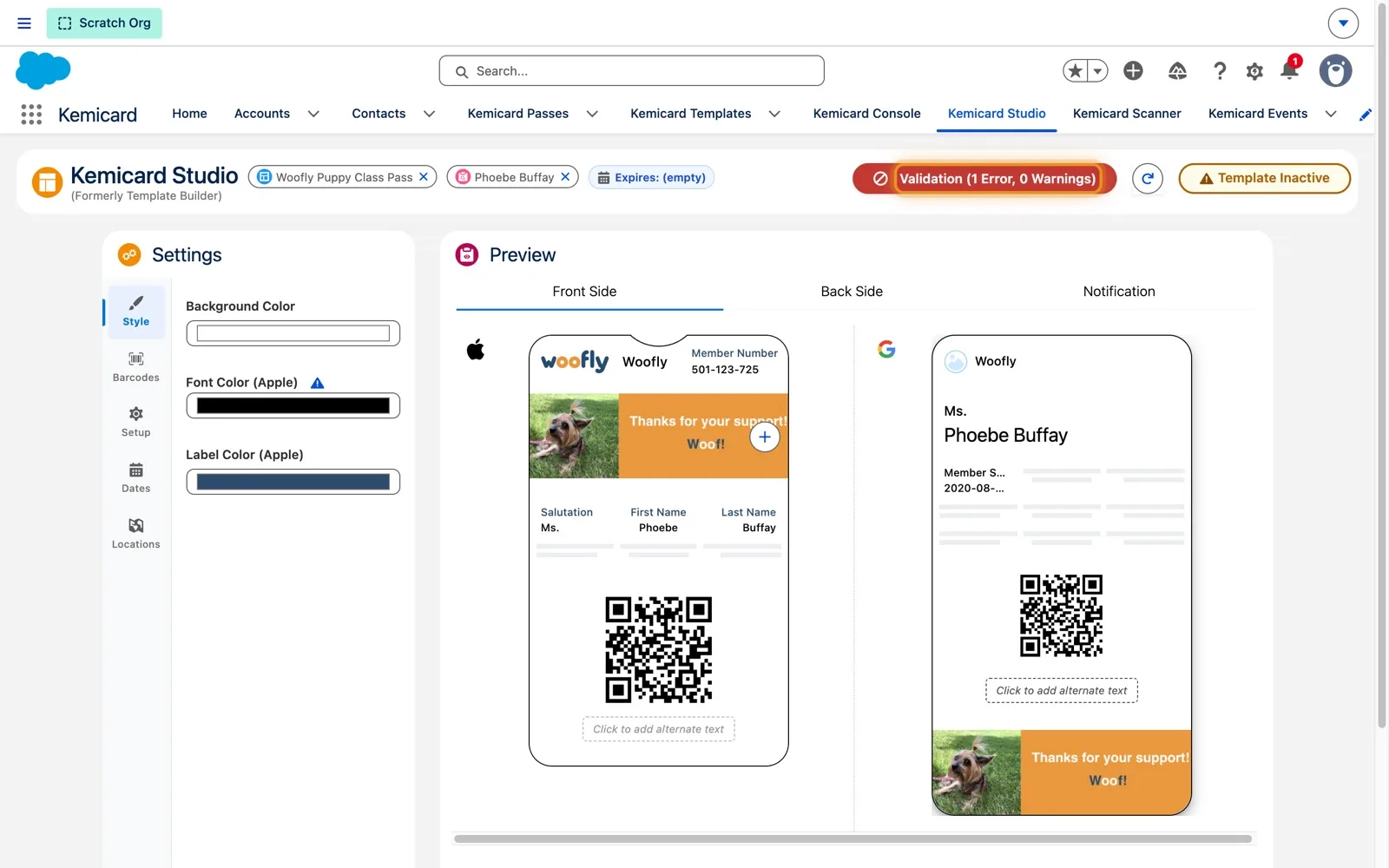
- Read the validation button in the header, next to the refresh button. It reads Validation Passed when the template is ready, or a count such as 1 Error, 0 Warnings.
- Check the badge beside it: Template Active or Template Inactive.
Problems are caught while you design, not when a member taps “Add to Wallet”. Inactive templates don't generate passes: a copied template starts inactive, and Studio activates it when it's saved without errors.
Step 2 — Read the Validation Report
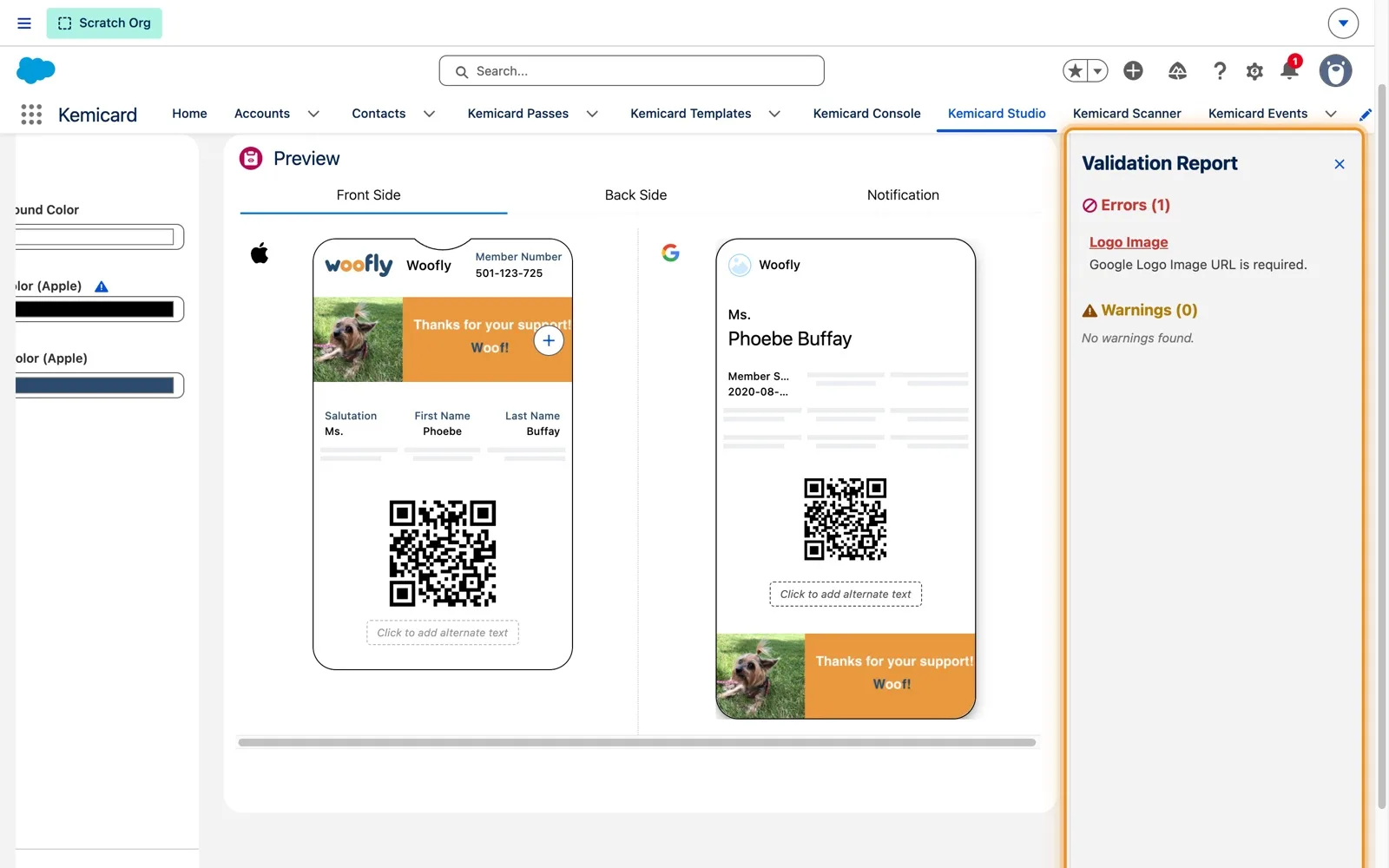
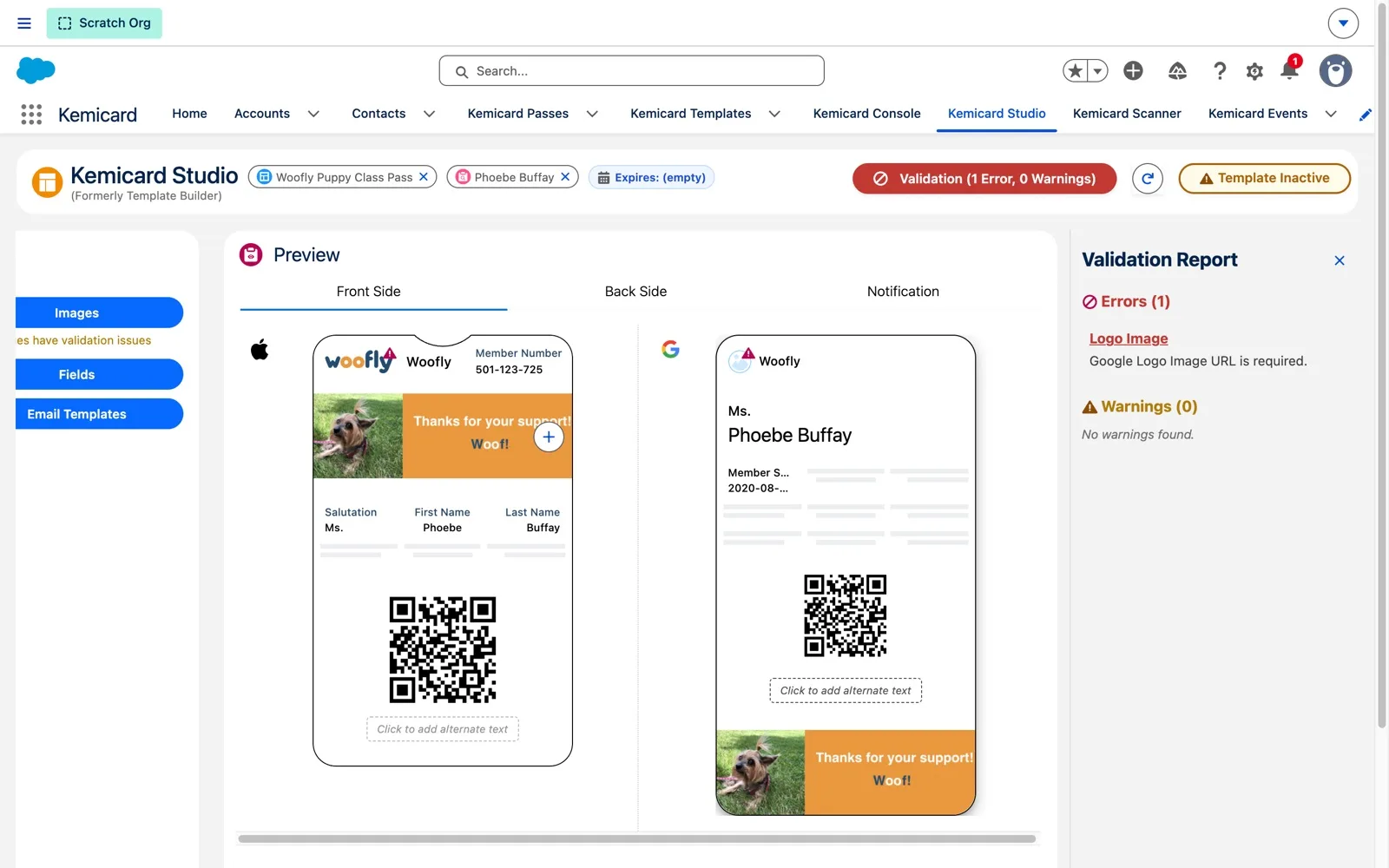
- Click the validation button to open the Validation Report beside the preview.
- Errors and warnings are listed separately. Each issue names the setting and is tagged Apple or Google; barcode checks are included.
- Click an issue to highlight it on the pass preview.
The reasons are in plain language. Here: Logo Image – Google Logo Image URL is required, because Google Wallet won't show a pass without a logo.
Step 3 — Saving with errors
- Click Save & Close while the error is still there.
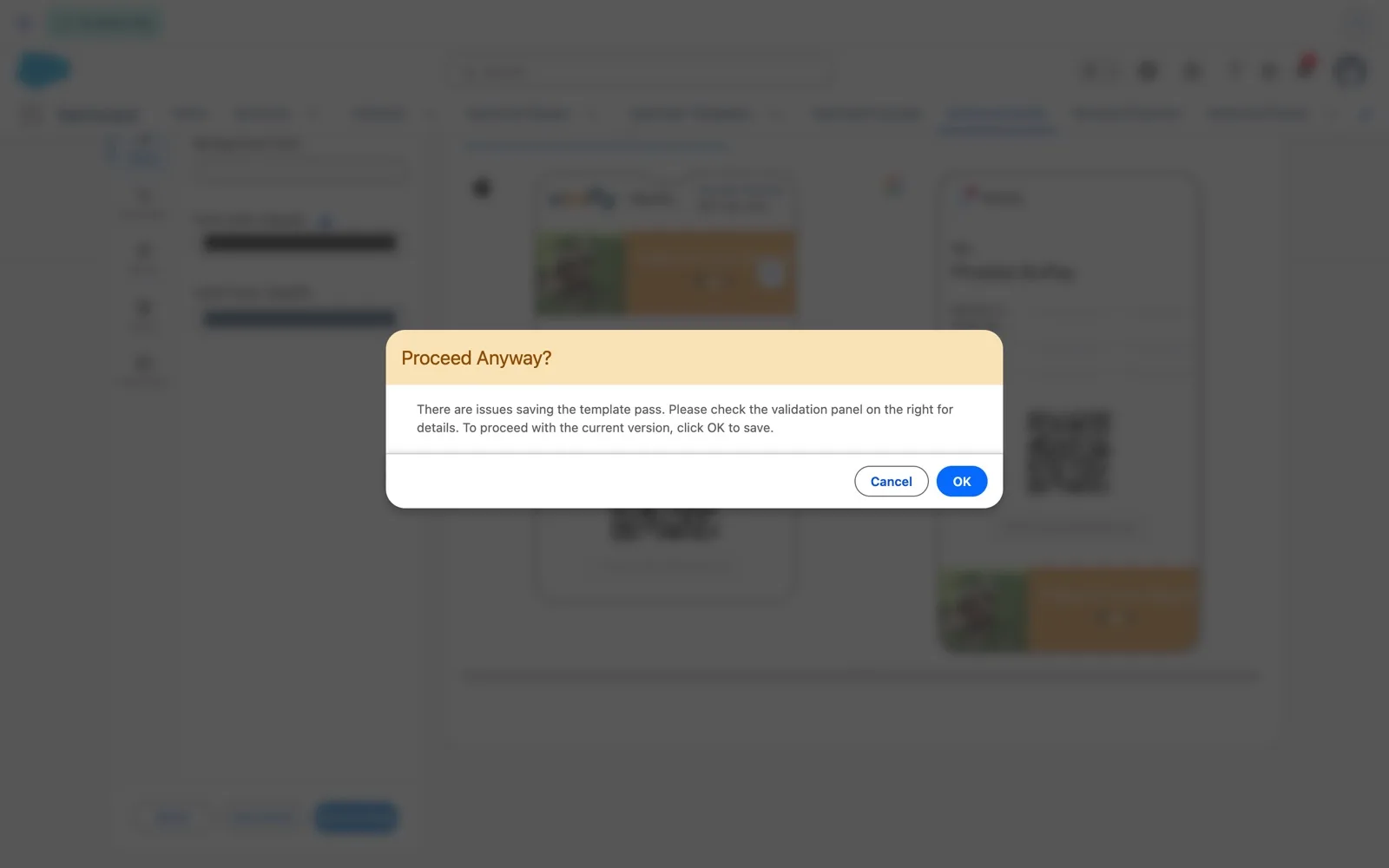
- Read the Proceed Anyway? message, and click Cancel to go back and fix the problem.
Your work is never lost: OK saves this version, but the template stays inactive, so no passes are generated from it. Cancel reopens the Validation Report with the problem in front of you.
Step 4 — Fix the error
- Open Settings › Setup › Images. Type: Logo. Untick Apple, since only the Google logo is missing.
- Upload the logo, click Done, then Upload & Preview Passes.
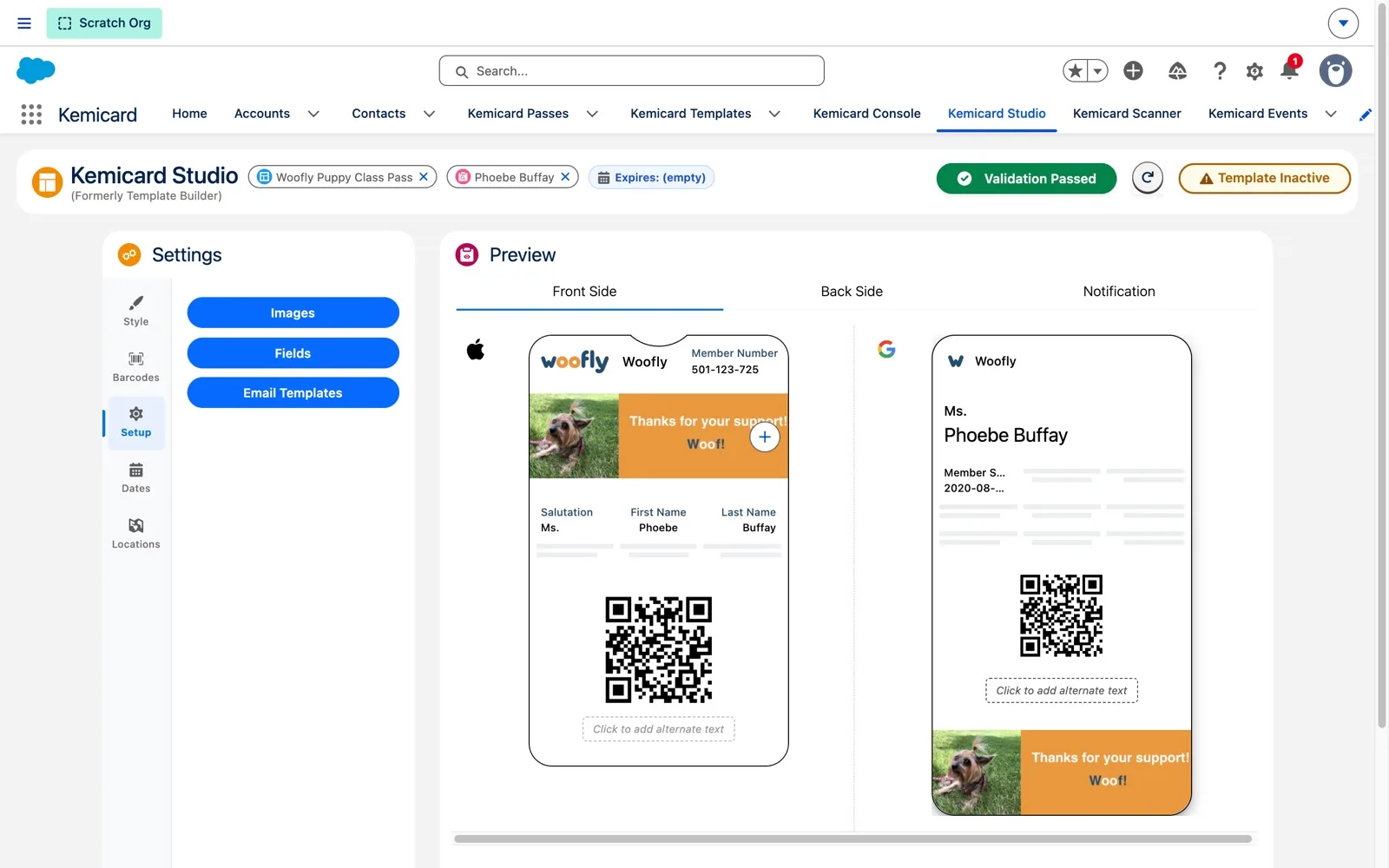
- Click the refresh button next to the validation button.
The System boxes choose which wallet gets the image, so the Apple pass keeps its own logo. Refresh runs every check again, and the button turns green: Validation Passed.
Step 5 — Warnings
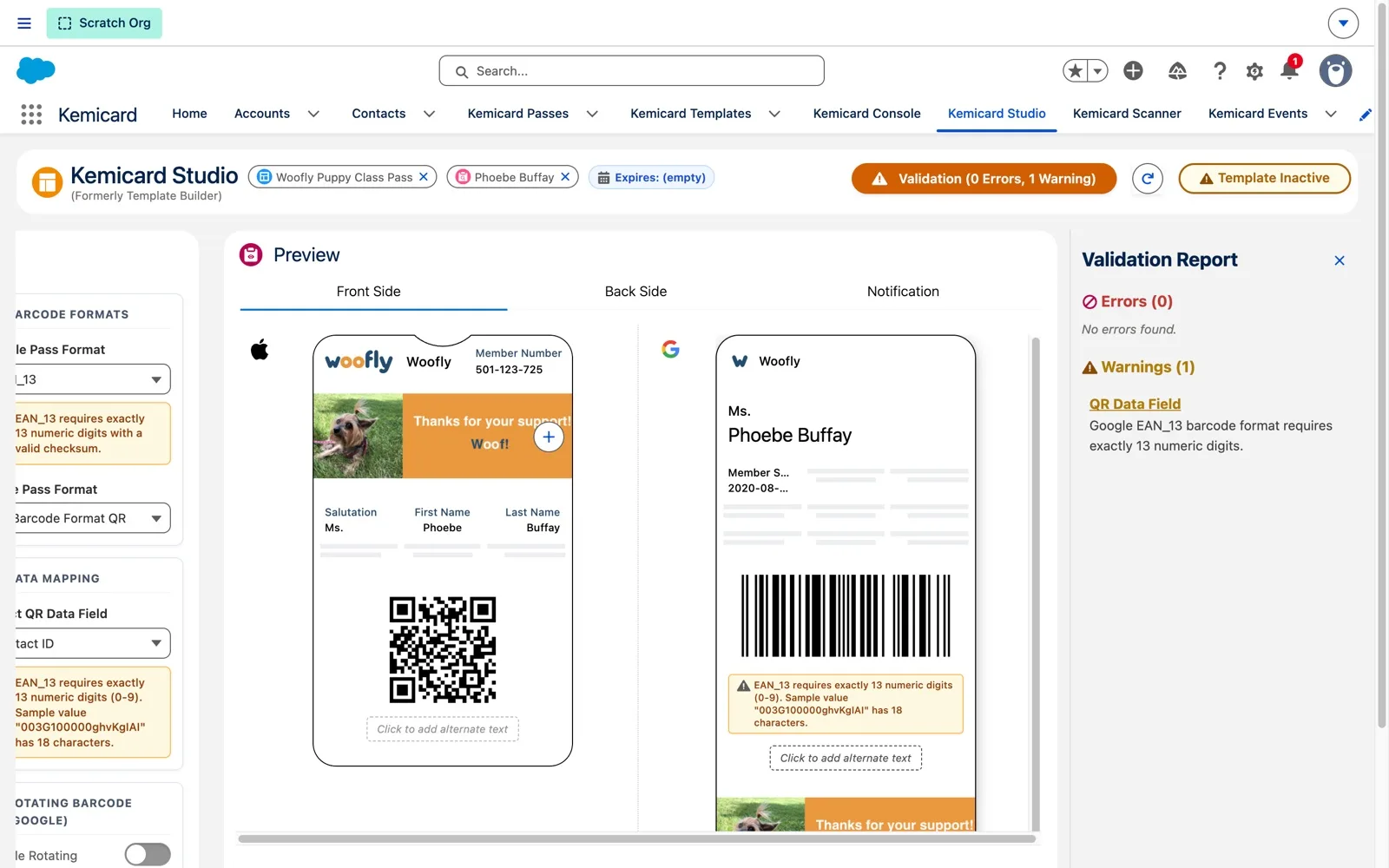
- In Settings › Barcodes, set Google Pass Format to EAN_13.
- Read the hints under the format and the data field, and the warning on the preview.
- Refresh validation: the button turns orange with 1 Warning. Switch back to QR_Code and refresh again.
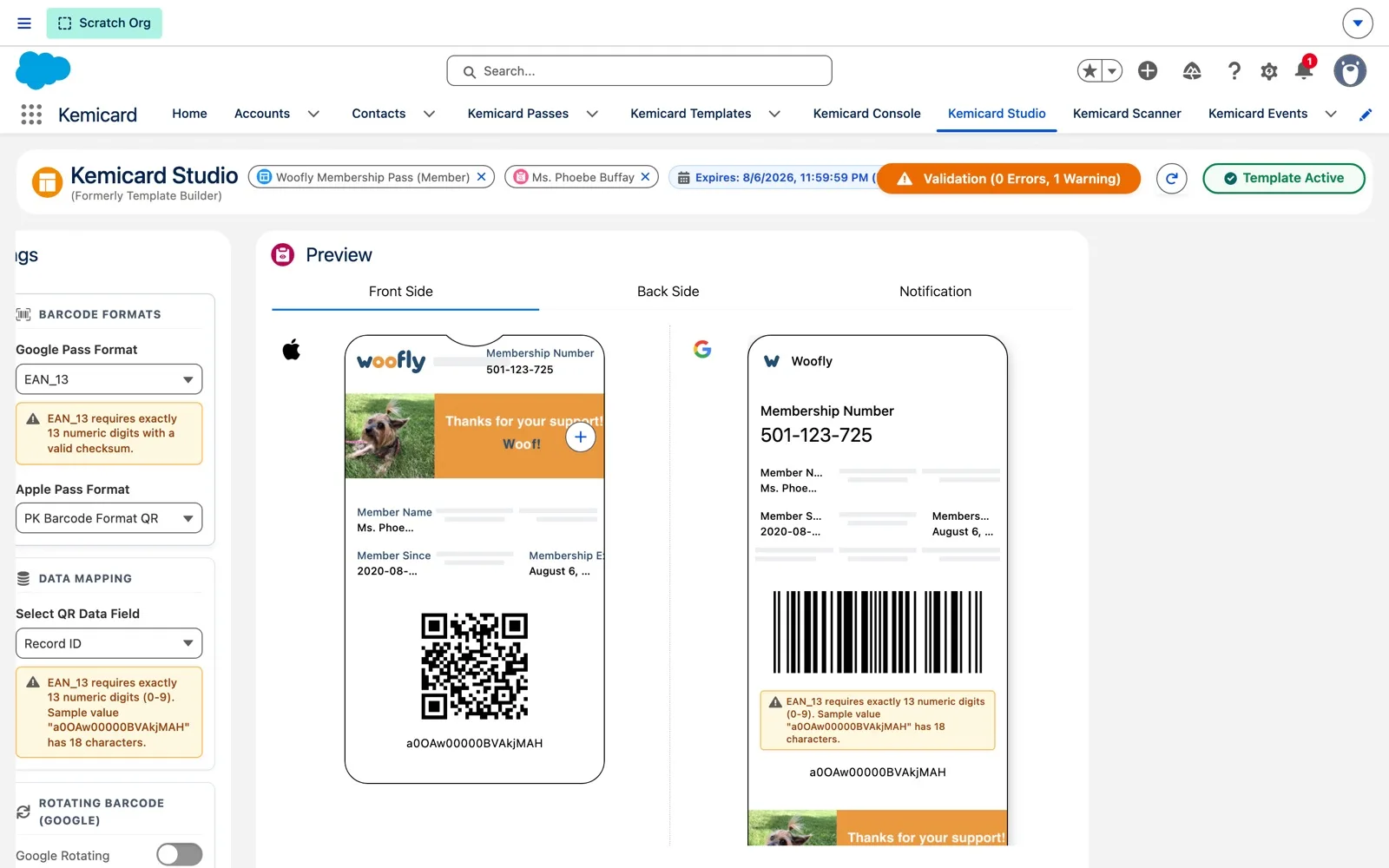
EAN-13 holds exactly 13 digits, and the barcode value here is the Contact ID, 18 letters and numbers, so scanners couldn't read it. A warning doesn't block activation, but members would get a barcode that doesn't scan, so fix warnings before sending.
Google Wallet barcode formats
Since 2.30, Google Wallet passes using CODABAR, EAN_8, EAN_13 and ITF_14 generate correctly. When you pick one of these formats, Studio explains what the value must contain and checks your sample record's value, so you see a problem before you send.
| Format | The barcode value must contain |
|---|---|
| CODABAR | Digits and the characters - $ : / . +, with optional A–D start and stop characters |
| EAN_8 | 8 digits, with a valid checksum |
| EAN_13 | 13 digits, with a valid checksum |
| ITF_14 | 14 digits, with a valid checksum |
Retail formats such as EAN and UPC hold only digits, so use a QR code for IDs that contain letters.
Step 6 — Save and activate
- Click Save & Close.
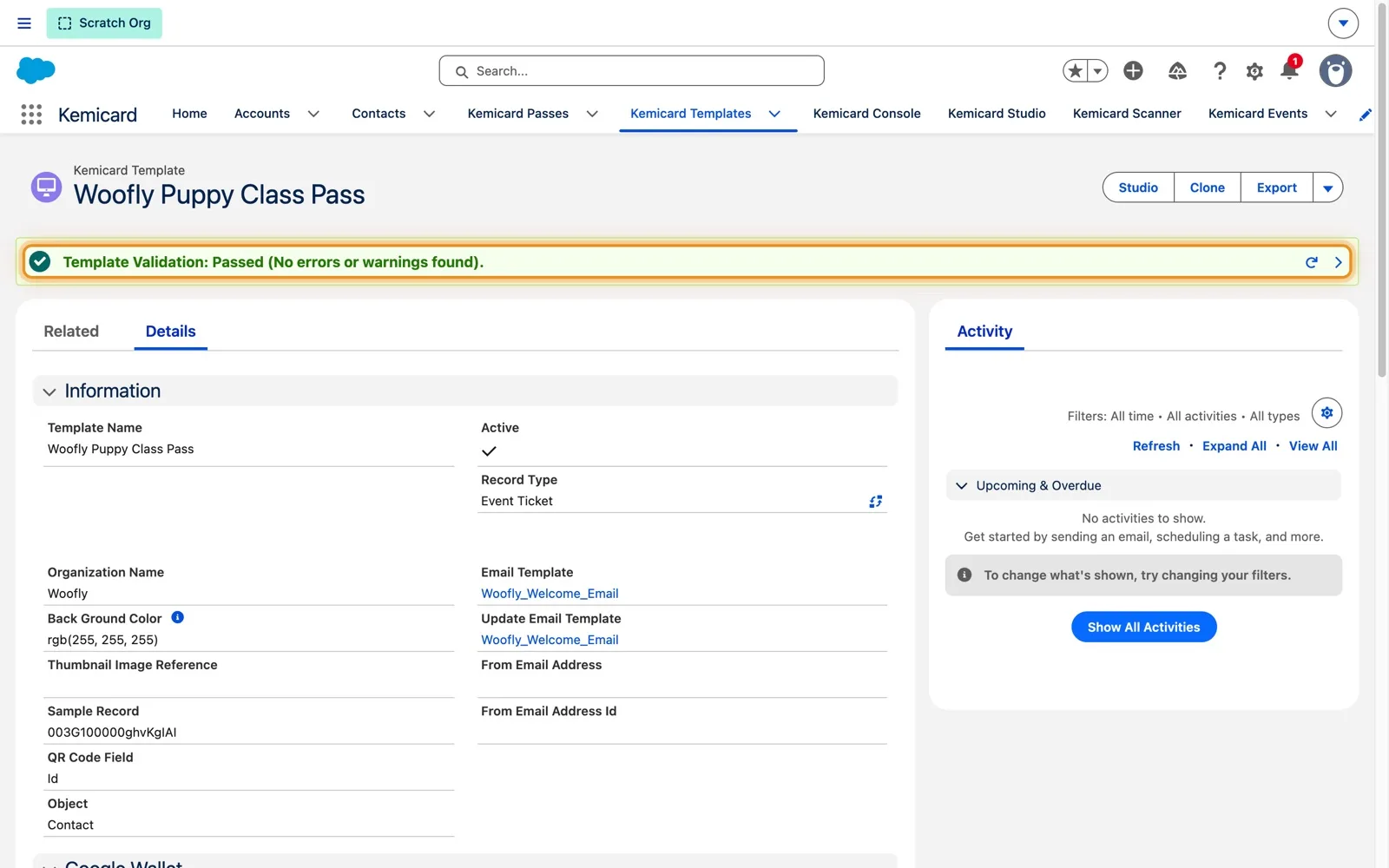
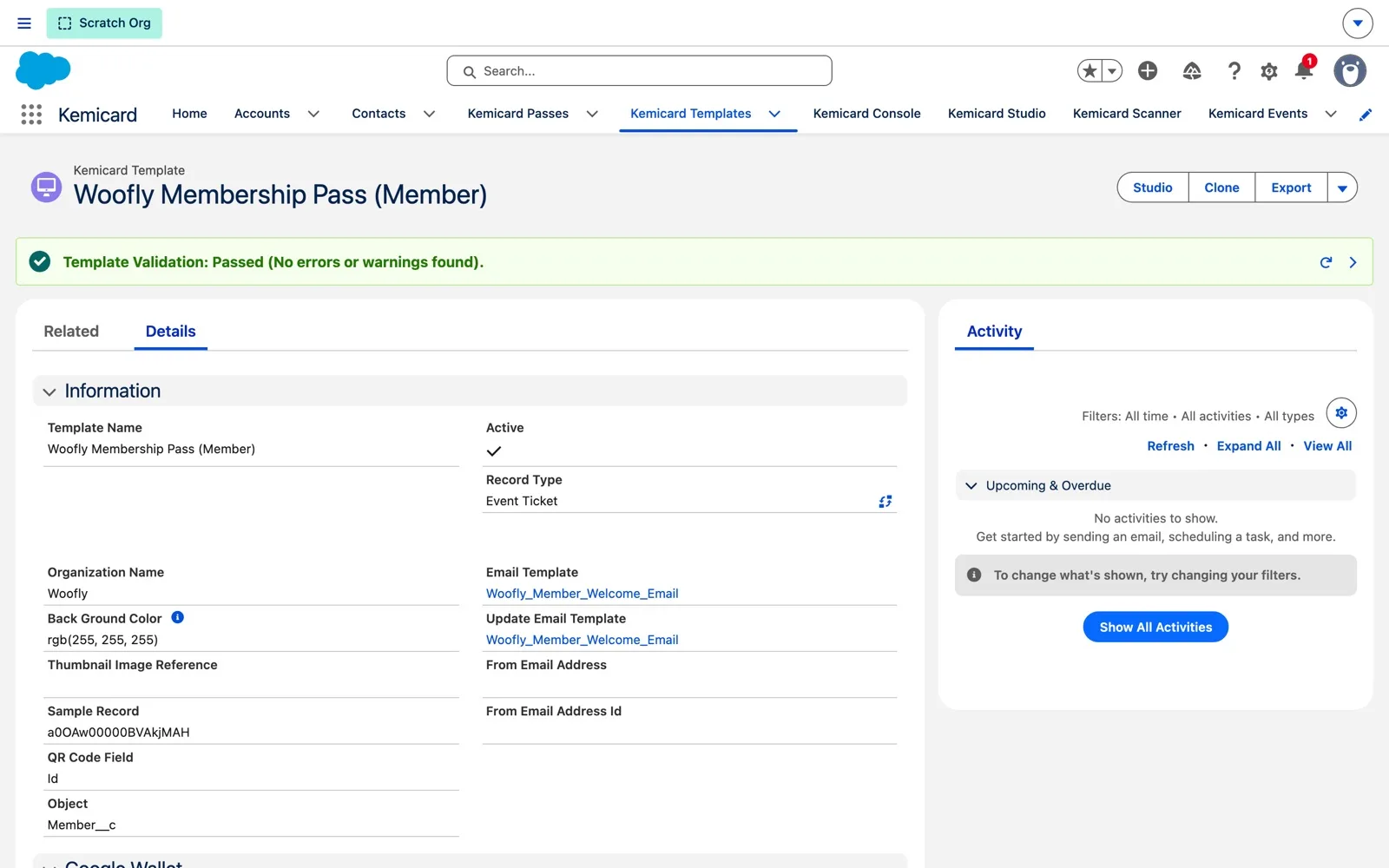
- On the template record, read the Template Validation banner and check Active.
Two ways to save. Save Draft saves your work and keeps you in Studio, but marks the template inactive until you next Save & Close, so don't use it on a template that is sending passes. Save & Close validates, saves, activates the template and opens its record. The record banner's refresh button runs the checks again and its arrow opens the details.
What Studio checks
| Area | Errors | Warnings |
|---|---|---|
| Configuration | Configuration missing or inactive; object not found | — |
| Apple images | Wallet resources and notification icon required; thumbnail required where the layout uses one | — |
| Google images | Logo and detail image required, as public http(s) URLs | Hero image missing or not a valid URL |
| Fields | At least one Apple primary, secondary or auxiliary field; a Google header and title; mapped fields must exist on the object | — |
| Barcodes | Barcode data field required when a format is set; the field must exist | EAN_8, EAN_13 and UPC_A values must have the right number of digits |
| Rotating barcode | Period and digit length within the allowed range | — |
| — | Email template or org-wide email address not found or inactive |
Importing templates
In Template Workbench, after an import that produced warnings, click Email Warnings to email the full list to yourself. No email is sent when there are no warnings.
Tips
- Refresh after every change to images, fields or barcodes, so the report reflects what you just did.
- Pick a realistic sample record. Barcode checks use its values, so a blank or unusual sample can hide or cause warnings.
- Use Save Draft only while a template is still being designed.
- Check the record banner before sending a large batch, for example with Kemicard Connect.
Need help? Email supportkemisoft.com (M–F, 8 am – 4 pm MST) with your Salesforce organization ID and Kemicard package version. More on Studio in the Kemicard Studio guide and pass dates.
Sources: Kemicard 2.30 release notes and the Studio Validation Report product demo (Kemicard 2.30, sample data). Google's BarcodeType reference.