Design branded Apple Wallet and Google Wallet passes without code: layout, fields, images, barcodes, expiry rules, and template lifecycle management across orgs. Includes Kemicard Studio barcode settings and format guidance.
New in Kemicard 2.30
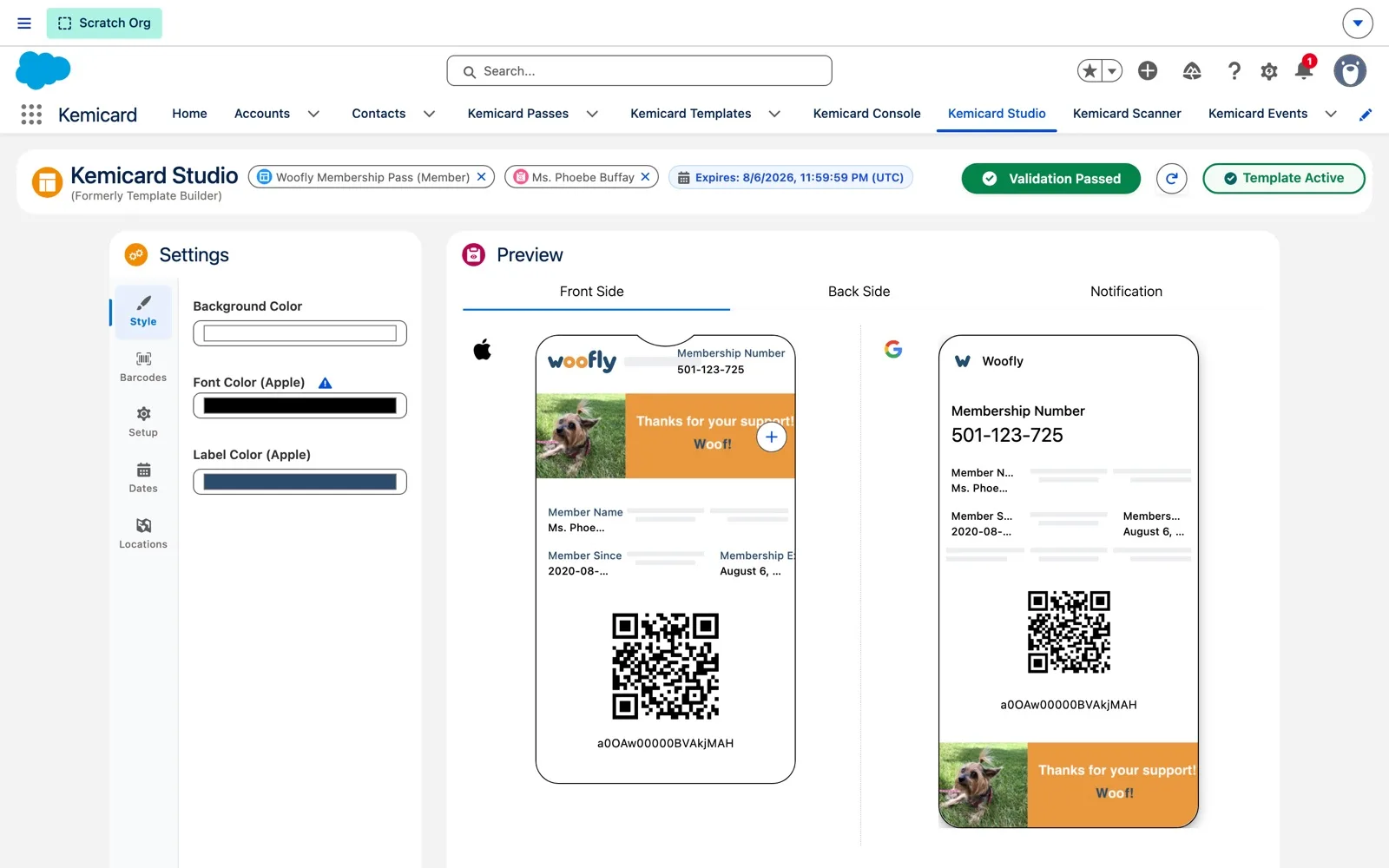
Studio (formerly Template Builder) makes it harder to send a pass that is set up wrong:
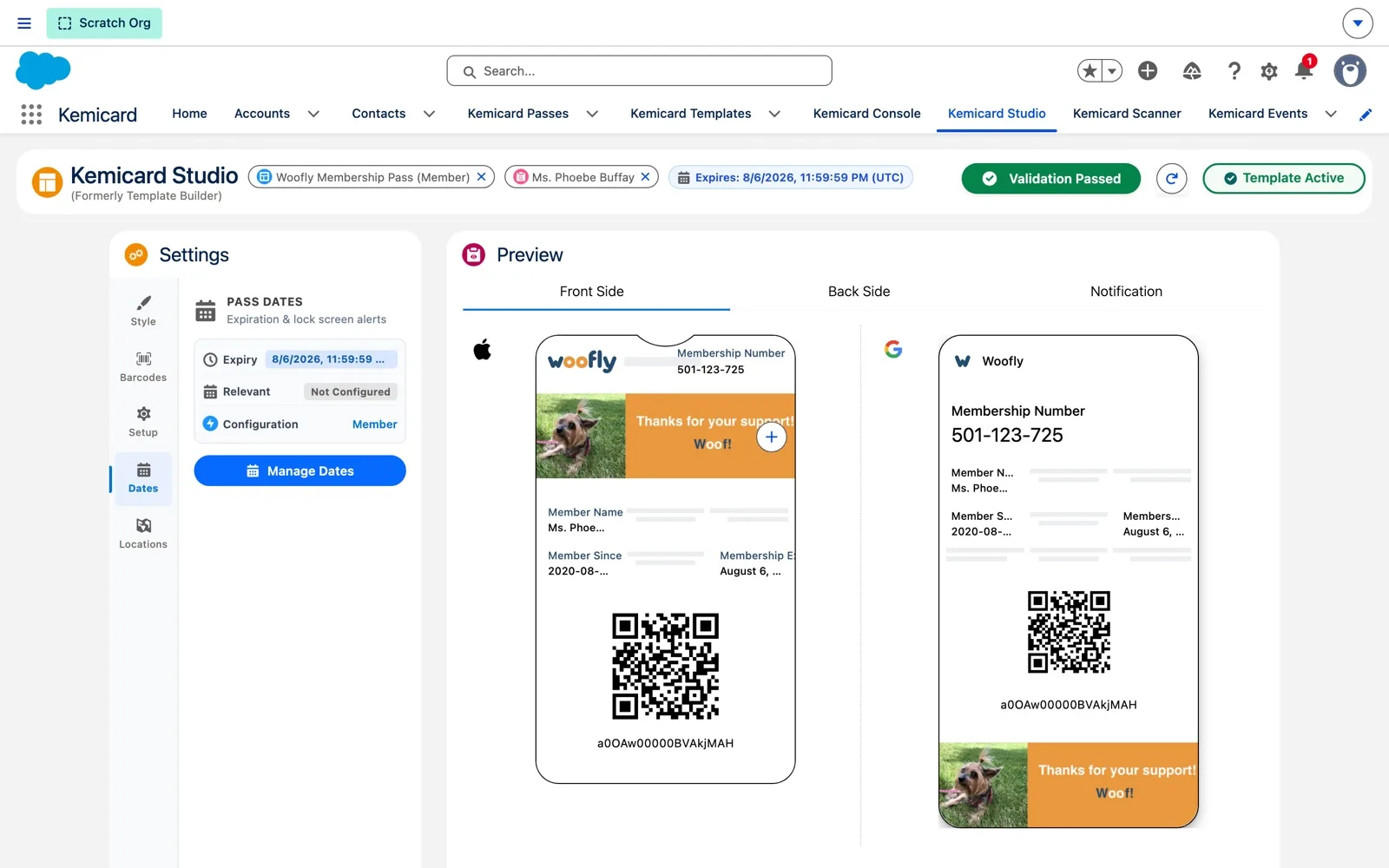
- Validation Report. A header button reads Validation Passed or shows a count such as 0 Errors, 1 Warning; click it to see the issues beside the live preview, and use the refresh button to run the checks again. The template record shows the same result in a banner. Validation guide and demo.
- Two ways to save. Save Draft saves your work and keeps you in Studio, without activating the template (it stays inactive until the next Save & Close). Save & Close validates, saves, activates the template if it passes, and returns you to the template record.
- Pass dates you can see. The expiry date sits in the header; Settings › Dates and Manage Dates show and override it. Pass dates guide and demo.
- More Google barcode formats, links on Google passes, Apple data detection, and better text formatting — details in the sections below.
- Clear access messages. Users without Studio access see “You do not have sufficient permissions to access Kemicard Studio…” and are told to contact their System Administrator. Editing templates needs the Kemicard Template Configuration permission set.
- Template Workbench. After an import that produced warnings, click Email Warnings to email the full list to yourself. No email is sent when there are no warnings.
Builder basics
- Build in the Kemicard Templates tab; sample records drive the live preview and the associated object is displayed on each template.
- Display Header Field is required on every template.
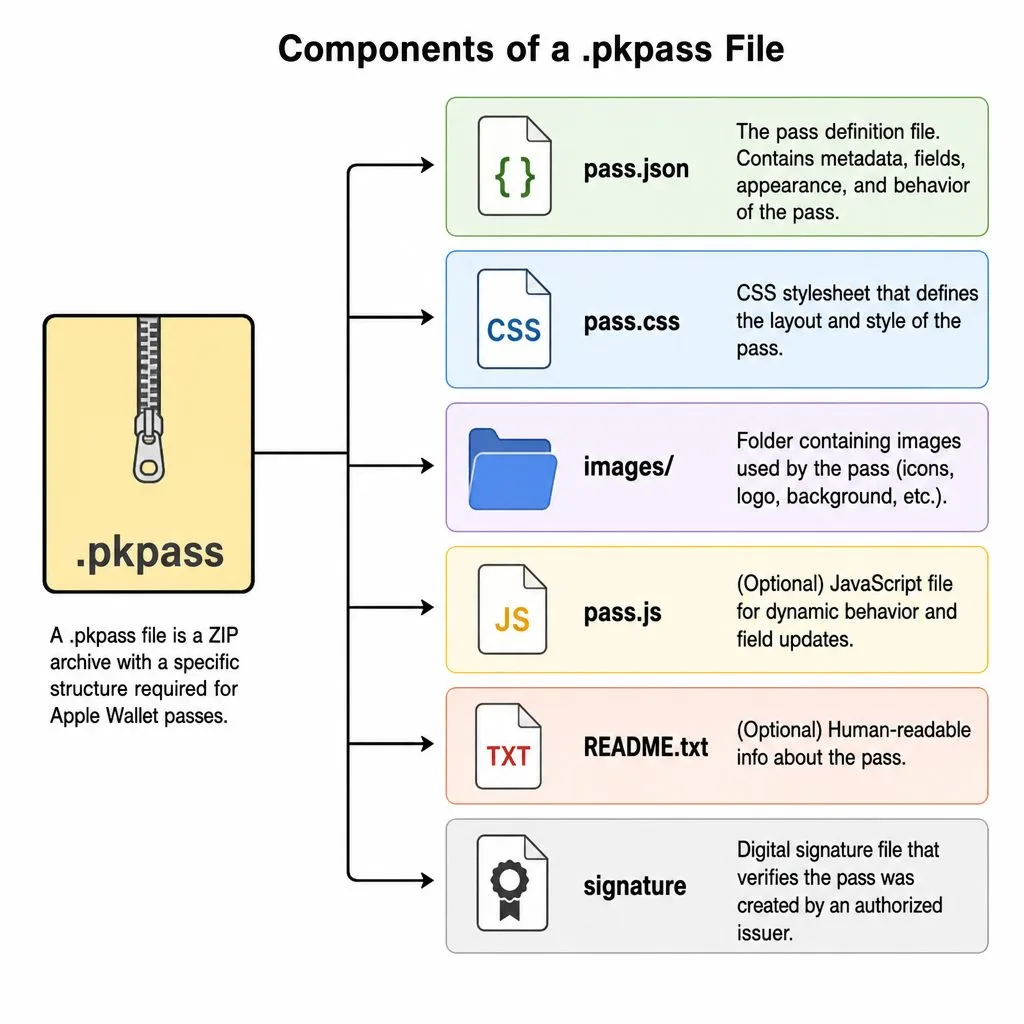
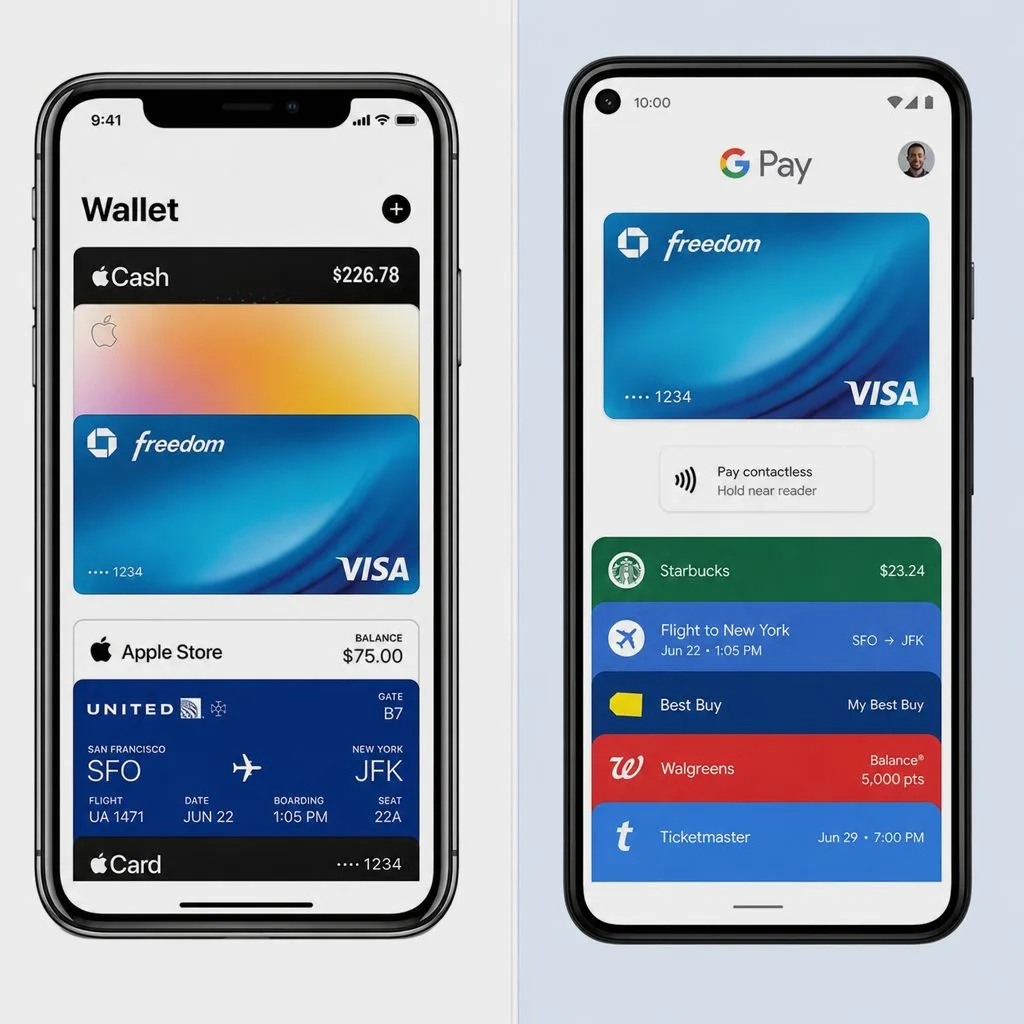
- One template renders to both wallets — Apple as a signed .pkpass, Google as a JWT-signed object.
- Template count per org is a licensing control; contact support to raise it.
Multiple templates & tier switching
Create one template per membership level, event type, or campaign. A pass switches templates in real time when the assignment on the record changes — the standard pattern for tier upgrades, seasonal designs, and error states:
Flow: WHEN Member_Track__c changes to "Premium"
→ Kemicard Switch Template → "Premium Member Card"- Clone — duplicate a template for per-tier variants; change images and colors only.
- Import/export — the standard path for promoting templates from sandbox to production, or across business units.
Images & dynamic thumbnails
- Dynamic thumbnails — per-record images (member photo, tier art) with API control; supported on Apple and Google Wallet (Google Wallet rendering requires Kemicard v2.28 or later).
- Strip image refresh — update the template strip image to promote a sale; installed passes refresh automatically via a record-trigger flow.
- Private images on Google Wallet — serve member photos securely rather than from public URLs; set per template on the Google pass type. Since v2.29 there are two: Private Image shows the photo on a standard pass with no unlock prompt, and Secure Private Image requires the member to unlock the phone first. Both keep the image private to the holder — the difference is only the unlock step. Pick Private Image for ID badges and membership cards where speed at the door matters. Compare the types. For URL-based personal photos, consider privacy law before using publicly reachable links.
- Google image placement — image module placement affects rendering when secure images are enabled; compare before/after payloads if fields render oddly.
Back-of-pass fields
- Add rich back-of-card content with tappable links to payment, support, or scheduling pages.
- Google auto-detects from prefixes:
https://,tel:,mailto:. - Back-field content over 255 characters is validated by the builder.
- Rich text keeps its layout (2.30). The rich text editor keeps line breaks, tabs and spaces, so long back-of-pass text stays readable.
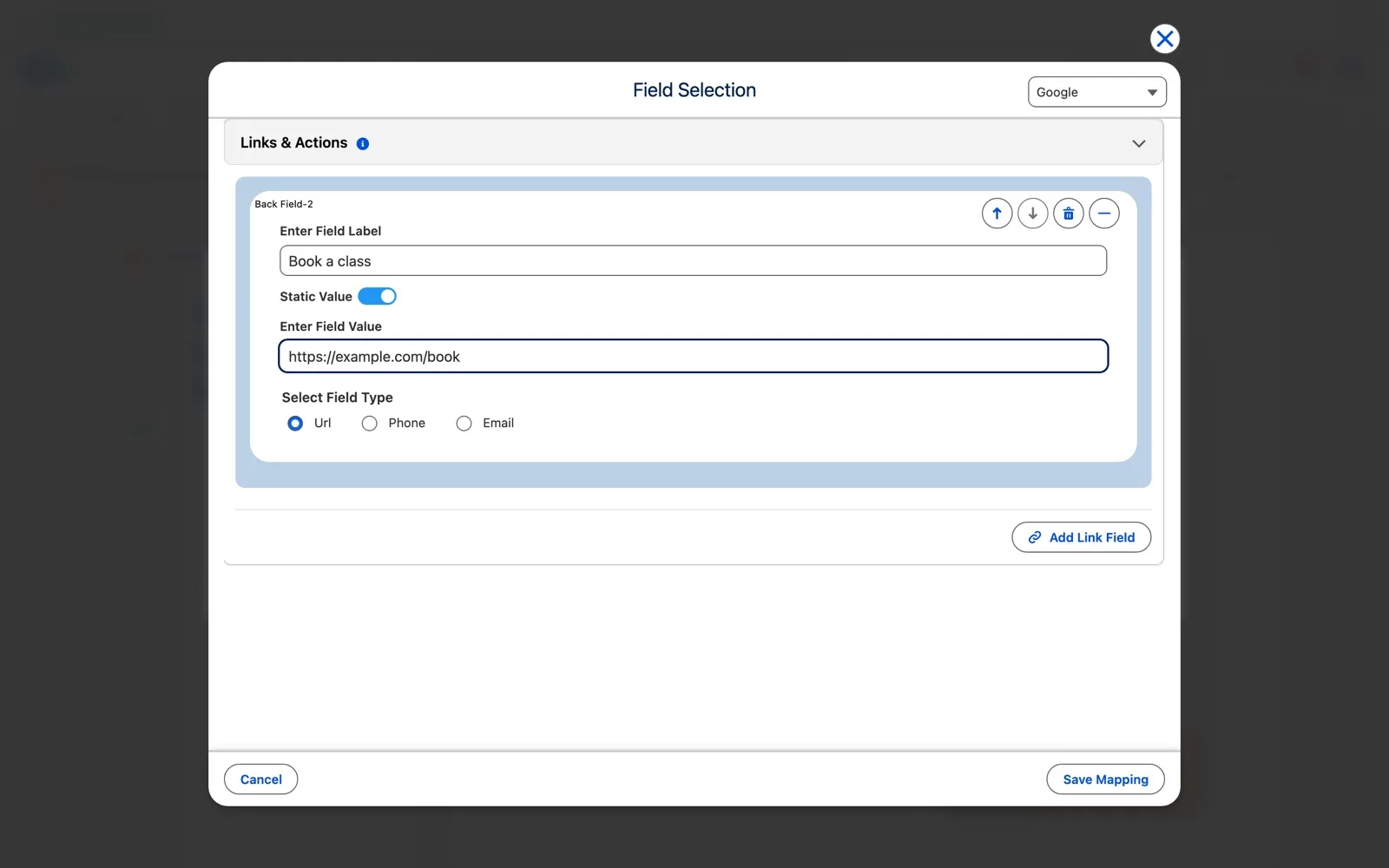
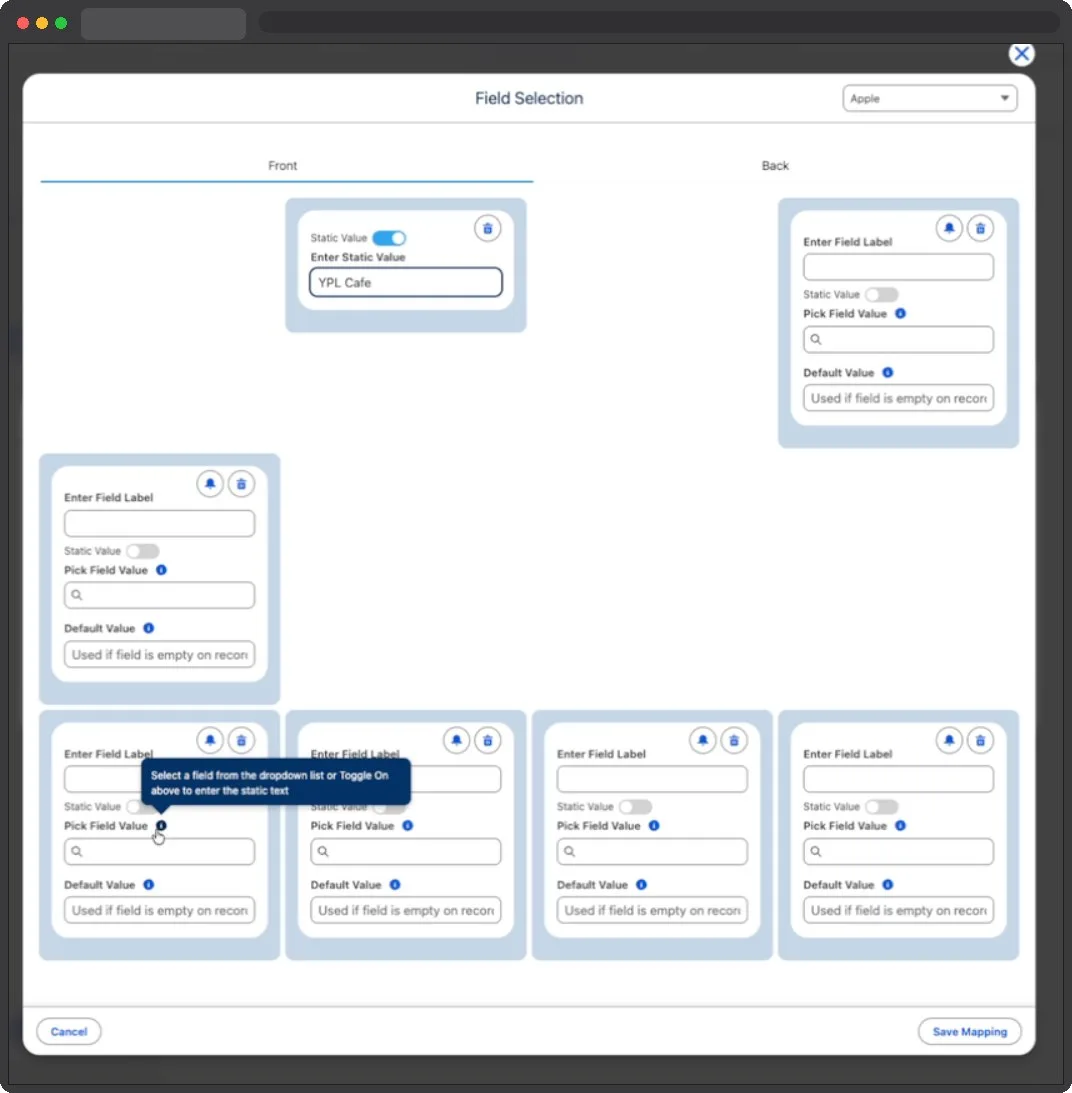
- Links & Actions on Google passes (2.30). In Field Selection, choose Google › Back › Links & Actions, click Add Link Field, enter a label, use a static value or a field from the record, and choose Url, Phone or Email. Google Wallet shows these as tappable links on the back of the pass.
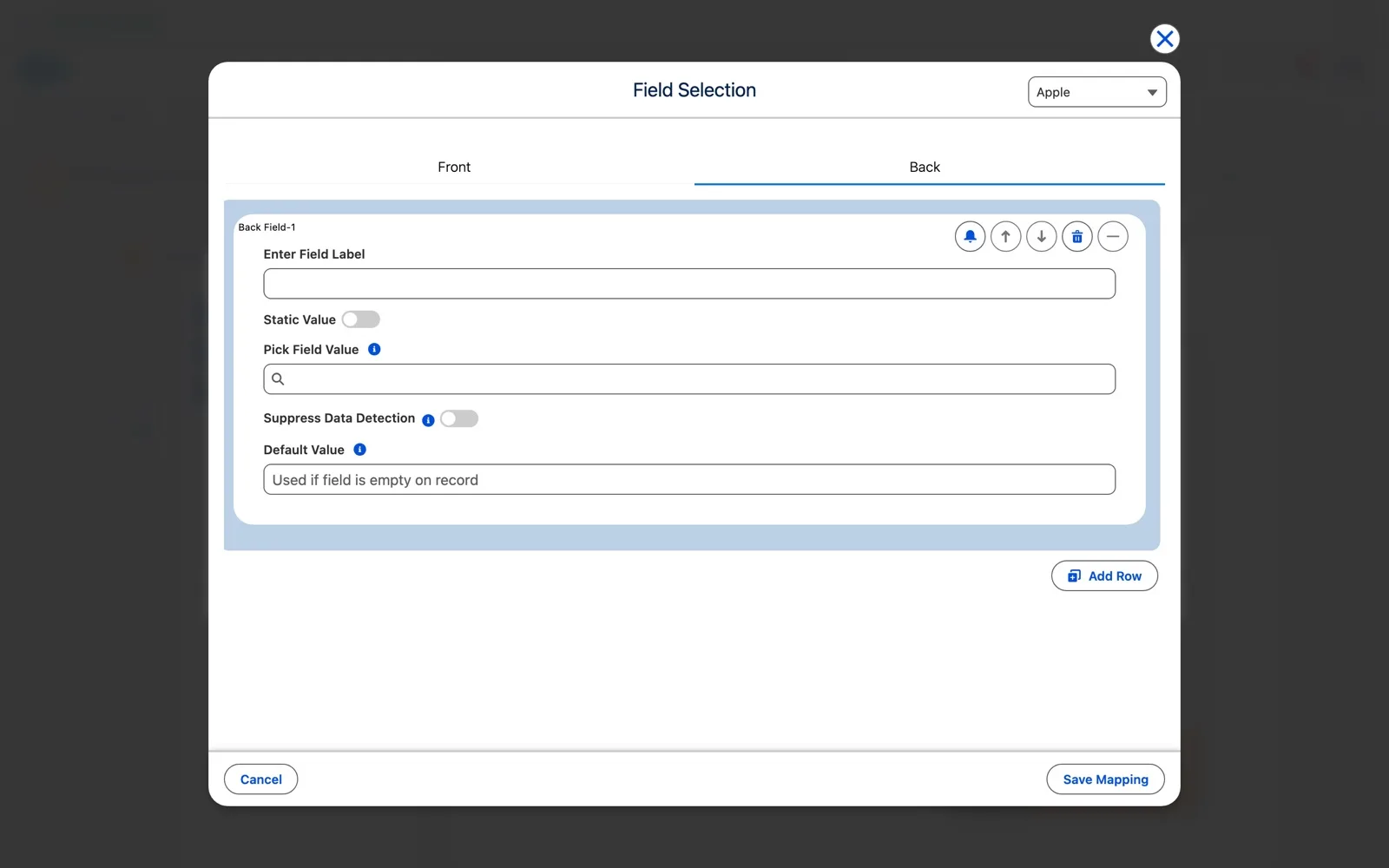
- Suppress Data Detection on Apple passes (2.30). Apple Wallet automatically turns links, phone numbers and addresses on the back of a pass into tappable items. Turn on Suppress Data Detection for a back field to keep its text plain.
Barcodes
- QR is the default recommendation — reliable on both platforms and with the Kemicard Scanner.
- PDF417 — use when you want a 1-D barcode look; scans reliably on Apple and Google passes.
- Code-128 is not recommended — it is not reliably recognized by common scanner libraries.
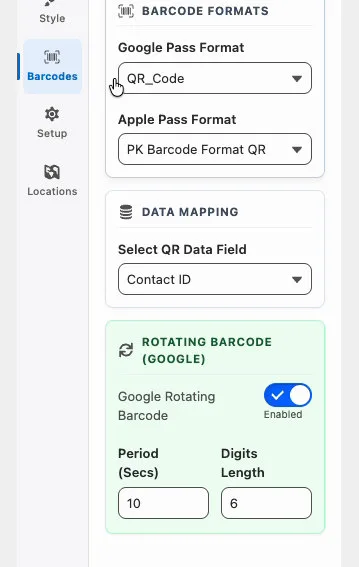
- CODABAR, EAN_8, EAN_13 and ITF_14 on Google Wallet (2.30) — passes using these formats now generate correctly. Studio explains what the value must contain when you pick one and checks your sample record's value; EAN and ITF formats hold only digits, so use QR for IDs with letters. Format rules.
- Rotating barcode (Google Wallet, v2.29) — the same Barcodes panel carries a Rotating Barcode (Google) card. Switch it on and the Google pass's QR refreshes on an interval you set (5–600 seconds, default 20) at a length you choose (6–8 digits, default 6), so a screenshot of the code stops working almost immediately. Google Wallet only; the Apple pass keeps its standard barcode. Full guide.
Pass sharing settings
From v2.29, whether a pass can travel to another wallet is a template setting, and Apple and Google are configured separately. Open the template in Studio, switch the Preview to Back Side, and click the share icon in the top-right corner of the Apple or Google card.
- Apple — one switch. Turning Allow Sharing off removes the Share button from the pass, though it does not block a pass forwarded another way from being installed.
- Google — four Kemicard sharing levels, from Fully Shareable through Single User (Multiple Devices) and Single User (Single Device) to Sharing Prohibited.
- Decide the Google level before you distribute. Google locks it as soon as any member has saved the pass, and it cannot be changed afterwards.
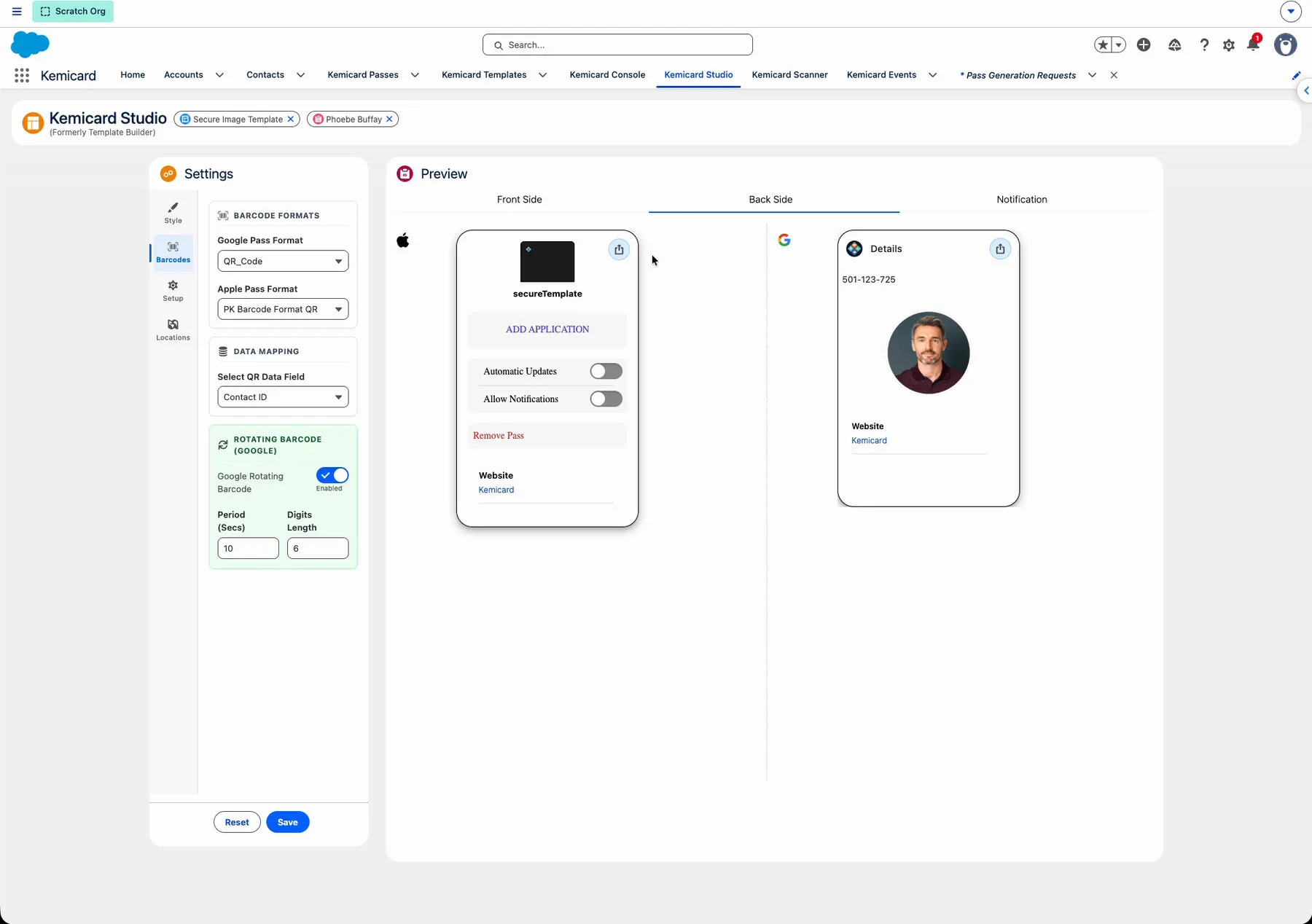
Level-by-level comparison and the underlying Google values: Advanced Google Wallet features.
Expiry & relevant dates
- Dates come from the record fields named in the Configuration (Expiration Date Field and Relevant Date Field), or from a fixed date set per template in Settings › Dates › Manage Dates, which takes priority. Expired passes move to the wallet's expired section automatically.
- Since 2.30, Studio shows the expiry date in its header. A date-only expiration lasts to 23:59:59 UTC; a date-only relevant date starts at 00:00:00 UTC. The relevant date is Apple Wallet only, and an expiration before the relevant date isn't applied. Pass dates guide.
- Always set a relevant date on event tickets: Apple Wallet can archive event passes older than a year that have none. Pushing any update to an archived card restores it.
- If expiry dates look wrong, audit the upstream data pipeline (forms, batch jobs, manual entry) before suspecting the package.
Template design best practices
- Design for the lock screen first. The header and primary field are what members see most — put the brand and the member's name there, not internal codes.
- Keep labels short and uppercase. Wallet UIs truncate long labels; MEMBER ID beats "Membership Identification Number".
- One template per audience, cloned from a master. Build your base design once, clone per tier, and change only colors and images — updates stay consistent.
- Contrast-check both platforms. Apple renders slightly darker than the builder preview; Google applies its own field layout. Validate on physical devices before rollout.
- Reserve the back of the pass for action. Renewal links, support contact, referral pages — every back field is a Salesforce field you can update without a reissue.
- Name templates for members, not admins. The pass display name combines template and record names, so "Gold Member Card" beats "TMPL_GOLD_V3_FINAL".
- Plan the error state. Create a revoked/duplicate-detected template up front so security workflows have somewhere to switch a compromised pass.
Field mapping reference
| Pass element | Typical Salesforce source | Notes |
|---|---|---|
| Header / logo text | Static or Account.Name | Keep under ~20 characters for Apple |
| Primary field | Contact.Name | Largest text on the pass |
| Secondary fields | Member ID, Tier, Points | 2–3 fields render best across both wallets |
| Auxiliary fields | Expiry, Chapter, Since | Use date formatting rules per locale |
| Barcode value | Barcode_Value__c or record ID | QR recommended; PDF417 supported |
| Back fields | URLs, phone, email, terms | URLs, phone numbers and email addresses render as tappable links |
Sources: Apple's Pass reference (sharing, expiry and relevance keys); Google's Secure Private Images; MultipleDevicesAndHoldersAllowedStatus reference; Expired Generic passes.