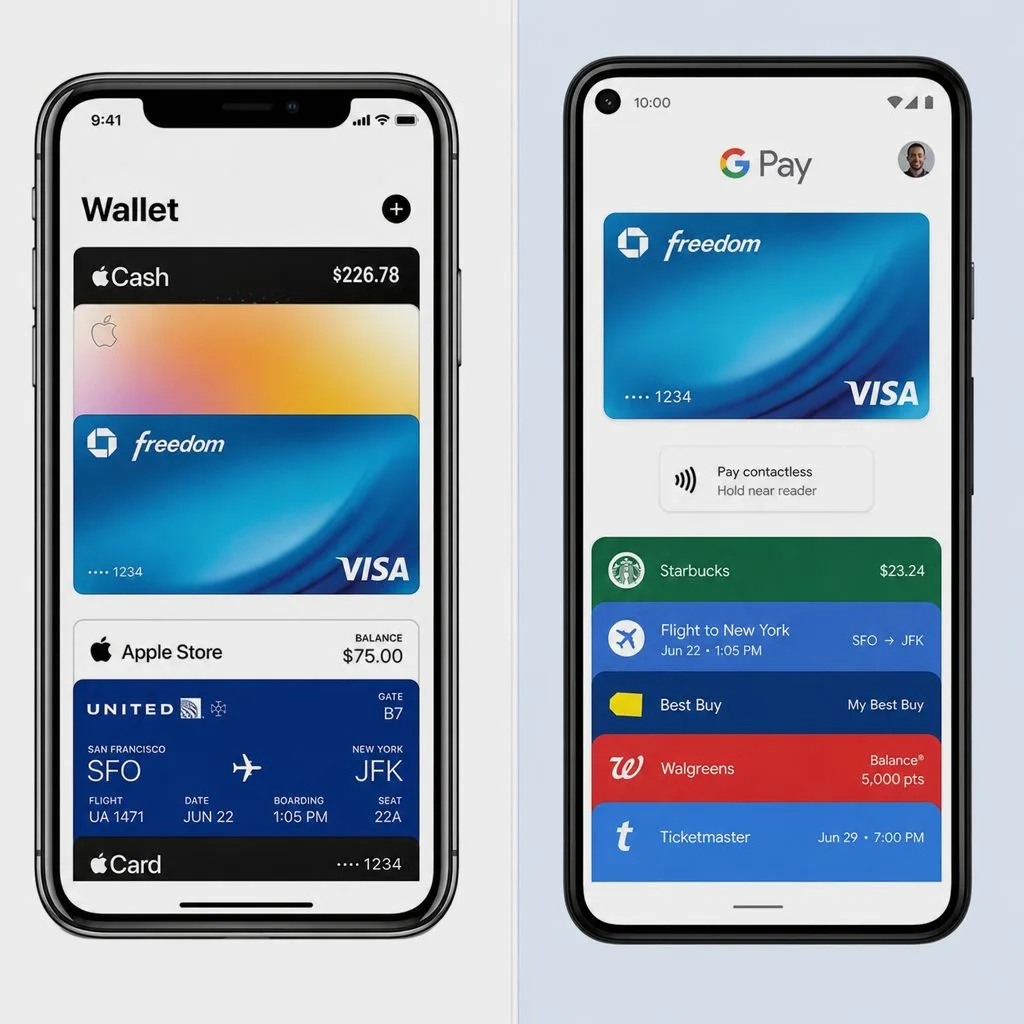
Kemicard Connect sends wallet passes and push messages to everyone in a Salesforce report, right away or on a schedule. It arrived in Kemicard 2.30 and replaces Campaign Manager. Open it from Kemicard Console › Kemicard Connect or the Kemicard Connect tab.
Watch the demo
A fictional dog daycare, Woofly Dog Daycare, welcomes its members with a membership pass, then sets up a weekly reminder that lands on the pass itself. Jump to a step with the chapter buttons.
Read every on-screen caption (31)
What Kemicard Connect does
A Connect is one send: who receives it (a Salesforce report), what they receive (a pass, a message, or both), and when (now, once later, or on a repeating schedule).
- Invite creates a wallet pass from your template for every record in the report and sends each person their Add to Apple Wallet and Google Wallet links.
- Notify pushes a message to passes people already have. It shows as a notification and on the pass itself, with merge fields such as their first name.
- Invite & Notify sends the pass and the message together, for example a ticket plus a “doors open at 6” note.
- Scheduling: send right away, once at a set time, or daily, weekly or monthly in the timezone you choose, for a set number of runs or until an end date.
Before you start
- A pass template designed in Kemicard Studio for the report's object. The demo uses Woofly Membership Pass on Contact. Check its validation banner before a large send.
- A tabular Salesforce report with a record ID column. Org-wide reports work best, because a “My …” report returns only the running user's records. Connect reads the report each time it runs, so the audience stays current.
- Permissions. To create and run Connects, a user needs the Kemicard Digital Pass User and Kemicard Connect permission sets. Admins with Kemicard Digital Pass can also start and stop the scheduler.
- For Notify only: passes the recipients already hold, and a lookup on the record that points to their pass template (in the demo, Membership Pass Template on Contact).
Step 1 — Open Kemicard Connect
- Open the Kemicard Console tab.
- In the left-hand menu, click Kemicard Connect. You can also use the Kemicard Connect tab.
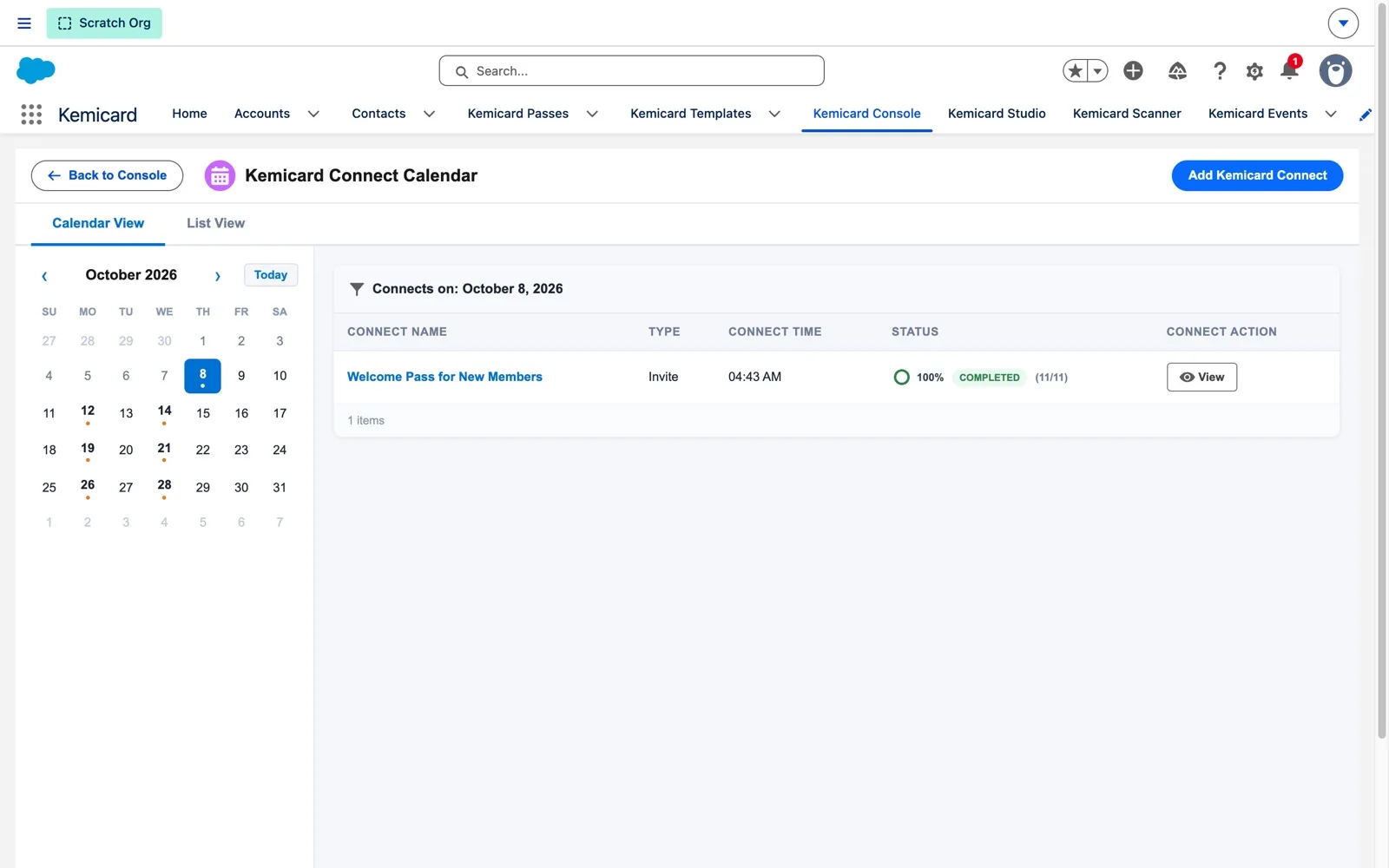
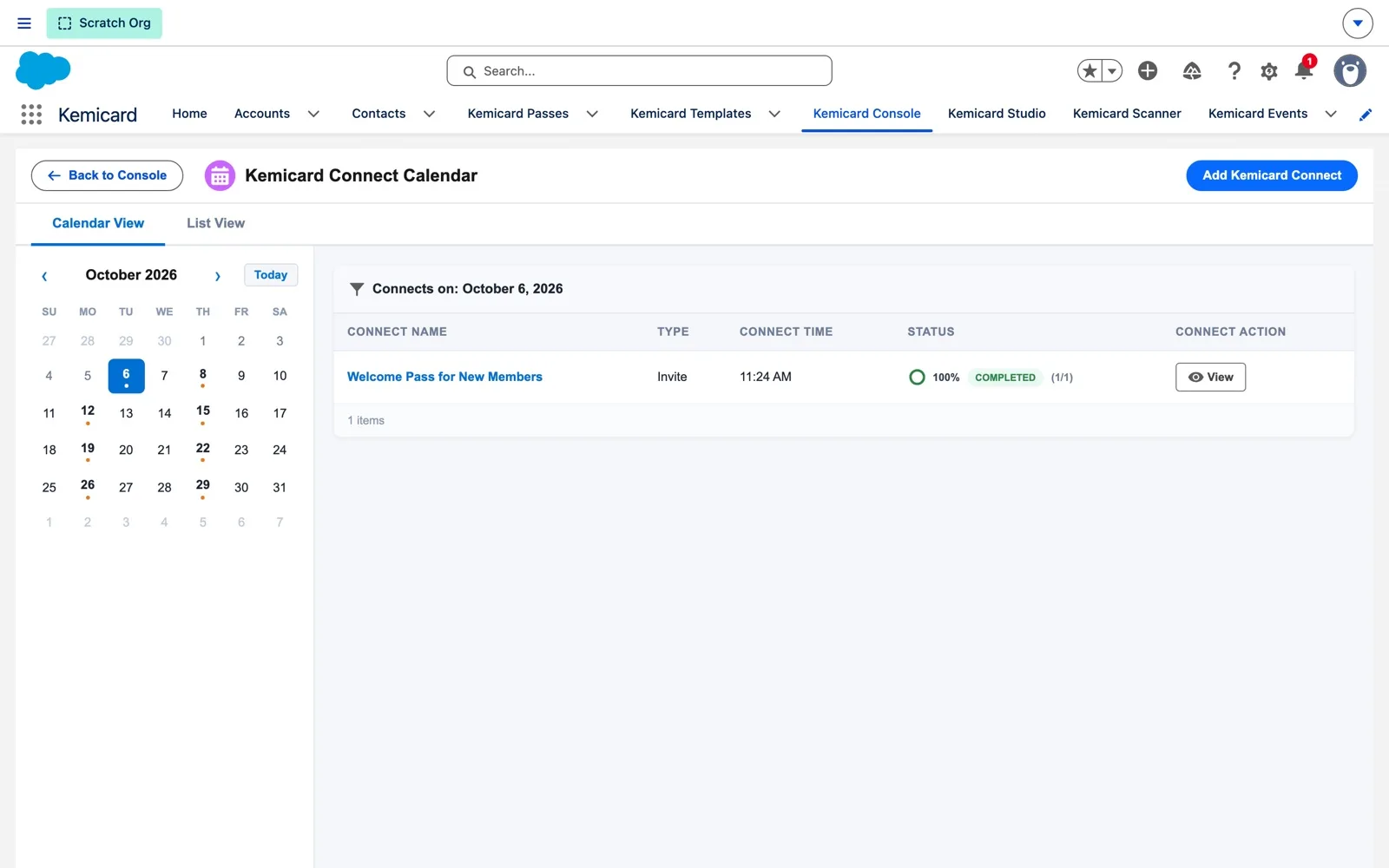
Every send lives on one calendar, so you can see what has gone out and what's coming up. Days with a send get a dot. Calendar View shows the month and List View lists only the days with sends. Add Kemicard Connect starts a new send.
Step 2 — Send a welcome pass to every member
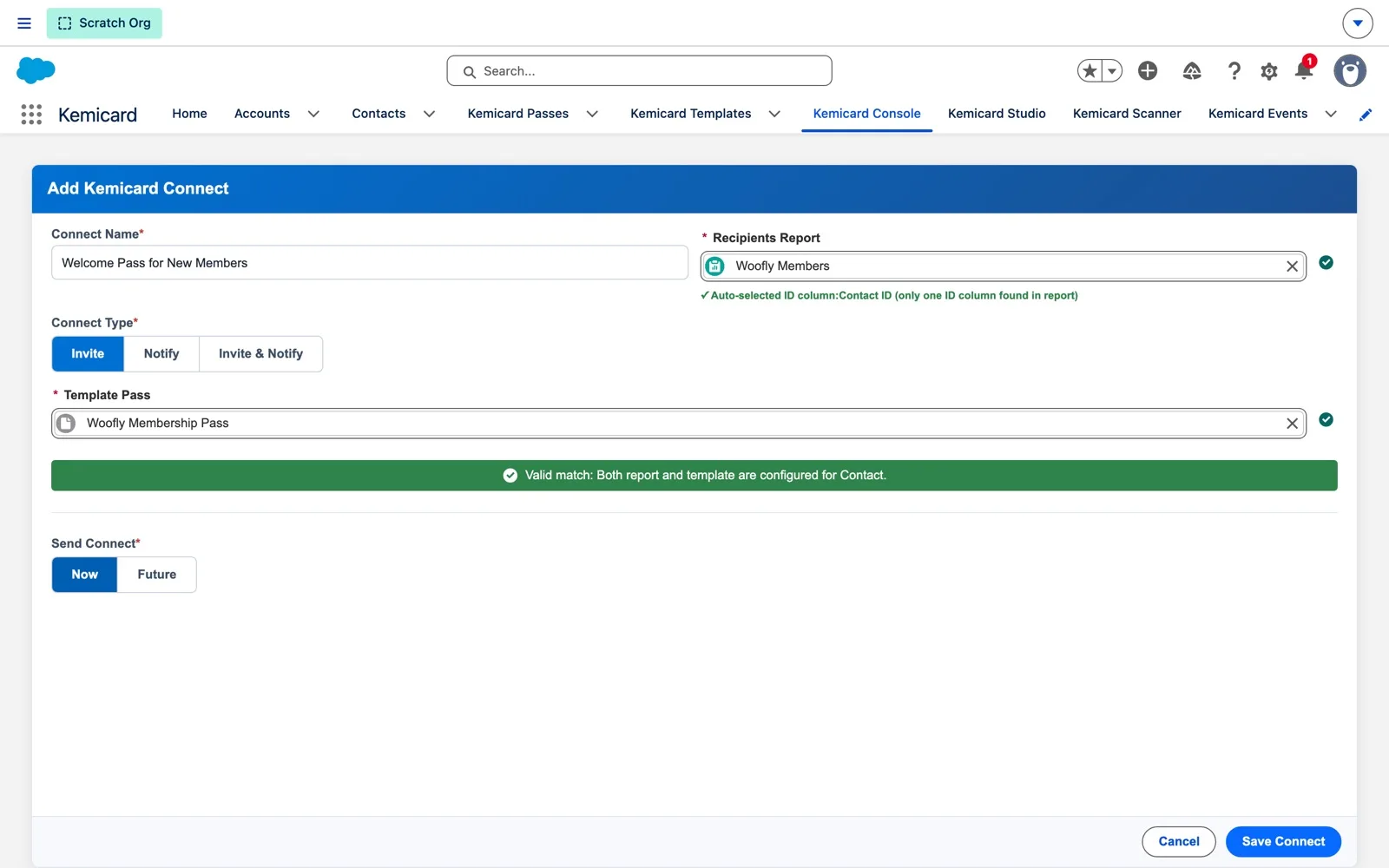
- Click Add Kemicard Connect.
- Connect Name: say what the send is for (here, Welcome Pass for New Members). It's what you'll see on the calendar.
- Recipients Report: pick the report (here, Woofly Members).
- Connect Type: Invite. Template Pass: Woofly Membership Pass.
- Send Connect: Now, then Save Connect.
The report decides who receives it. Connect needs the record ID column to know whose pass to create: with one ID column it selects it for you, and with several you choose. The green Valid match bar confirms the report and the template use the same object, so every row can become a pass. Choose Future instead of Now to send once at a set time or on a schedule.
Step 3 — Check the results
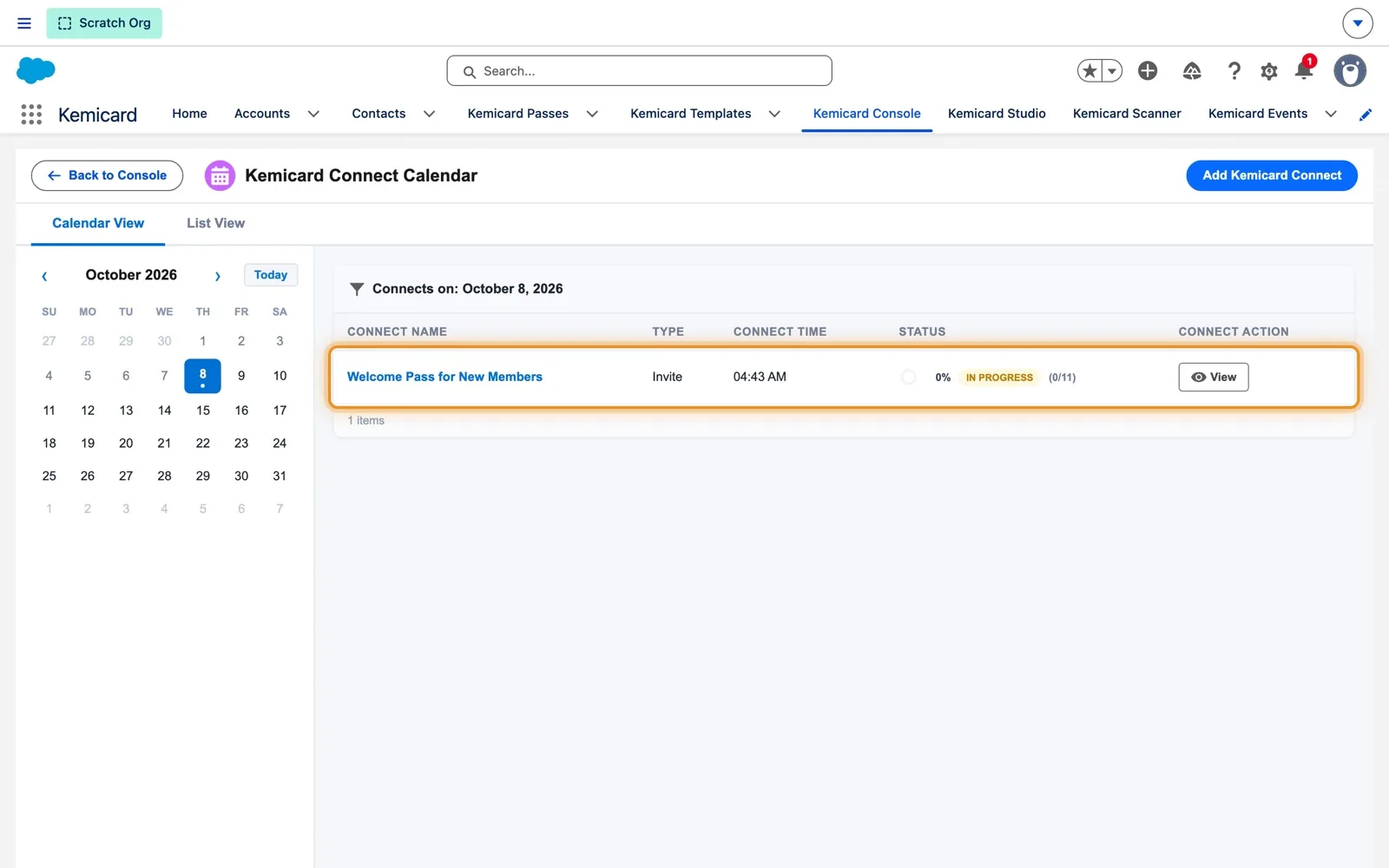
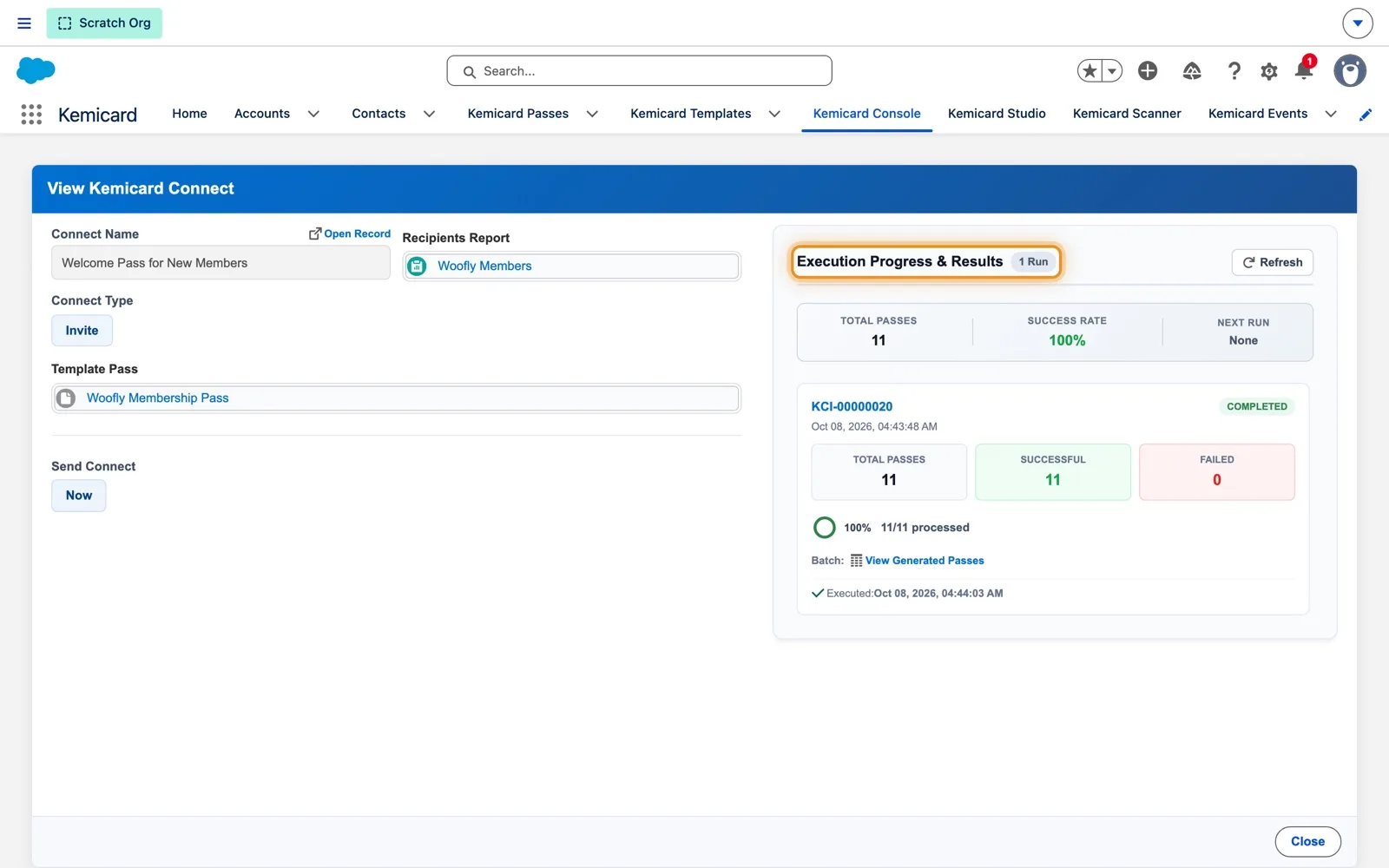
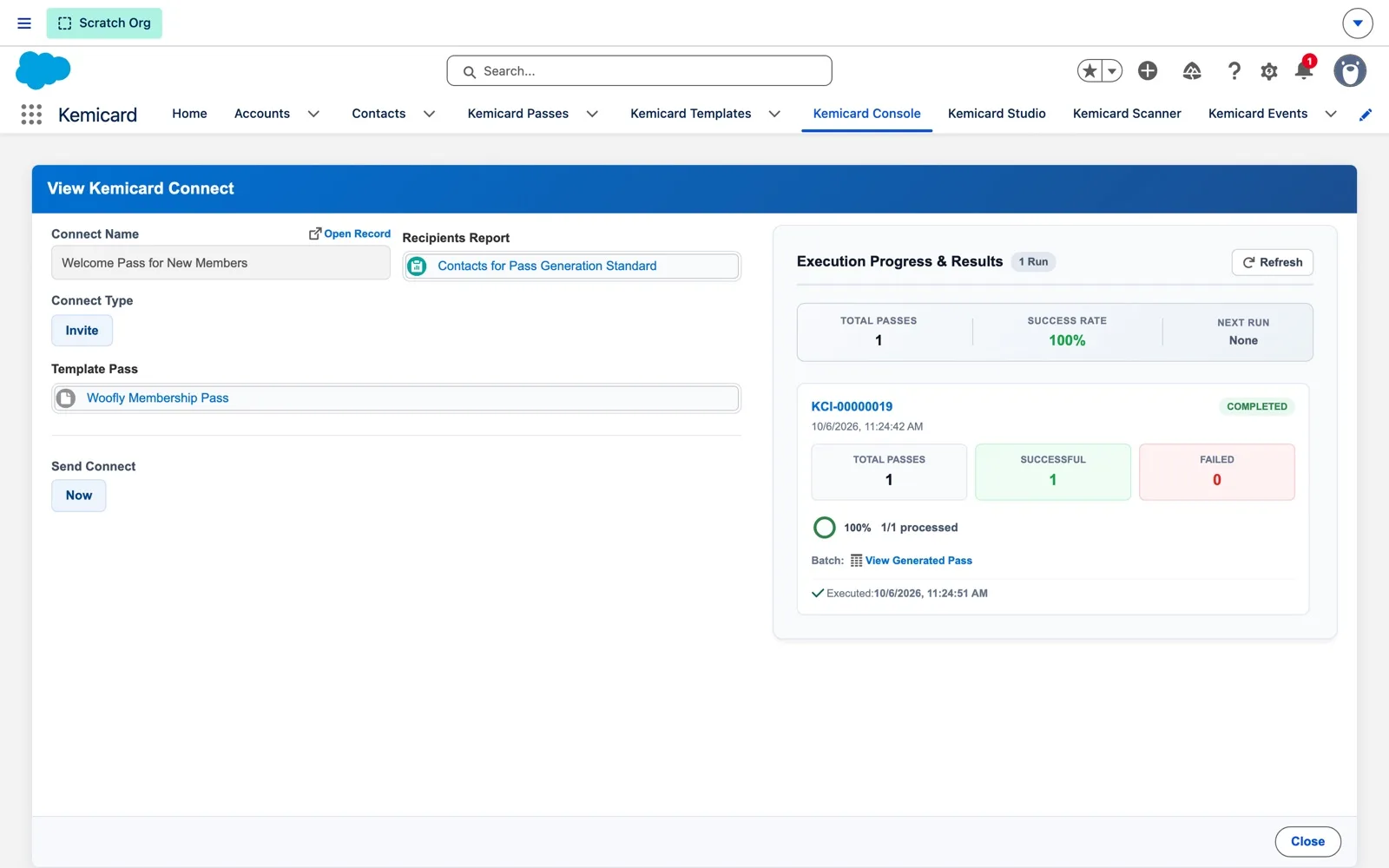
- On the Connect's row, click View and read Execution Progress & Results: total passes, success rate and, for a series, the next run, then each run's successful and failed counts.
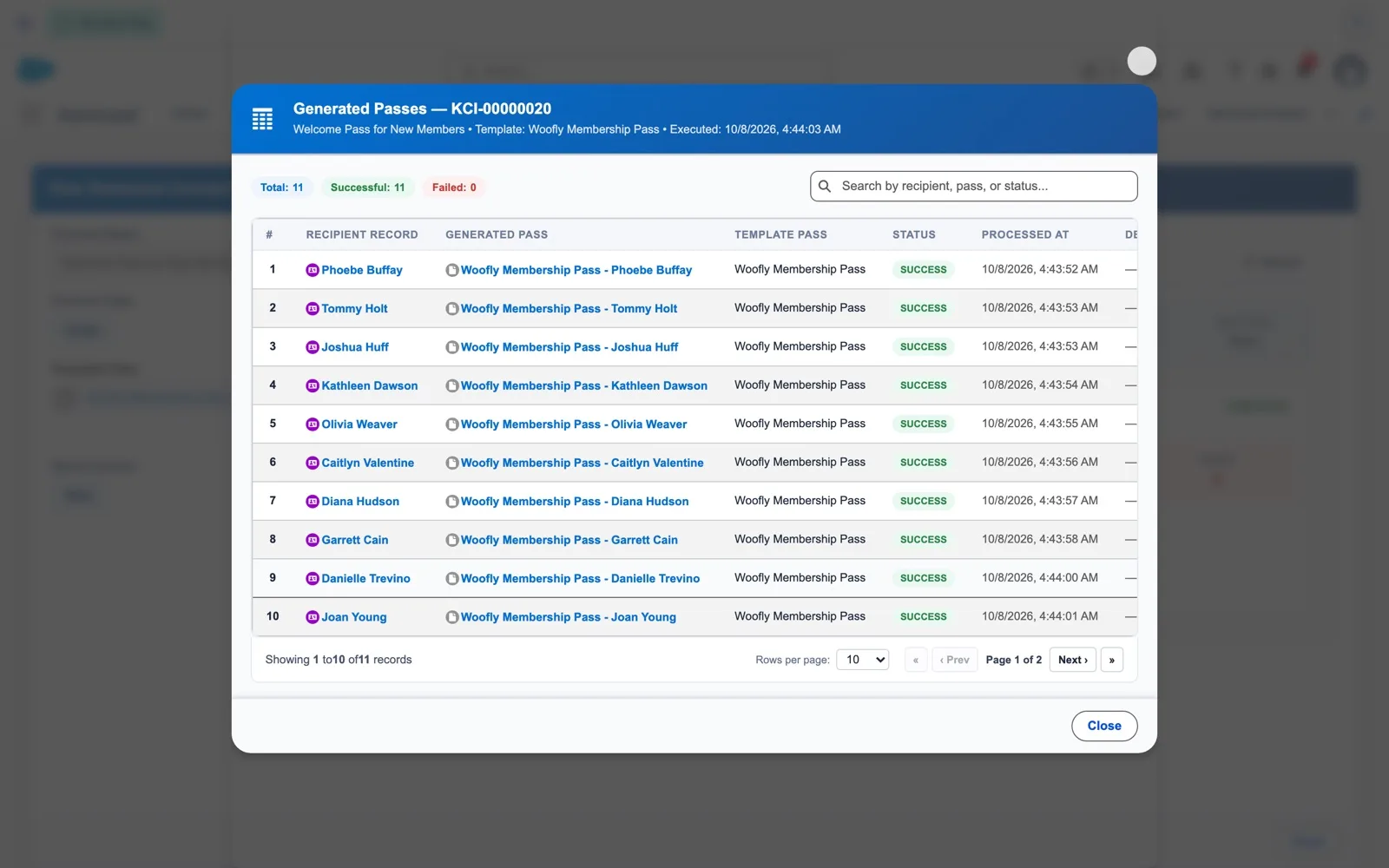
- Click View Generated Passes to see each recipient and the pass created for them. Search it by name, pass or status.
If a recipient fails, the reason is listed so you can fix the record and send again. You can copy a run's errors with one click.
Step 4 — Schedule a weekly reminder
Woofly runs playgroups on Mondays and Wednesdays, so it sets up a Notify that reminds members on the morning of each playgroup, straight on their pass.
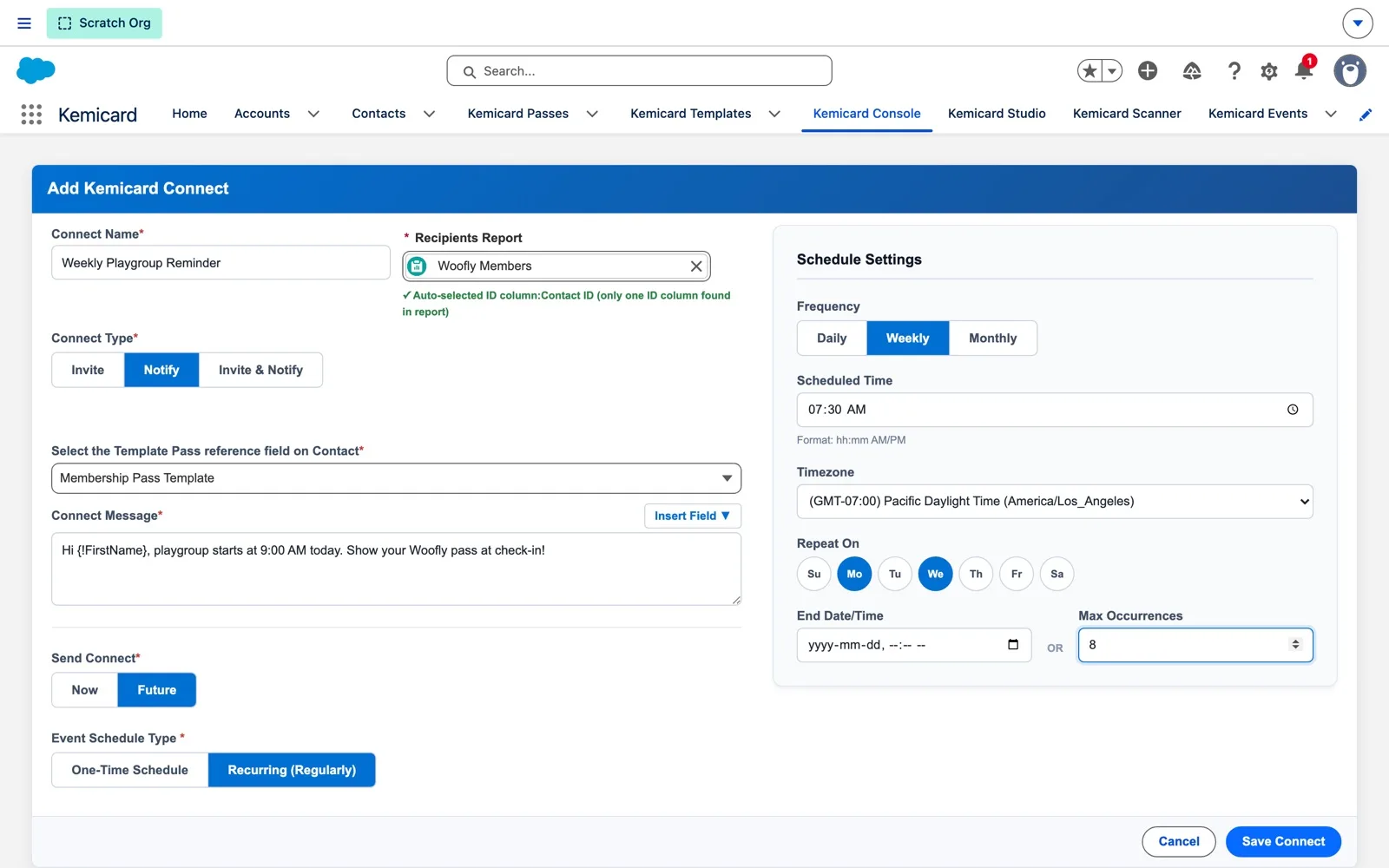
- Click Add Kemicard Connect, name it (Weekly Playgroup Reminder) and pick the report.
- Connect Type: Notify. Select the Template Pass reference field on the record (Membership Pass Template). If the object has more than one Template Pass lookup, choose the one that identifies the pass.
- Connect Message: type the text and use Insert Field for merge fields, e.g.
Hi {!FirstName}, playgroup starts at 9:00 AM today. Show your Woofly pass at check-in! - Send Connect: Future, then Recurring. Frequency Weekly, Scheduled Time 07:30 AM, Timezone Pacific, Repeat On Monday and Wednesday, Max Occurrences 8.
- Click Save Connect.
Merge fields are filled in for each recipient. Each Connect has its own timezone, so 7:30 AM means 7:30 AM where the members are. Eight runs covers four weeks of playgroups; you can set an end date and time instead.
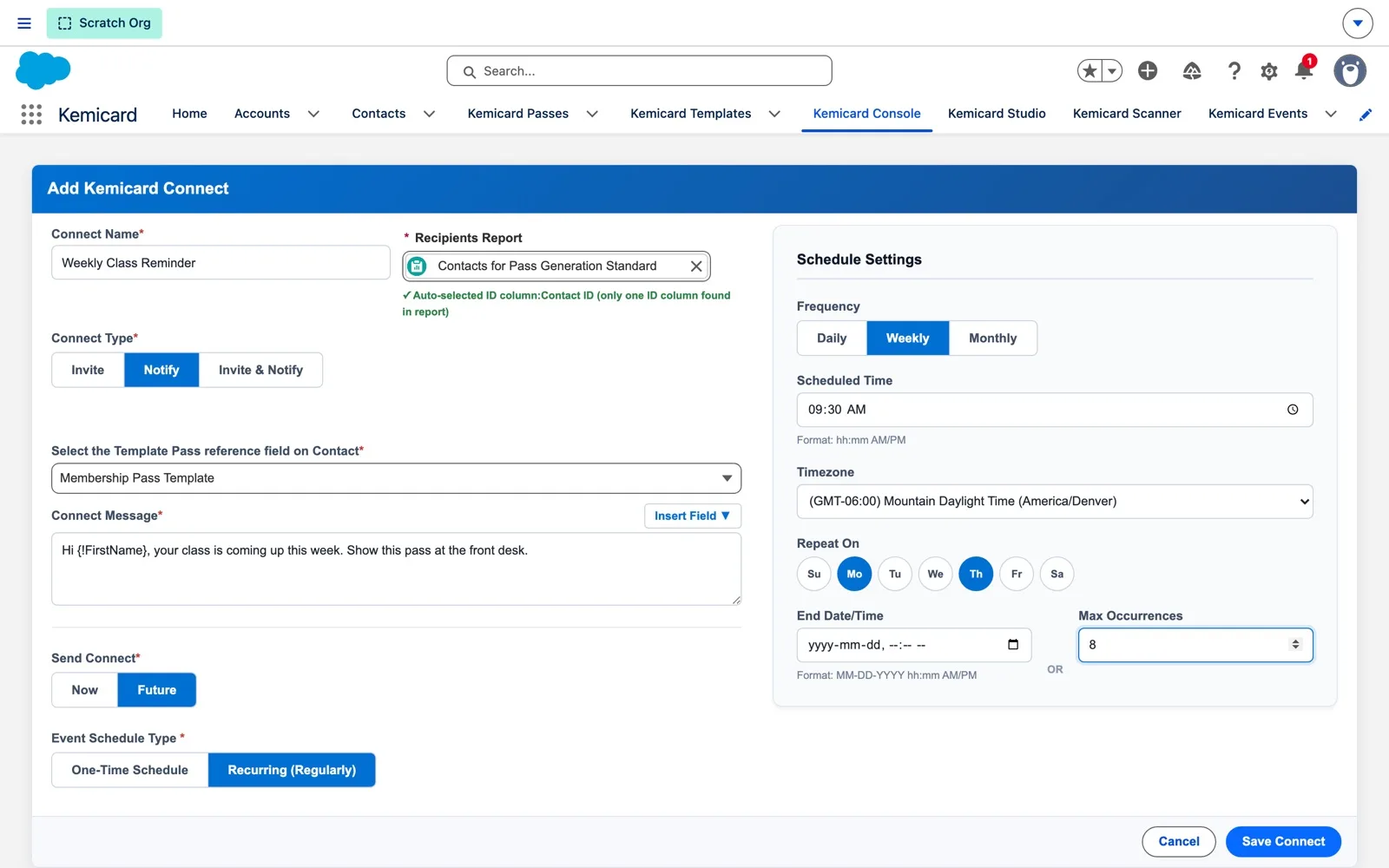
The same form handles any rhythm. Here, a weekly Notify on Monday and Thursday at 9:30 AM Mountain time for 8 runs:
Step 5 — Manage the schedule
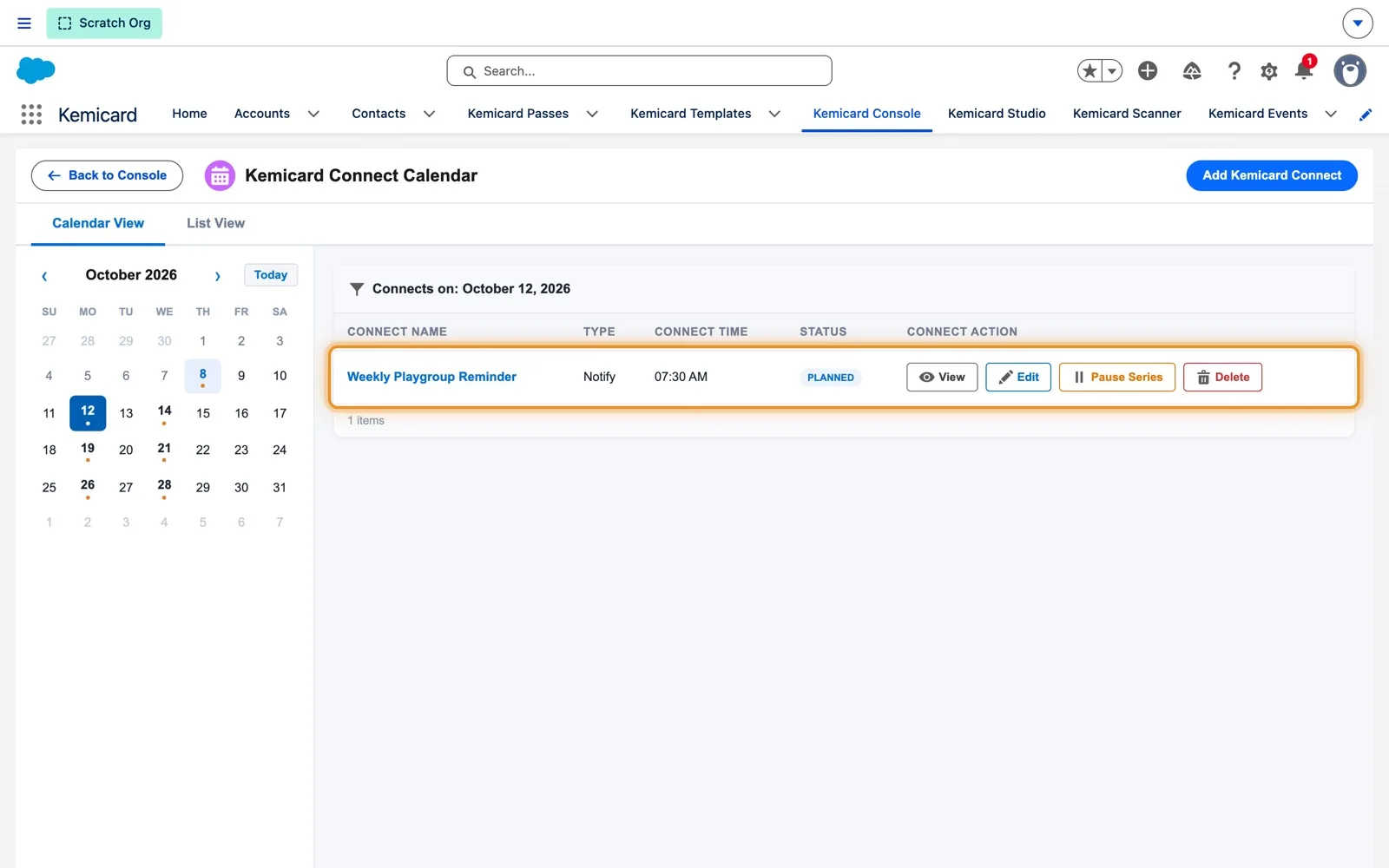
- Click a marked day on the calendar to see the runs planned for it. Each run waits as Planned until it's due.
- Use the row actions: View, Edit, Pause Series or Delete.
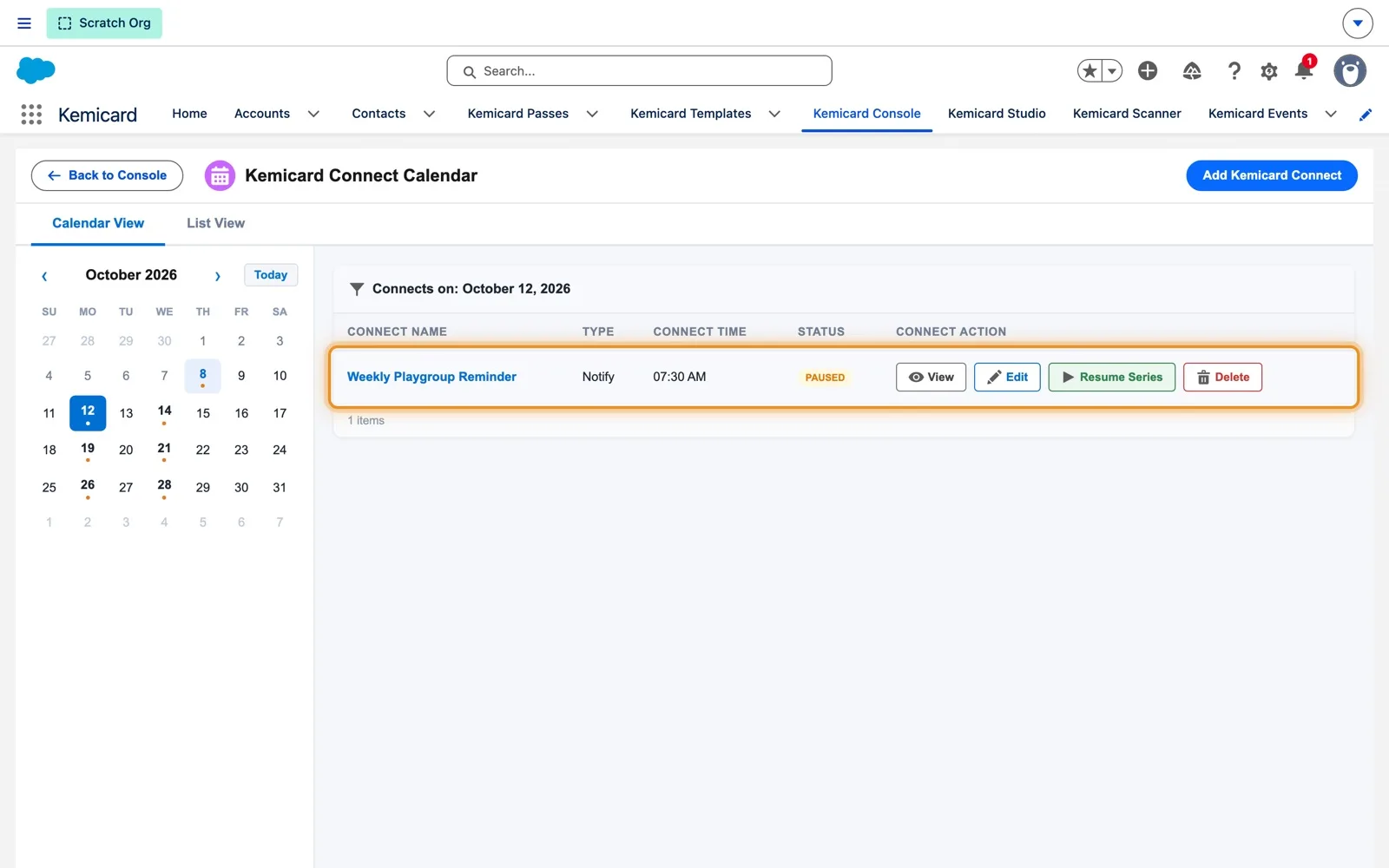
- To hold a recurring send, click Pause Series; Resume Series starts it again. You can also cancel a series, and delete either a single run (Delete Instance Only) or the Entire Series.
Pausing keeps the setup and its history. Editing a scheduled Connect keeps its status and reschedules its upcoming runs; runs that already went out are kept.
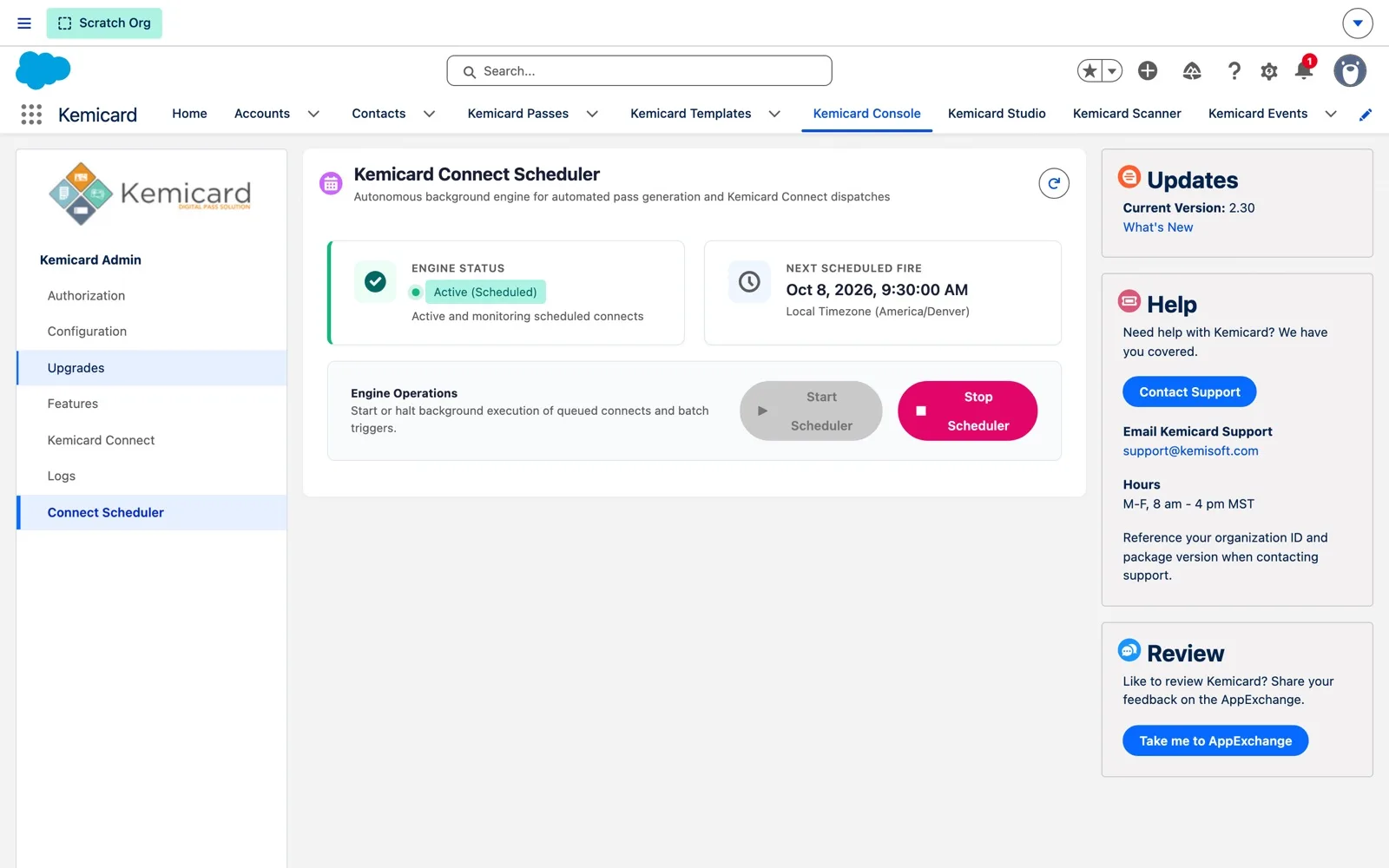
Step 6 — For administrators: the Connect Scheduler
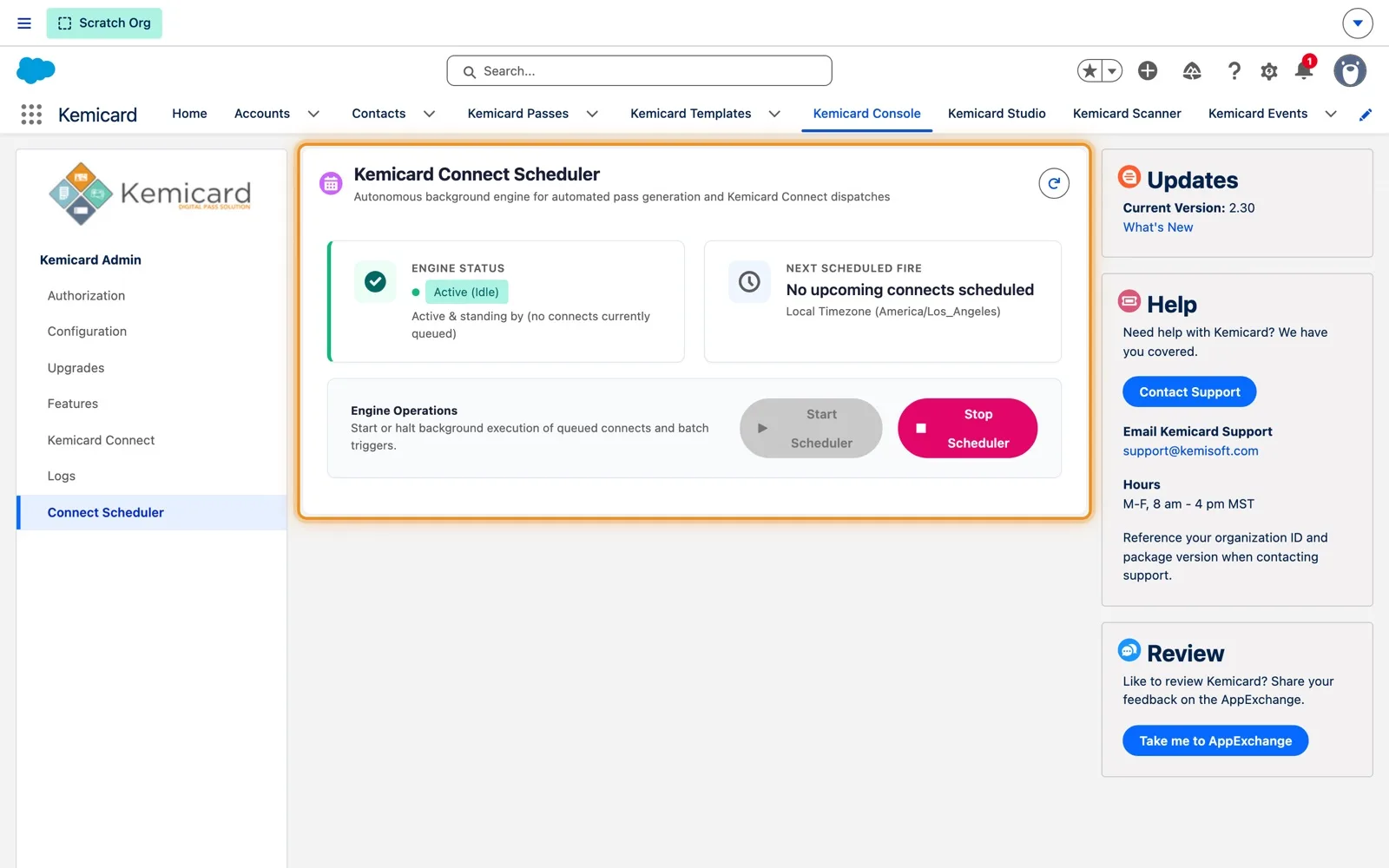
- Open Kemicard Console › Connect Scheduler.
- Check Engine Status and Next Scheduled Fire, shown in your timezone.
- Only to hold every scheduled send in the org, click Stop Scheduler. Start Scheduler resumes.
The scheduler sends all scheduled Connects. It's on by default, and an hourly check restarts it if a scheduled run is ever missed. Starting and stopping it is an admin task for users with the Kemicard Digital Pass permission set; other users can check its status.
PassDistributionSchedulerJob-… and KemicardConnectHourlyHealer). Stop and start it from Console › Connect Scheduler instead.Options at a glance
| Setting | Options | Use it when |
|---|---|---|
| Connect Type | Invite · Notify · Invite & Notify | Invite to hand out passes, Notify to message existing passes, or both at once. |
| Recipients Report | Any tabular report with a record ID column | Always. The report is read again at every run, so new members are included automatically. |
| Template Pass (Invite) | A pass template for the report's object | Choose the pass to create. The match check confirms the object. |
| Template Pass reference field (Notify) | A lookup on the record to its pass template | Tells Connect which pass to message. |
| Connect Message | Text with merge fields from Insert Field | Notify, for example Hi {!FirstName}. |
| Send Connect | Now · Future › One-Time Schedule (one or more dates) · Future › Recurring | Send immediately, at chosen dates and times, or repeatedly. |
| Recurring | Daily · Weekly (choose days) · Monthly (a day of the month, or the last day); time and timezone; end date/time or maximum runs | Regular reminders, renewals and updates. |
| Row actions | View · Edit · Pause Series / Resume Series · Delete | Follow progress, change or stop a send. |
Built for large sends
- Batched generation. Connect sends passes to the Kemicard service in batches of 10 instead of one at a time, so large sends use fewer Salesforce resources. Each failed record is logged against its run.
- Reports API. Recipient reports are read through Salesforce's Reports API, so Connect keeps working in orgs that require step-up authentication for report exports. Reports of up to 50,000 rows are supported.
- Notify needs a pass. Notify sends only to recipients who already have a pass. Anyone without one is counted as failed, with the reason (“No active pass assigned…”) shown on the run.
- One request type for both. When a single change updates a pass and sends a notification, Pass Generation Requests record it as Update & Notify.
Permissions
The Kemicard Connect permission set (formerly Kemicard Pass Campaign Manager; API name Kemicard_Pass_Bulk_Actions, unchanged) gives access to the Kemicard Connect tab and records, and existing assignments carried over in 2.30. To let a non-admin use Connect, assign Kemicard Digital Pass User and Kemicard Connect. See the permission set reference.
Coming from Campaign Manager
Campaign Manager (Bulk Actions) is no longer in the product. Kemicard Connect covers both of its jobs: Invite replaces Generate Passes and Notify replaces Send Messages, with scheduling, a calendar and per-run results added. The habits that kept bulk sends safe still apply:
- Test on a one-record or team-only report first, check the pass and message on a phone, then switch to the full audience.
- Check the template's validation banner. Studio warns if the email template or org-wide email address the send relies on is missing or inactive.
- Retire legacy automation that fires on the same objects. Old Process Builders can push Flows past Salesforce's query limits; move their logic into Flow.
- For an unusually large send, talk to support before your send window.
Tips
- Name each Connect for what it does (Welcome Pass for New Members, not Connect 1). The name is what you scan on the calendar.
- Keep reports focused. Connect sends to every row, so filter the report to exactly the people the send is for.
- Time messages for the reader: set the Connect's timezone to where the recipients are.
- Pause rather than delete when a recurring send needs a break. Pausing keeps the schedule and its history.
Need help? Email supportkemisoft.com (M–F, 8 am – 4 pm MST) with your Salesforce organization ID and Kemicard package version, or use Contact Support in the Kemicard Console.
Sources: Kemicard 2.30 release notes and the Kemicard Connect product demo (Kemicard 2.30, sample data). Salesforce Help: Triggered Flows.