Every wallet pass can carry two dates: when it expires, and when Apple Wallet should bring it to the lock screen. Since Kemicard 2.30, Studio shows both, lets you check them for a real record, and lets you set a fixed date for everyone who gets a pass from a template.
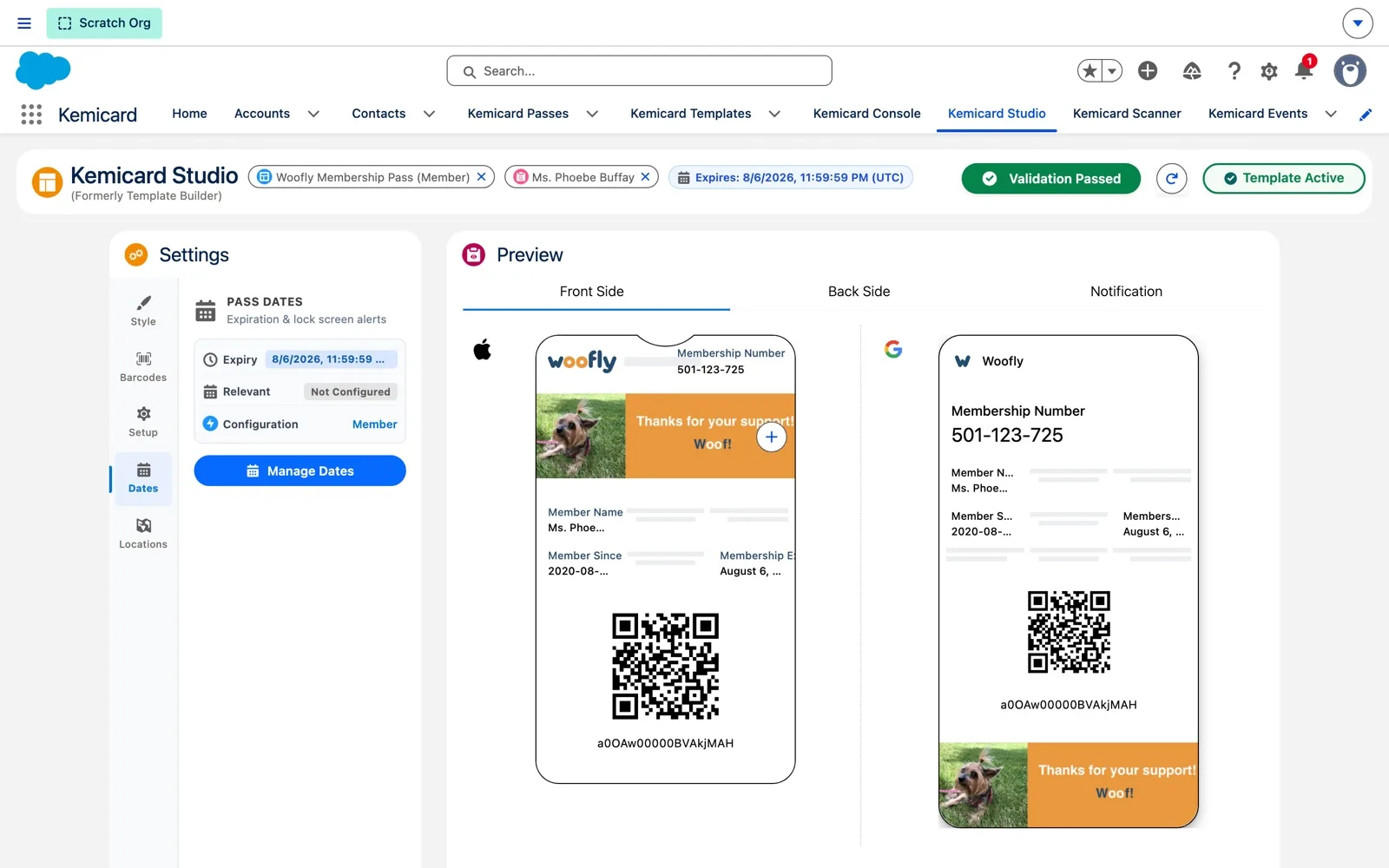
Why this matters: customers told us passes were moving to the Expired section without anyone realizing an expiry date was set. Studio now shows the expiry date in its header.
Watch the demo
Woofly Dog Daycare checks where its membership dates come from, previews a member's expiry, and sets fixed dates for a holiday camp.
Read every on-screen caption (22)
The two pass dates
Both dates are optional. Set them when a pass should stop working after a certain moment, or should show up on the phone at the right time.
- Expiration date — when the pass retires. After this moment Apple Wallet moves the pass to Expired and Google Wallet archives it. For Google it's the end of the pass's valid period.
- Relevant date — when it shows on the lock screen. Apple Wallet only. At this moment the pass appears on the lock screen, ready for check-in, a booking, a flight or a renewal.
- Dynamic — from each record. A Kemicard configuration names the record fields that hold the dates, so every person's pass gets their own date.
- Static — fixed on the template. Set one date and time in Studio and every pass from that template uses it. Ideal for events with a fixed schedule.
Before you start
- A date field on the record (Date or Date/Time) for dynamic dates. The demo uses Membership Expiration Date on Contact.
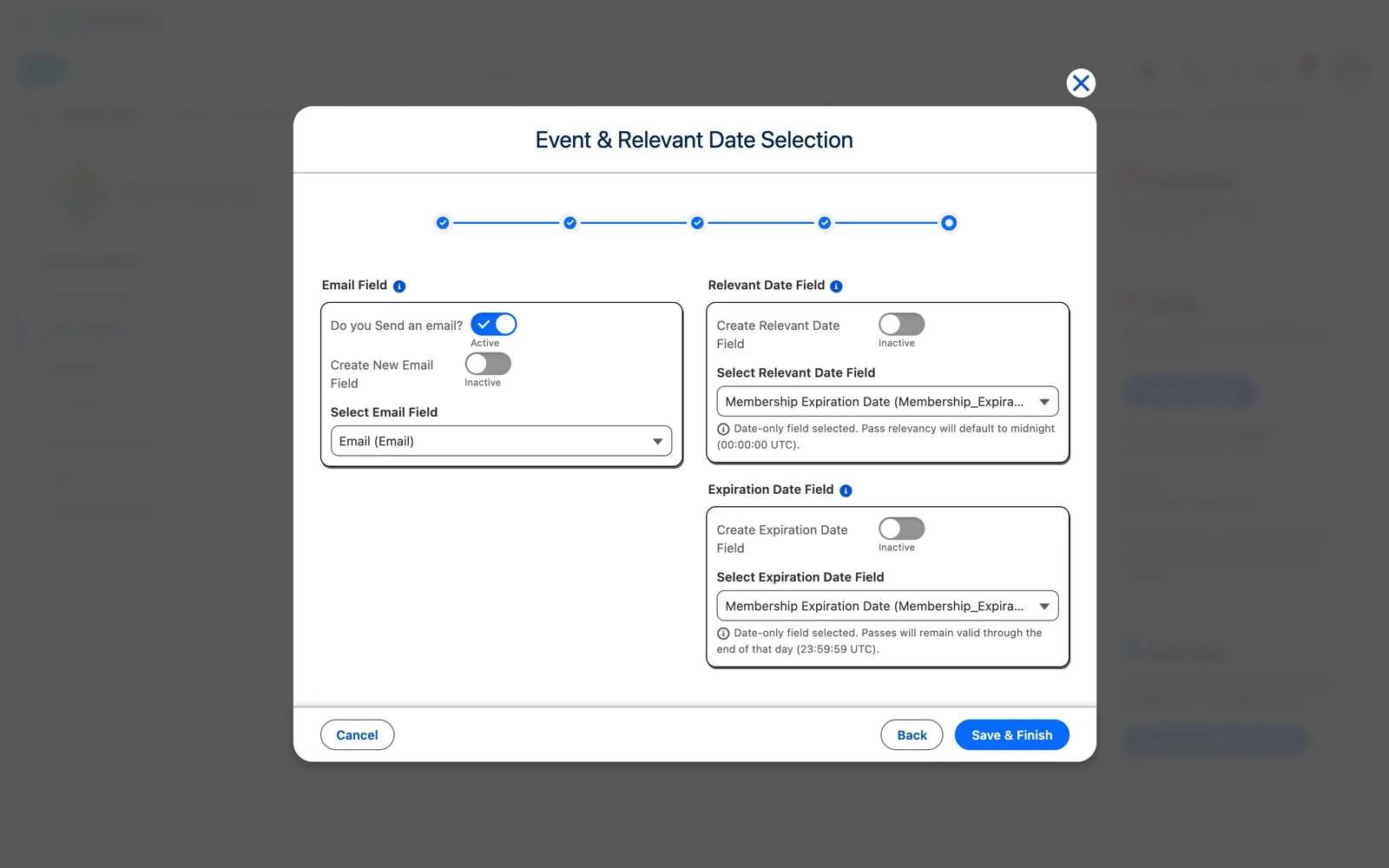
- A Kemicard configuration for the object, with the date fields chosen in its last step, Email & Date Fields. Admins manage configurations in Kemicard Console › Kemicard Configuration.
- A pass template that uses that configuration.
- Permissions: editing templates in Studio needs the Kemicard Template Configuration permission set; admins have it through Kemicard Digital Pass.
Step 1 — Where pass dates come from
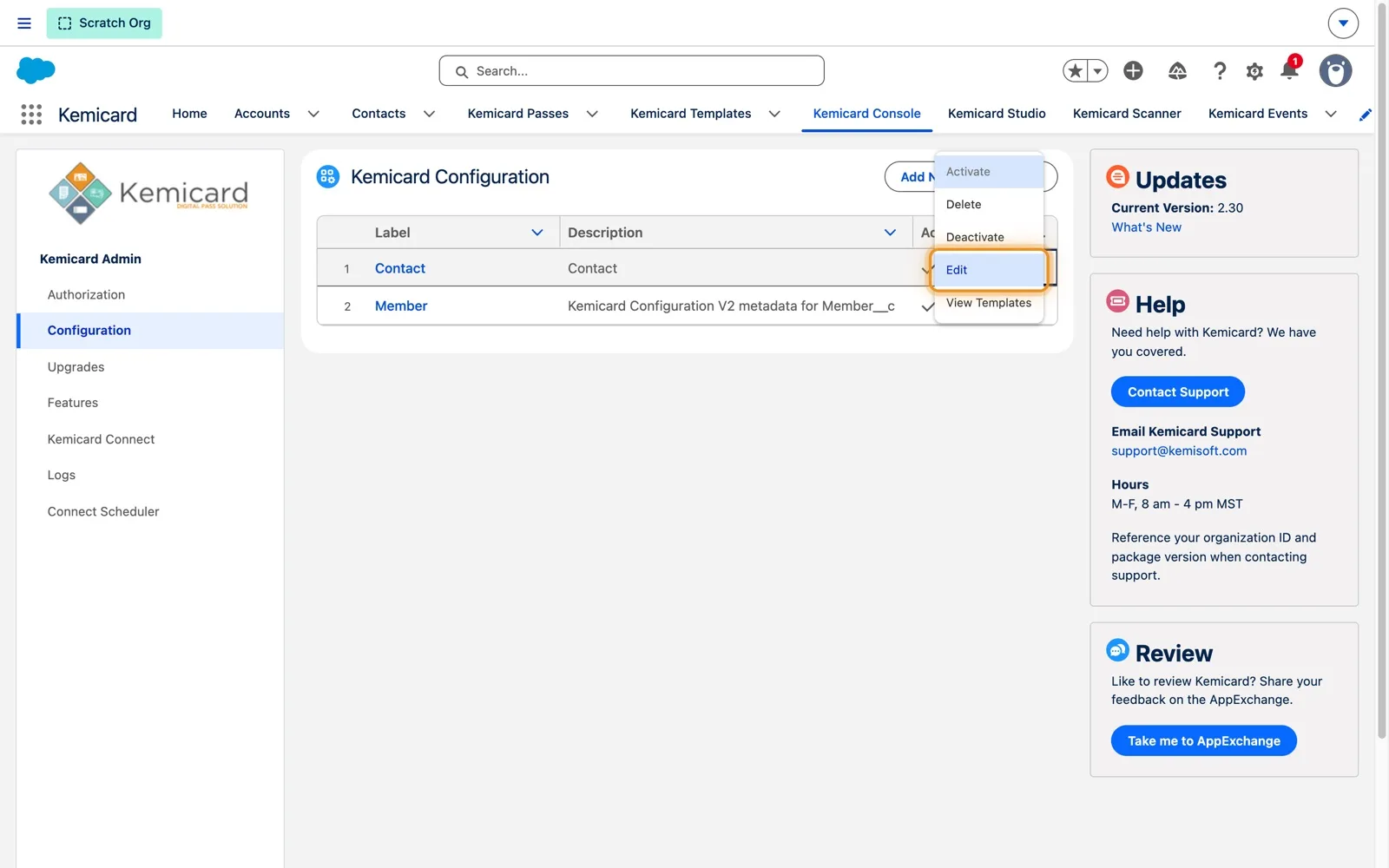
- Open Kemicard Console › Kemicard Configuration.
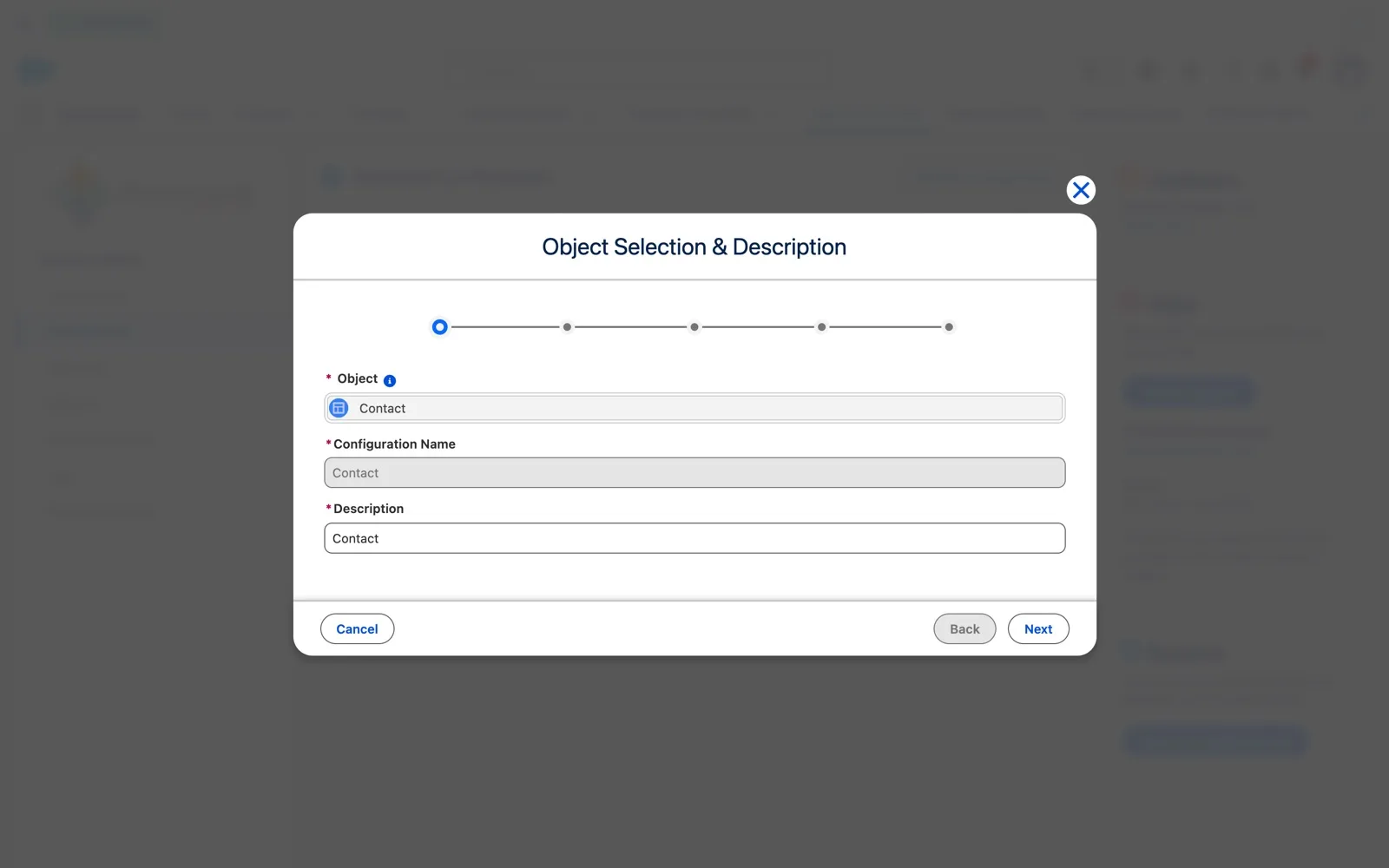
- On the configuration for your object (here, Contact), open Show actions › Edit.
- Click Next to reach the last step, Email & Date Fields.
- Check Select Relevant Date Field and Select Expiration Date Field, then Cancel if you were only checking, or Save & Finish after changing them.
Every template on this configuration reads the same fields. Since 2.30 each field in these dropdowns is labelled [Date] or [Date/Time]: a date-only expiration lasts to the end of that day (23:59:59 UTC), a date-only relevant date starts at midnight (00:00:00 UTC), and Date/Time fields keep their exact time.
Step 2 — See a member's dates in Studio
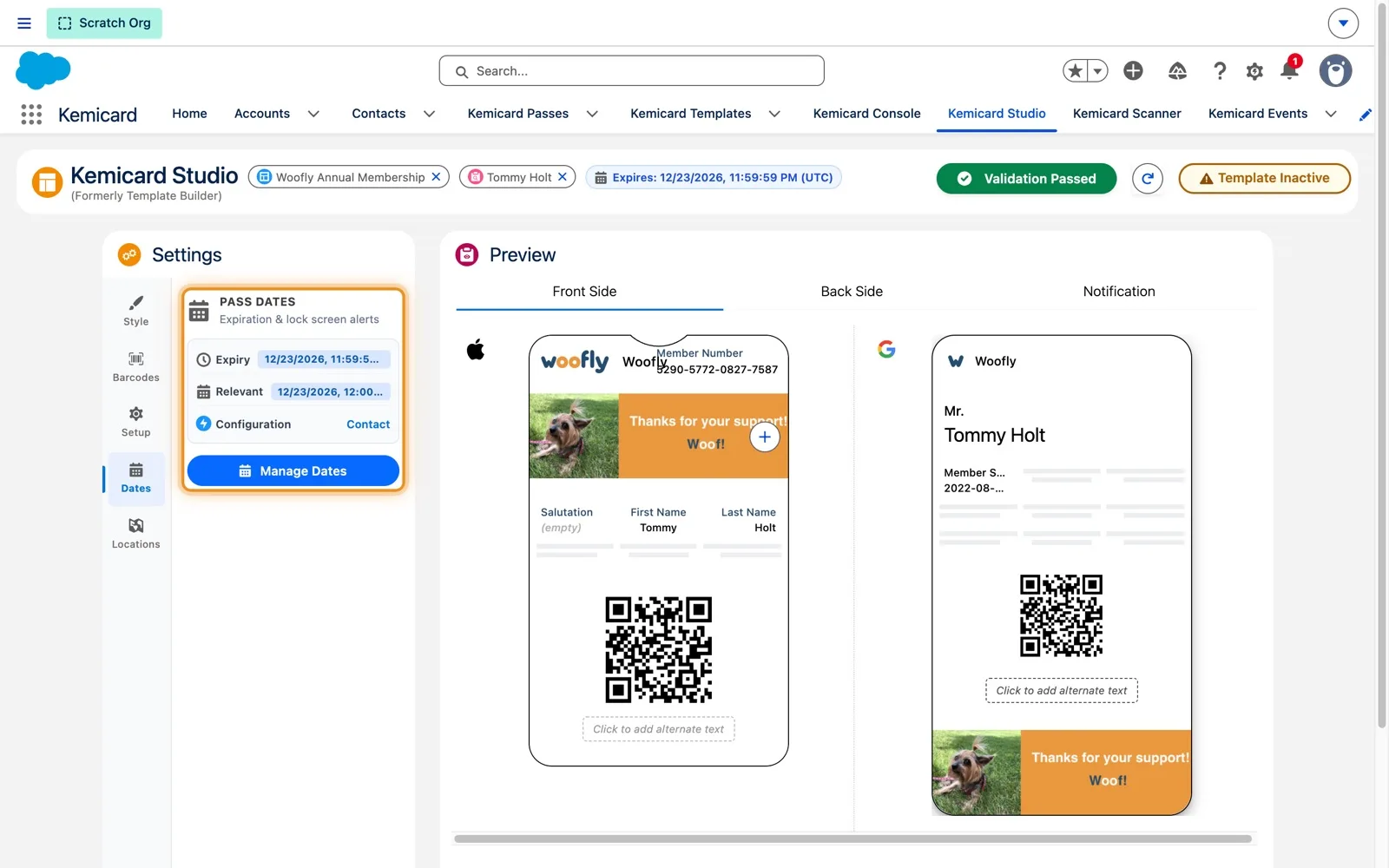
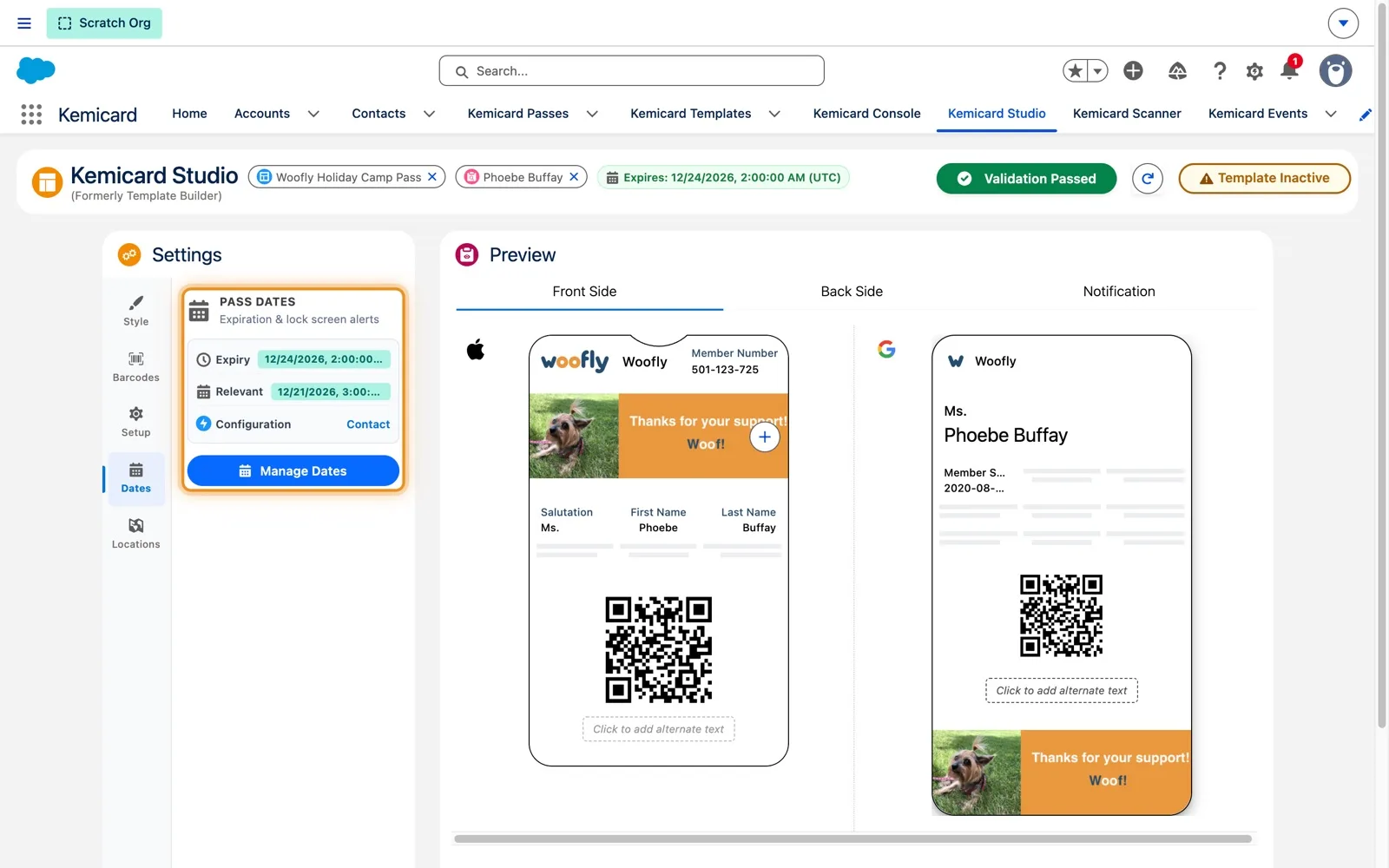
- Open the template in Kemicard Studio and look at Expires in the header. To preview another member, remove the sample record pill, search for the member and click Save & Preview Passes.
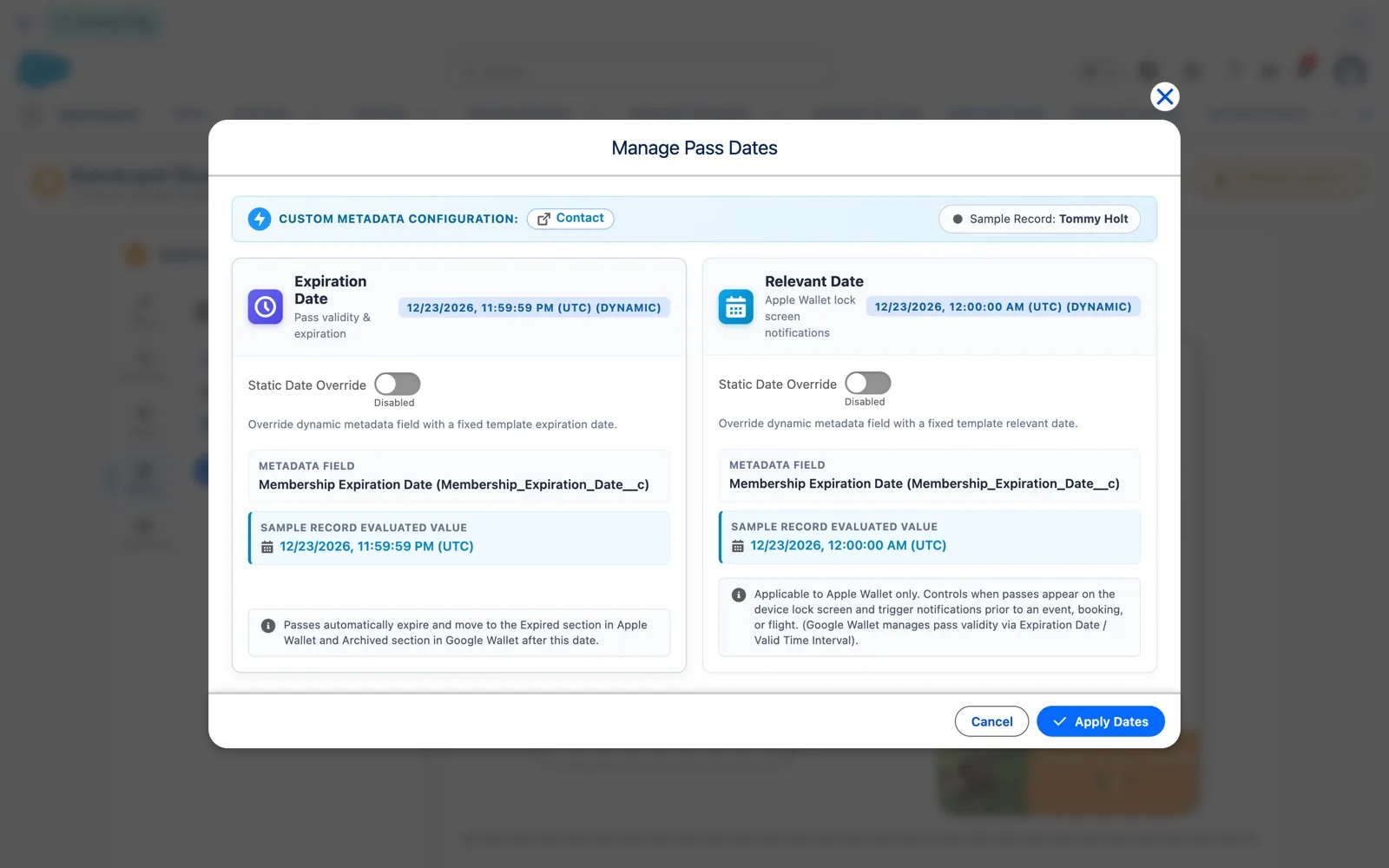
- Open Settings › Dates to see Expiry, Relevant and the Configuration they come from.
- Click Manage Dates for the field behind each date and the value for the sample record.
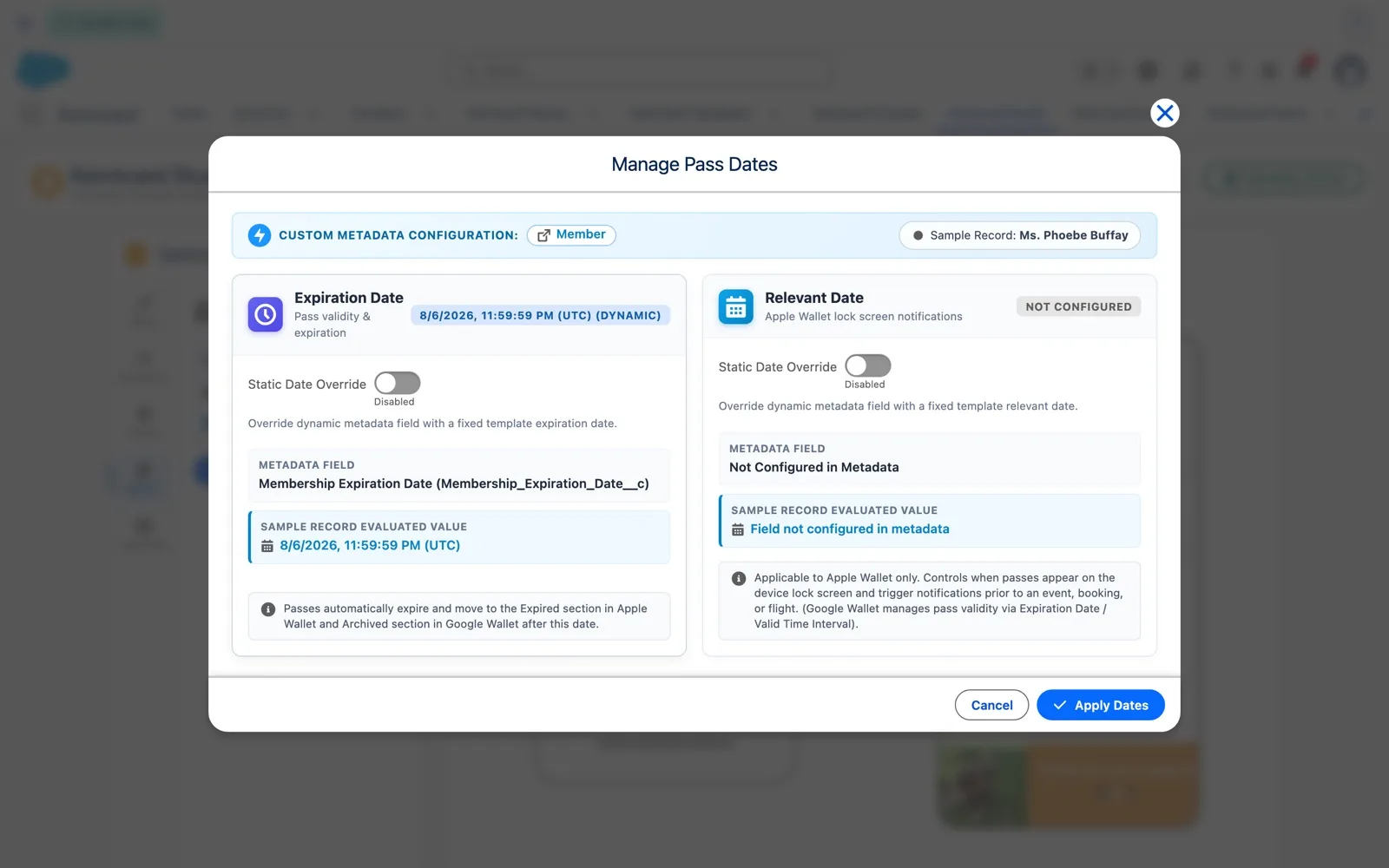
Passes move to Expired the moment their date passes, so check before you send. In the demo the first sample member had no expiration date, so Expires was empty; Tommy's membership ends on December 23, 2026, so his pass expires at 11:59:59 PM UTC that day. Dynamic means the value is read from each record when the pass is generated.
Step 3 — Set fixed dates for an event
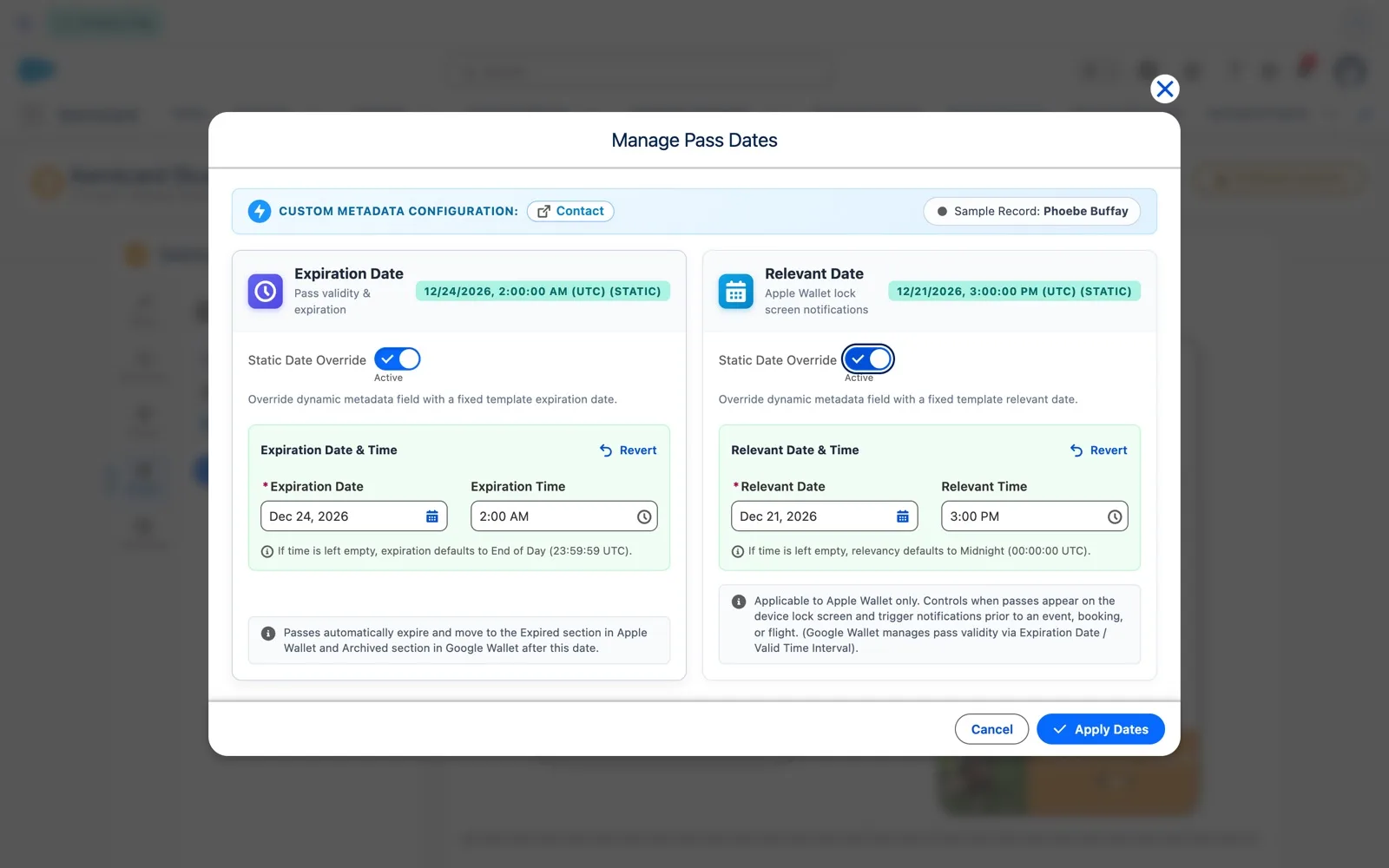
Woofly's Holiday Camp runs December 21 to 23. Every camper's pass should appear on the lock screen as camp opens and expire after the last pick-up, whatever is on their record.
- Open the template in Studio, then Settings › Dates › Manage Dates.
- Relevant Date: turn on Static Date Override and enter Dec 21, 2026, 3:00 PM.
- Expiration Date: turn on Static Date Override and enter Dec 24, 2026, 2:00 AM.
- Click Apply Dates, then Save & Close.
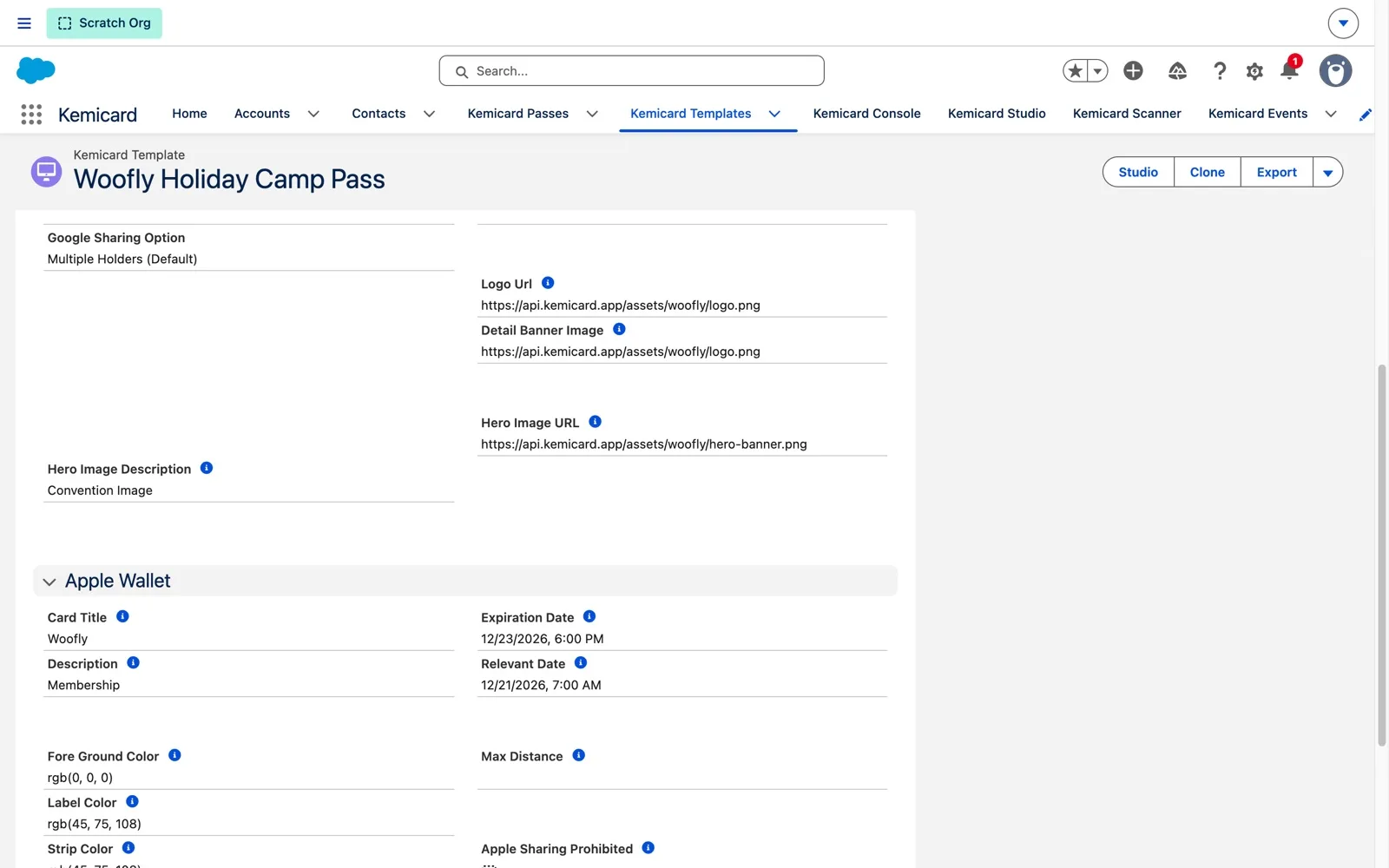
Times are in UTC. 3:00 PM UTC on December 21 is 7:00 AM in Los Angeles, when drop-off opens; 2:00 AM UTC on December 24 is 6:00 PM on December 23, after pick-up. The template record shows them back in your own timezone. Kemicard rejects an expiration date before the relevant date, because the pass would expire before it ever showed up. Apply Dates only updates Studio; Save & Close stores the dates on the template and activates it if validation passes.
Which date wins
When a pass is generated, Kemicard takes the first value it finds, in this order:
| Order | Expiration date | Relevant date |
|---|---|---|
| 1 | Static date on the template (Manage Pass Dates) | Static date on the template (Manage Pass Dates) |
| 2 | The configuration's Expiration Date Field on the record | The configuration's Relevant Date Field on the record |
| 3 | None: the pass doesn't expire | A relevant date passed in by a Flow |
Rules at a glance
| Situation | What happens |
|---|---|
| Date-only expiration field, or no time entered | Valid through 23:59:59 UTC that day |
| Date-only relevant field, or no time entered | Relevant from 00:00:00 UTC that day |
| Date/Time field | The exact date and time is used |
| Times typed in Manage Pass Dates | Stored as UTC; record pages show them in your timezone |
| Static expiration before static relevant date | Rejected in Manage Pass Dates |
| Google Wallet | Uses the expiration date as the end of the valid period; has no relevant date |
| Revert | Turns a static date back into the configuration field |
Setting a pass to expired
To retire passes, either set the record's expiration field to a past date or, for every pass from one template, set a fixed expiration with Manage Dates › Static Date Override. Check the result in Studio's header (Expires: …) and in Settings › Dates before sending the update.
Tips
- Preview with a realistic sample record that has the date filled in, so Expires in the header shows a real value.
- Use dynamic dates for anything personal: memberships, subscriptions, renewals.
- Use static dates for anything everyone shares: events, camps, seasons, promotions.
- Convert local times to UTC before typing them into Manage Pass Dates, and check the result on the template record.
- Clear an old static date with Revert when you reuse a template for the next event.
Need help? Email supportkemisoft.com (M–F, 8 am – 4 pm MST) with your Salesforce organization ID and Kemicard package version.
Sources: Kemicard 2.30 release notes and the Pass Dates product demo (Kemicard 2.30, sample data). Apple's Pass reference (relevantDate, expirationDate); Google's GenericObject reference (validTimeInterval).