A worked example for Salesforce administrators. It answers one question: which fields and objects have to be migrated to production to add pass generation to an existing page layout? Two scenarios show the answer: passes on Contact, and passes on a custom object.
Sample business: Woofly Dog Daycare (fictional) · Kemicard 2.30 · Applies to change sets and other metadata deployment tools. This page goes with the Production Install, Migration & Upgrade Guide, which covers installing the package itself.
The short answer
Kemicard only needs two lookup fields on the object you issue passes from, plus a Kemicard configuration record that names them:
| What | Example (Contact) | Notes |
|---|---|---|
Lookup to Kemicard Pass (Kcard__Pass__c) | Membership_Pass__c | Holds the pass created for the record. |
Lookup to Kemicard Template Pass (Kcard__Template_Pass__c) | Membership_Pass_Template__c | Which template the record's pass uses. |
| Kemicard Configuration V2 record | Contact | Custom metadata. Names the object, the two lookups, the email field and the date fields. |
The Kemicard configuration wizard can create both lookups for you (and an email and an expiration date field). Everything else is your own setup, and moves the same way as any other customization:
- Fields the configuration, flows, templates or layouts use: email, dates, wallet URL fields.
- Automation that sends passes: usually a flow plus a button, or a record-triggered flow.
- Page layout or Lightning record page that shows the button and the pass fields.
- Email template used when passes are emailed.
- A permission set that gives users access to the new fields (see the warning below).
Order of work in production
- Install Kemicard in production, on the same version as the sandbox. Follow Phases 1–4 of the Production Install guide: prerequisites, install, the Kemicard App named credential, and Authorize Kemicard User.
- Validate, then deploy the change set from the sandbox. The lookups point at Kemicard objects, so the package must be installed first or validation fails.
- Activate the flows if they arrived inactive, and check any button or record page is assigned.
- Assign the permission set to the people who send or view passes.
- Import the templates with the Template Workbench. The export also carries each template's configuration.
- Test: send a pass to one test record and check the pass lookup is filled and the email arrives.
Scenario 1: Membership passes on Contact
Woofly Dog Daycare built membership passes on Contact in a full sandbox. Members get a pass when staff click Send Membership Pass on the Contact page. Before go-live, the admin lists everything the sandbox setup uses.
Read every on-screen caption (20)
1. Review the configuration
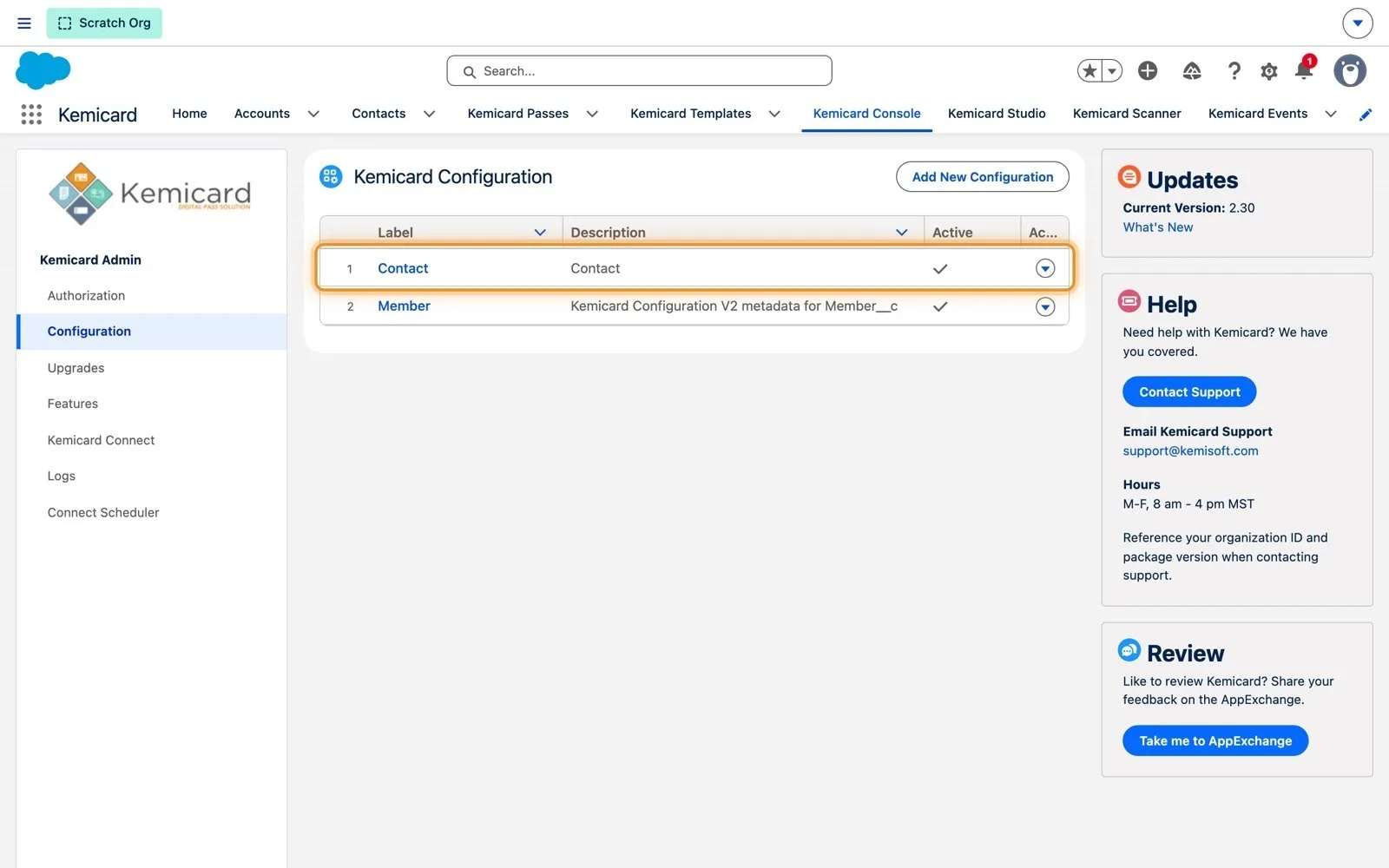
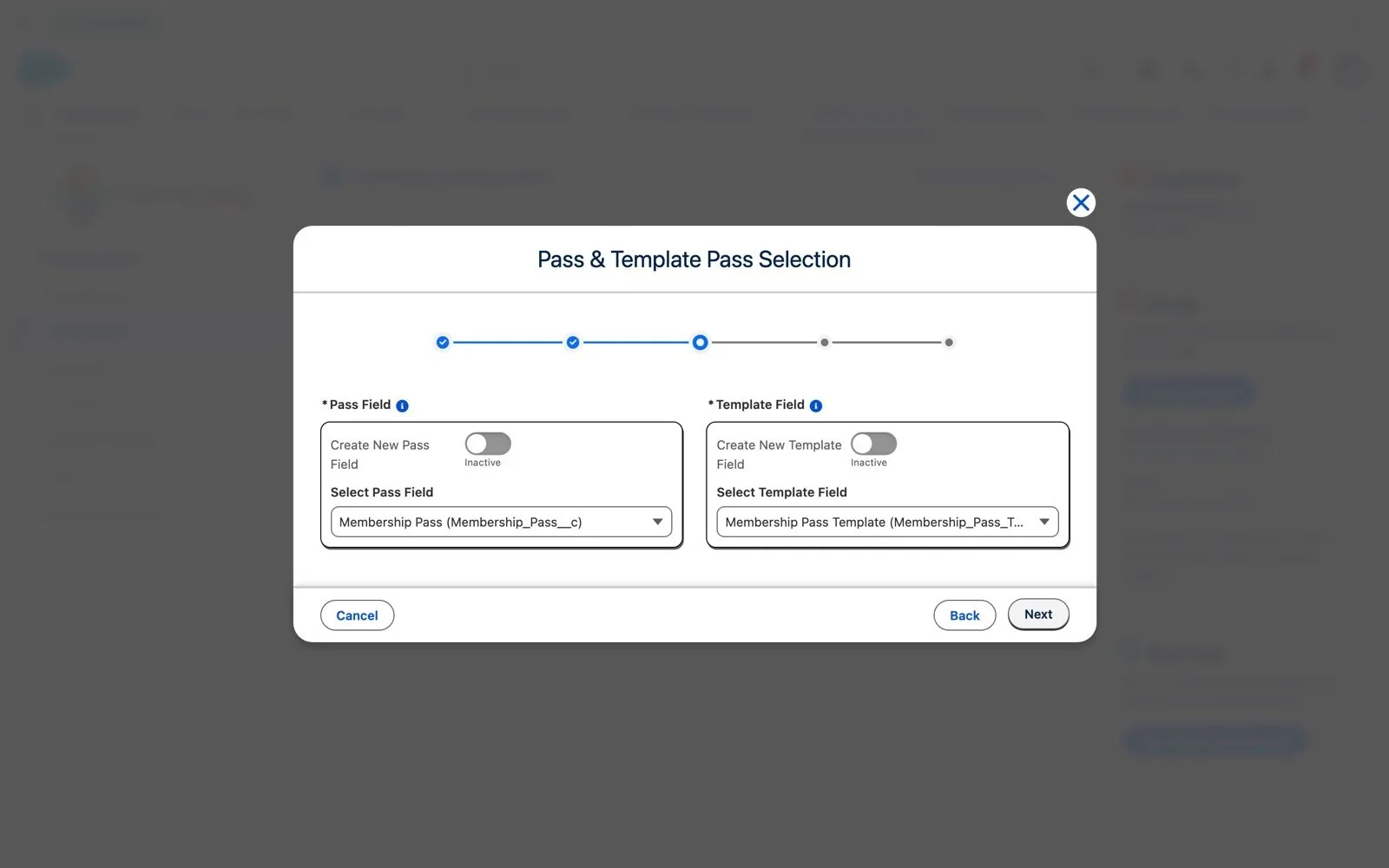
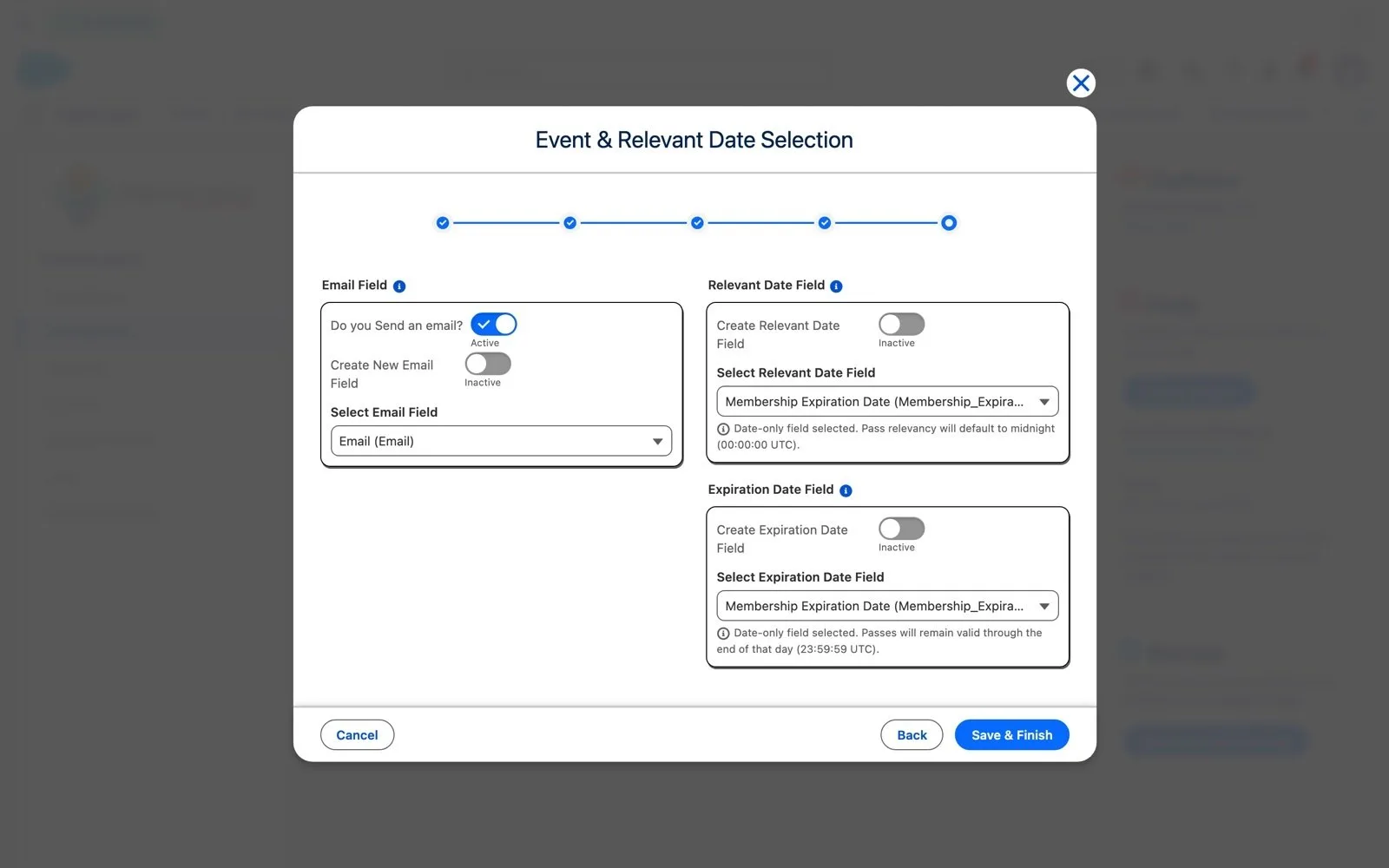
Open Kemicard Console › Configuration, find the Contact row and choose Edit. Step through the wizard without saving: it lists every field Kemicard uses on Contact.
2. Find the fields
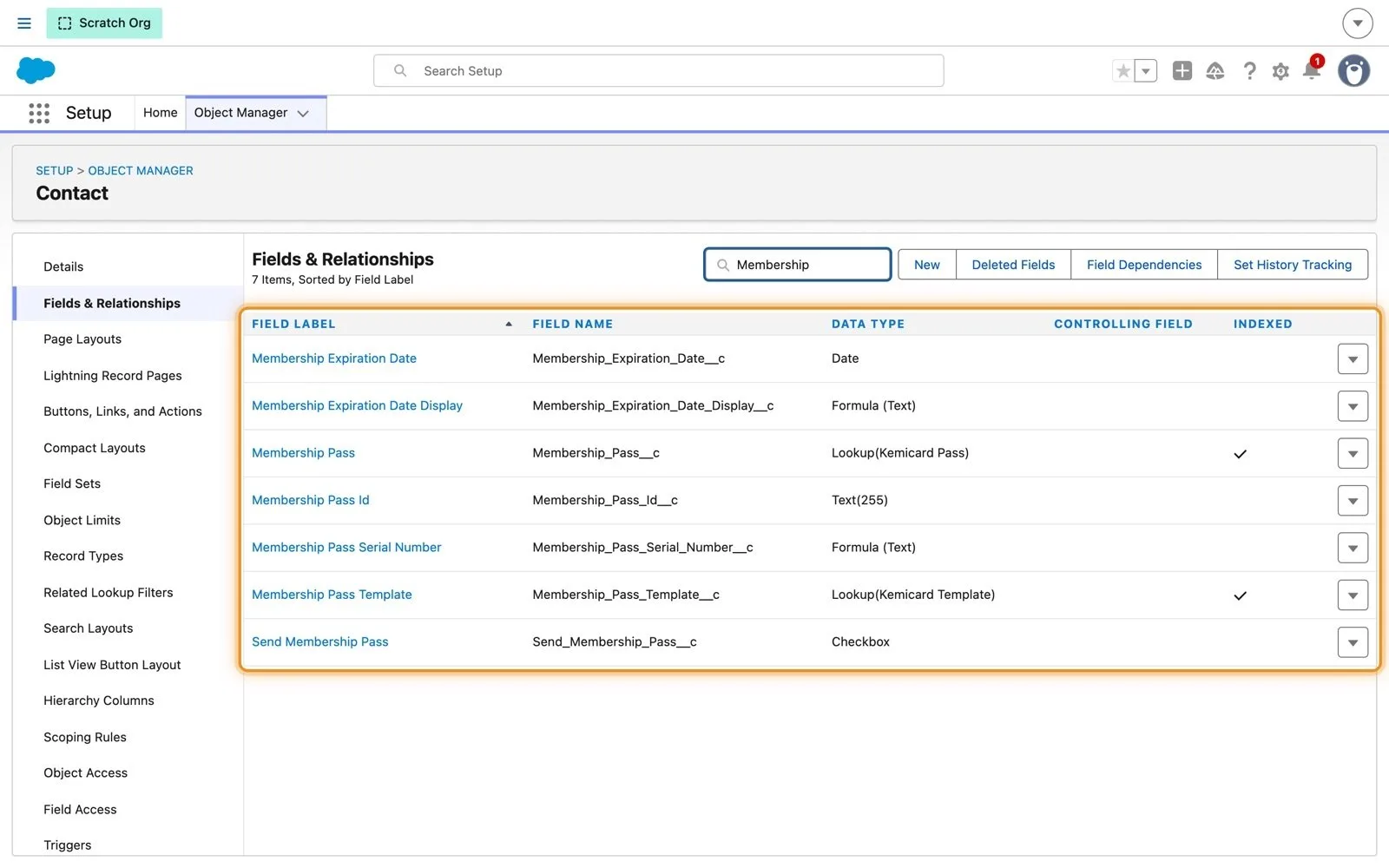
In Setup › Object Manager › Contact › Fields & Relationships, search for the fields named in the configuration. Also note the helper fields your flows, layouts and email templates use.
3. Check the automation
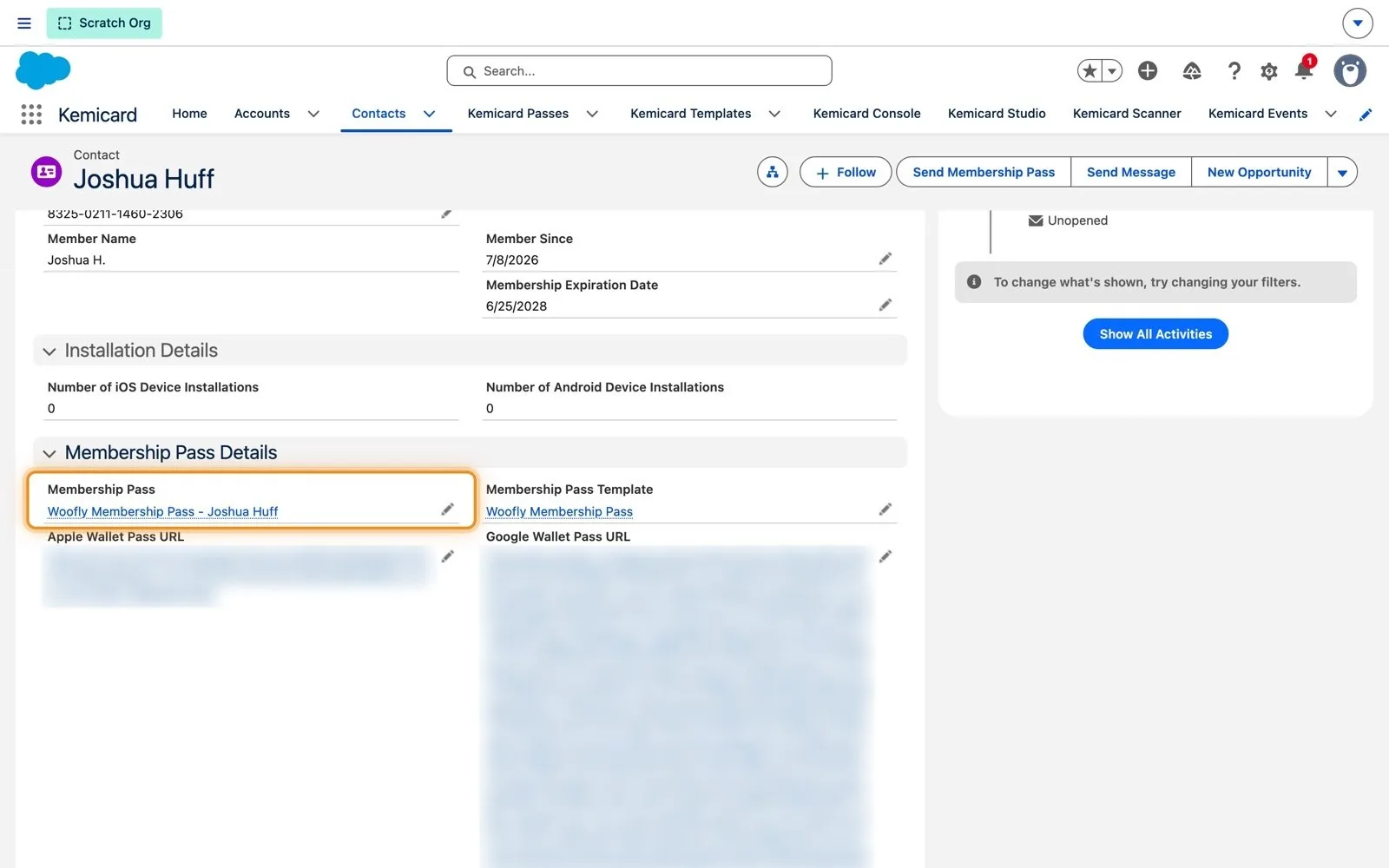
Woofly's Send Membership Pass button runs the Send Membership Pass flow, which calls Kemicard's pass action and fills Membership Pass on the Contact.
4. Move the template
Open Template Workbench from a template (or the tab) and Export. In production, drop the JSON file on the Template Workbench and click Import Template(s).
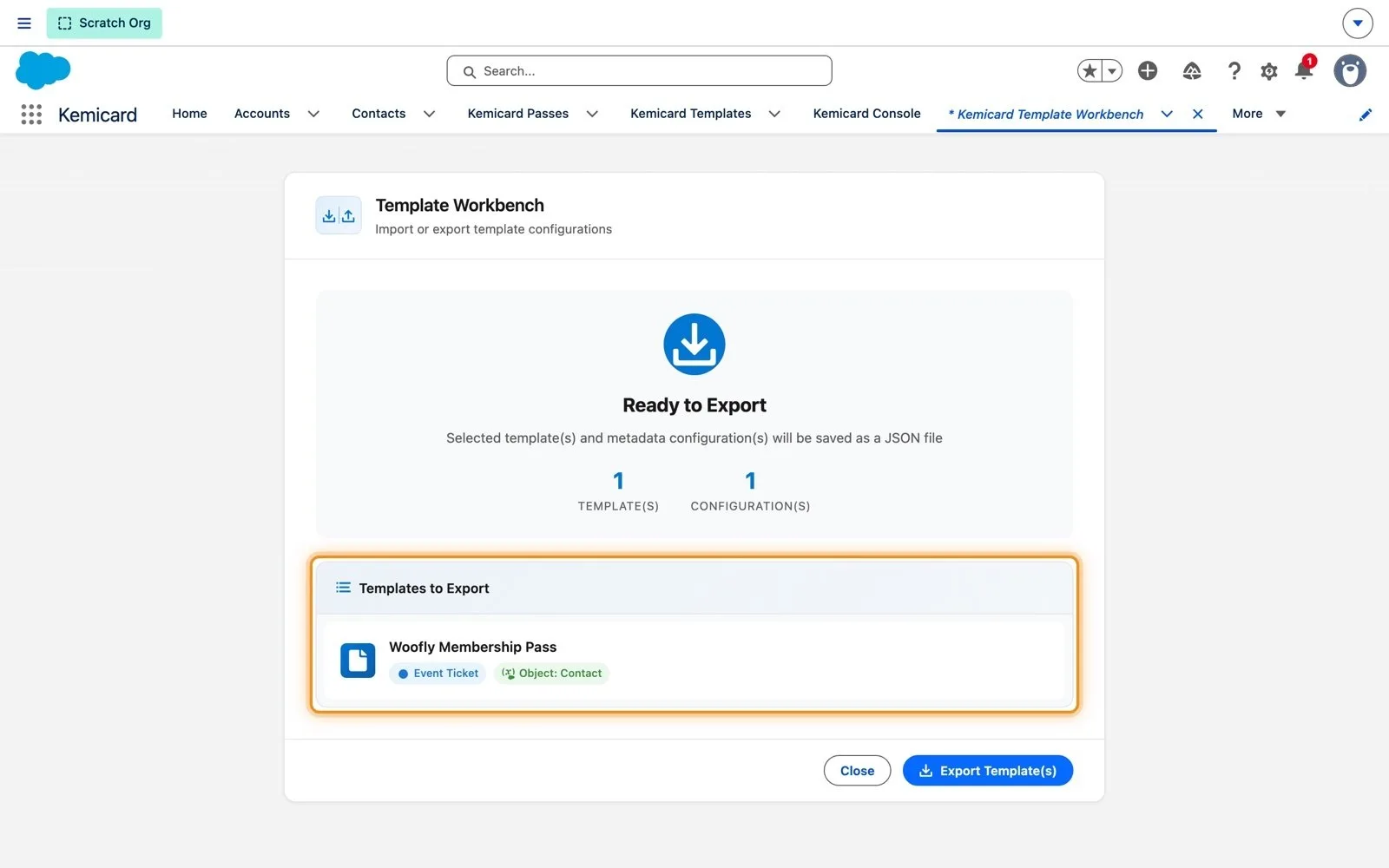
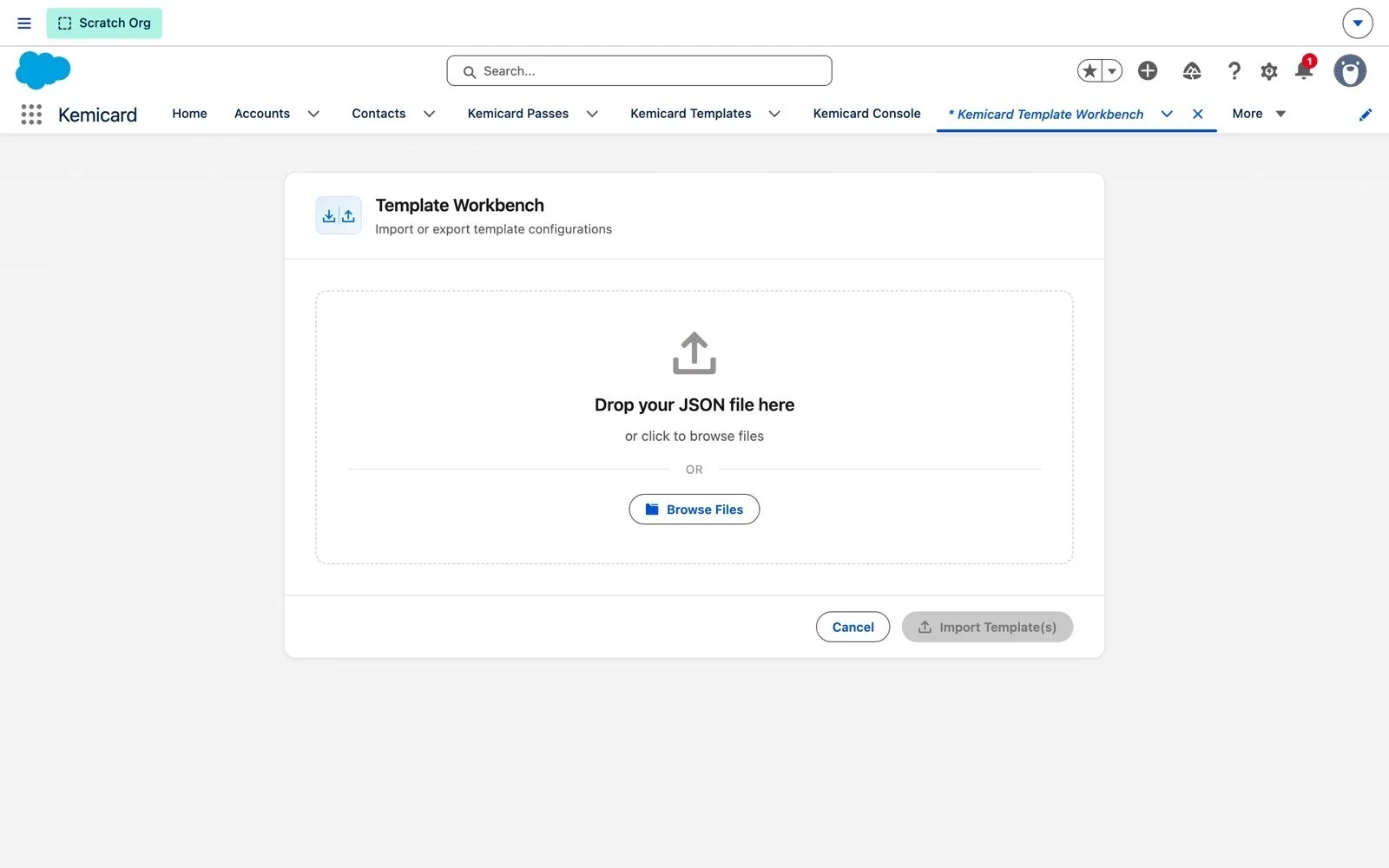
Change set for Scenario 1
| Component type | Components | Why |
|---|---|---|
| Custom Field (Contact) | Membership_Pass__c, Membership_Pass_Template__c | Required by Kemicard (lookups). |
| Custom Field (Contact) | Membership_Expiration_Date__c (Email is a standard field) | Named in the configuration (email, expiration and relevant dates). |
| Custom Field (Contact) | Apple_Wallet_Pass_URL__c, Google_Wallet_Pass_URL__c, Send_Membership_Pass__c, Member_Number__c, Member_Since__c, and other fields your templates show | Used by Woofly's flows, layouts and template fields. Include only what you use. |
| Custom Metadata Record | Kemicard Configuration V2 › Contact | Tells Kemicard which fields to use. Deploy with the fields it names. |
| Flow | Send_Membership_Pass, Send_Membership_Pass_From_Checkbox, Update_Google_Wallet_URL | Send passes from the button or a checkbox; copy wallet links back to the Contact. Send_Membership_Pass is also the configuration's Campaign Manager flow. |
| Flow | Kemicard_Expired_Member_Scan_Processor | Named in the configuration as the Scanner flow. |
| Flow (optional) | ContactMessagingScreenFlow | Only if you send messages to pass holders. |
| Button or Link | Contact › Send_Membership_Pass | Starts the flow from the record page. |
| Page Layout / Lightning Page | Contact layout, Contact record page | Shows the button and the pass fields. |
| Validation Rule (optional) | Contact › Active_Template_Validation | Stops users picking an inactive template. |
| Email Template | Woofly welcome email | Sent with the pass. |
| Permission Set | e.g. Kemicard_Contact_User | Field access for the fields above. |
| Report Type / Reports (optional) | Membership reports | Only if you built them. |
Scenario 2: Passes for a custom object
Woofly also runs a Puppy Club, tracked in a new custom object, Puppy Club Member. The admin builds it in the sandbox and lets the Kemicard wizard create the pass fields.
Read every on-screen caption (18)
1. Create the object
Setup › Object Manager › Create › Custom Object: Label Puppy Club Member, Plural Puppy Club Members, API name Puppy_Club_Member__c.
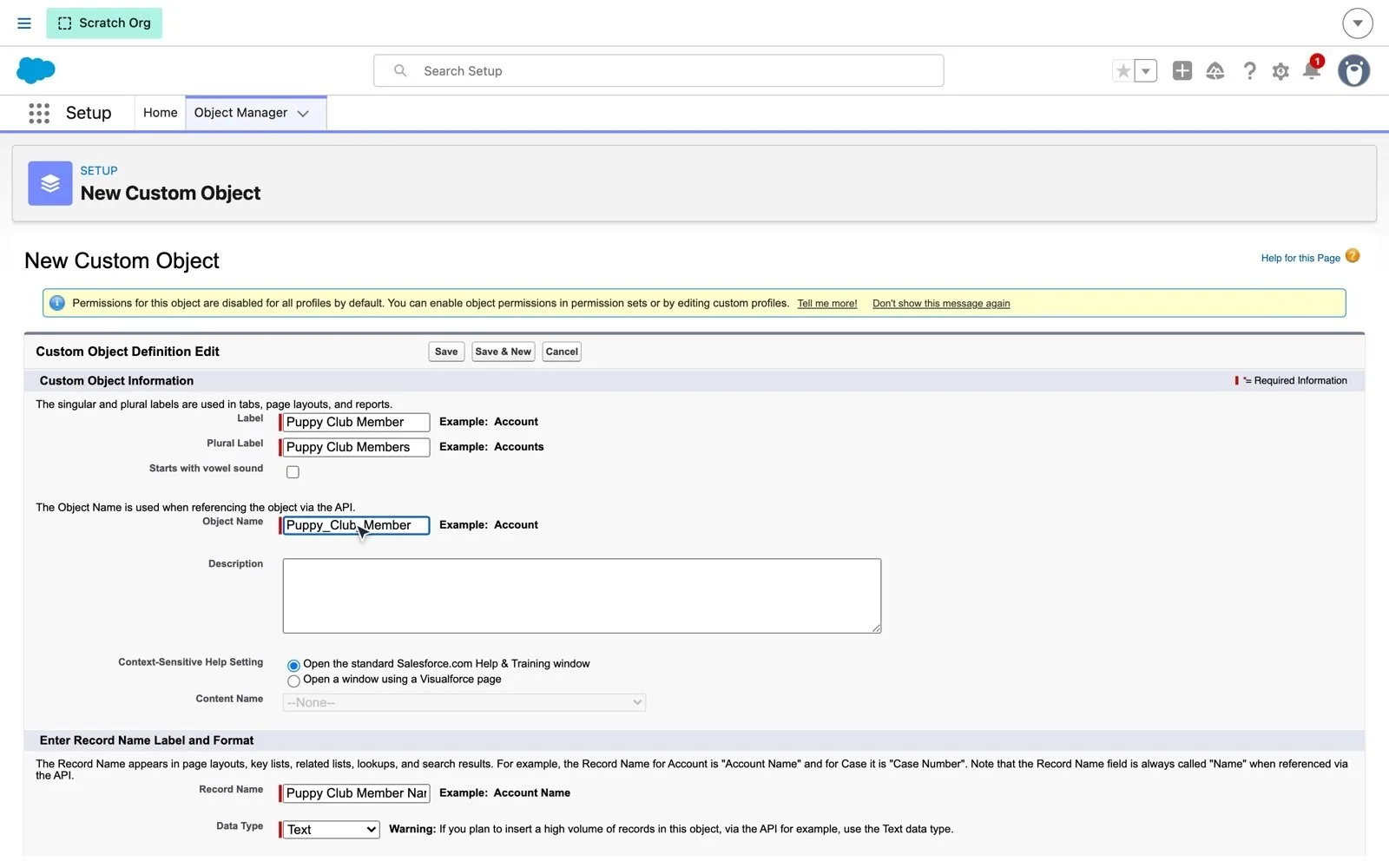
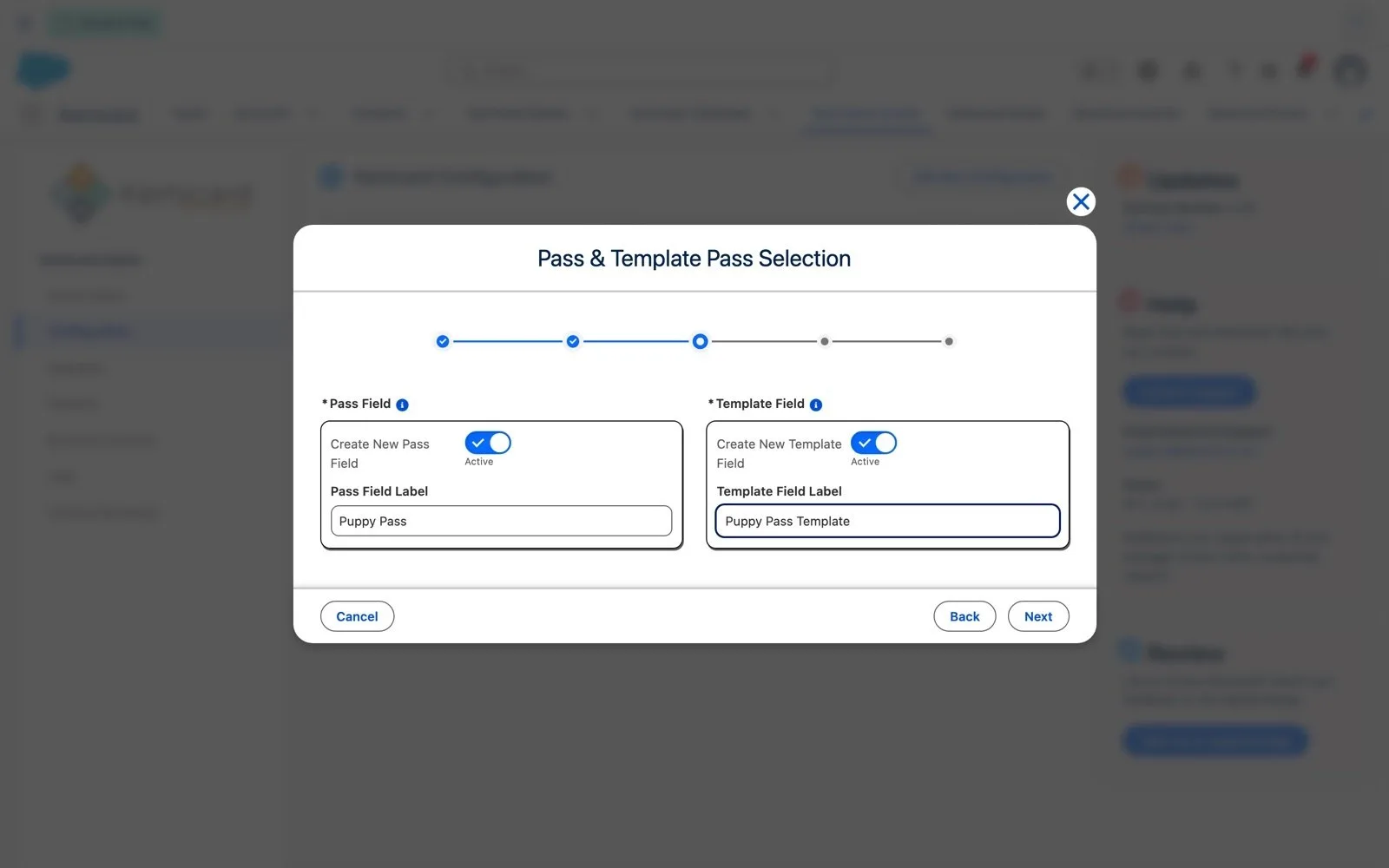
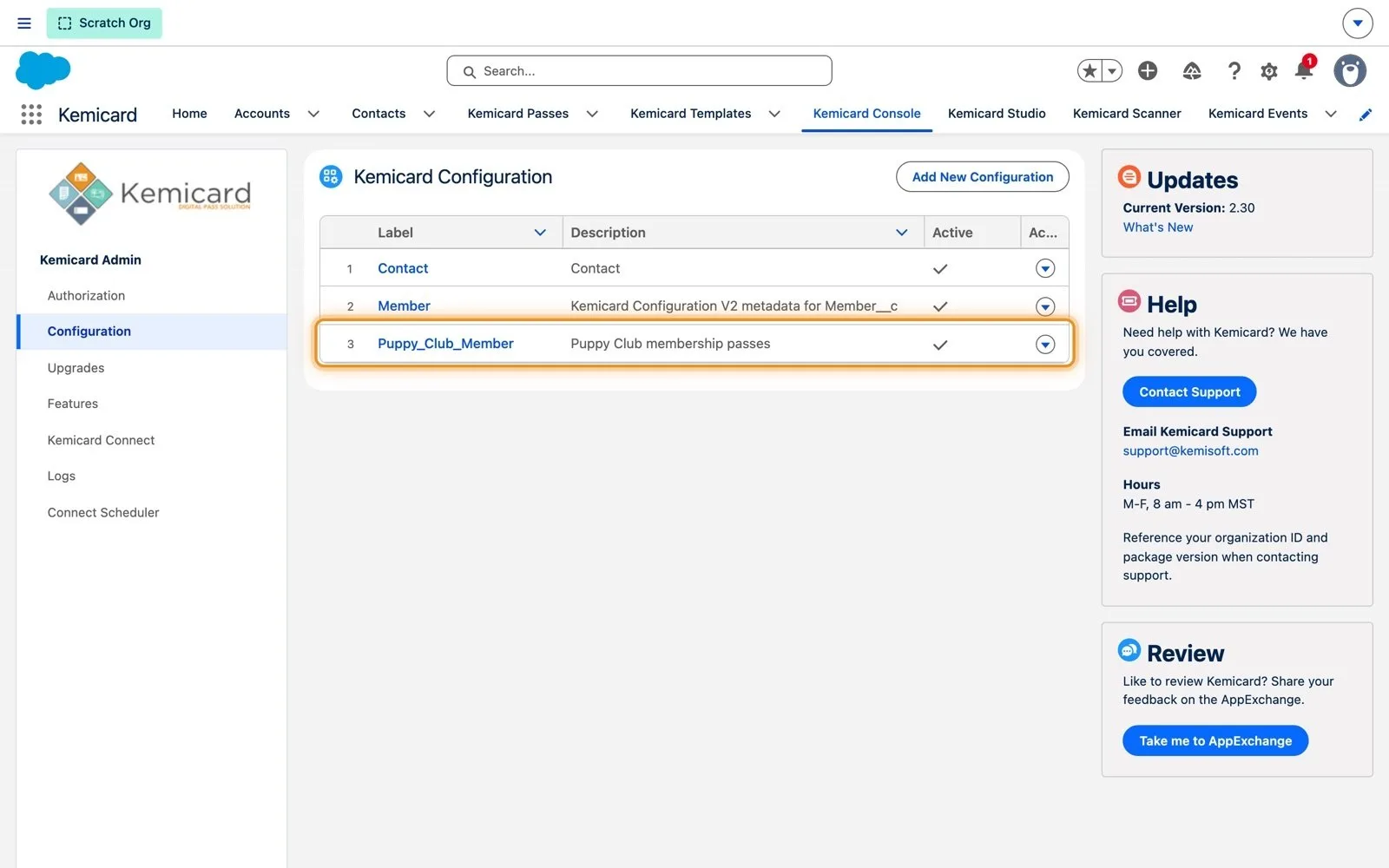
2. Add a Kemicard configuration
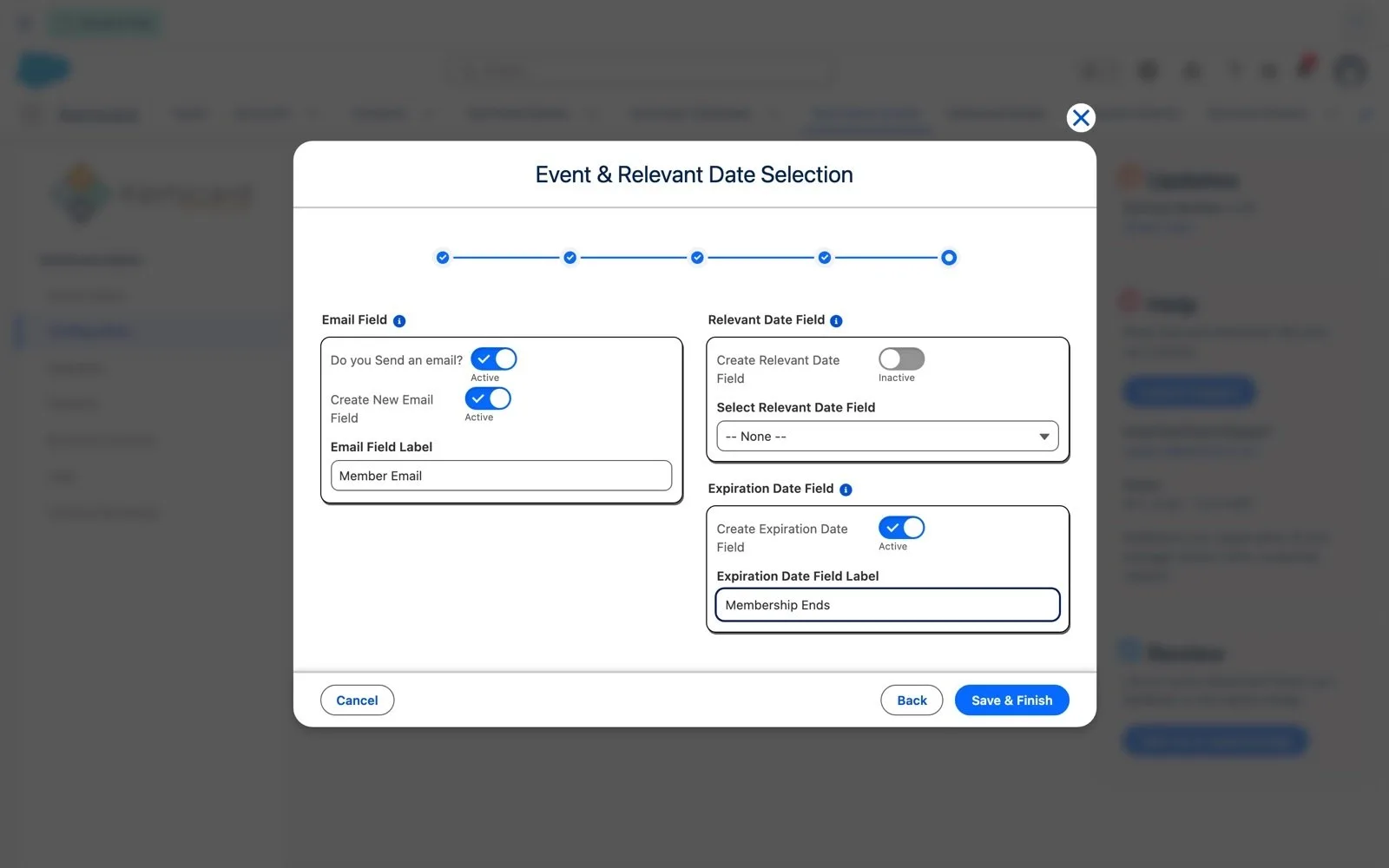
Kemicard Console › Configuration › Add New Configuration. Pick Puppy Club Member and name the configuration Puppy_Club_Member. On Step 3, turn on Create New Pass Field and Create New Template Field. Turn on Apple and Google Wallet on Step 4. On Step 5 Kemicard can also create an email field and an expiration date field. Save & Finish creates the fields and the configuration record.
3. Give users access to the new fields
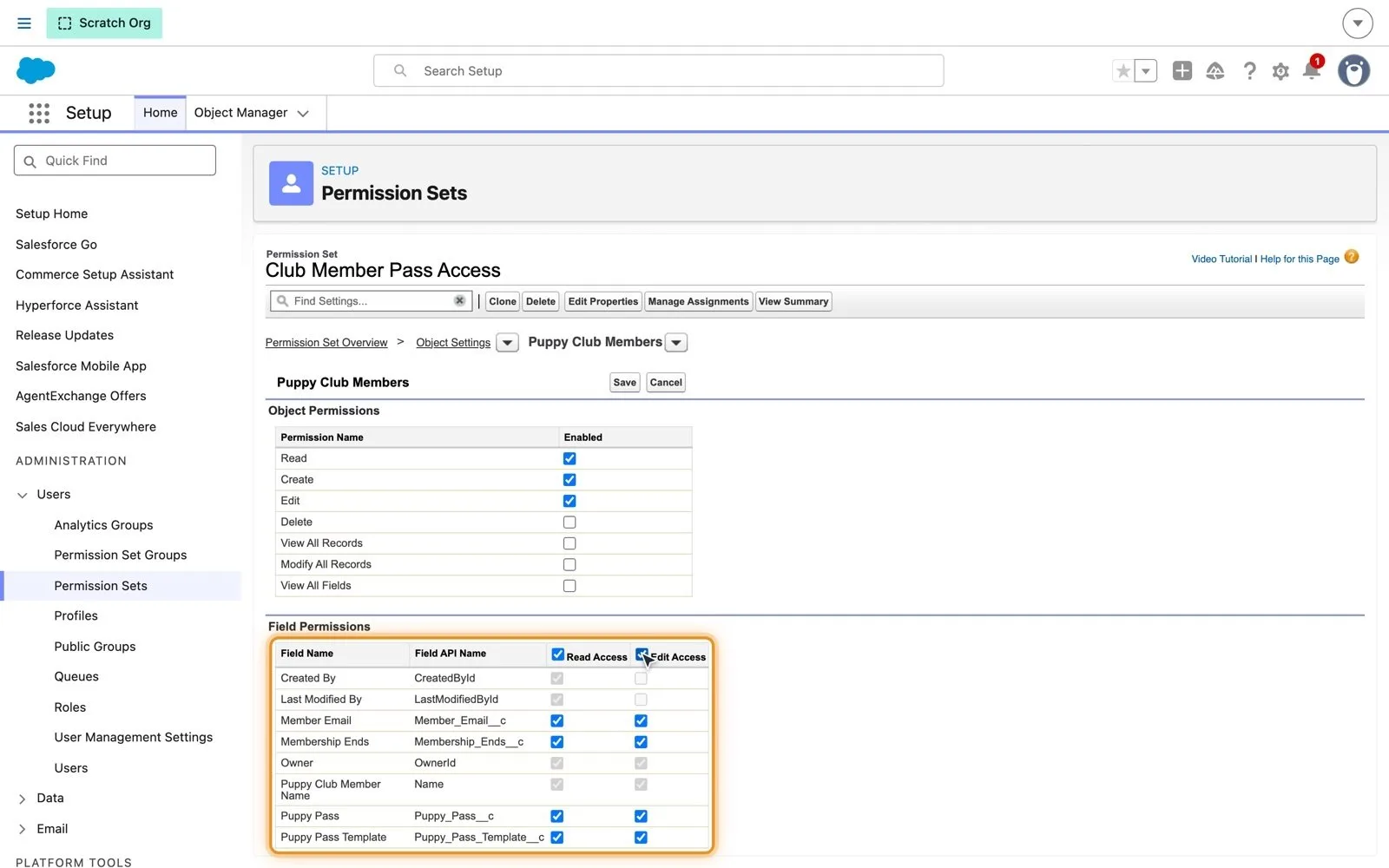
Create a permission set (for example Club Member Pass Access). Under Object Settings › Puppy Club Members, grant Read, Create and Edit on the object and Read and Edit on all fields.
4. Build the send-pass flow and button
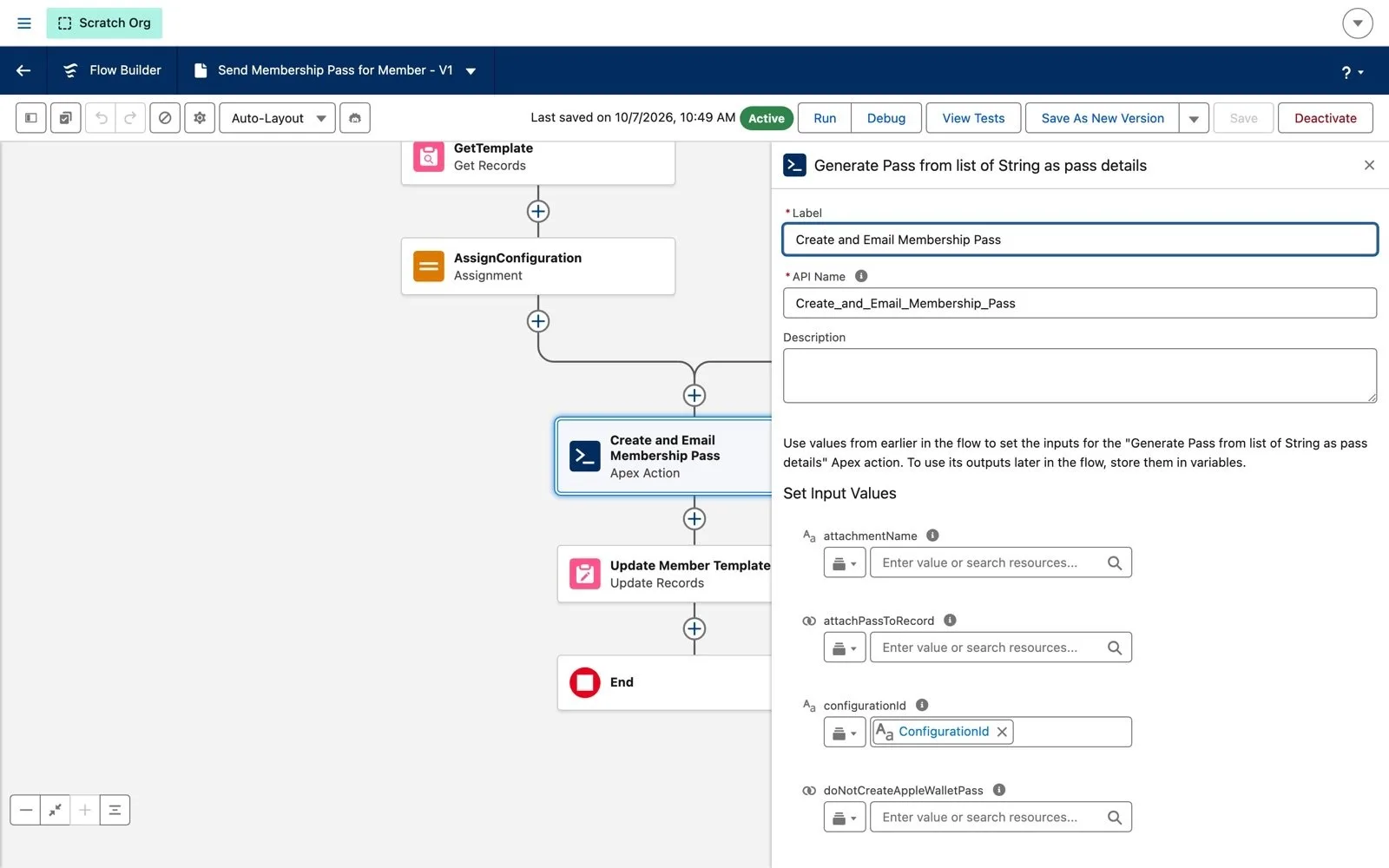
Copy Kemicard's sample flow Send Membership Pass for Member (Save As New Flow) and point it at Puppy Club Member: get the record from recordId, read its template and email fields, and pass them to the Apex action Generate Pass from list of String as pass details (inputs configurationId, whatId, email addresses). Then add a Send Membership Pass button that opens the flow, and put it on the page layout. The action's inputs are described in the API reference and Flow integration guide.
Change set for Scenario 2
| Component type | Components | Why |
|---|---|---|
| Custom Object | Puppy_Club_Member__c | The new object (its tab too, if you created one). |
| Custom Field (Puppy Club Member) | Puppy_Pass__c, Puppy_Pass_Template__c | Created by the wizard; required by Kemicard. |
| Custom Field (Puppy Club Member) | Member_Email__c, Membership_Ends__c | Created by the wizard; named in the configuration. |
| Custom Metadata Record | Kemicard Configuration V2 › Puppy_Club_Member | Names the object and its fields. |
| Permission Set | Club_Member_Pass_Access | The wizard's fields have no access until granted. |
| Flow | Your copy of the send-pass flow | Generates and emails the pass. |
| Button or Link | Puppy Club Member › Send Membership Pass | Starts the flow. |
| Page Layout / Lightning Page | Puppy Club Member layout | Shows the button and the pass fields. |
| Email Template | If the flow sends one |
After the deployment
| Check | Where |
|---|---|
| Kemicard is installed on the same version as the sandbox | Setup › Installed Packages |
| Kemicard is authorized | Kemicard Console › Authorization |
| The configuration record is Active and names the right fields | Kemicard Console › Configuration › Edit (cancel without saving) |
| Users have the permission set and can see the pass fields | Setup › Permission Sets › Manage Assignments |
| Flows are Active | Setup › Flows |
| Templates are imported and Active | Kemicard Templates tab |
| A test record gets a pass: lookup filled, email received, pass opens in a wallet | Record page |
Common problems
| Symptom | Likely cause |
|---|---|
| Change set validation fails on the lookup fields | Kemicard isn't installed in production yet, or is an older version. |
| Users can't see Pass or Template fields | Missing field-level security: the permission set wasn't deployed or assigned. |
| Button does nothing or the pass lookup stays empty | The flow is inactive, or the configuration record wasn't deployed. |
| Template import fails or the template has no configuration | The change set (fields and configuration) wasn't deployed before the import. |
| Pass generation fails for every record | Kemicard isn't authorized in production yet. |
More fixes in Troubleshooting & KB.
Need help? Email supportkemisoft.com (M–F, 8 am – 4 pm MST) with your Salesforce organization ID and Kemicard package version.
Sources: Kemicard production install scenarios and demos (Kemicard 2.30, fictional sample data). Salesforce Help: Change Sets.