How Kemicard works under the hood: the Salesforce layer, the stateless Kemicard Server, and the Apple and Google Wallet ecosystems. Based on the Kemicard Technical Documentation (v1.1).
Platform structure
Kemicard is a Salesforce-native application purpose-built for delivering digital experiences through mobile wallets. While Kemicard functions within Salesforce, its true power lies in its extension via a stateless orchestration layer — the Kemicard Server — hosted in Kemisoft’s secure, enterprise-grade cloud environment on Google Cloud.
This server acts as a middleware abstraction and orchestration engine. It encapsulates and translates Salesforce-native data structures into the pass formats required by Apple Wallet and Google Wallet. By isolating this logic in a cloud-based, stateless server, any future changes made by Apple or Google to their wallet APIs remain transparent to client organizations — significantly reducing development overhead, maintenance burden, and the risk of integration failure from upstream platform changes.
Key architectural components
Salesforce layer
- Template and Pass records — custom objects that define the layout, branding, and content of each pass, supporting custom fields, barcodes, and images.
- Apex services and Flows — the key method is
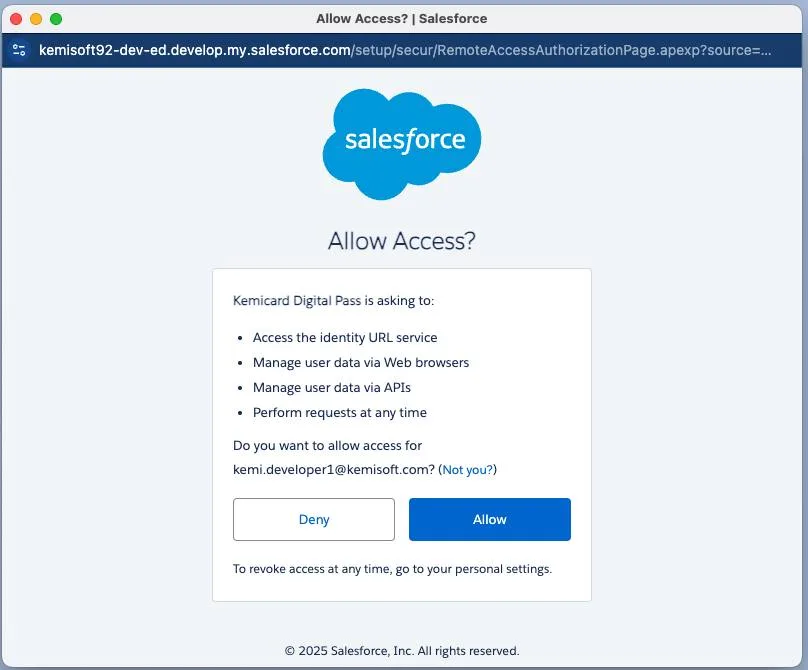
upsertPasses, which handles both creation and updates of digital passes based on user data or events. - OAuth-secured communication with the Kemicard Server — via the Kemicard Digital Pass Connected App; OAuth 2.0 tokens authenticate every request between Salesforce and the Kemicard Server.
Kemicard Server
- Stateless architecture — each request is processed independently; no business or customer data is stored.
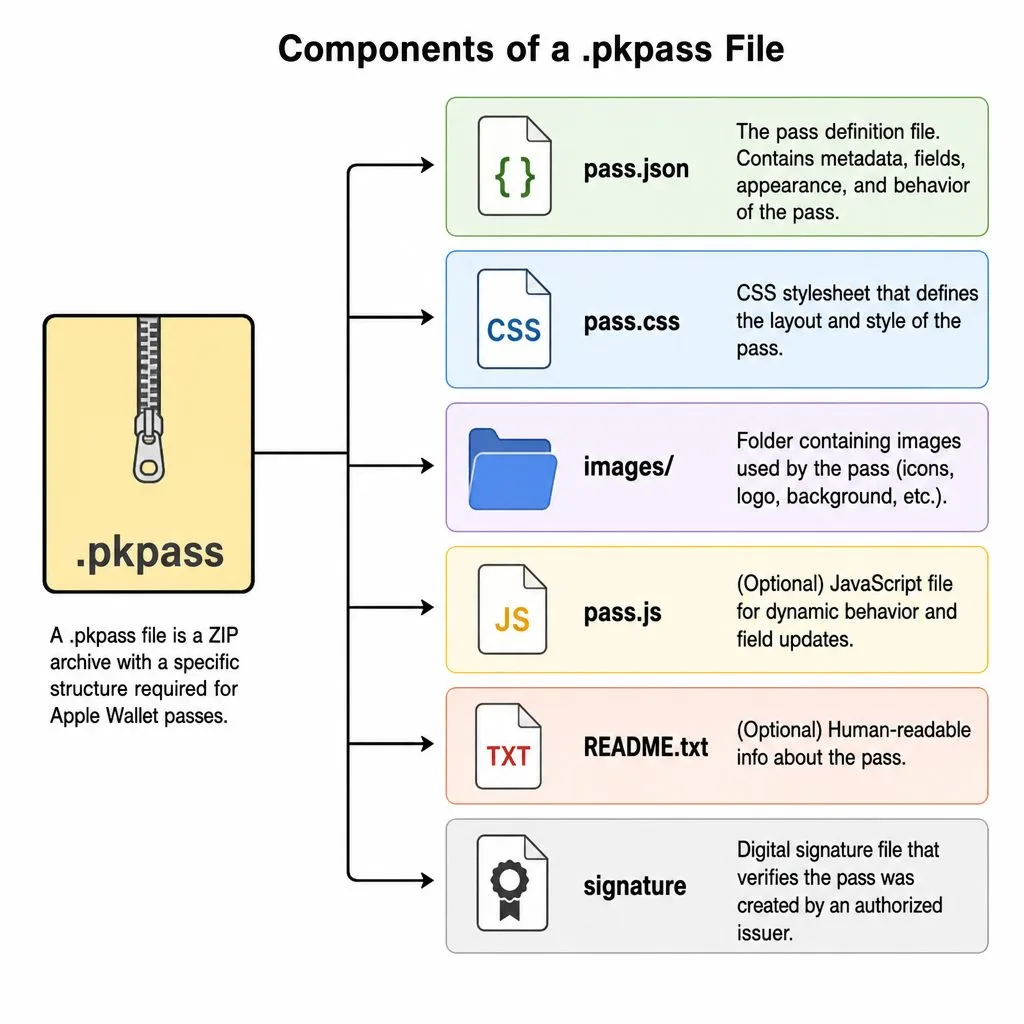
- Pass generation & cryptographic signing — transforms Salesforce data into wallet formats and signs Apple .pkpass bundles with Apple-issued certificates.
- Integration hub — interfaces with Apple Push Notification Services (APNs) and Google Wallet APIs for device registrations and real-time updates.
- Secure endpoints — HTTPS with TLS encryption and token-based authentication on every call.
Apple & Google Wallet ecosystems
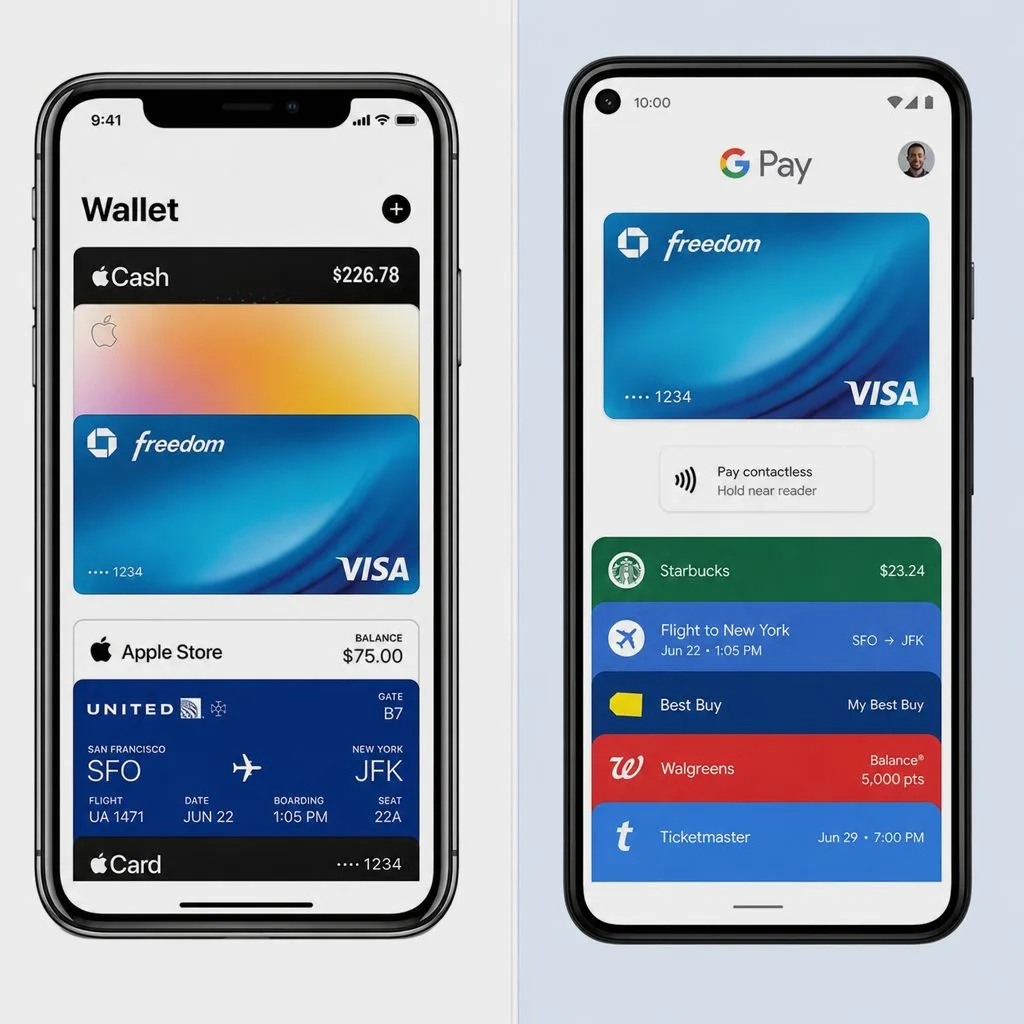
Users receive an email or notification with a secure link to download their pass into Apple Wallet or Google Wallet. With push notifications and automatic updates enabled, changes to the associated Salesforce data propagate in real time through APNs or Google's messaging systems — a living digital card experience.
Generating and updating passes: upsertPasses
Pass generation and updates flow through a single Apex invocable —
AppleTemplatePassSFObjectDataService.upsertPasses(List<PassRequest>), surfaced in Flow Builder
as the Generate Pass action. Architecturally, the request is thin by design: it carries only
per-invocation context (configurationId, whatId, and optionally
templatePassId, passId, messageValue), while the heavy lifting lives in
two metadata records — the Pass Configuration (source object, field bindings, Apple/Google
generation, email delivery, expiry) and the Template (layout, images, barcodes). Changing either
record changes the resulting pass with no code change. Including passId switches the call to the
update path: the pass is re-rendered and a wallet push reaches every installed device.
Full field-by-field reference, example invocation, and response semantics: API Reference — upsertPasses.
Image requirements
| Type | Apple (px) | Google (px) | Size / formats |
|---|---|---|---|
| Logo | 150×150 | 150×150 | <100 KB — PNG (Apple); JPG/JPEG/PNG (Google) |
| Notification icon | 87×87 | N/A | <100 KB — PNG (Apple) |
| Strip / hero | 1125×294 | 1125×294 | <100 KB — PNG (Apple); JPG/JPEG/PNG (Google) |
| Detail (Google) | N/A | 300×300 | <100 KB — JPG/JPEG/PNG |
Mandatory fields in Kemicard Studio
- Apple: Logo Image (Front tab), Strip Image (Front tab), Icon Image (Notification tab), and at least one field from Field Selection.
- Google: Logo Image and Hero Image (Front tab), Detail Image (Back Side tab), Card Title (Front tab), Header field configuration, and one field from field configuration.
Personas
- Initiator (Salesforce user) — an admin, marketer, or operations user who defines templates, creates and maintains pass records, sends passes, and manages updates.
- End user (wallet owner) — receives an email with a secure download link, adds the pass to Apple Wallet or Google Wallet, and receives real-time updates and push notifications.
Security model
- OAuth 2.0, scoped — tokens granted to the Connected App are tightly scoped, short-lived, and securely refreshed; admins explicitly authorize the app before any communication occurs.
- TLS, authentication & access control — all endpoints enforce TLS encryption, token authentication, firewalls, role-based access control, and infrastructure-level identity and access management (IAM) policies.
- No persistence of business data — data from Salesforce is used only for the lifetime of the request; no PII or customer content is stored on Kemicard Server. Only essential logs (status codes, request metadata) are retained temporarily under strict retention policies — simplifying GDPR and CCPA compliance.
- Forward compatibility through API abstraction — Apple/Google API changes are absorbed by the Kemicard Server; no Salesforce-side modifications are ever needed.
Kemicard Scanner (native component)
The Kemiscanner is a native Salesforce component available in the Salesforce UI or Experience Cloud UI — no external calls are necessary. Each scan reads the QR/barcode, validates it against Salesforce in real time, shows Valid / Invalid / Duplicate feedback to staff, and logs the scan event for attendance, auditing, and downstream automation. It is browser-based, mobile friendly, and optimized for high-throughput entry.
The Architecture in Practice
The concepts above are easiest to grasp in the org itself. These three screens show the architecture's key touchpoints as an admin experiences them.
Authorization is where the layers meet. When an admin authorizes the Kemicard Digital Pass Connected App, Salesforce presents the standard OAuth consent screen below — this is the scoped, revocable grant that lets your org call the stateless Kemicard Server, and nothing else:
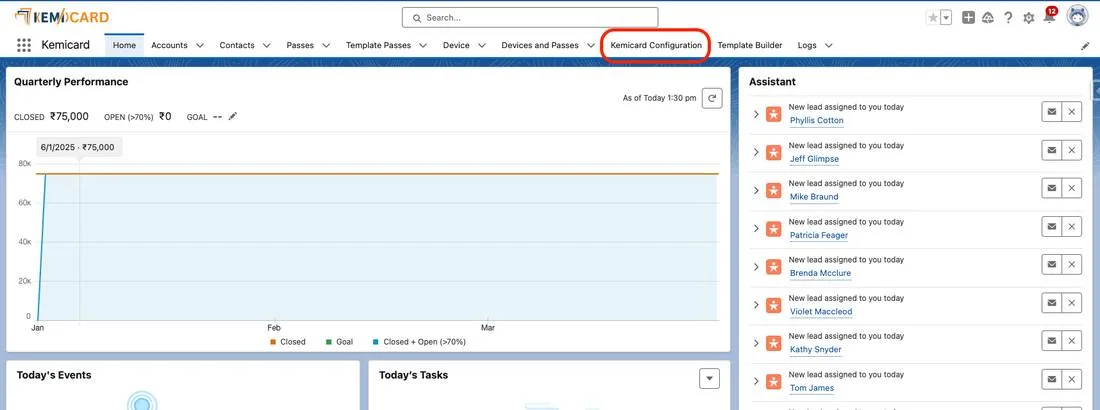
Everything lives behind ordinary Salesforce tabs. The Kemicard app is a standard Lightning app: Template Passes, Devices and Passes, Kemicard Studio, Logs, and the Kemicard Configuration tab (highlighted below) all sit in the navigation bar — no external control panel, no hidden infrastructure:
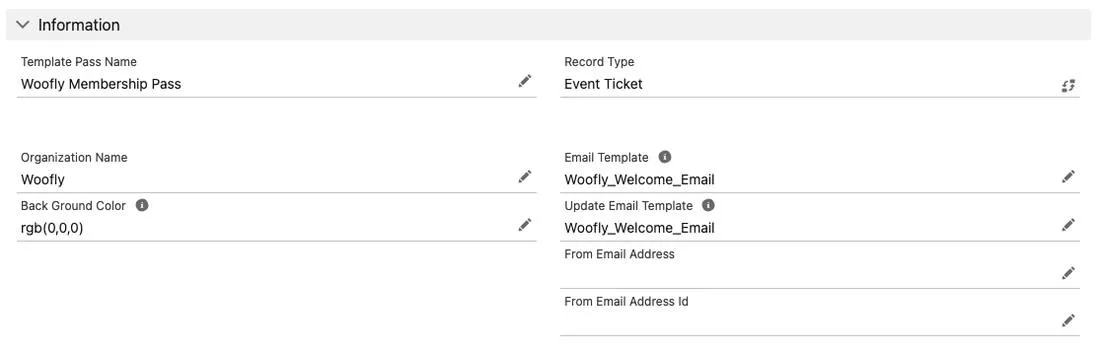
Templates are records too. The Template Pass record below defines one card design — its name, record type, organization branding, background color, and the enrollment and update email templates bound to it. Because it's a Salesforce record, it's governed by your sharing rules, auditable in your org, and readable by your Flows; per-record merge fields are resolved against the record referenced by whatId at generation time:
Sources: Apple's Building a Pass and Adding a Web Service to Update Passes; Google's Google Wallet API documentation; Salesforce Help: Enable OAuth Settings for API Integration.
Related: Installation Guide · Flow Integration & Apex Action · API Reference