How to change templates that are already in the field: editing methods, which fields live where, Studio visual settings, preview behavior, and how changes reach installed passes. Covers Kemicard Studio template editing and record-page editing side by side.
 Click here to watch the video walkthrough
What a template controls
A Kemicard Template (Template_Pass__c) is the visual and functional blueprint for your digital passes. Each template is linked to a configuration that determines the target Salesforce object (e.g., Contact), and it manages:
- Branding — logos, colors, images, and organization names.
- Data mapping — which Salesforce fields appear on the front and back of the pass.
- Barcode configuration — QR code types and the source data field.
- Email delivery — the email templates used for pass distribution.
- Notifications — how push notifications appear on mobile devices.
Two editing methods
- Kemicard Studio (Template Builder) — the visual editor inside the Kemicard Console. Open the Console, use the Template Builder search box to find a template by name (e.g., “Woofly”), and the editor loads with live previews.
- Template record page — the standard Salesforce detail page for editing specific field values. The page includes a configuration banner showing the linked configuration status (e.g., “Configuration 'Contact' is active”).
Key template fields (Details tab)
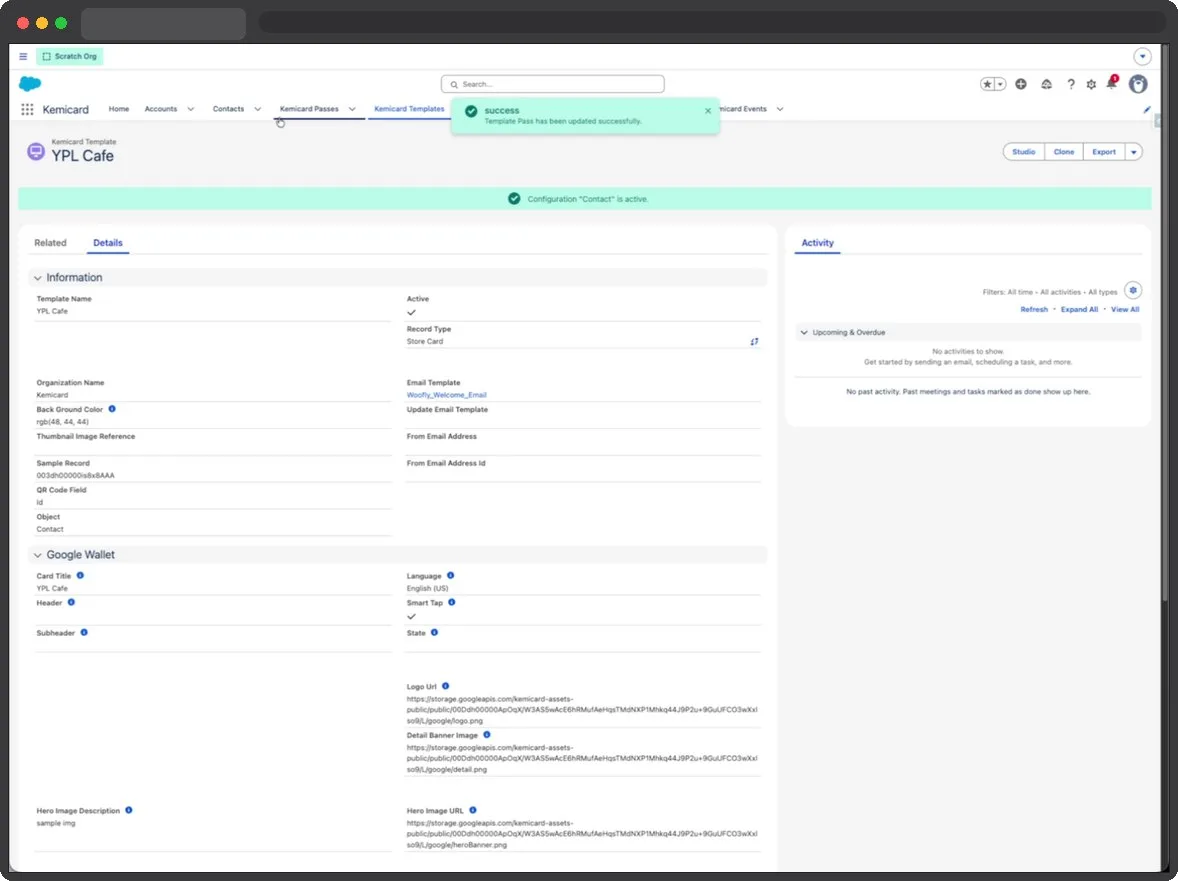
The record page's Details tab contains the full field layout. The most commonly edited fields, with values from the Woofly example:
| Field | API name | Example value | Notes |
|---|---|---|---|
| Template Name | Name | Woofly Membership Pass | Standard record name. |
| Active | Active__c | true | Required for pass generation. |
| Organization Name | Organization_Name__c | Woofly | Displayed on the pass and in notifications. |
| QR Code Field | QR_Code_Field__c | Id | Field encoded into the QR code. |
| Background Color | Back_Ground_Color__c | rgb(255, 255, 255) | CSS RGB triple format — strict. |
| Apple Type | Apple_Type__c | Event With Strip | Controls the Apple layout. |
Kemicard Studio — visual settings
The Studio is divided into a Settings panel and a Preview panel. Three settings tabs:
- Style — background color, Apple font color (may be overridden by Apple when a strip image is used), and Apple label color. Strict format: colors must be
rgb(R, G, B)with no decimal values. - Barcodes — barcode formats for Apple and Google, plus the QR Data Field dropdown listing fields from the target object. For Woofly, selecting
Idencodes the Contact ID for scanning. - Setup — three configuration modals: Images (logos, strip/banner and hero images, packaged into a ZIP stored in
Wallet_Resources_ID__c), Fields (maps Salesforce fields to pass slots, building theFields_Map__cJSON), and Email Templates (Email_Template__cfor initial delivery,Update_Email_Template__cfor Google Wallet updates).
The Preview panel
Real-time feedback across three views:
- Front side — renders per the selected
Apple_Type__c. The Apple preview shows header, secondary, and auxiliary fields; the Google preview shows subheader, header, and Google Wallet data rows. If validation fails, an expandable error accordion lists platform-specific errors. - Back side — the reverse of both passes: informational fields such as terms on Apple, and Google-specific back-of-pass content.
- Notification — simulates lock-screen push notifications with the organization name, icon, and message body; click the icon or text to edit them directly.
Fields map example (Woofly)
The Fields_Map__c JSON defines the data slots:
- Apple row 0 (header) →
Contact.Kcard__Member_Number__c - Apple row 1 (secondary) →
Salutation,FirstName,LastName - Google row 2 (wallet fields) →
Contact.Kcard__Member_Since__c
Technical validation & triggers
- RGB validation — the
Check_Values_of_RGB_in_Fieldsrule prevents decimal values in color fields. - TemplatePass trigger — before insert: auto-populates
Class_Id__cand validates email addresses; before update: strictly prevents changes toClass_Id__conce created. - Record types — Generic, Event Ticket, Store Card, Coupon, and Boarding Pass.
Editing workflow summary
- Search for the template in the Kemicard Console.
- Adjust Style (colors) and Barcodes (QR data source).
- Use the Setup modals to update images or remap Salesforce fields.
- Preview the Front, Back, and Notification views with a sample record for live data.
- Save to persist changes to the record and update the field-map JSON — installed passes refresh via push.
Sources: Apple's Pass reference (colour keys and pass styles); Apple's Wallet design guidelines (pass field types).
Where to go next
- Kemicard Studio guide — the full design reference.
- Notifications — tell members what changed.
Background reading on the blog: loyalty card template design.