Configure push notifications, real-time pass updates, and location-triggered lock-screen messages — with the platform behavior notes that keep rollouts predictable.
Push notifications
- Send from a record, a Flow, or Kemicard Connect (Notify) to everyone in a report, now or on a daily, weekly or monthly schedule, with merge fields such as
{!FirstName}; notification text is customizable per template, including the Apple notification title. - Generic push messaging on Apple Wallet is a Kemicard differentiator — most wallet platforms can't send free-form Apple pushes.
- Typical lock-screen visibility is 80–90%, versus 15–20% email open rates.
- Google Wallet allows at most three notification-triggering messages per pass in 24 hours; plan campaign cadence around it.
Real-time pass updates
Record and template changes propagate through the Kemicard event pipeline to installed passes within seconds. The standard promo mechanism: update the strip image and back-of-pass message, and every installed card refreshes.
Scheduled notifications
Use scheduled Salesforce Flows for renewal reminders and event-day messages — a fully supported configuration. Calendar-based scheduling (Kemicard Connect) is in development on the roadmap.
Scheduled Flow (daily)
 WHEN Membership__c.End_Date__c = TODAY + 30
 → Kemicard Send Message: "Your membership renews in 30 days…"
Geofencing
- Enter a plain address (geocoded once, coordinates stored) or raw coordinates — both supported as a toggle per template.
- Limit: 10 locations per template (Apple hard limit; applied to both platforms for consistency).
- The pass surfaces on the lock screen when the member nears a configured location — store, venue, or campus.
- Trigger radius differs by platform default; verify per-template values when precision matters.
Setting up a geofence, step by step
Every screenshot below is from a live configuration in a Salesforce org. A geofenced pass surfaces itself on the member’s lock screen when they come within range of a location you define — no app, no separate campaign tool.
1. Find Locations on the template
Locations is in the Studio settings rail. On a new template it reads “None configured”, with the explanation: locations defined here are automatically applied to passes generated from this template, and users receive a notification when they enter the defined area.
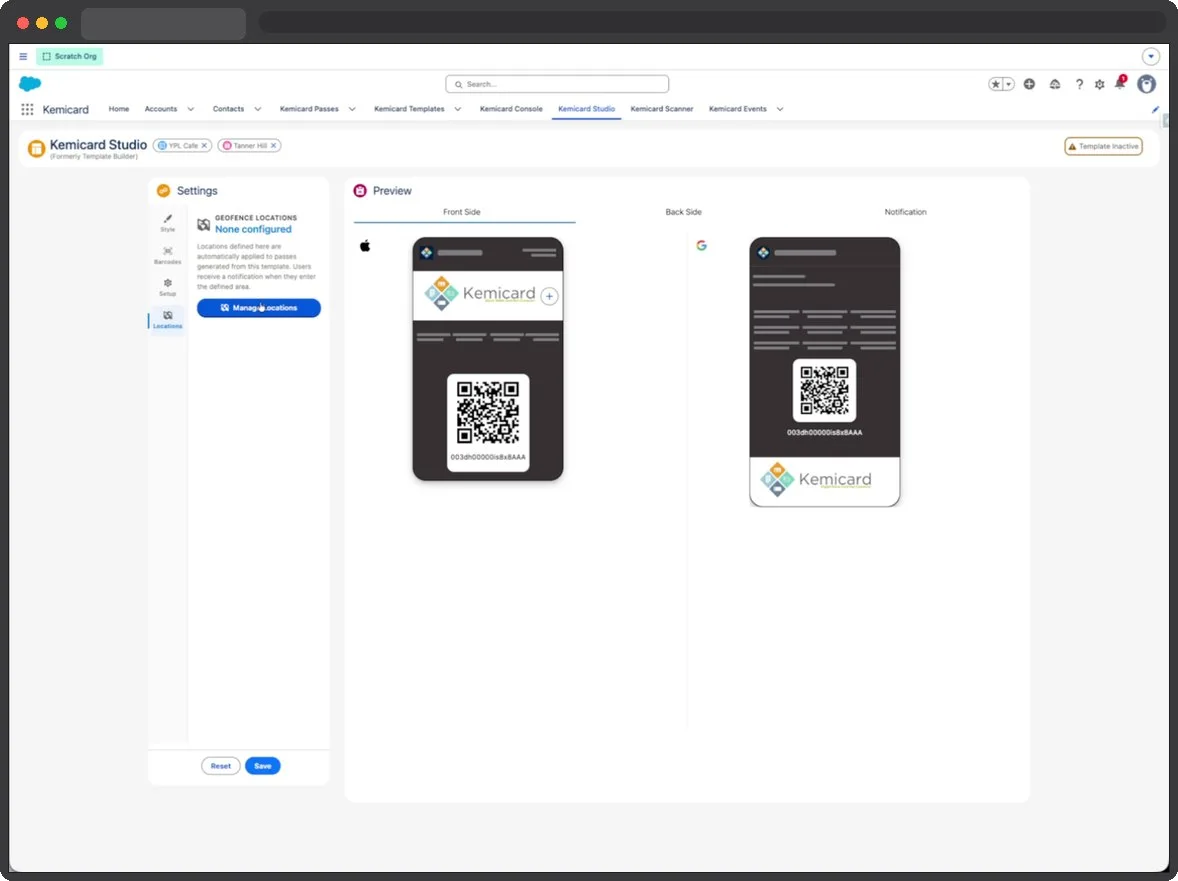
2. Add a location
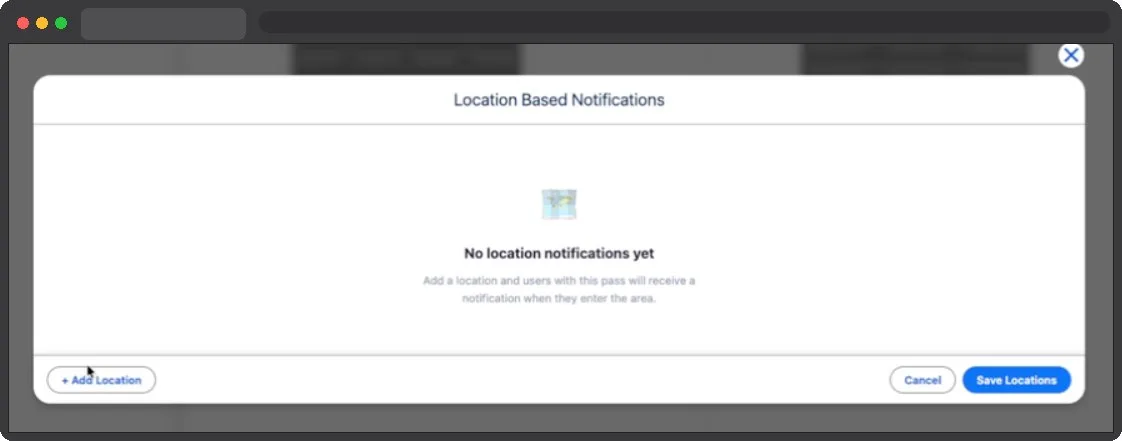
3. Name it, message it, place it, size it
Four fields, and each one matters:
- Location Name — internal, so you can recognise the entry in the list
- Lock Screen Message — what the member actually reads, so write it as a sentence to a person
- Location Input — Address or Coordinates. Type an address and Kemicard resolves it, confirming with the latitude and longitude it found. Use Coordinates where there is no postal address: a stadium gate, a trailhead, a stand inside a venue
- Radius — a number plus an m / mi toggle, with the conversion shown as you type
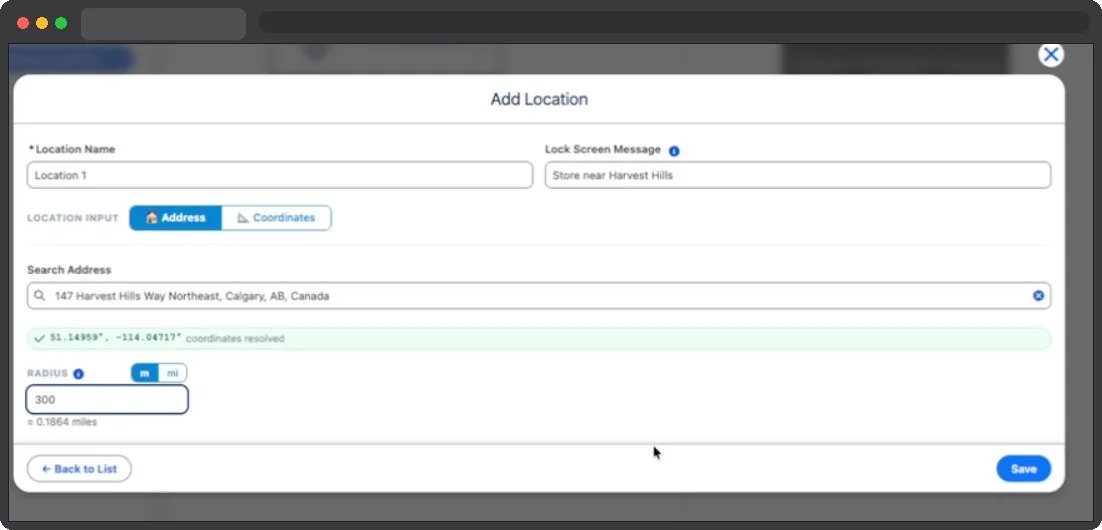
4. Save twice, and confirm
Save stores the individual location; Save Locations commits the set to the template. The settings rail then reads 1 location instead of “None configured” — which is how you know it took.
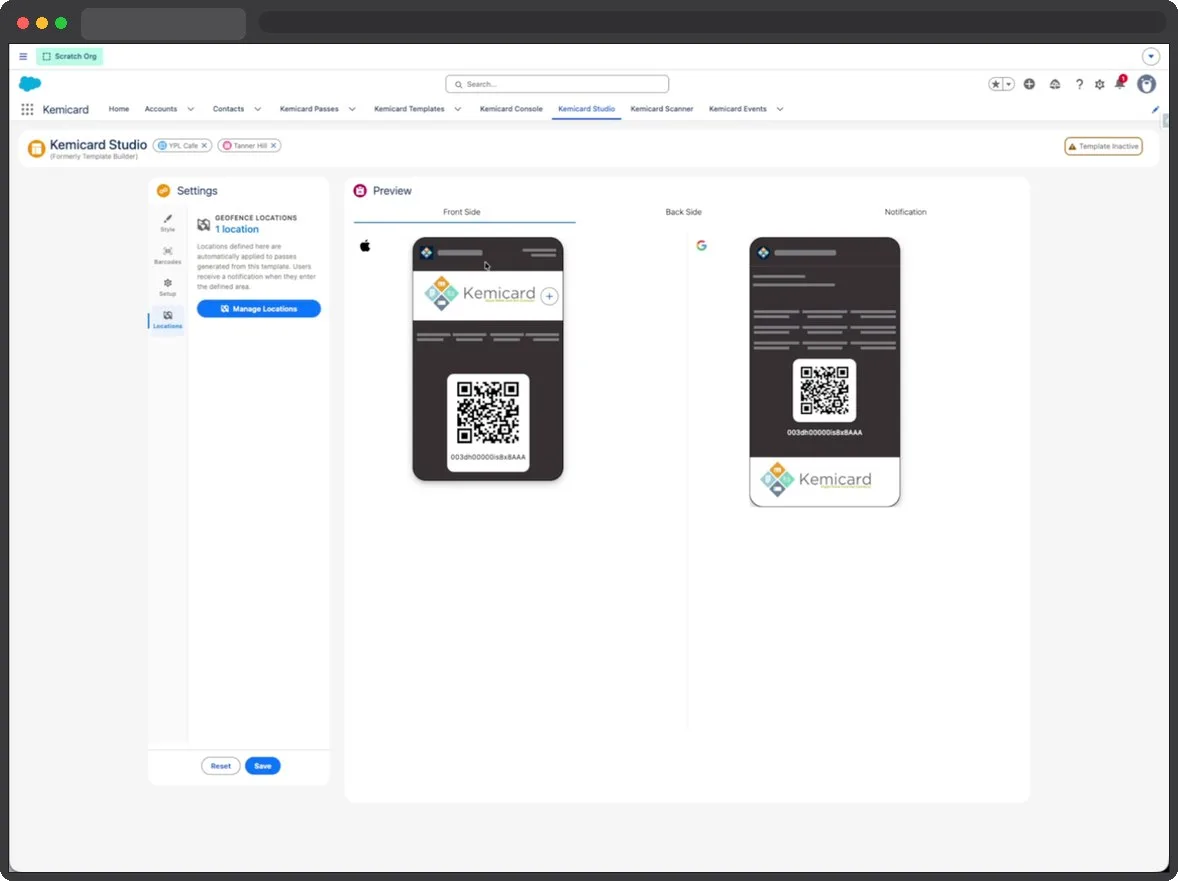
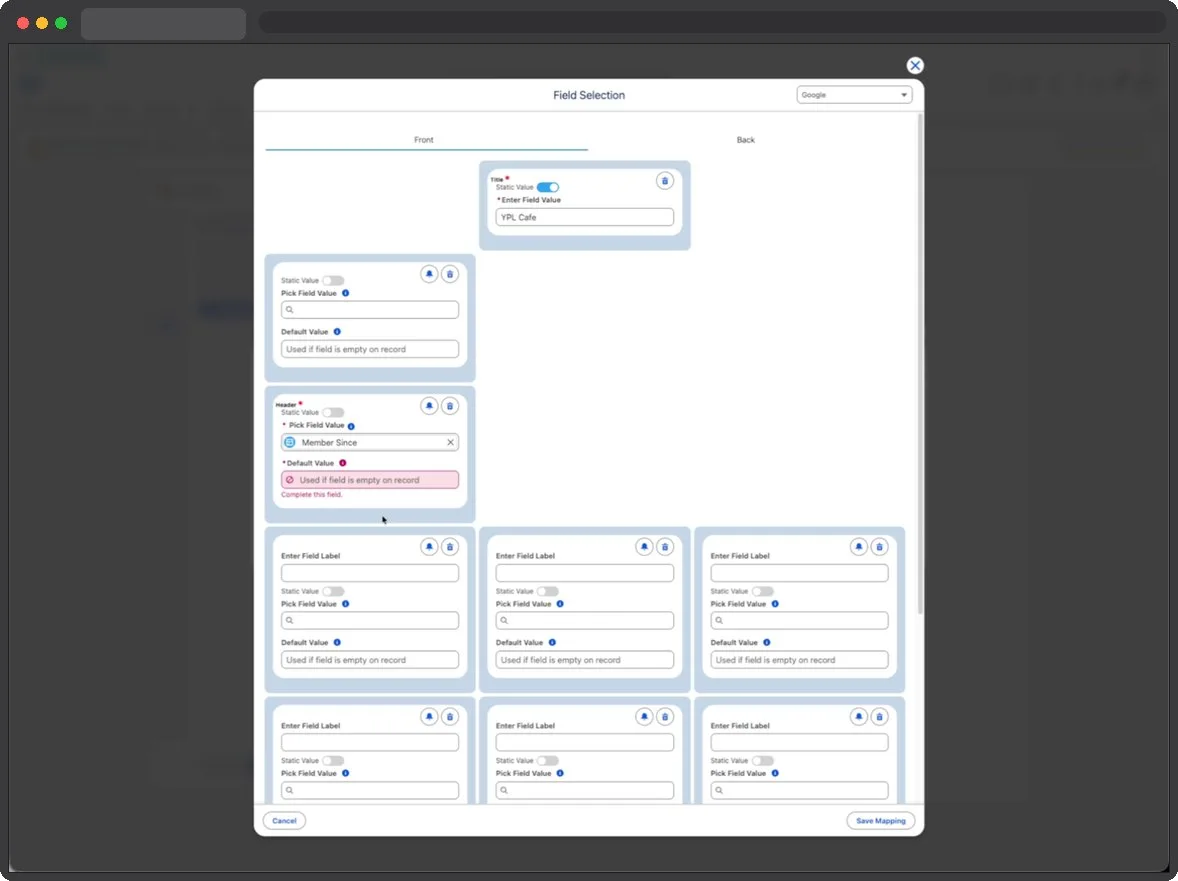
5. Map the card fields
Field mapping decides what each pass shows per member. Used if field is empty on record sets the fallback, which is what stops a blank appearing on somebody’s card.
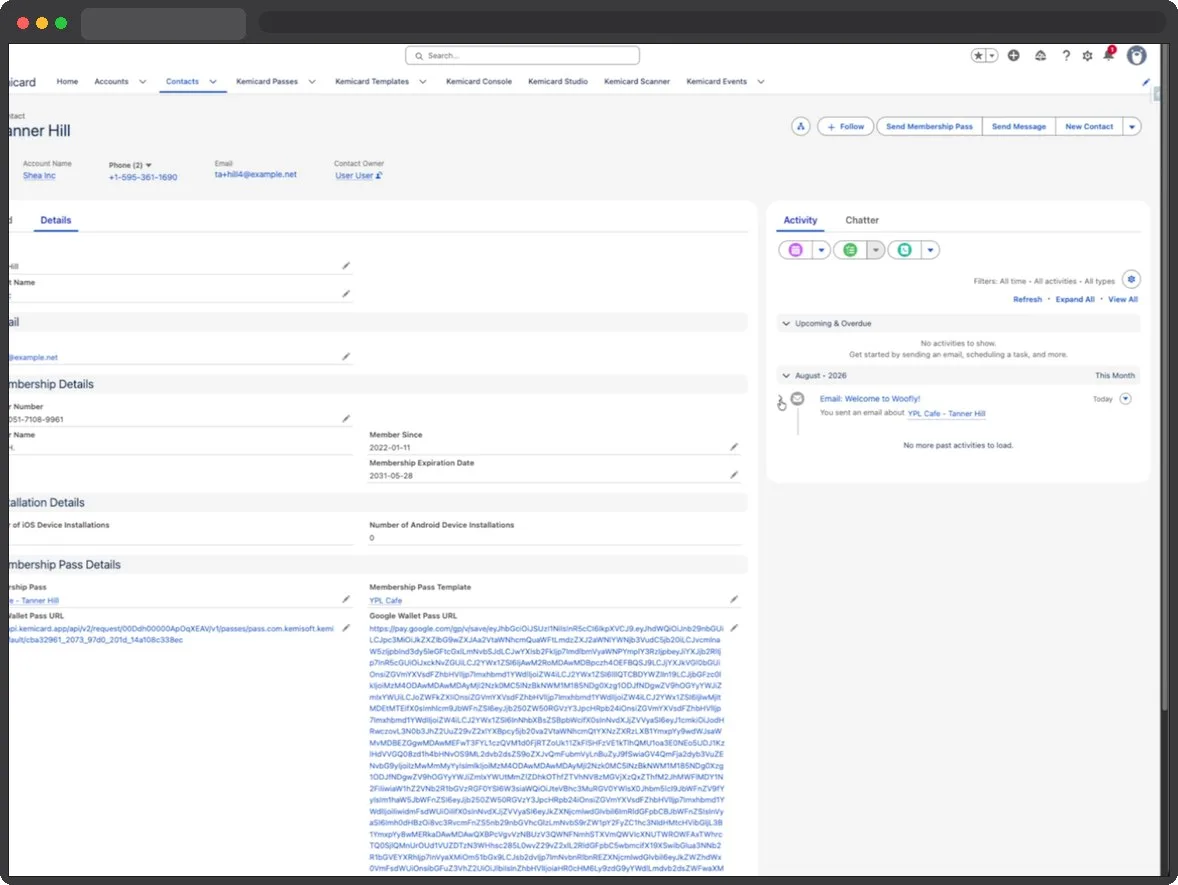
6. Issue a pass and check the record
From a Contact, choose Send Membership Pass. The record then carries an Apple Wallet Pass URL, a Google Wallet Pass URL, the template used, and installation counts per platform.
Engagement patterns that work
- Renewal sequence — 30-day scheduled reminder, 7-day push, lapse-day template switch to a renewal-offer design.
- Event day — morning push with logistics + geofenced surfacing at the venue.
- Points milestone — record-triggered push the moment a threshold field changes.
- Flash promo — strip image refresh + bulk message to the target segment.
Sources: Apple's Showing a Pass on the Lock Screen and Adding a Web Service to Update Passes; Google's Trigger Push Notifications (including nearby notifications); Salesforce Help: Schedule-Triggered Flows.