

Conference Ticketing in Salesforce, Made Simple
 By the Kemicard team
Conference ticketing in Salesforce means issuing each attendee's ticket from the record that already holds their registration. The ticket is a wallet pass in Apple Wallet or Google Wallet, and the scan at the door is written back to the same record. This guide covers how a registration becomes a ticket, what a digital conference badge holds, and how it's checked at the door.
What conference ticketing in Salesforce means
The registration creates the attendee record, the ticket is generated against it, and the scannable code on the ticket is checked when the attendee arrives. One ticket design covers both phones: Apple Wallet uses a signed .pkpass file and Google Wallet a pass object created through its API, and both carry the same fields read from the Salesforce record.
A conference ticket is for one event and has no use after it. That's what separates it from digital membership cards for Salesforce, which a member keeps for a year while the tier or renewal date on them changes.
Where Kemicard fits: Kemicard issues the ticket. It doesn't run the registration form or take payment. Registration and payment stay in the tool that already handles them, such as a form, a commerce product or an events app like Blackthorn Events, and the ticket is issued from the Salesforce record that tool writes.
Why conference ticketing usually runs on two systems
A standalone ticketing system keeps its own attendee database. Its form collects the attendee details and ticket type, and that record lives in the vendor's product. Salesforce holds the same person as a contact, with the history of the events they've attended before.
The result is two copies of one attendee. Someone exports the ticketing list and matches it against Salesforce contacts before the doors open, and duplicates and cancellations are settled by hand. When the registration writes straight into Salesforce and the ticket is issued from that record, the export step goes away.
| Separate ticketing system | Ticketing in Salesforce | |
|---|---|---|
| Registration | Form on the vendor's site, attendee list in the vendor's database | The form writes to the Salesforce record, and that record is the attendee list |
| Ticket format | A PDF, or a pass file issued by the vendor | An Apple Wallet or Google Wallet pass issued from the record |
| Changes after issue | A new ticket file is generated and sent again | A change to a mapped field updates the pass already on the phone |
| Check-in data | Scans held by the vendor, then imported | Each scan written to Salesforce against the attendee |
| Reporting | Vendor dashboard, then an export | Standard Salesforce reports |
How a conference registration becomes a ticket
Where the registration form sends the data
The registration form writes the attendee into Salesforce as a Contact or a Lead. The conference itself is a Campaign, and adding the attendee to it creates a Campaign Member: the record for one person at one event (Trailhead's Campaign Basics covers the model).
How the attendee record carries the ticket
The ticket is generated against that Campaign Member. Each field on the ticket is mapped to a Salesforce field: the attendee name, the ticket type and the session, plus a serial number given to the pass when it's issued. Building the signing and update service yourself is a project of its own, covered in build vs buy. The add-to-wallet link then goes out on the email or SMS route you already use, as described in sending wallet passes from Salesforce.
What a digital conference badge holds
A digital badge carries only the fields mapped into the template:
- Attendee name. Read from the Contact or Lead the registration created, and placed on the front where staff and other attendees can read it.
- Company or job title. The same two fields a printed lanyard badge would show.
- Ticket type. Full conference, day pass, speaker or exhibitor. The value decides which doors the code opens.
- Session or seat. Track, room or seat for conferences with assigned seating. Change it on the record and the badge changes.
- Scannable code. A QR code or barcode carrying the pass's serial number. The attendee's status isn't stored in the code, so it's looked up from the live record at the scan.
Each wallet lays these out in its own way. Apple Wallet arranges a pass in header, primary, secondary and auxiliary fields (Apple's Pass reference). Google Wallet event tickets have named fields for seat, row, section and gate, and support a rotating barcode (Google's event tickets documentation).
How attendees add the ticket to their phone
One link does it. The same link goes to every attendee, and the phone decides which wallet opens.
- iPhone: the link opens a preview of the pass, the attendee taps Add, and the ticket sits in Apple Wallet next to their other passes. There's no file to download first.
- Android: the link opens Google Wallet's preview, and one tap saves the ticket. Google Wallet is available from Google Play on phones that don't already have it.
Once saved, the ticket updates when the record changes. Move a session or a seat in Salesforce and the pass on the phone follows.
Checking the ticket at the door
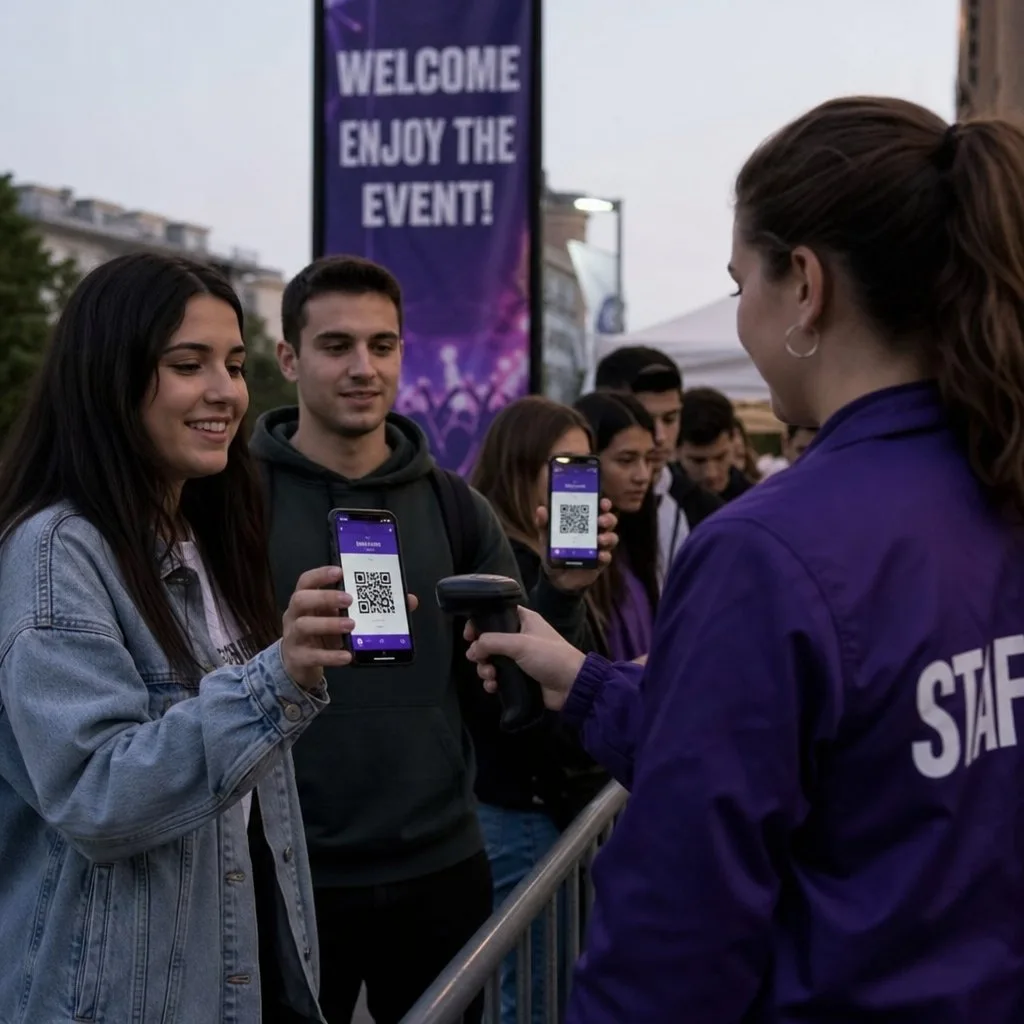
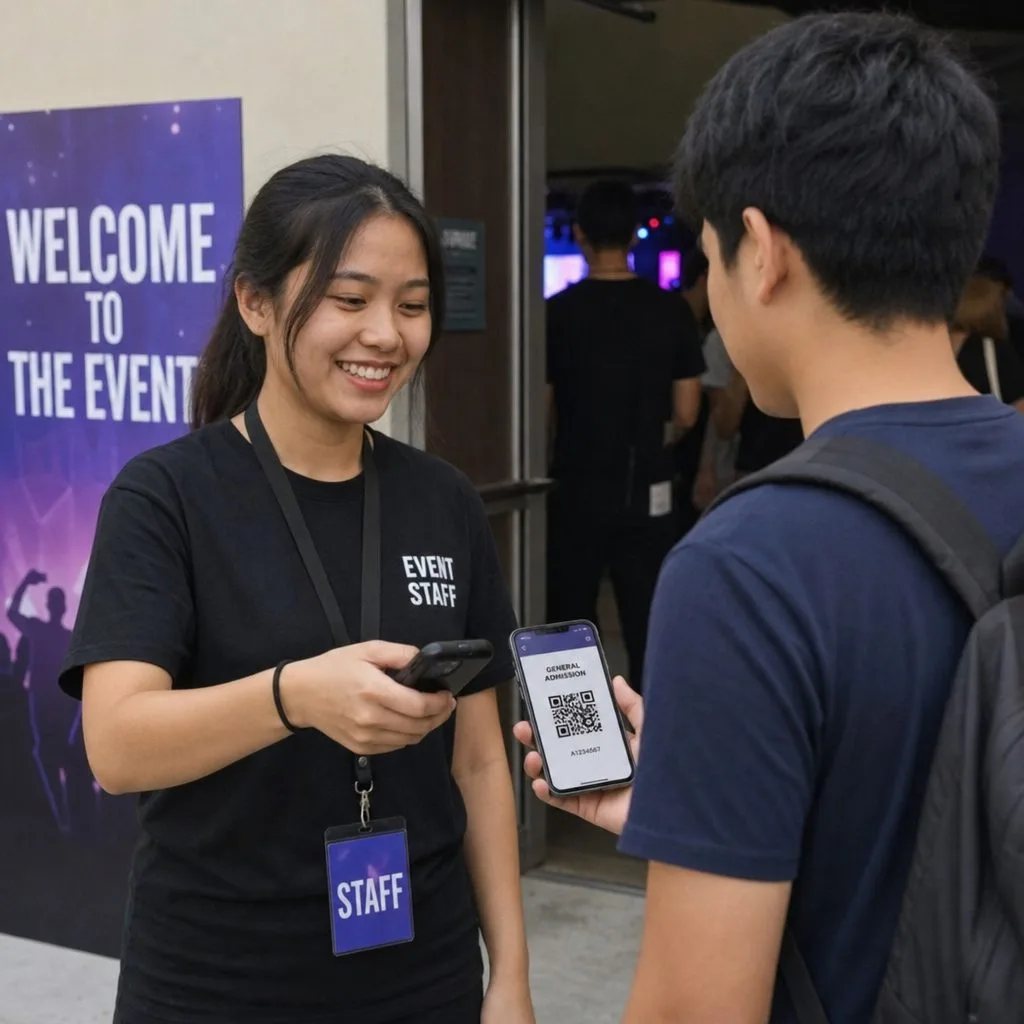
Staff scan the code with the Kemicard Scanner, which checks the live record rather than trusting the barcode, so a cancelled or refunded registration fails the check. Each scan writes a check-in record to Salesforce. A record-triggered Flow then sets the attendee's Campaign Member status to Attended, so the attendee list and the check-in count stay on one record. Event check-in and attendance tracking in Salesforce covers the reporting side.
Final take
Conference ticketing in Salesforce runs on the registration the org already holds. The form creates the record, the ticket is generated against it, and the scan at the door is written back to the same place.
Kemicard issues Apple Wallet and Google Wallet tickets from Salesforce records. The ticket templates and field mappings are stored in the org, and installs and scans are reported in standard Salesforce reports. See event tickets from Salesforce and events and entertainment.
Frequently asked questions
Does nonprofit event registration work the same way?
Yes. A nonprofit conference or gala is a Campaign too, and the attendee record feeds the ticket. Event tickets sit alongside the other cards in digital membership cards for nonprofits.
Can an attendee pass a ticket to someone else?
The pass's sharing settings decide that. On Google Wallet, Kemicard offers four sharing levels, down to Sharing Prohibited. On Apple Wallet, a pass can turn off the share option. The serial number stays with the pass, so the record still names the attendee it was issued to.
Can printed badges run alongside digital ones?
Yes. If a printed badge carries the same code value as the wallet pass, the same scanner reads both and checks them against the same record.
Does one ticket design cover Apple Wallet and Google Wallet?
Yes. The template maps one set of fields, and each wallet renders them in its own format, so the design work is done once.
Sources: Apple's Pass reference; Google's Event tickets documentation; Trailhead: Campaign Basics; Salesforce Help: Triggered Flows.
Explore Kemicard
Product & solutions

Simplify Your Conference Ticketing
See a ticket issued from a Campaign Member and scanned at the door. Book a demo, or start a free 30-day trial.
 Start Free Trial