

Kemicard 2.31: A New Home, a Clearer Console, and Wallet Passes That Are Easier to Share and Tap
 By the Kemicard team
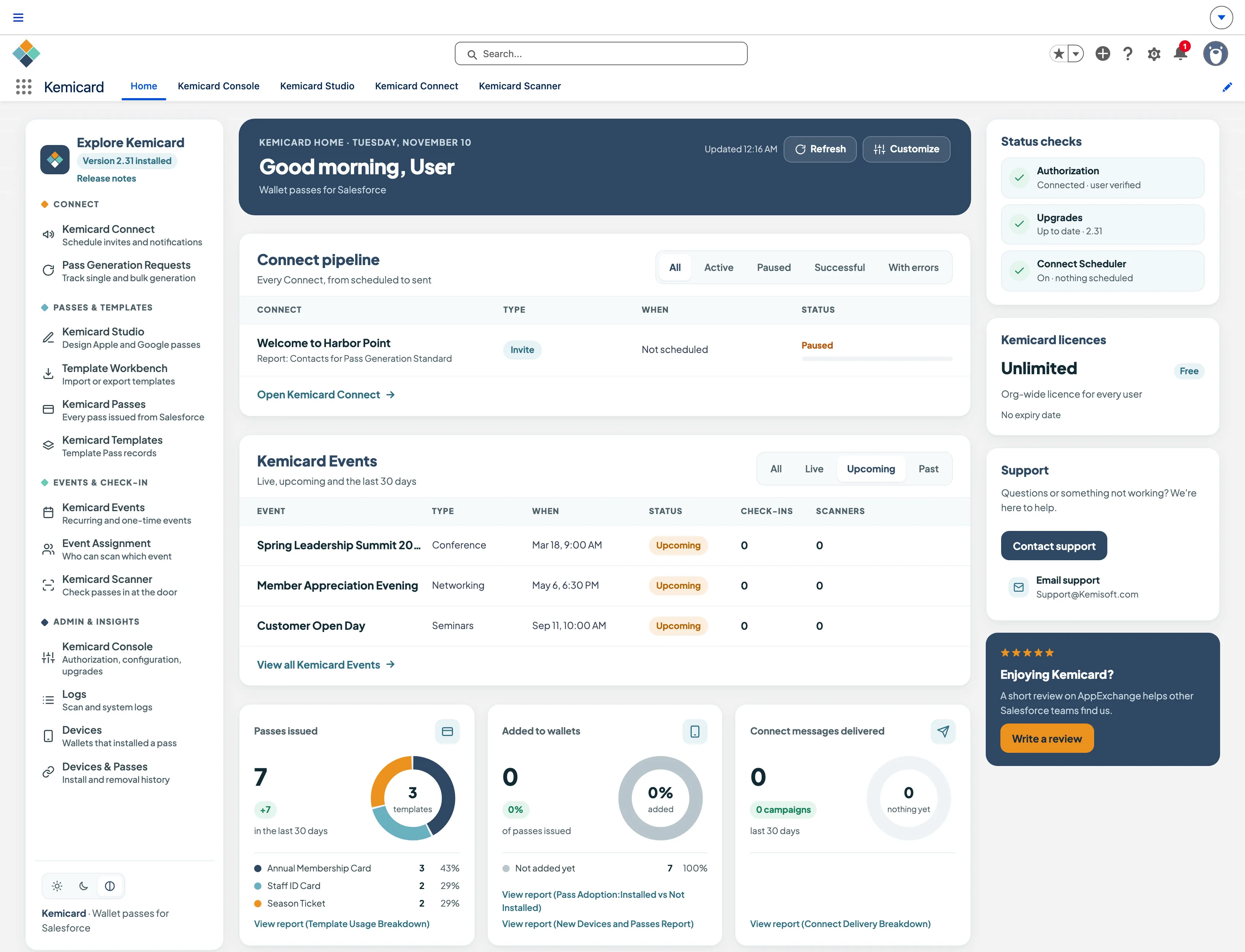
Kemicard 2.31 gives every team a new Home dashboard with their Connects, events and key numbers in one place, and a Console that shows at a glance whether Kemicard is healthy. Kemicard Studio has a new landing page, opens templates sooner and resizes your images for each wallet.
Resend or regenerate a pass from its record, see when passes are installed and removed, and add two new add-ons: short pass links for email and SMS, and NFC tap-to-redeem for Google Wallet. Every Kemicard page now comes in light and dark mode. Here's what's new, and what to do after you upgrade.
1. Kemicard Home: know what's happening
The Home tab of the Kemicard app is now a dashboard. It shows what is running, what needs attention, and where to go next.
- Connect pipeline lists your Connects, filtered by All, Active, Paused, Successful or With errors. Click a row to open the Connect.
- Kemicard Events shows live and upcoming events and those from the last 30 days, with check-ins and scanners. Events open for check-in have a Scan button that opens Kemicard Scanner on that event.
- Key numbers show passes issued, passes added to wallets, Connect messages delivered and event check-ins, each with a link to the matching report.
For users who can run upgrades, Status checks for Authorization, Upgrades and the Connect Scheduler sit in the right-hand column, each opening its Console section. Customize reorders the three main sections, and Home refreshes itself every five minutes while it is open.
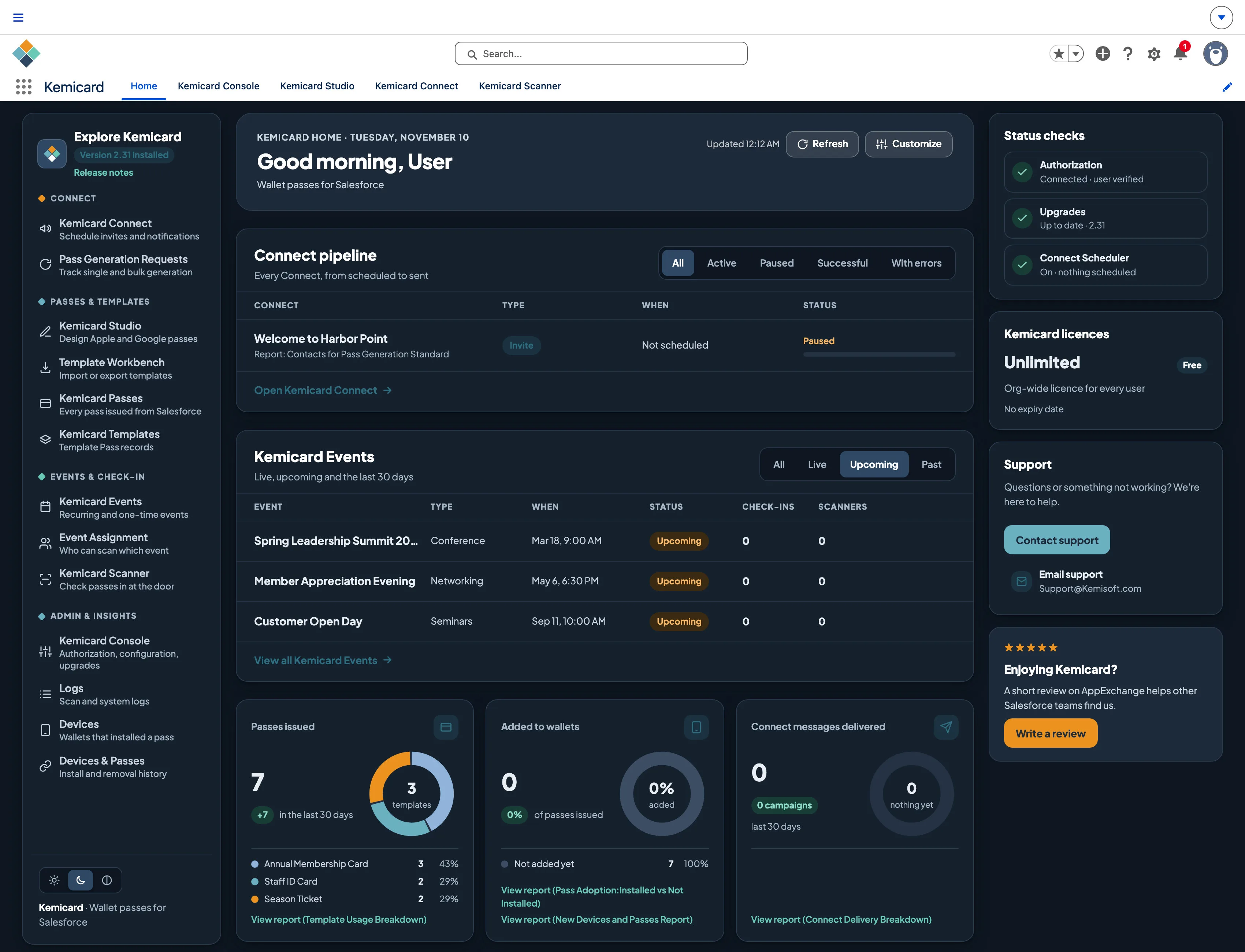
Every Kemicard page and dialog also has a colour mode switch: Light, Dark, or Auto, which follows your device. And Home and the Console now share one side panel that lists only the pages you can open, so people with limited permissions no longer land on a “no access” page.
Read the Kemicard Home guide, with a two-minute demo.
2. A Console that shows whether Kemicard is healthy
The Kemicard Console now opens on an Overview: one card for each part of your setup you can manage, from Authorization and Configuration to Upgrades, the Connect Scheduler and Features. When something needs fixing, the banner says so and offers the fix, such as Authorize Kemicard or Run upgrade steps. When nothing does, it reads “Kemicard is connected and up to date”.
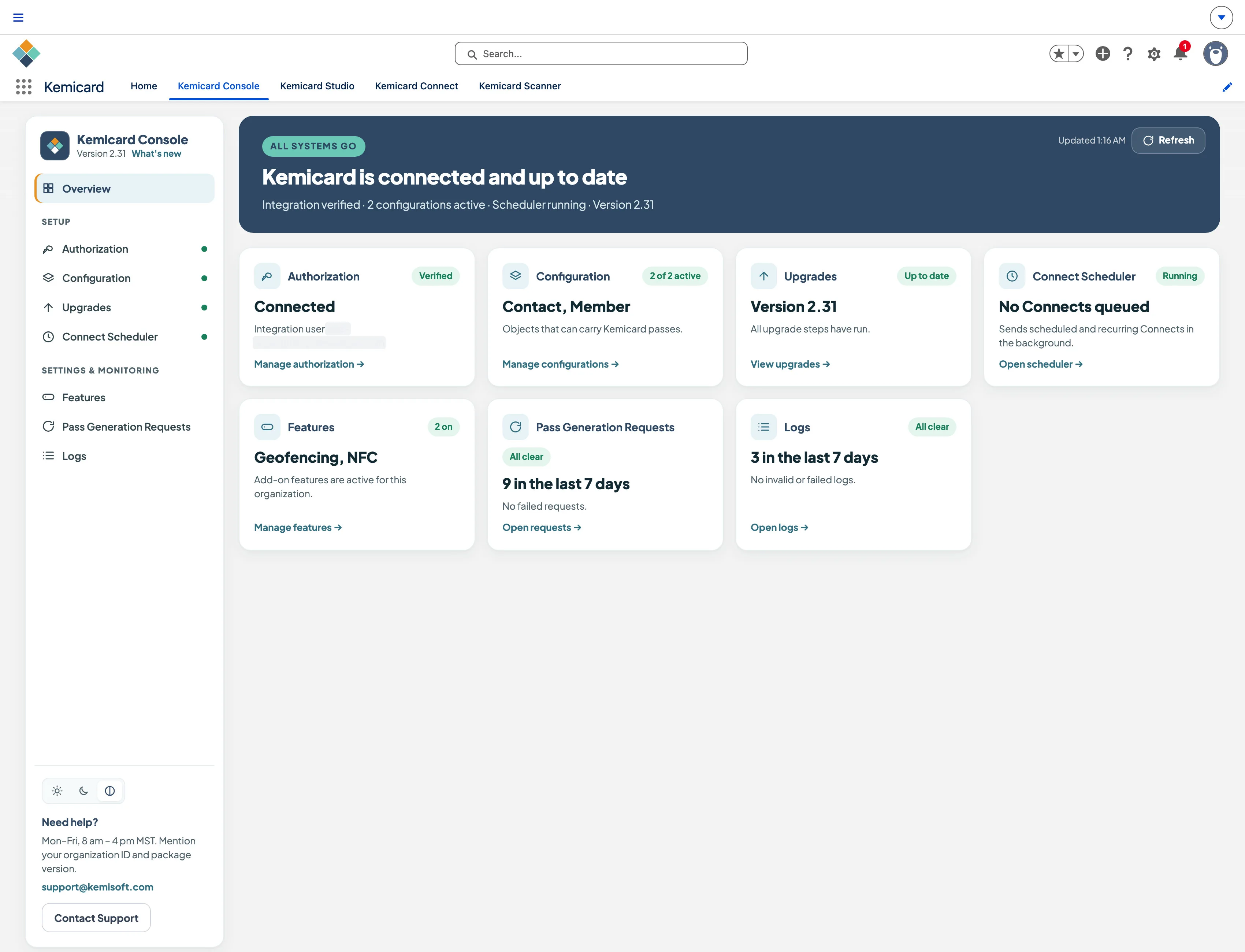
A new Pass Generation Requests page lists the 50 most recent single and bulk requests with their status, template, and Apple and Google results, filterable by Pending, Complete or Error. And users who can't view logs now see a message that explains the permissions they need, instead of an error. Kemicard Console guide, with a three-minute demo.
3. Studio: design passes faster
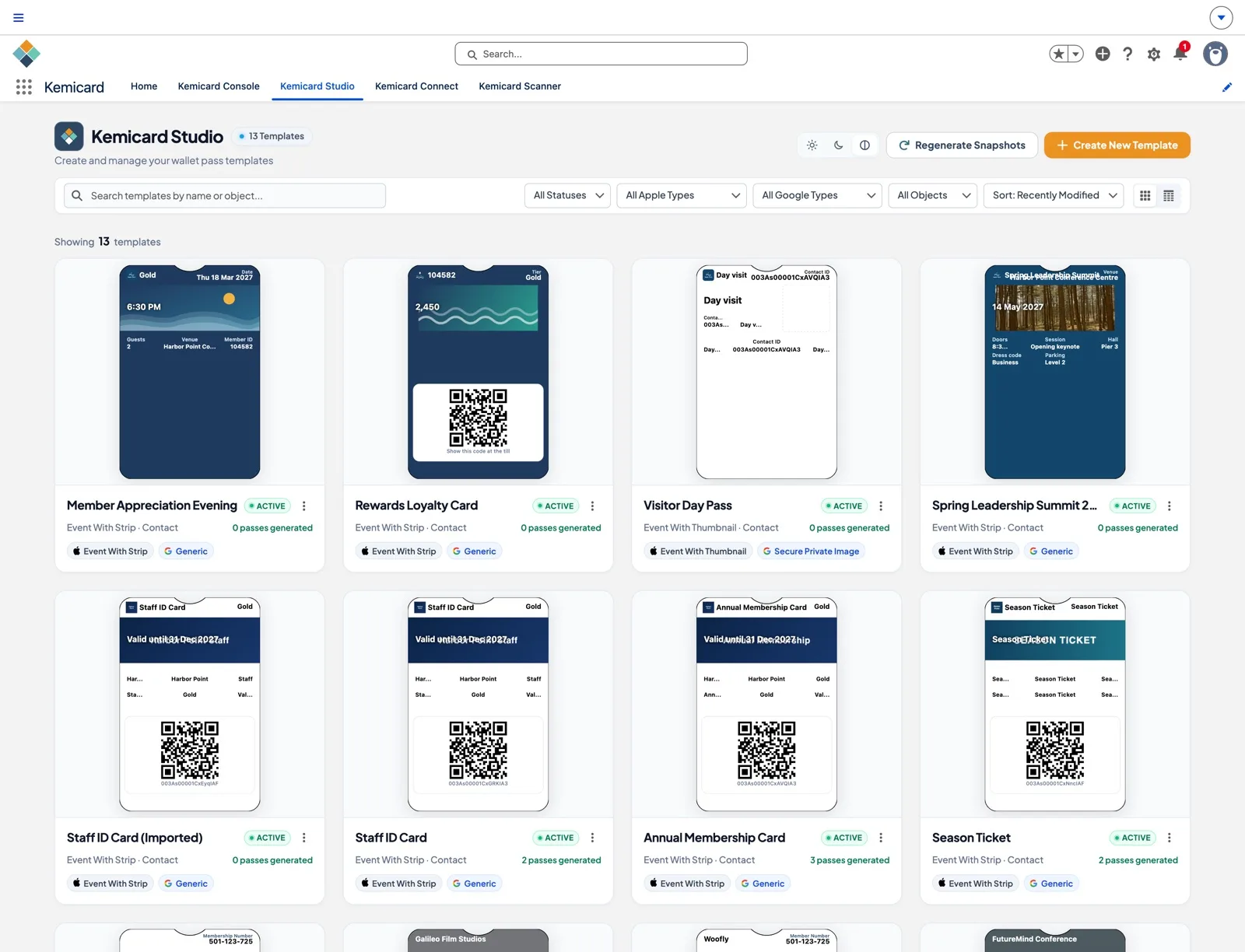
Kemicard Studio now opens on your templates, as cards with a preview of each pass or as a list. Search by name or object, filter by status, Apple type, Google type or object, and sort by name or by most recently modified. Create New Template opens the new-template wizard, and the finished template opens straight in Studio. Templates open faster too: pass images are prepared after the page loads.
Getting images right is easier. Settings › Images has one section for each Apple and Google image. Drop in a PNG or JPEG and Studio resizes it in your browser to the size that image needs; choose Fit (Transparent) to keep the picture's proportions, or Stretch to fill the space. Copy an image from one section and paste it into another to use the same logo on both wallets.
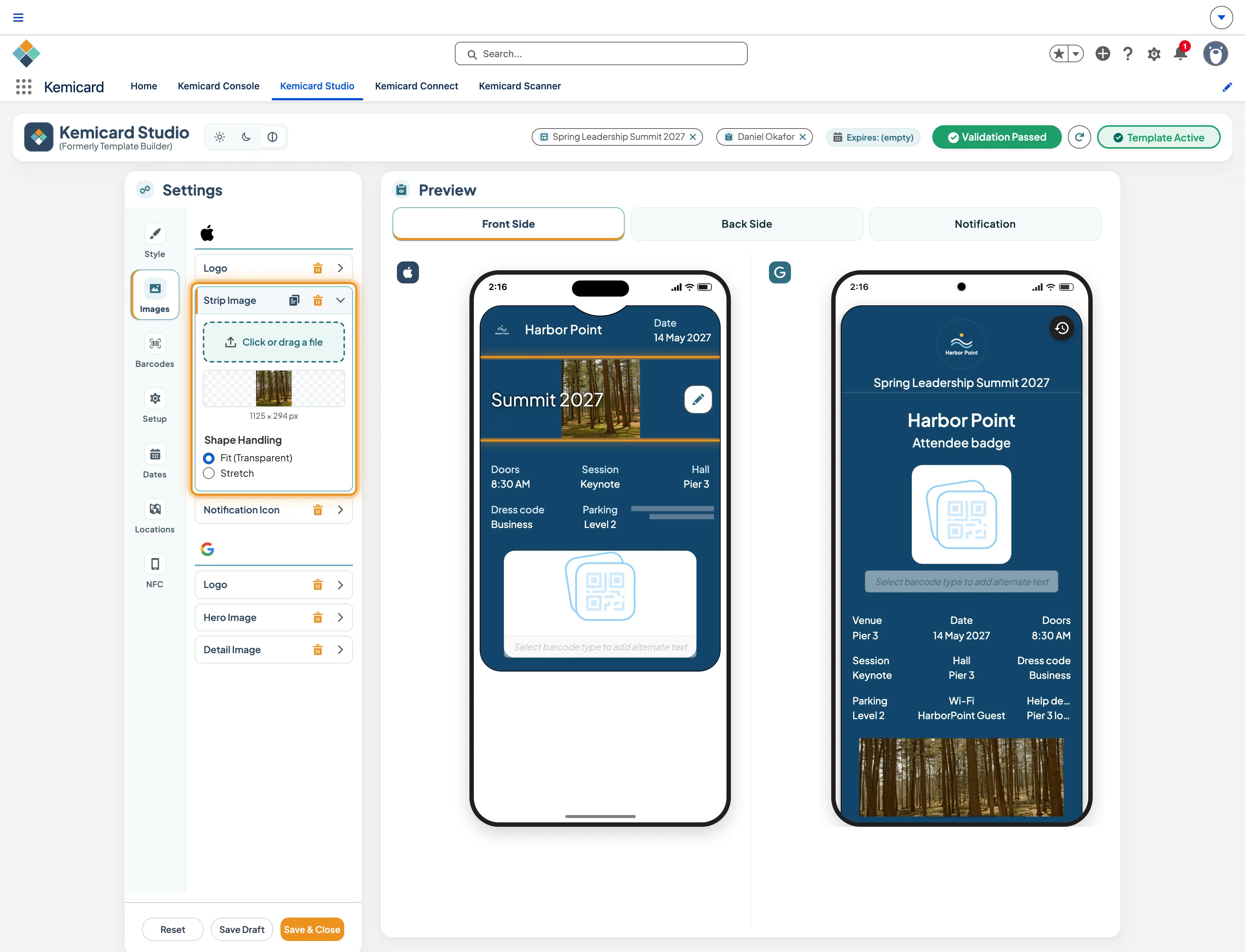
Two more Studio changes. A Default Thumbnail Image fills in when a record has no usable thumbnail, so the pass is still generated with one. And the Google preview can switch to Single Page View, matching how Google Wallet now shows passes, with a back side laid out like the Google Wallet details screen. Guides: Studio landing page, images and resizing, and Google preview.
4. Resend or regenerate a pass, and see when it was installed
When someone says their pass never arrived, open the Kemicard Pass record and click Resend/Regenerate Pass. If generation succeeded, it resends the original email. If generation failed for Apple, Google or both, it regenerates only what failed, on the same pass record. No new pass record is created, so there is no duplicate to clean up.
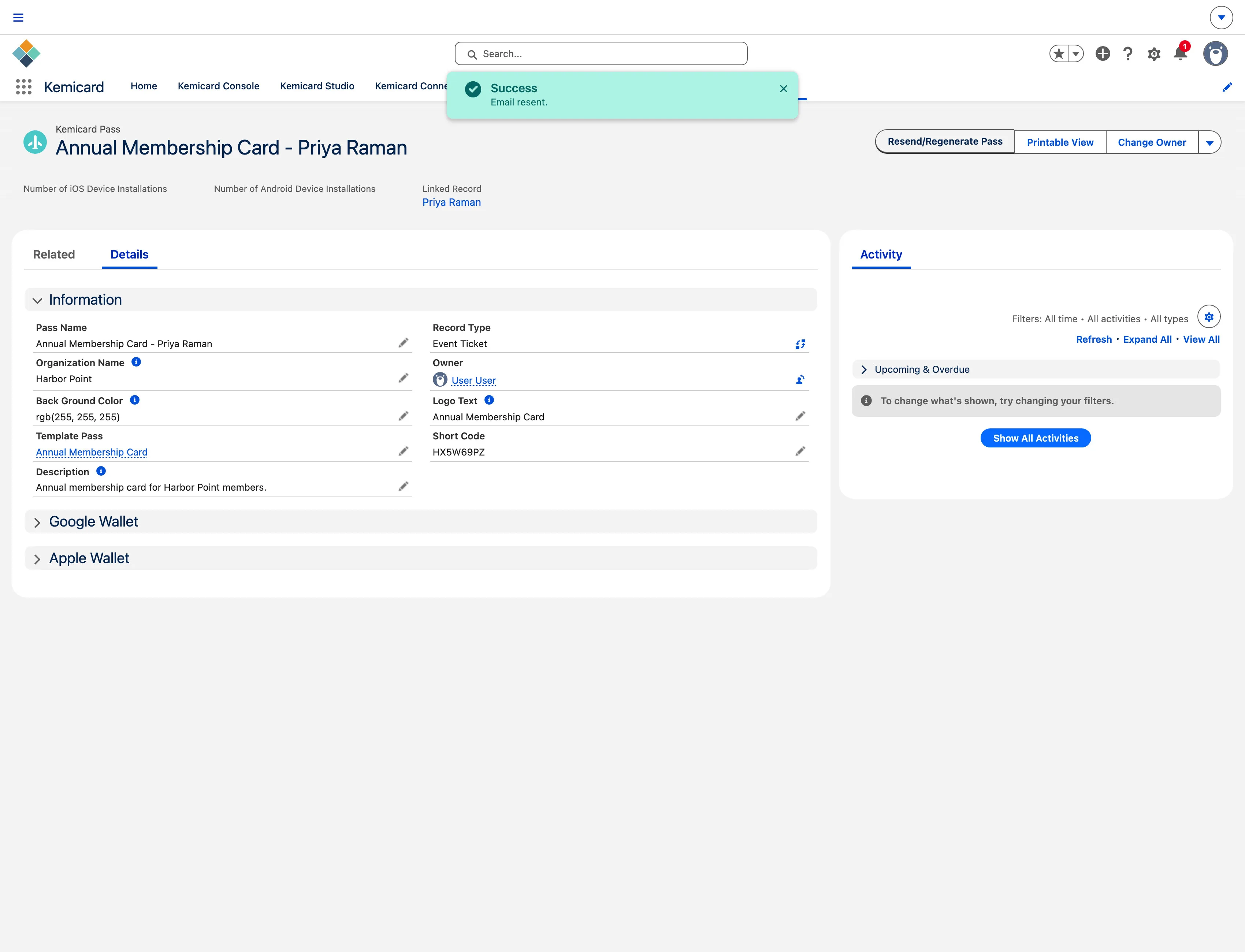
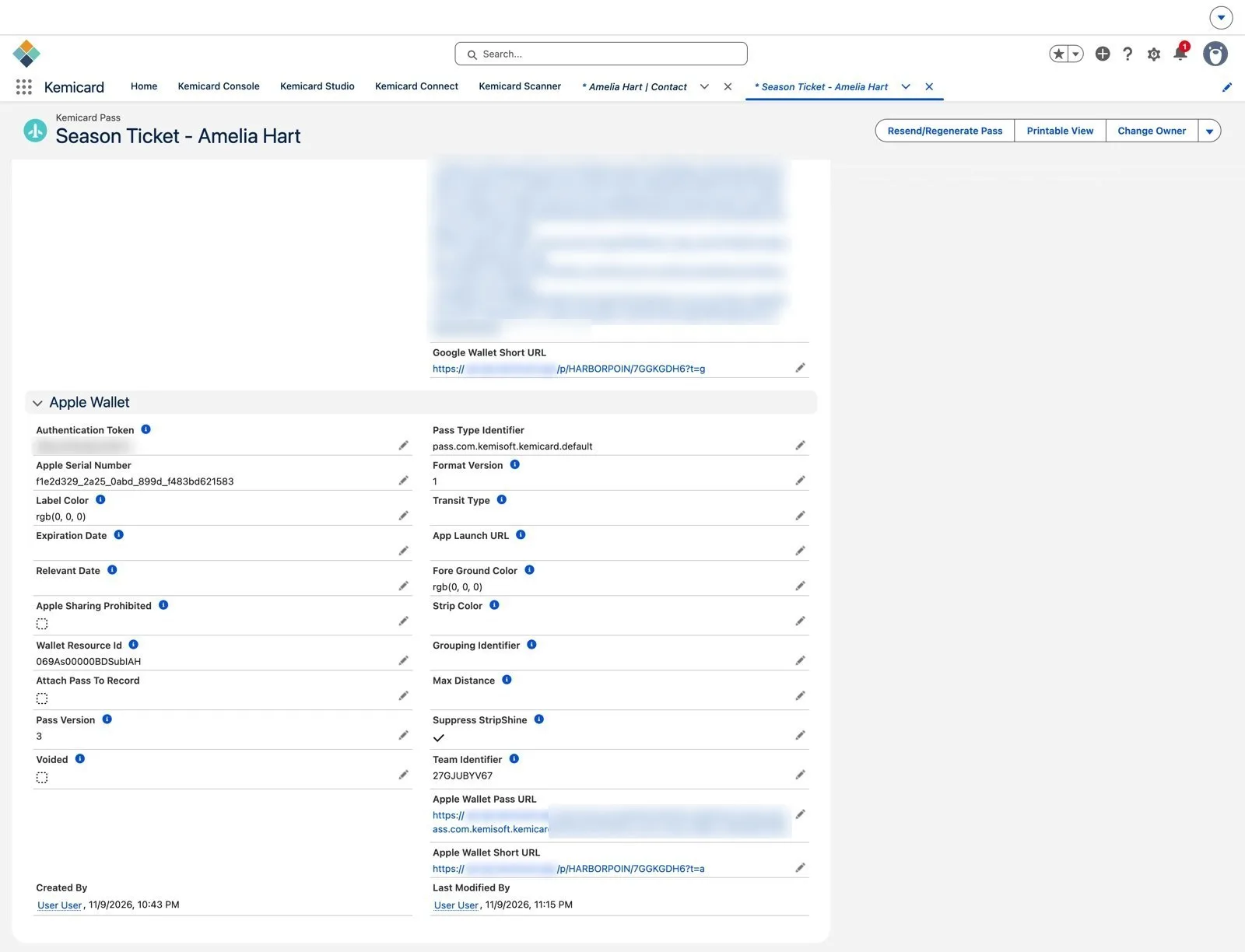
Kemicard also records a pass's lifetime as wallets add and remove it: First Installed Date, Last Installed Date, Last Uninstalled Date, and an Install Status of Installed, Uninstalled or Never Installed. An upgrade step fills in the dates for existing passes from their device history. The fields aren't on the packaged page layouts, so add them to your layouts and reports where you want them. Pass records guide.
5. Reach and redeem: two new add-ons
Short Links and NFC are add-ons that Kemicard turns on for your organization, like Geofencing. Each has a tile in Console › Features; until the add-on is active, the tile shows a Request Feature Activation link that sends a request to Kemicard Support.
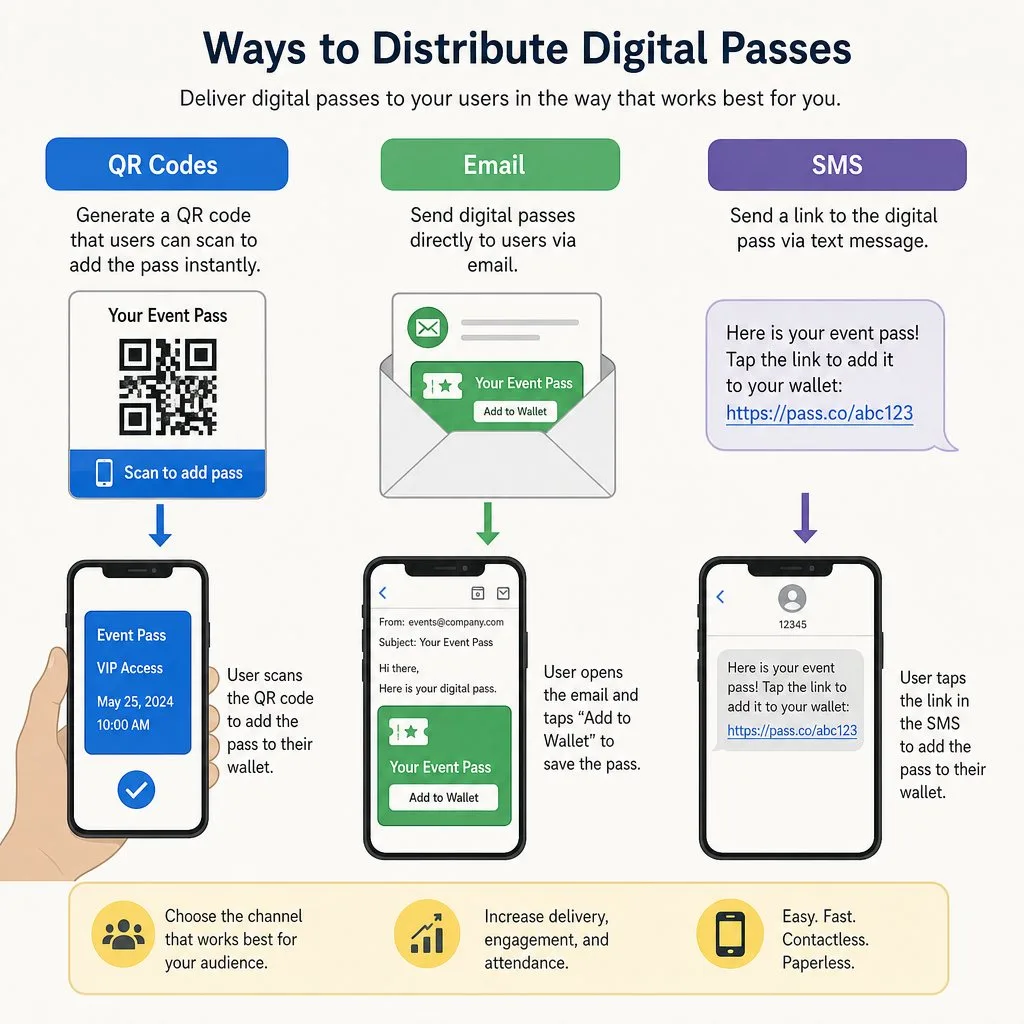
- Short pass links. Choose a short link name of 3 to 10 letters or numbers, such as your organization's initials, and each newly generated pass gets a short Apple Wallet link and a short Google Wallet link. The links expose no record IDs, so they fit in emails and text messages. Passes created before you turn Short Links on keep their standard links. Short links guide.
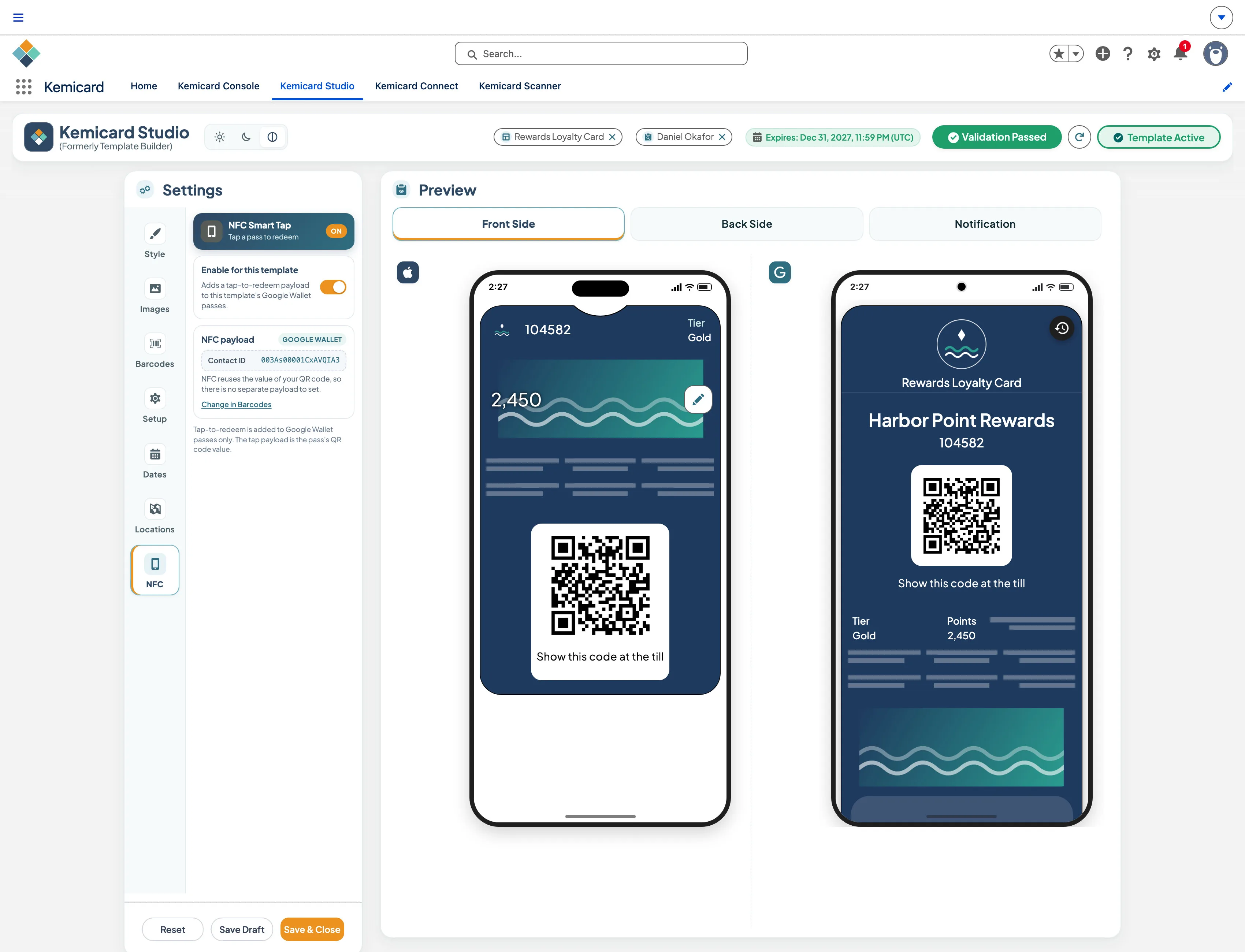
- NFC tap-to-redeem for Google Wallet. Turn on NFC for a template in Studio's Settings › NFC to add a tap-to-redeem (Smart Tap) payload to its Google Wallet passes. The tap sends the value of the pass's QR code. NFC applies to Google Wallet passes only. NFC guide.
After you upgrade
- Open Kemicard Console › Upgrades and run any listed steps. 2.31 adds three: one fills in install dates for existing passes, one creates the template previews for the Studio landing page, and one turns off the old Smart Tap setting on existing templates so their Google passes keep generating.
- Add the install-tracking fields to your Kemicard Pass layouts and reports, and add the Resend/Regenerate Pass action to any pass layouts of your own.
- Give anyone who designs templates the Kemicard Template Configuration permission set. Kemicard Digital Pass User no longer includes the Kemicard Studio and Kemicard Template Workbench tabs.
- If you placed the old Bulk Actions component on a page, remove it. Kemicard Connect replaced it in 2.30.
The full list of fixes, admin notes and permission set changes is in the 2.31 release notes. The previous release, 2.30, introduced Kemicard Connect for scheduled passes and messages.
Explore Kemicard
Product & solutions
See the New Kemicard Home on Your Own Data
Book a demo, or install from the AppExchange and try 2.31 in your sandbox.
 Start Free Trial