Since Kemicard 2.31, the Kemicard Console opens on an Overview that tells you whether Kemicard is ready to generate passes. It groups its pages in a side panel, lists the most recent pass generation requests, and template imports now explain what Kemicard decided in a Notes table.
The Console is for admins and anyone who follows pass generation. Each Console area appears only if you have access to it.
Watch the demo
Harbor Point checks the health of its setup, follows the requests for its Staff ID Card, then exports the template and imports it again to read the Notes. Harbor Point is a fictional organization; the recording uses fictional sample data.
Read every on-screen caption (15)
Before you start
- Kemicard 2.31 installed and authorized.
- Access to the Kemicard Console tab through a Kemicard permission set. Each Console area appears only if you have its access.
- For step 3, a Kemicard template to export, or a JSON file exported from the Template Workbench.
Step 1 — The Console Overview
- From Kemicard Home, open the Kemicard Console tab.
- Read the banner at the top. It says whether Kemicard is connected and up to date.
- Check the cards below: Authorization, Configuration, Upgrades, Connect Scheduler, Features, Pass Generation Requests and Logs.
- Click Refresh to re-check everything.
Problems used to show up only when a pass failed. The Overview shows them first. When something needs fixing, the banner says so and offers the fix: Authorize Kemicard, Run upgrade steps, Open configuration or Open Connect Scheduler. When nothing does, it reads Kemicard is connected and up to date.
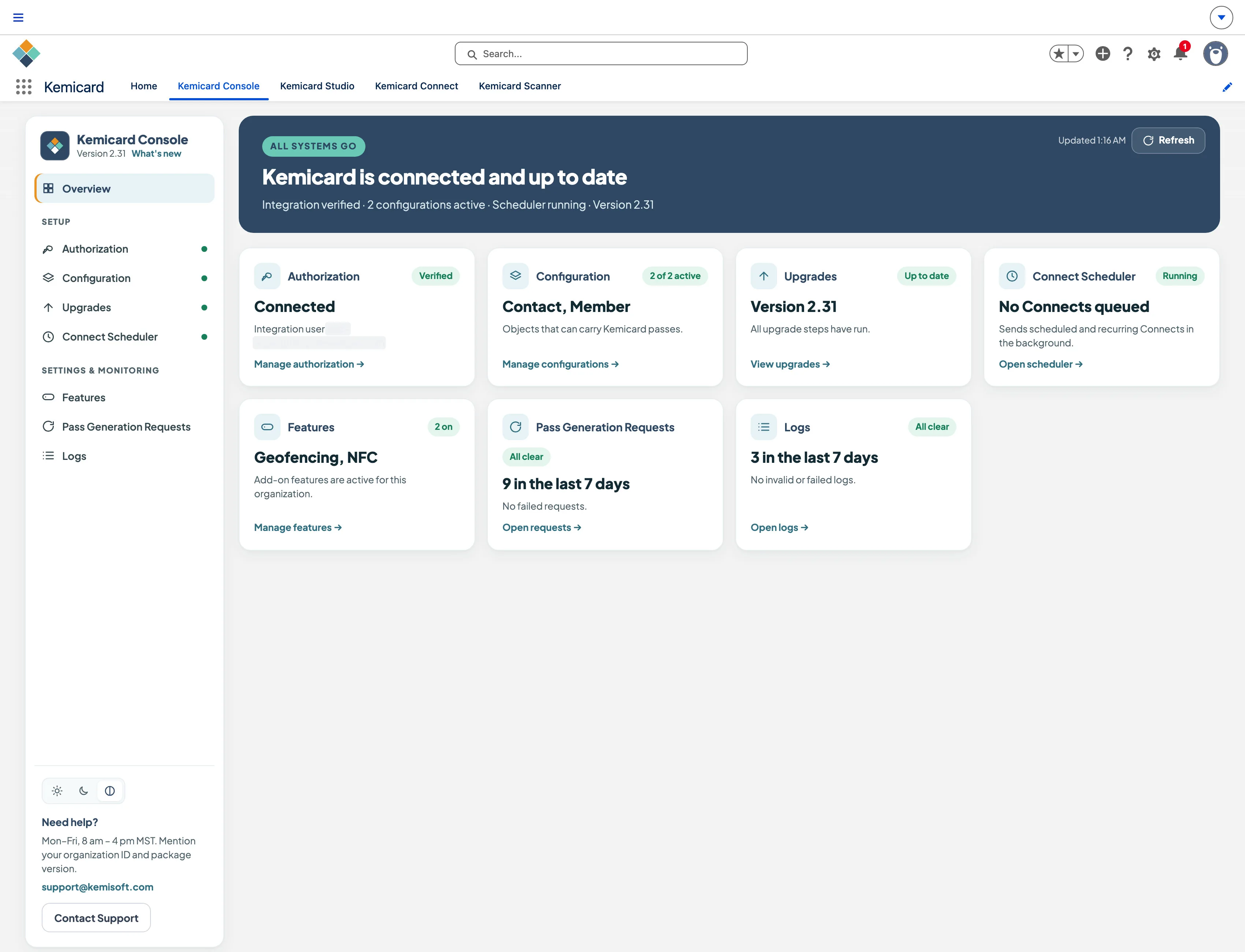
The Overview shows a card for each part of your setup you can manage:
| Card | What it tells you |
|---|---|
| Authorization | Whether Kemicard is connected, and the integration user. |
| Configuration | The objects that can carry Kemicard passes, and how many configurations are active. |
| Upgrades | The installed version, and whether all upgrade steps have run. |
| Connect Scheduler | Whether the scheduler that sends scheduled and recurring Connects is running, and what is queued. |
| Features | The add-on features for your organization, with a link to manage them. |
| Pass Generation Requests | Requests in the last 7 days, and whether any failed. |
| Logs | Logs from the last 7 days, and whether any are invalid or failed. |
The side panel groups the Console into Setup (Authorization, Configuration, Upgrades, Connect Scheduler) and Settings & monitoring (Features, Pass Generation Requests, Logs), with a status next to each setup area. What's new opens the Kemicard release notes, Need help? shows support hours and the support email, and the color mode switch is at the bottom.
Step 2 — Pass Generation Requests
- On the Overview, click Open requests on the Pass Generation Requests card, or choose Pass Generation Requests in the side panel.
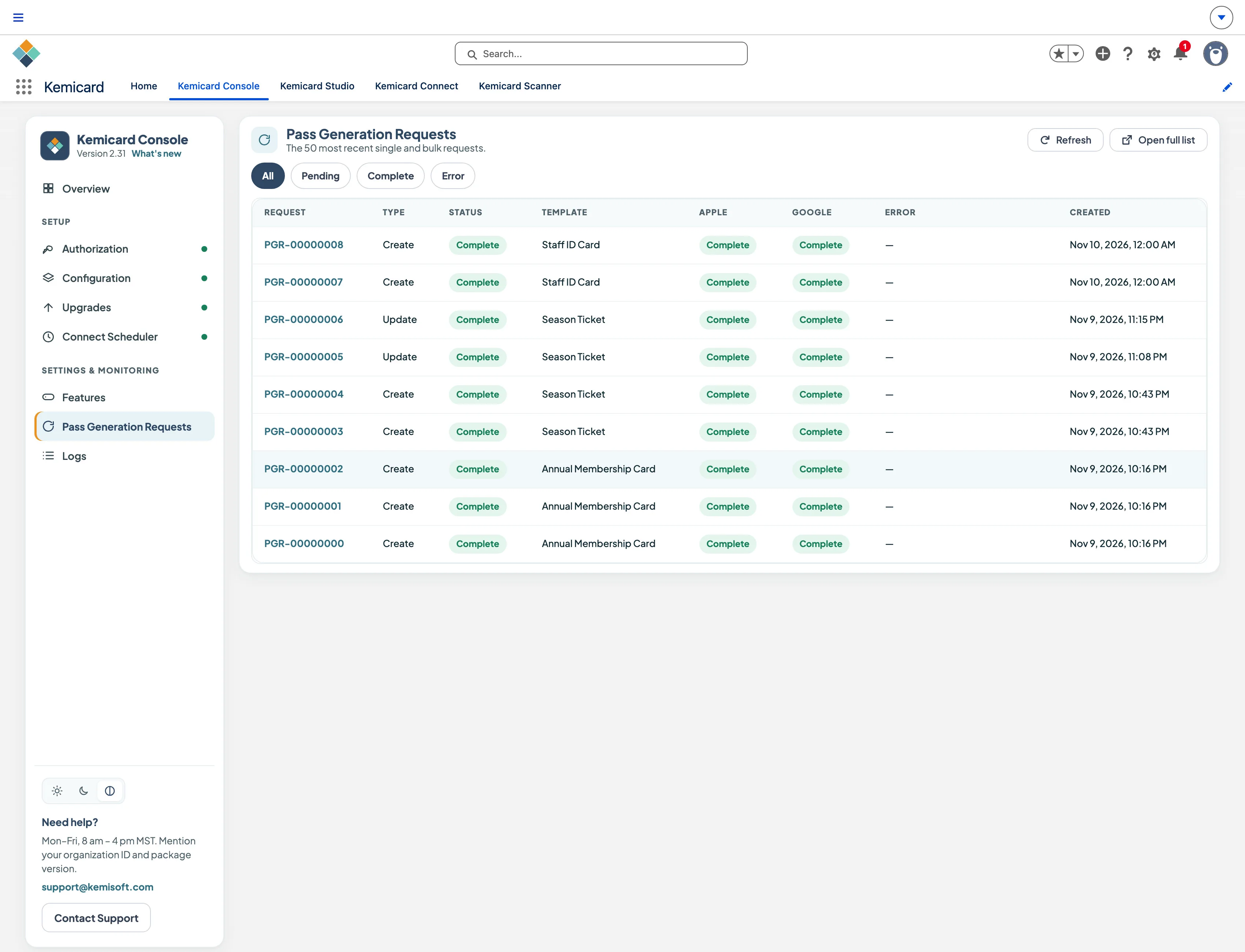
- Read the 50 most recent single and bulk requests: type, status, template, Apple and Google results, any error message, and when each was created.
- Click Pending, Complete or Error to filter, or All to see everything. Refresh reloads the list, and Open full list opens the standard Salesforce list view with every request.
When a member says a pass did not arrive, this is the first place to look: you see whether the request finished and whether each wallet produced its pass. To resend or regenerate one pass, use Resend/Regenerate Pass on the pass record. Dates in Console tables use your Salesforce locale and time zone.
Step 3 — Import and export notes
- Open a template and click Export, then Export Template(s). Kemicard saves the template and its configuration as a JSON file.
- In the Template Workbench, add the JSON file, click Import Template(s), then Review & Import.
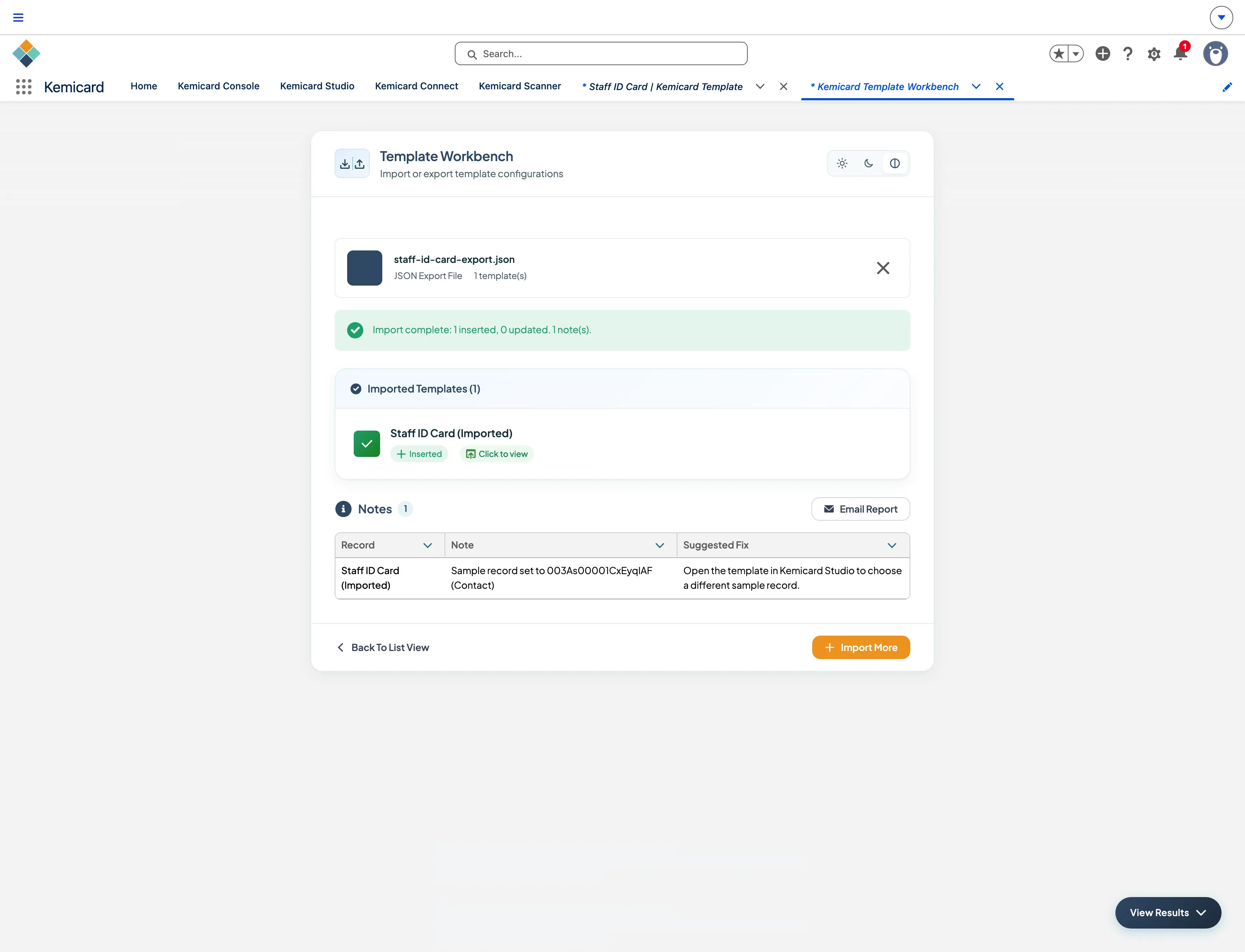
- When the import finishes, read the Notes table below the imported templates.
A record Id from the source org does not exist in the target org, so Kemicard picks a record of the same type in this org and lists it as a Note. Notes are information only and need no action; they are listed apart from warnings. To use a different sample record, open the template in Kemicard Studio.
Another case you may see: importing a template with NFC turned on into an org without the NFC add-on turns NFC off for that template, with a note in the import results. See NFC tap-to-redeem for Google Wallet.
Moving templates from a sandbox to production? See Migration Examples.
Logs access
The Logs page needs the Kemicard Log Access custom permission and either Modify Metadata or Modify All Data. Users without them now see a message on Console › Logs explaining this, instead of an error.
Features and add-ons
Console › Features has a tile for each add-on: Geofencing, NFC and Short Links. Add-ons are turned on by Kemicard for your organization. Until an add-on is active, its tile shows Feature Disabled and a Request Feature Activation link that opens a request to Kemicard Support.
- Short pass links (add-on): short Apple Wallet and Google Wallet links for email and SMS.
- NFC tap-to-redeem for Google Wallet (add-on).
- Geofencing (add-on): lock-screen notifications when pass holders approach your locations.
After upgrading to 2.31
Open Kemicard Console › Upgrades and run any listed steps. If steps are waiting, the Overview banner offers Run upgrade steps. Kemicard 2.31 adds three steps:
| Upgrade step | What it does |
|---|---|
| Backfill Pass and Device Lifetime Tracking Dates (v2.31.0) | Fills in the new install dates for existing passes, in the background. See install tracking. |
| Generate Pass Snapshots for Existing Templates (v2.31.0) | Creates the preview images shown on the Studio landing page. If it can't finish (for example, Kemicard is not authorized), it runs again on the next upgrade; you can also use Regenerate Snapshots in Studio. When a job slot isn't free, it schedules a one-off job named Kemicard Template Snapshot Backfill. |
| Turn off Smart Tap on existing templates (v2.31.0) | A template's Smart Tap setting used to default to on but did nothing; it now controls NFC (an add-on) and defaults to off. This step turns it off on existing templates so their Google passes keep generating. It reports Completed with errors, with a count, if any template can't be updated. |
On upgrades from before 2.31, the existing steps that add the Google types Private Image and Secure Private Image and the None data detector run again and add those values to the record types. A failure is now reported as failed and retried on the next run.
Common problems
| Problem | What to do |
|---|---|
| A Console area is missing from the menu | Your user lacks that area's Kemicard access. Ask your administrator. |
| The banner is amber or red | Click its button to open the area that needs attention. |
| Logs shows a permissions message | Ask your administrator for the Kemicard Log Access custom permission and Modify Metadata or Modify All Data. |
| A request shows Error | Read the error in the row. To retry what failed for one pass, use Resend/Regenerate Pass on the pass record. |
| An import lists a Note | Notes need no action. To pick a different sample record, open the template in Kemicard Studio. |
More fixes in Troubleshooting & KB.
Need help? Email supportkemisoft.com (M–F, 8 am – 4 pm MST) with your Salesforce organization ID and Kemicard package version.
Sources: Kemicard 2.31 release notes and the Kemicard Console product demo (Kemicard 2.31, fictional sample data).