Since Kemicard 2.31, every Kemicard Pass record has a Resend/Regenerate Pass action, and Kemicard records when each pass is installed on a phone and when it is removed. One action resends the original email, or retries generation that failed, without creating a new pass.
This page is for anyone who supports pass holders, and for admins who report on which passes are in wallets.
Watch the demo
Harbor Point supports the members of its Annual Membership Card: it resends a member's pass email, then checks which passes are on phones. Harbor Point is a fictional organization; the recording uses fictional sample data.
Read every on-screen caption (6)
Before you start
- Kemicard 2.31 installed and authorized.
- A pass that Kemicard has generated. The demo uses passes from the Annual Membership Card template.
- An email template on the pass or its template, so Kemicard knows which email to resend.
- Access to Kemicard Passes through a Kemicard permission set. In 2.31, Kemicard Digital Pass and Kemicard Digital Pass User include access to the resend/regenerate action and the new install tracking fields.
Step 1 — Resend or regenerate a pass
A member says the pass email never arrived. One action on the pass puts it right.
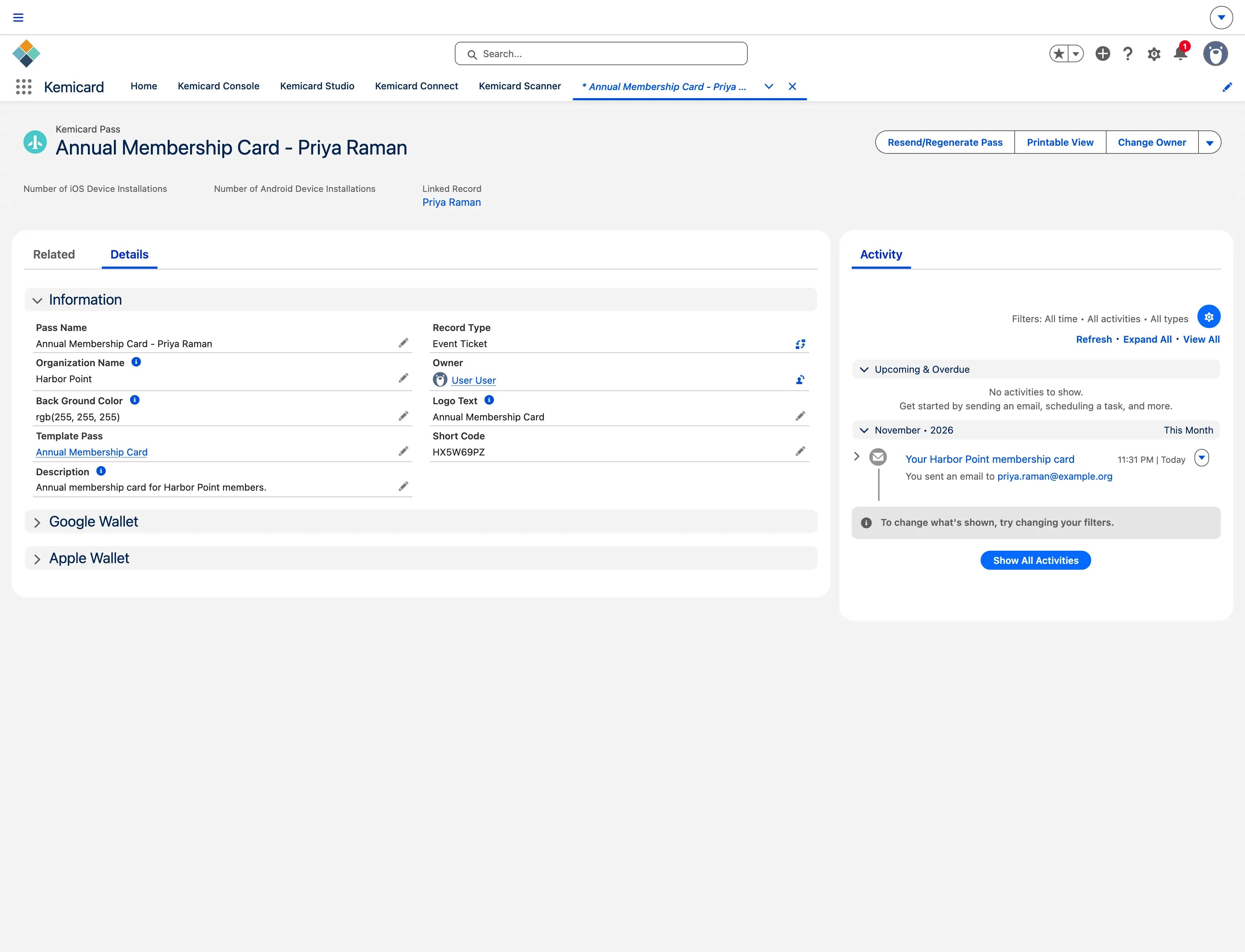
- Open Kemicard Passes and click the member's pass.
- Click Resend/Regenerate Pass at the top of the record.
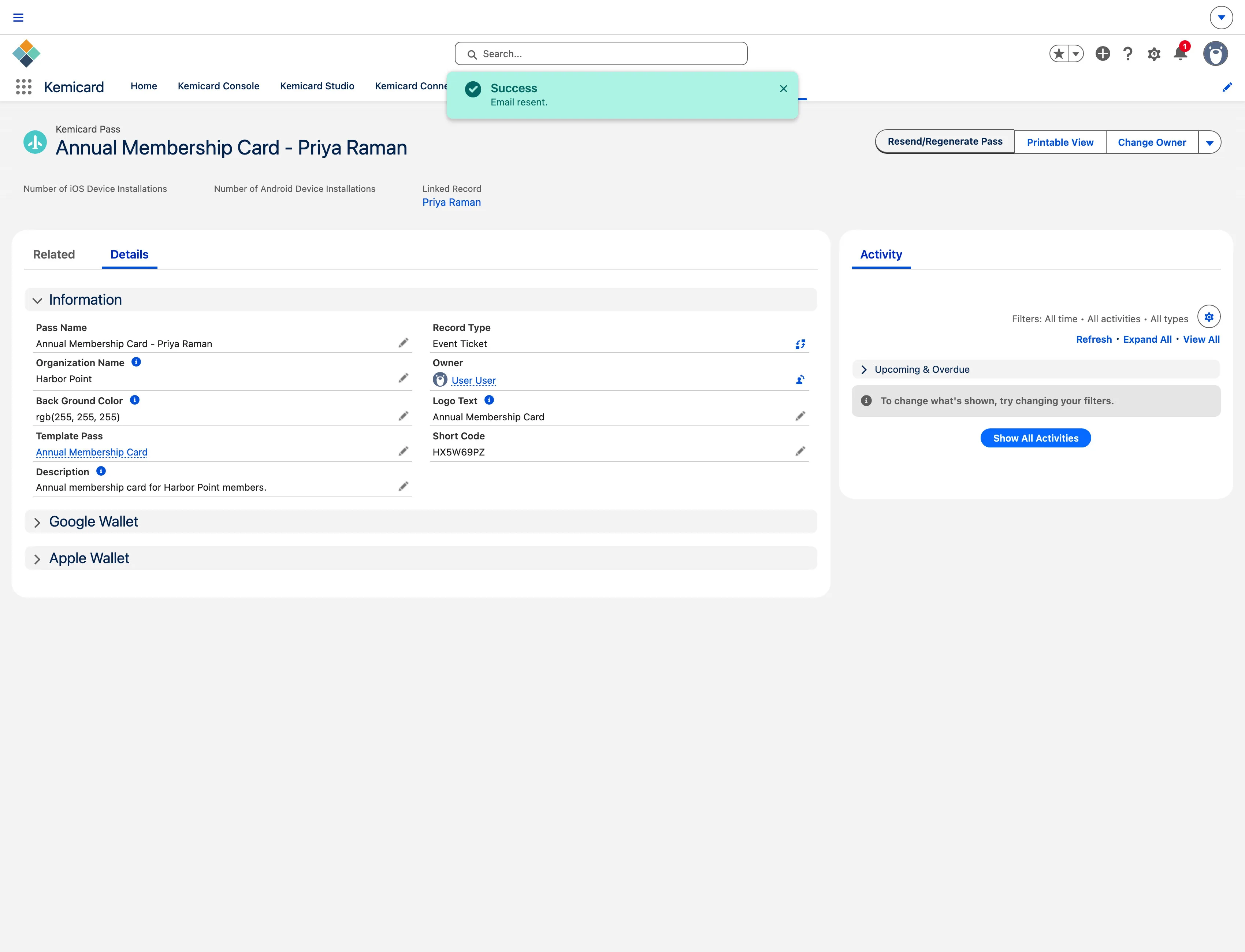
- Read the message that appears. A pass that generated normally shows Email resent.
You don't choose between resend and regenerate. Kemicard looks at the pass's latest generation request and does the right thing:
| Latest generation request | What Resend/Regenerate Pass does |
|---|---|
| Succeeded | Resends the original email, using the email template set on the pass or its template. Message: Email resent. |
| Failed for Apple, Google or both | Regenerates only what failed, on the same pass record, and logs a Pass Generation Retried activity. No new pass record is created. Message: Pass generation restarted. The email will follow. |
| Still in progress | Tells you to check back shortly. A request still pending after 30 minutes is treated as failed and retried. |
If neither the pass nor its template has an email template, the action shows an error instead of resending.
Step 2 — See which passes are on phones
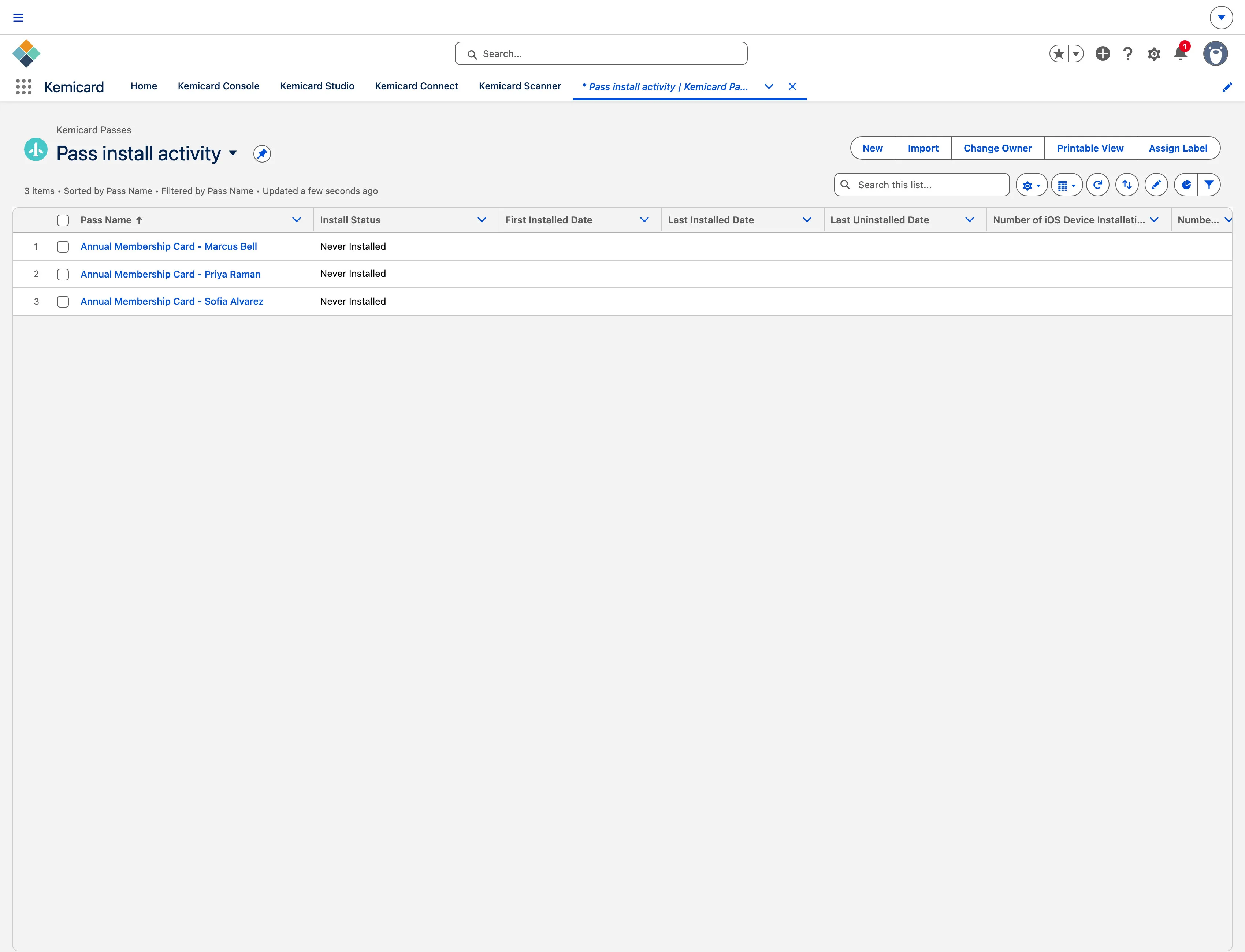
- Open Kemicard Passes and choose a list view that shows the install fields. The demo uses a list view named Pass install activity, which you create yourself.
- Read Install Status, First Installed Date, Last Installed Date, Last Uninstalled Date and the iOS and Android device counts.
- Open a pass to see Number of iOS Device Installations and Number of Android Device Installations in its header.
Install Status is Never Installed until a phone adds the pass, Installed while at least one device holds it, and Uninstalled after every device has removed it. The dates fill in when a phone adds or removes the pass in Apple Wallet or Google Wallet, and Last Uninstalled Date is cleared when the pass is installed again. In the demo no phone has added these passes yet, so the dates are empty.
Install tracking fields
| Object | Field | API name | What it holds |
|---|---|---|---|
| Kemicard Pass | First Installed Date | First_Installed_Date__c | When a wallet first added the pass. |
| Kemicard Pass | Last Installed Date | Last_Installed_Date__c | The most recent time a wallet added the pass. |
| Kemicard Pass | Last Uninstalled Date | Last_Uninstalled_Date__c | The most recent removal. Cleared when the pass is installed again. |
| Kemicard Pass | Install Status | Install_Status__c | Installed, Uninstalled or Never Installed. A formula, so it is read only. |
| Kemicard Device and Pass | Installed Datetime | Installed_Datetime__c | When that device added the pass. |
| Kemicard Device and Pass | Uninstalled Datetime | Uninstalled_Datetime__c | When that device removed the pass. |
Passes created before 2.31. After the upgrade, the Backfill Pass and Device Lifetime Tracking Dates step in Kemicard Console › Upgrades fills in these dates for existing passes from their device history, in the background.
For admins
- The action. Resend/Regenerate Pass is a quick action (
Pass__c.Resend_Pass) on all Kemicard Pass layouts. If you use your own pass layouts, add it there. - Permission sets. Kemicard Digital Pass and Kemicard Digital Pass User add access to the resend/regenerate classes. They and Kemicard Integration add read and edit on the new Kemicard Pass and Kemicard Device and Pass fields; Install Status is read only.
- Following requests. To see every recent request, not just one pass, use Console › Pass Generation Requests.
Common problems
| Problem | What to do |
|---|---|
| The message says generation is in progress | Wait a little and click the action again. A request still pending after 30 minutes is treated as failed and retried. |
| An error appears when resending | Check that the pass or its template has an email template, and that the member has an email address. |
| Resend/Regenerate Pass is not on the record | If you use your own pass layouts, add the quick action to them. |
| The Pass Name changed after regenerating | Regenerating restores the name the template generates. Edit it again if you need a custom name. |
| The install dates are empty | No phone has added the pass yet (Install Status is Never Installed). For passes created before 2.31, run the backfill step in Console › Upgrades. |
More fixes in Troubleshooting & KB.
Need help? Email supportkemisoft.com (M–F, 8 am – 4 pm MST) with your Salesforce organization ID and Kemicard package version.
Sources: Kemicard 2.31 release notes and the Kemicard Passes product demo (Kemicard 2.31, fictional sample data).