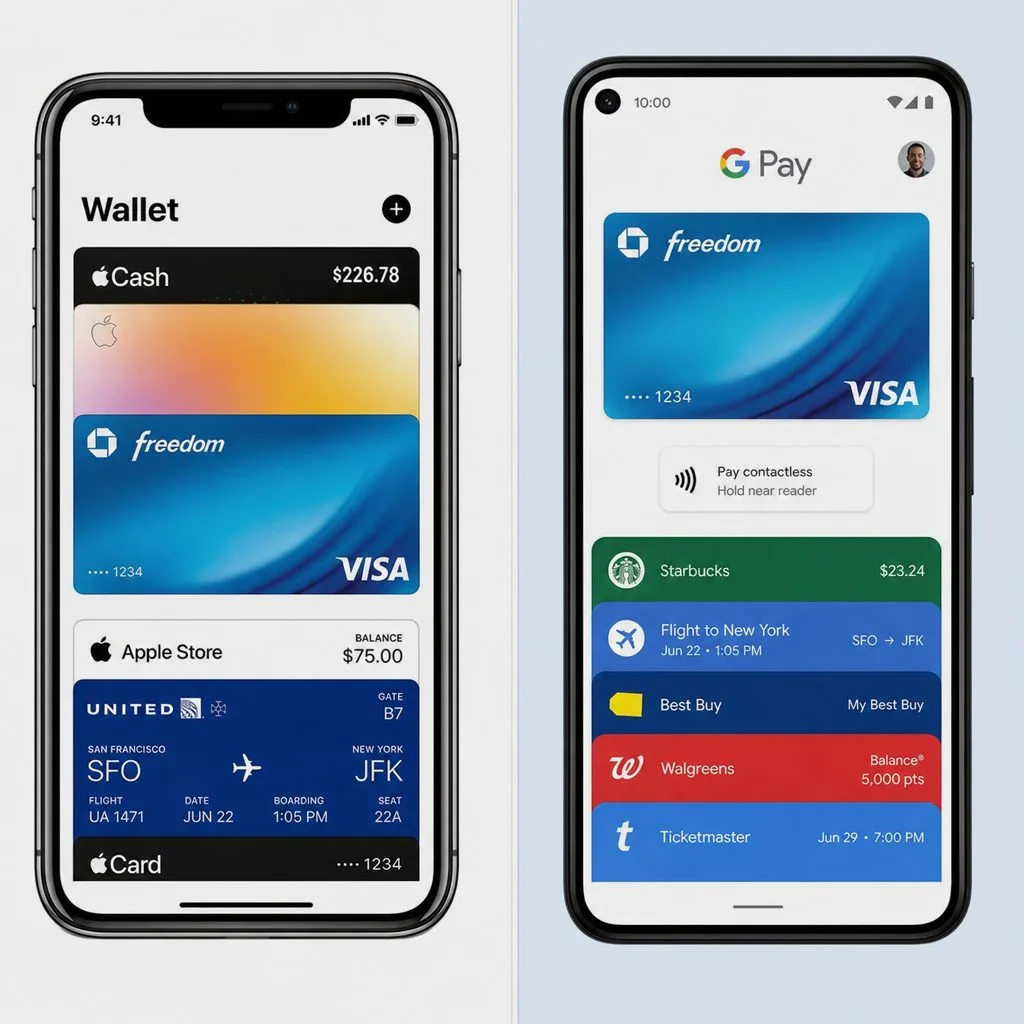
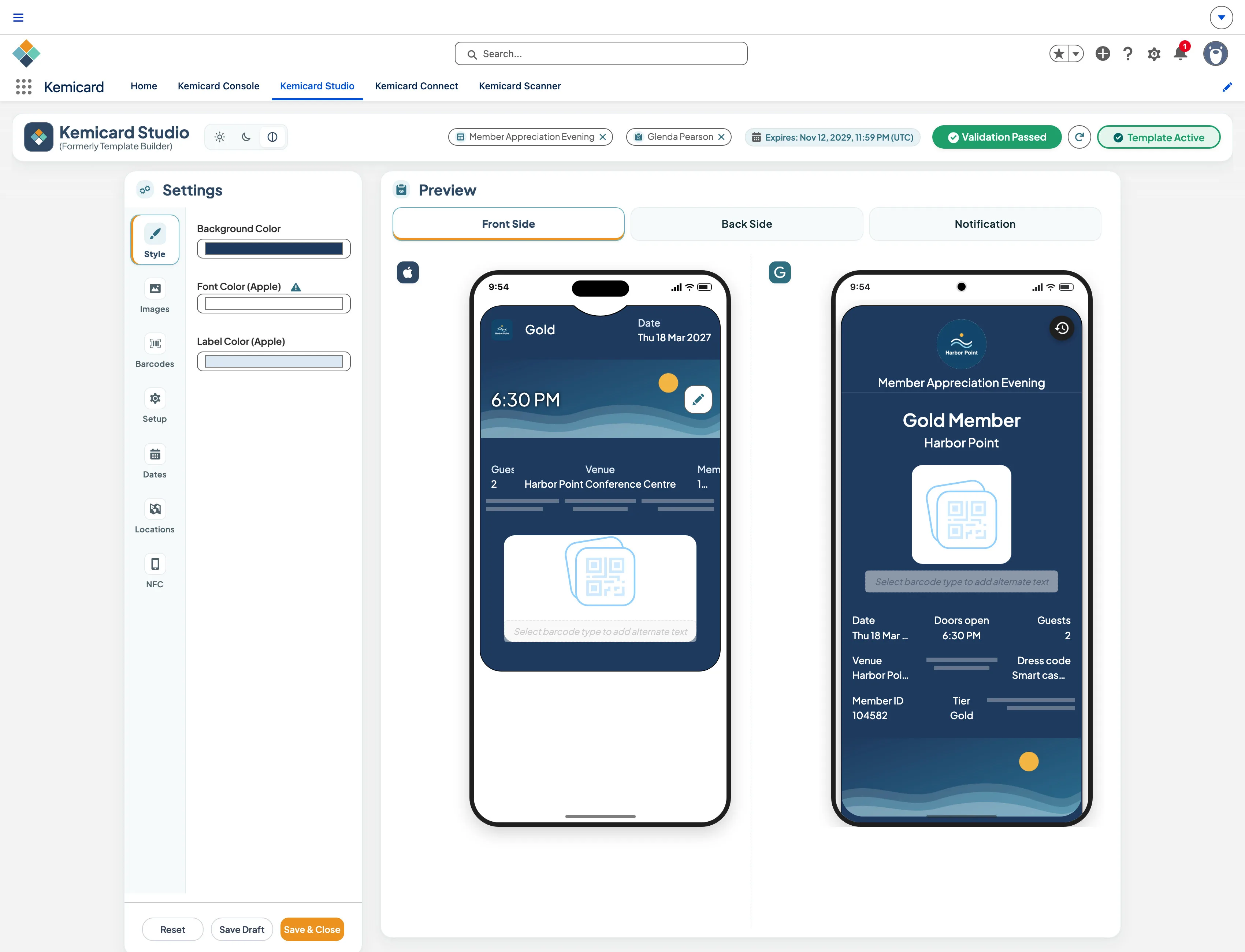
Google Wallet now shows a pass as one scrollable page. Since Kemicard 2.31, the Google preview in Kemicard Studio does the same. Switch between Single Page View and the compact card with the button in the pass corner, and check that every value sits under its own label before you send.
This page adds to the Kemicard Studio guide.
Watch the demo
Harbor Point prepares a ticket for its Member Appreciation Evening. Harbor Point is a fictional organization, and the recording uses fictional sample data.
Read every on-screen caption (20)
What changed in 2.31
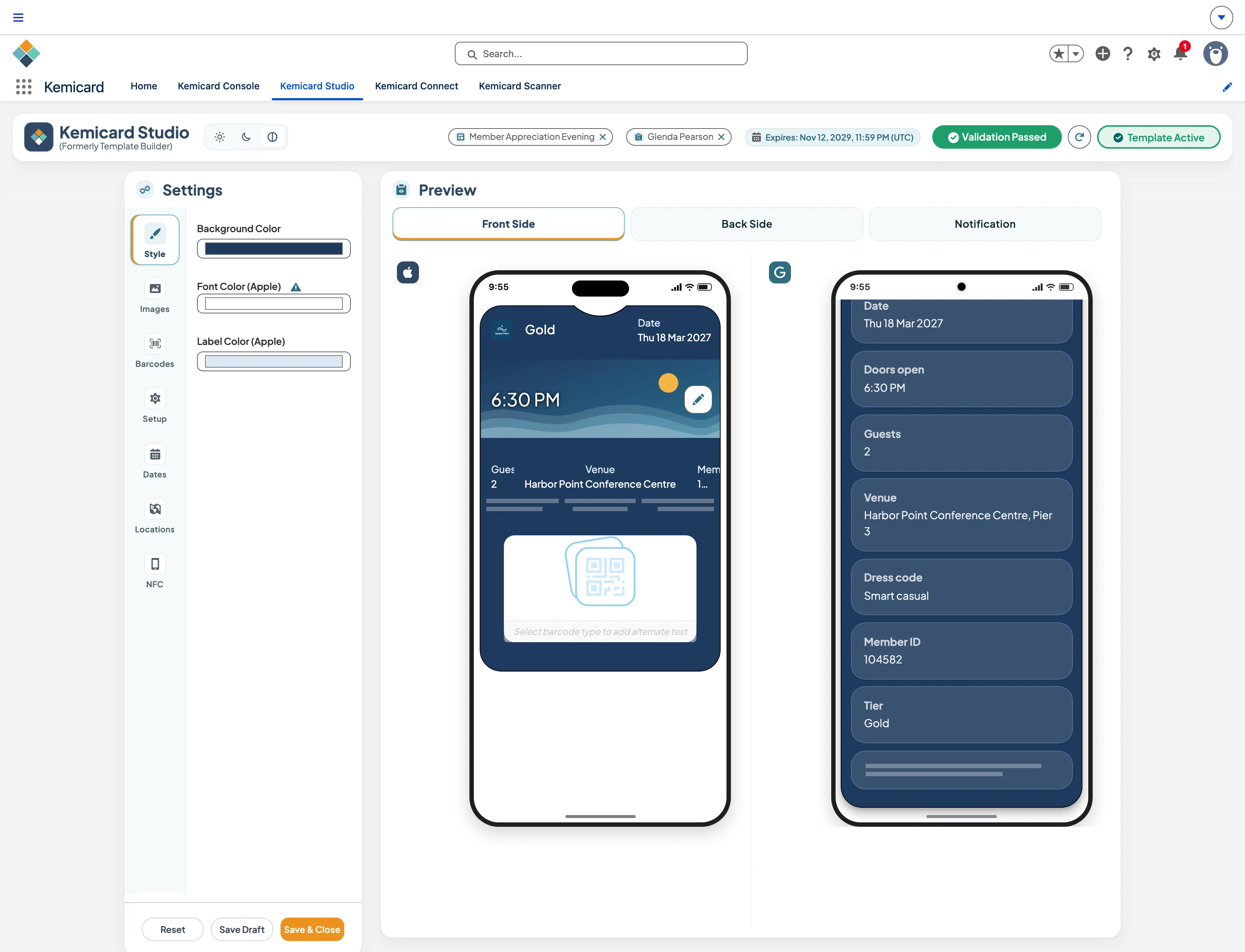
- Single Page View. The Google preview shows the pass as one scrollable page, matching how Google Wallet now shows passes. Your fields are listed below the barcode.
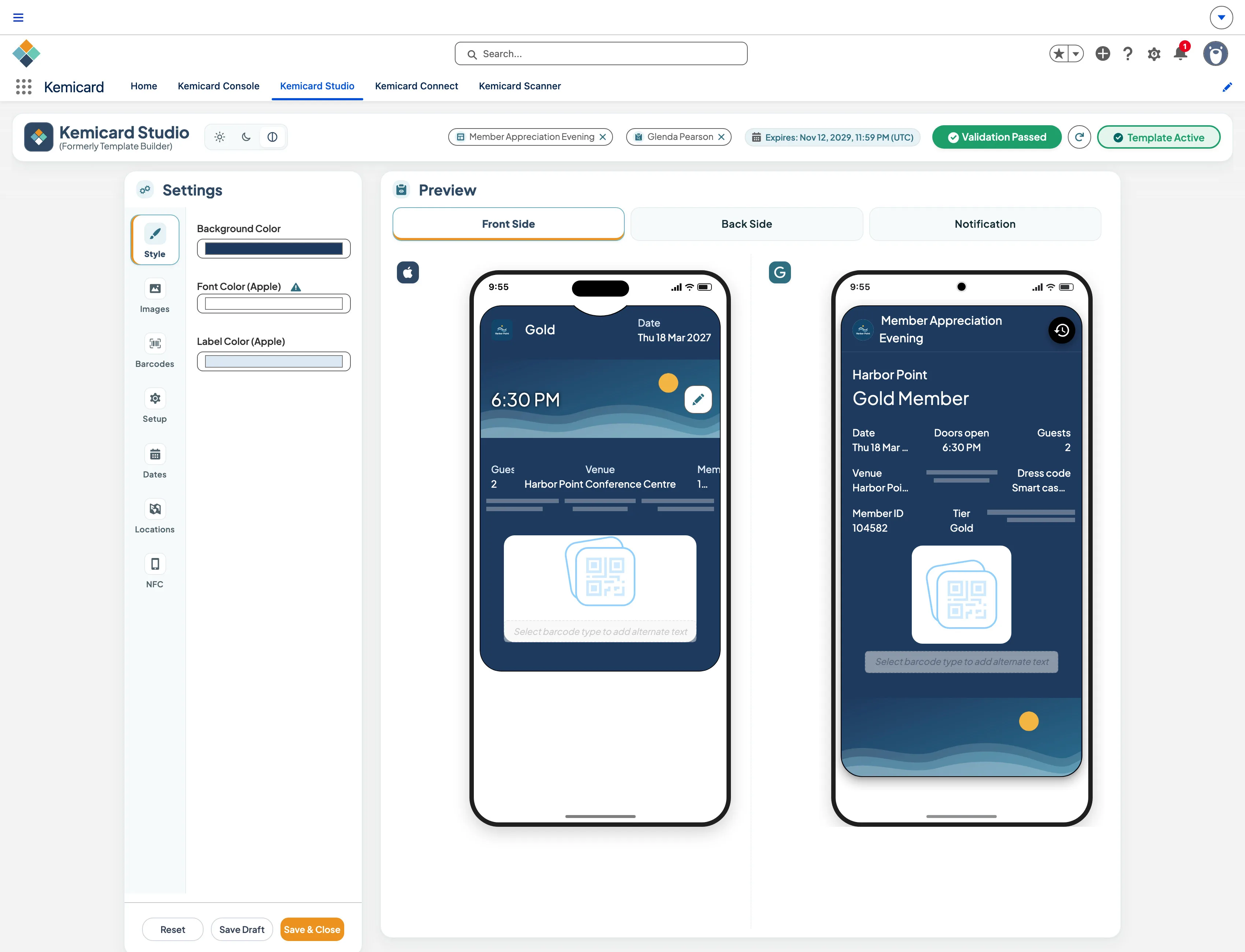
- Card view. The view switch in the corner of the pass changes the preview to the compact card, the classic front view. Switching changes only the preview, not your template.
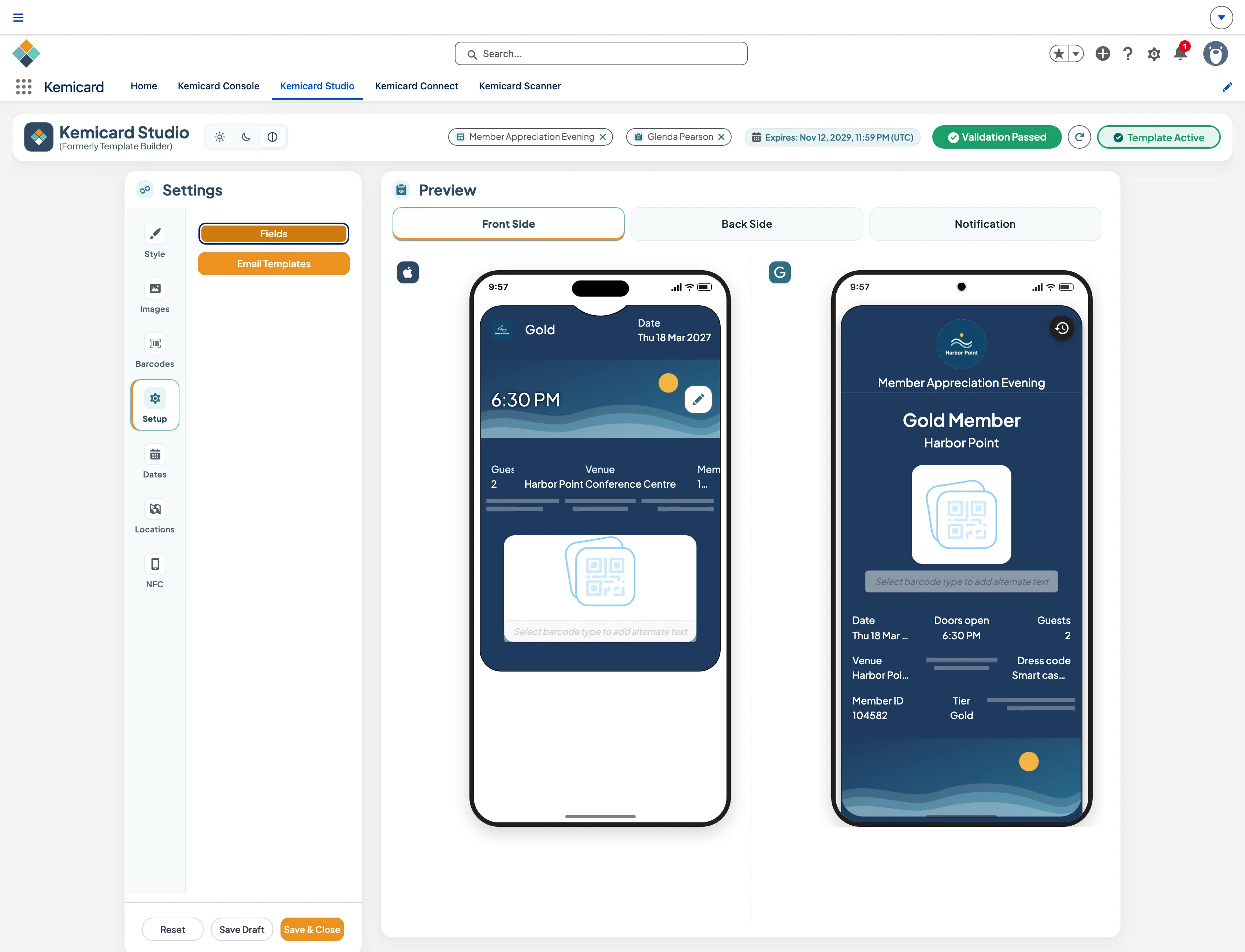
- The back side. The back of the Google preview is laid out like the Google Wallet details screen.
- Values in the right place. Each value appears under its own label, even where a slot is left empty. In 2.31, clearing a field in Studio no longer adds blank rows to Google passes, and field values stay matched to their fields on templates that have only Google fields.
Before you start
- A pass template with Google fields mapped in Setup › Fields. The demo uses Member Appreciation Evening, an event ticket for the Contact object.
- Permissions: editing templates in Studio needs the Kemicard Template Configuration permission set.
Step 1 — Open a template
- From Home, open the Kemicard Studio tab.
- Select the template's card, here Member Appreciation Evening.
- Wait a few seconds while the Apple and Google previews fill in from a sample record. The preview shows a loading state until the pass images are ready.
Studio builds the preview from a real record, so you see your title, header and fields as a member would. The Google pass appears as one scrollable page, like Google Wallet.
Step 2 — Switch between the single page and card views
- Scroll inside the Google phone to read the fields below the barcode.
- Select the view switch, the circular arrow icon in the corner of the Google pass, to see the compact card.
- Select it again to return to Single Page View.
Single Page View shows every field with its full value, so you can check long text such as the venue. The card view shows how the front of the pass looks at a glance, with long values cut short. Switching only changes the preview; your template is not changed.
Step 3 — Check your field values
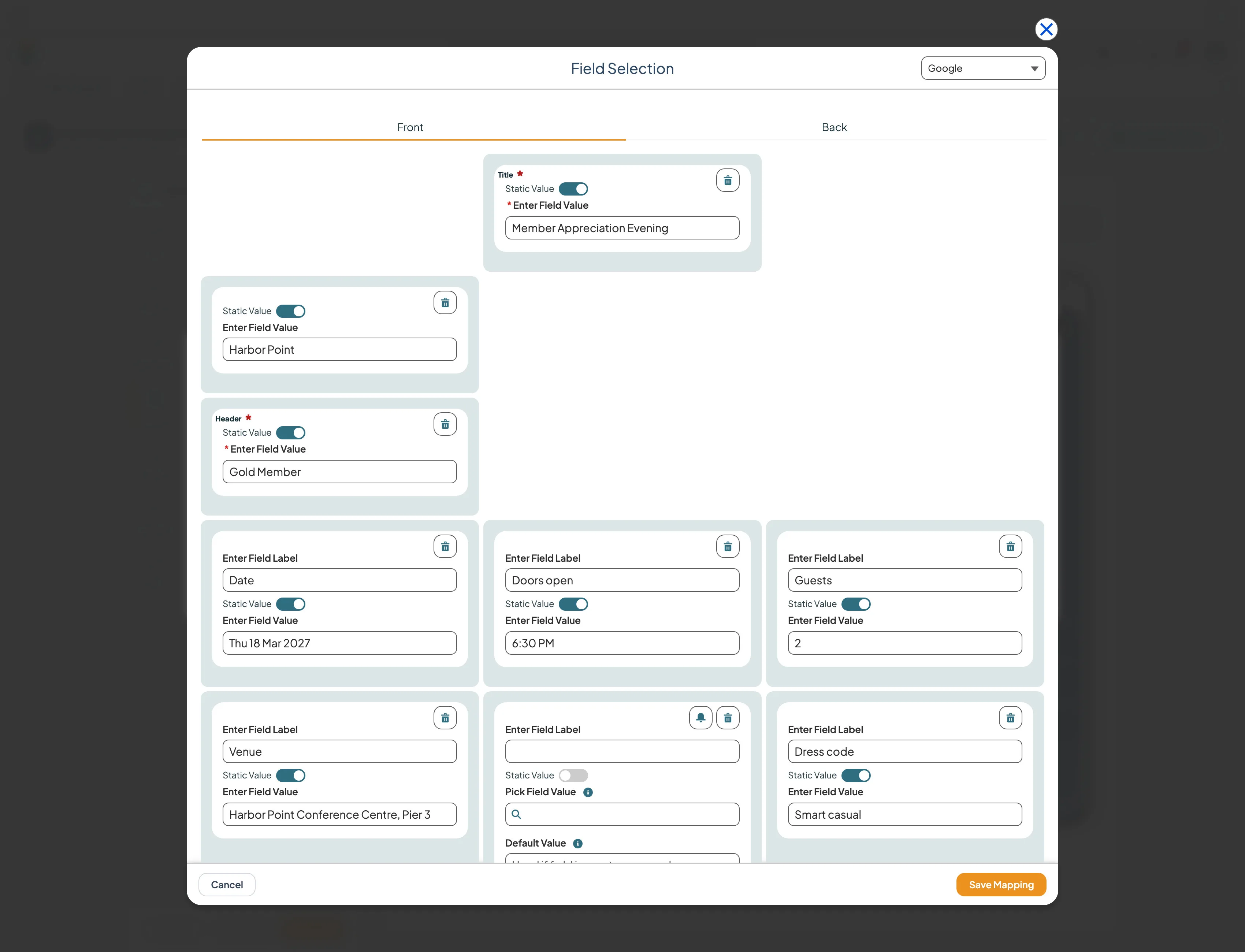
- In Settings, choose Setup, then Fields, then Field Selection.
- Switch the list to Google.
- Review each slot. A slot can be left empty. Close the window with Cancel if you made no change.
The preview keeps every value under its own label, even where a slot is left empty. In this template, the row with Venue has an empty slot between Venue and Dress code, and both values stay in their own columns. How each slot works, with static values and record fields: Field mapping reference.
The back side
Click Back Side above the previews to see the back of the pass. Since 2.31, the back of the Google preview is laid out like the Google Wallet details screen. The demo video does not show the back side.
Back-of-pass content, including tappable links on Google passes, is covered in the Studio guide under Back-of-pass fields.
Tips
- Preview with a realistic sample record, so the preview shows real values.
- Check long values in Single Page View. The card view cuts them short.
- Leave a slot empty when a row needs fewer values. The other values keep their own labels.
- Switching views is safe. It changes only the preview, never the template.
Need help? Email supportkemisoft.com (M–F, 8 am – 4 pm MST) with your Salesforce organization ID and Kemicard package version.
Sources: Kemicard 2.31 release notes and the Google Wallet preview product demo (Kemicard 2.31, fictional sample data).