With the NFC add-on, new in Kemicard 2.31, a member can tap their phone on a compatible reader to redeem a Google Wallet pass. Kemicard turns the add-on on for your organization, and you switch NFC on for each template in Kemicard Studio.
Watch the demo
Harbor Point switches on tap-to-redeem for its Rewards Loyalty Card in Kemicard Studio, then checks the add-on in the Console. Harbor Point is a fictional organization, and the recording uses fictional sample data.
Read every on-screen caption (11)
What NFC does
- Tap to redeem. NFC adds a tap-to-redeem (Smart Tap) payload to a template's Google Wallet passes, so a compatible reader can read the pass when the member taps their phone.
- Per template. You switch NFC on for each template in Kemicard Studio. Templates you leave off send no tap data.
- The same value as the QR code. A tap sends the value the pass already uses for its QR code, so there is no separate payload to set up. If no QR data field is set yet, a tap sends the pass ID.
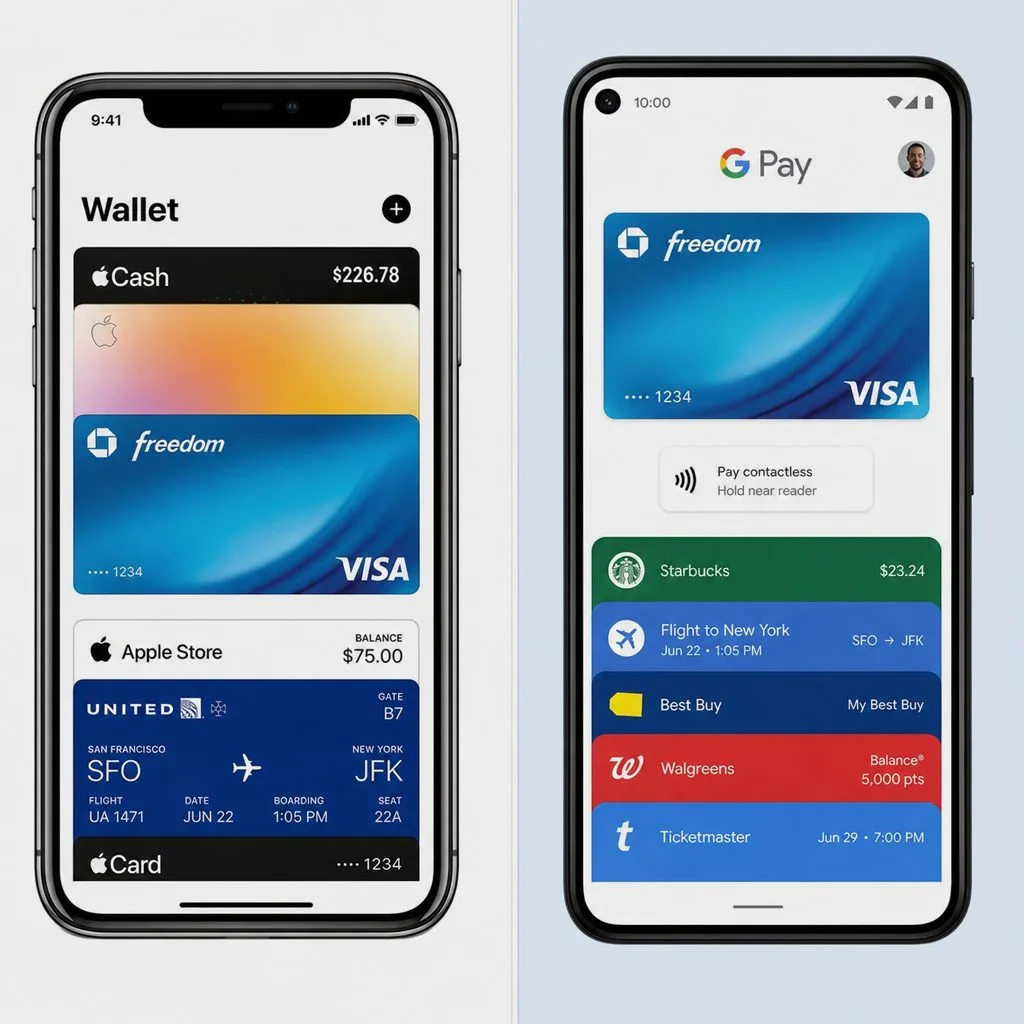
- Google Wallet only. Tap-to-redeem is added to Google Wallet passes only.
Before you start
- The NFC add-on is active: the NFC tile in Kemicard Console › Features shows Feature Enabled. If it is off, the switch in Studio stays locked.
- A Google Wallet pass template. The demo uses Rewards Loyalty Card, built for the Contact object.
- A QR data field chosen in Settings › Barcodes, so a tap sends the value your readers expect.
- Permissions: editing templates in Studio needs the Kemicard Template Configuration permission set.
Step 1 — Turn NFC on for a template
- Open Kemicard Studio from the navigation bar and open your template.
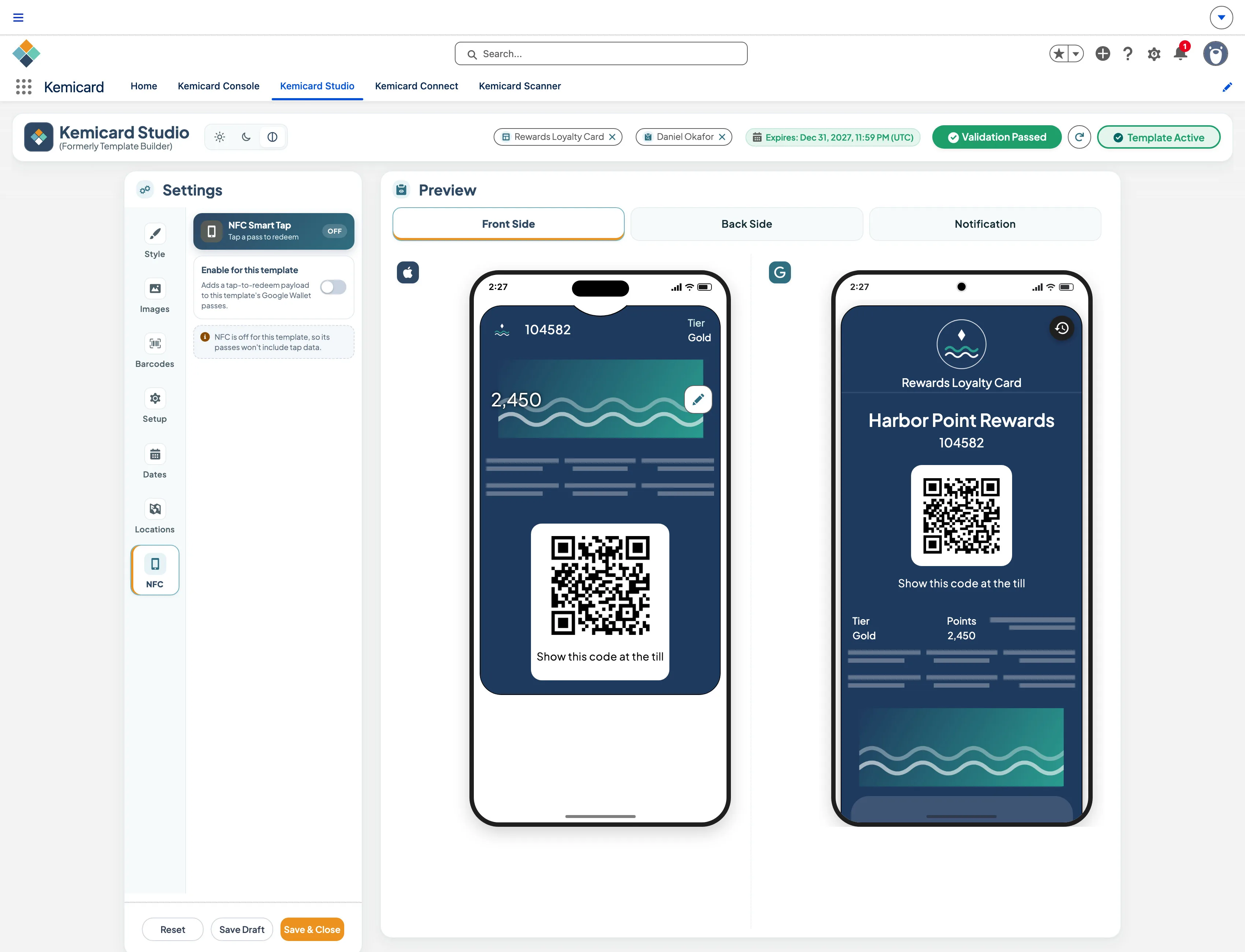
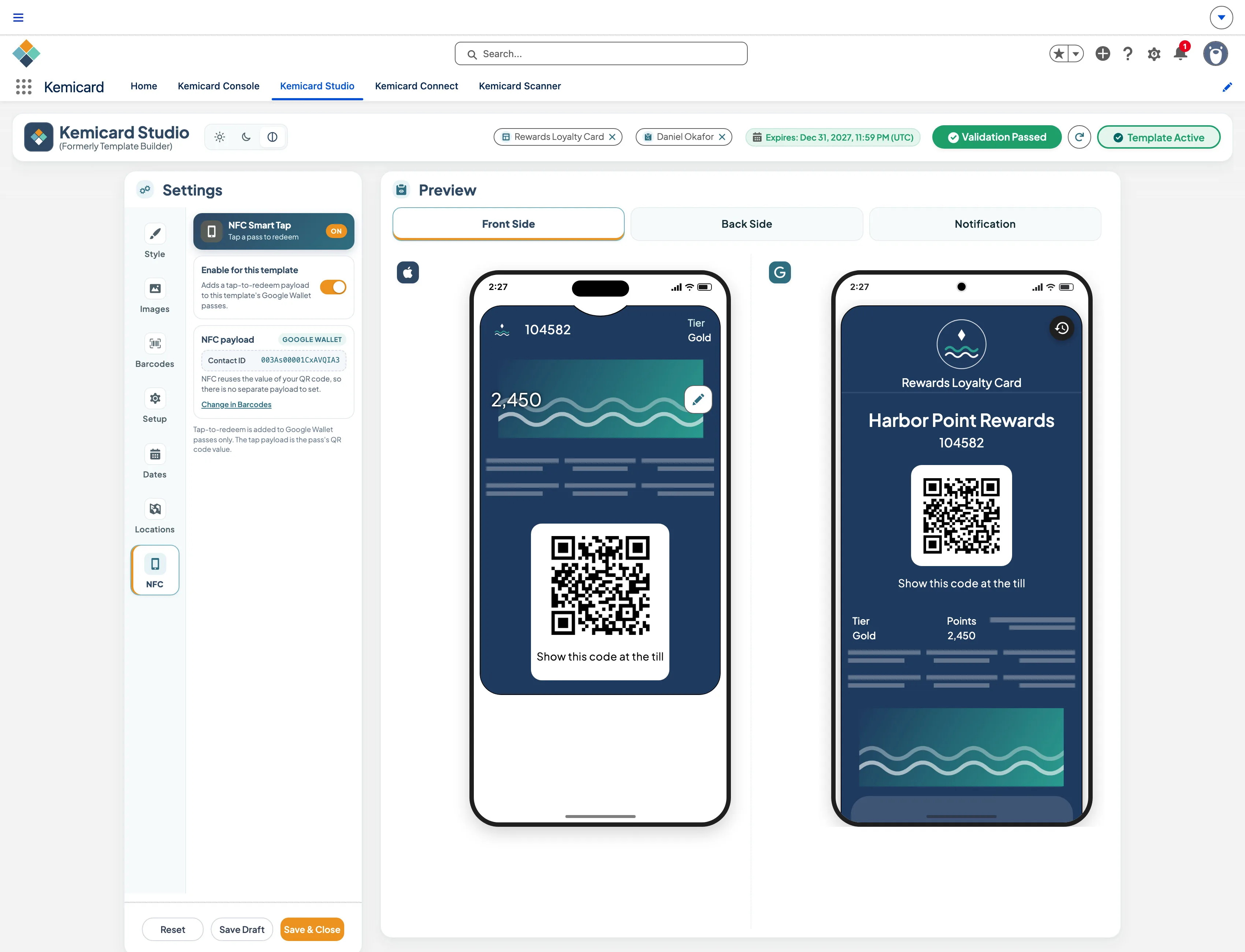
- In Settings, click NFC. The NFC Smart Tap panel starts at Off.
- Turn on Enable for this template. The status changes to On and an NFC payload card appears.
NFC is chosen per template, so you decide which passes support tap-to-redeem. Until you switch it on, the template's passes carry no tap data.
Step 2 — See what a tap sends
- Read the NFC payload card. It lists the field a tap sends (here Contact ID) and a sample value from a real record.
- To send a different value, click Change in Barcodes and pick another Select QR Data Field.
One setting drives both the QR code and NFC. If a template has no QR data field yet, the NFC tab warns that no QR data field is set, and a tap sends the pass ID until you pick one with Select QR Data Field.
Step 3 — Save the template
- Click Save & Close. Kemicard saves the template, checks it and opens the template record.
- On the record, Smart Tap is ticked and the template stays Active.
Passes generated from this template after the save include the tap payload. To stop tap-to-redeem, switch NFC off the same way and save. You can always turn NFC off for a template; turning it on needs the add-on.
Step 4 — Check the NFC add-on in the Console
- Open Kemicard Console from the navigation bar.
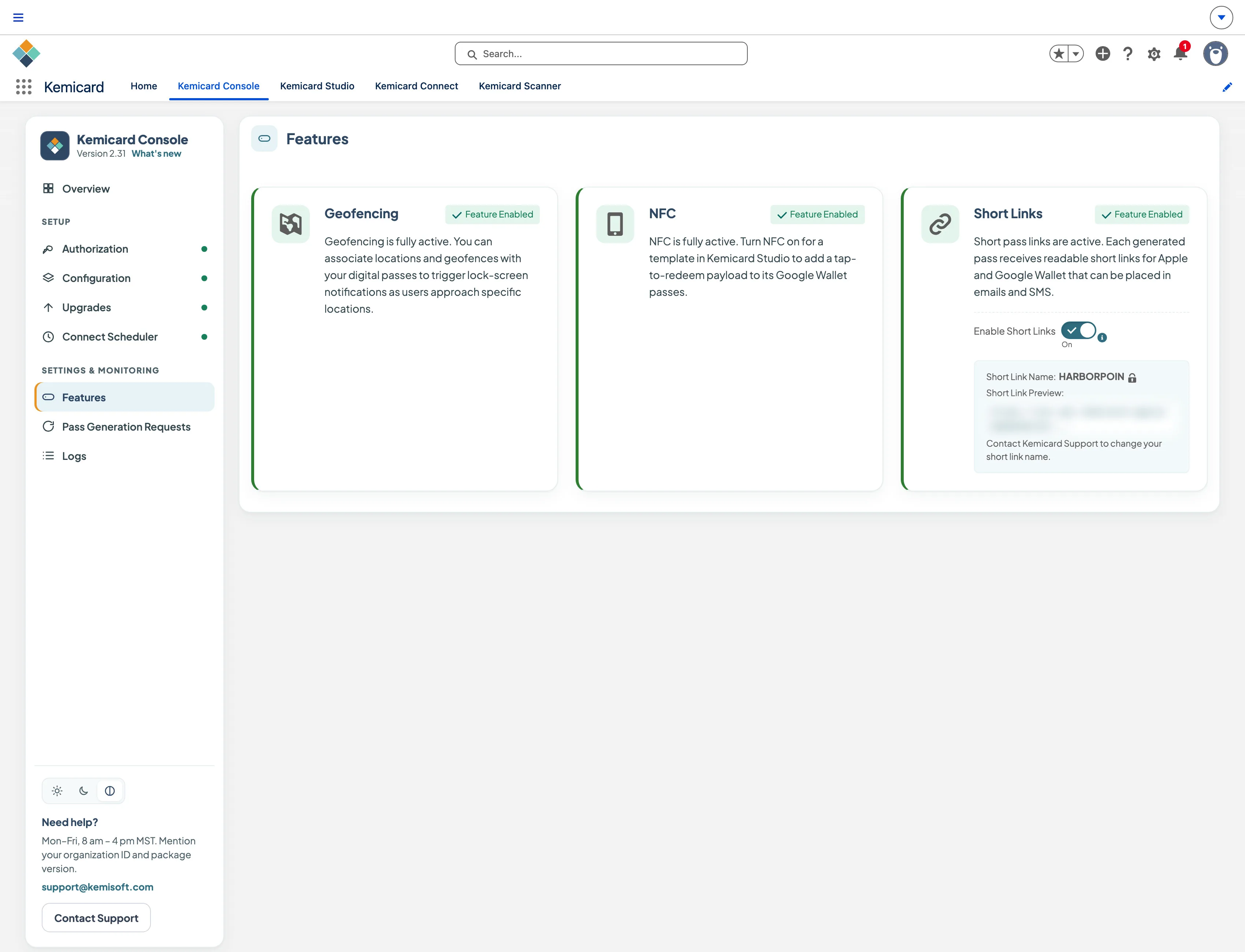
- Click Manage features on the Overview, or Features in the side panel.
- Find the NFC tile. It shows Feature Enabled.
When the add-on is off, the tile shows Feature Disabled with Request Feature Activation, and the switch in Studio stays locked. More about the Console: Kemicard Console guide.
When the add-on is off
- In Studio. Settings › NFC says NFC is not enabled and links to Console › Features. You can't turn NFC on, but you can always turn it off.
- Templates that still have NFC on. Their Google passes are not generated. Pass generation fails with “NFC Addon is disabled. Enable "Suppress NFC Errors" in Kemicard Console Features…”.
- Suppress NFC Errors. To generate those Google passes without the NFC payload instead, an admin turns on Suppress NFC Errors in the NFC tile in Console › Features. Or turn NFC off on the template.
Importing templates
Importing a template with NFC on into an org without the NFC add-on turns NFC off for that template, with a note in the import results. Template import and export are covered in Production install & migration.
Upgrading to 2.31
Before 2.31, a template's Smart Tap setting defaulted to on but did nothing. It now controls NFC and defaults to off.
- After upgrading, open Kemicard Console › Upgrades and run the listed steps.
- The step Turn off Smart Tap on existing templates (v2.31.0) turns Smart Tap off on existing templates, so their Google passes keep generating. If any template can't be updated, the step reports Completed with errors, with a count.
- Once the NFC add-on is active, switch NFC on in Studio for the templates that should support tap-to-redeem.
Upgrade instructions: Upgrading an existing org.
Settings at a glance
| Where | Setting | What it does |
|---|---|---|
| Studio › Settings › NFC | Enable for this template | Adds the tap-to-redeem payload to this template's Google Wallet passes. |
| Studio › Settings › NFC | NFC payload | Shows the value a tap sends: the QR code value. |
| Studio › Settings › Barcodes | Select QR Data Field | Sets the value for both the QR code and NFC. |
| Kemicard Template record | Smart Tap | Ticked when NFC is on for the template. |
| Console › Features | NFC tile | Shows Feature Enabled or Feature Disabled for your organization. |
| Console › Features › NFC tile | Suppress NFC Errors | With the add-on off, generates Google passes without the NFC payload instead of failing. |
For admins: the add-on is the package feature parameter IsNFCEnabled, off by default and turned on by Kemicard. The Suppress NFC Errors switch is stored in Consent_Suppress_NFC__c on Kemicard Settings.
Common problems
| Symptom | Likely cause |
|---|---|
| The NFC switch is greyed out and the panel says NFC is not enabled | The NFC add-on is off for your organization. Check Console › Features and use Request Feature Activation. |
| The NFC tab warns that no QR data field is set yet | Pick a field under Select QR Data Field. A tap sends the pass ID until you do. |
| Apple Wallet passes carry no tap data | Tap-to-redeem is added to Google Wallet passes only. |
| A template's Google passes aren't generated: “NFC Addon is disabled…” | The template has NFC on but the add-on is off. Turn NFC off on the template, or have an admin turn on Suppress NFC Errors. |
| An imported template has NFC off | The org you imported into doesn't have the NFC add-on. Check the import results. |
Tips
- Turn NFC on only for passes that are redeemed by tap. Other templates stay as they are.
- Pick the QR data field first. A tap sends that value, so choose one your readers expect.
- Name templates for what they do, such as Rewards Loyalty Card, so the right one is easy to find in Studio.
Need help? Email supportkemisoft.com (M–F, 8 am – 4 pm MST) with your Salesforce organization ID and Kemicard package version.
Sources: Kemicard 2.31 release notes and the NFC product demo (Kemicard 2.31, fictional sample data). Google's Smart Tap overview.