Since Kemicard 2.31, the Kemicard app opens on a Home dashboard. It shows your Connects, events, key numbers and status checks on one page, links to every Kemicard page you can open, and comes in Light, Dark or Auto color mode.
Home is for admins and for the people who run Connects and events. Home and the Kemicard Console share one side panel, and it lists only the pages your permission sets allow.
Watch the demo
Harbor Point checks its Connects, events and key numbers on Home, opens the Console from the side panel, and switches to Dark mode. Harbor Point is a fictional organization; the recording uses fictional sample data.
Read every on-screen caption (10)
Before you start
- Kemicard 2.31 installed and authorized. After upgrading, run any listed steps in Kemicard Console › Upgrades (see After upgrading to 2.31).
- Access to Kemicard through a Kemicard permission set. Pages you can't open are not listed.
Step 1 — Your Kemicard Home
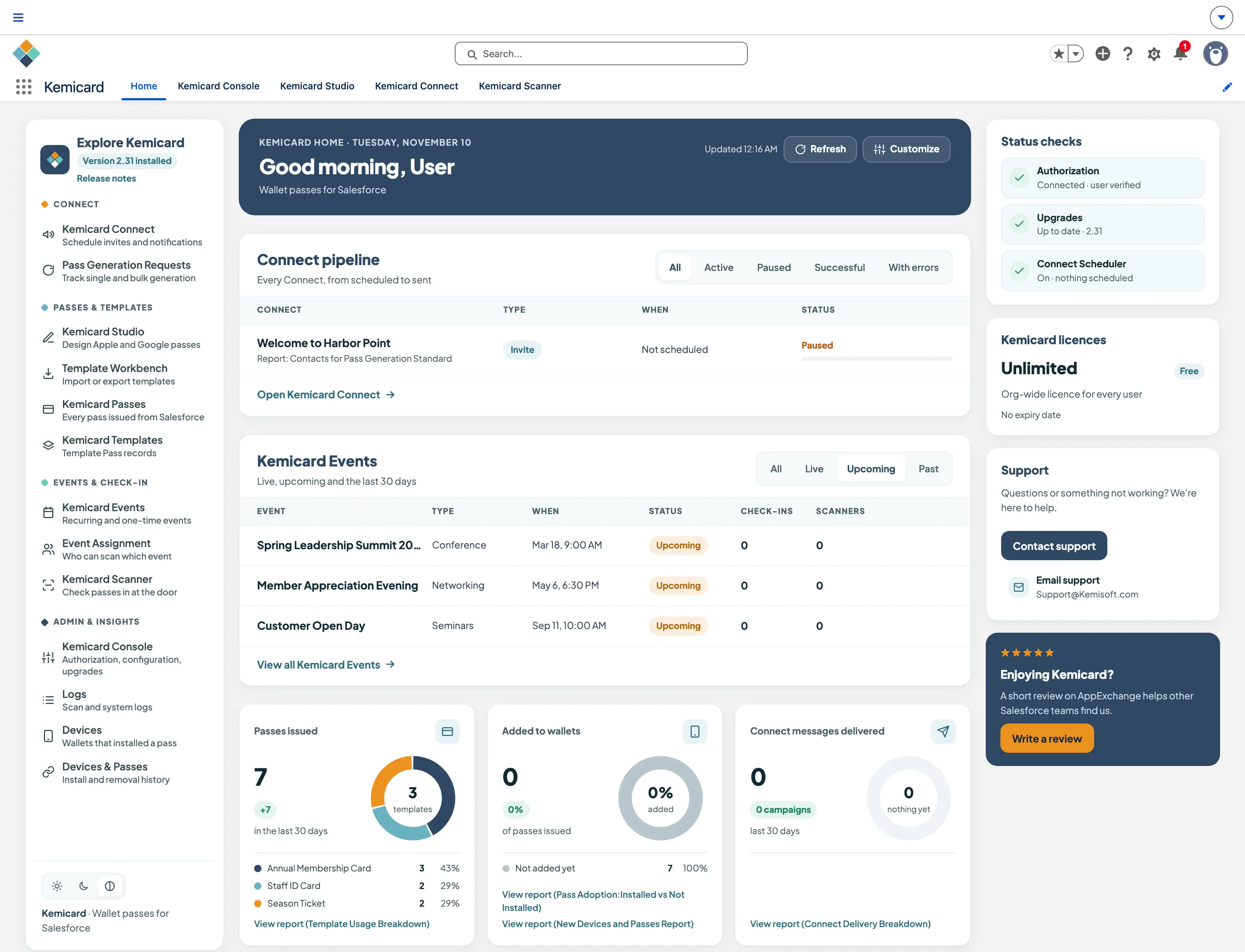
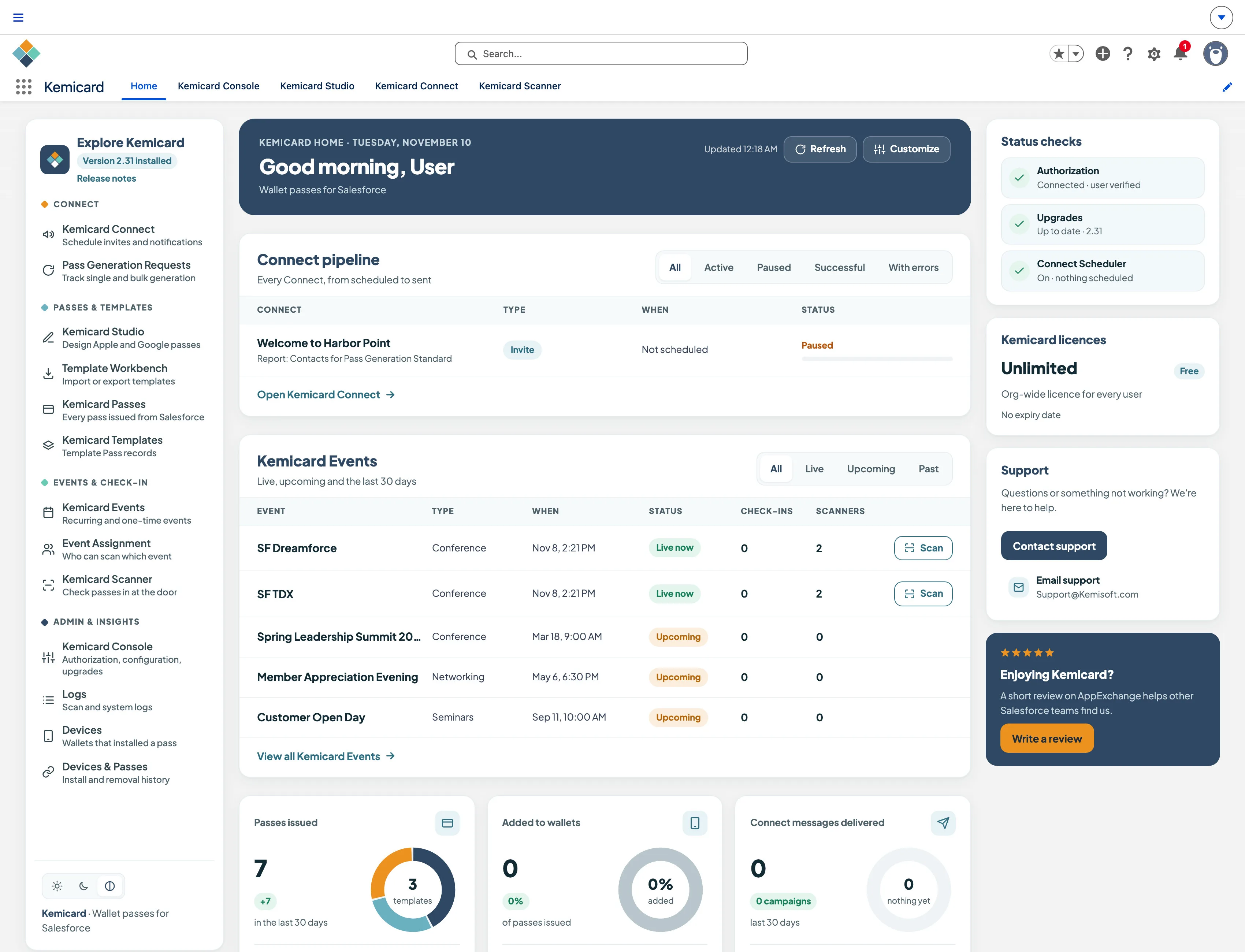
- Open the Kemicard app. The Home tab shows a greeting, today's date and when the figures were last updated.
- Read the Connect pipeline: each Connect with its type, next send and status. Filter with All, Active, Paused, Successful or With errors. Click a row to open the Connect.
- Click Refresh to reload the figures on demand. Customize reorders the sections.
You see what is scheduled, paused or failing without opening each Connect. In the demo, Welcome to Harbor Point is a paused Invite that has not been scheduled yet. More about Connects in the Kemicard Connect guide.
Step 2 — Events and key numbers
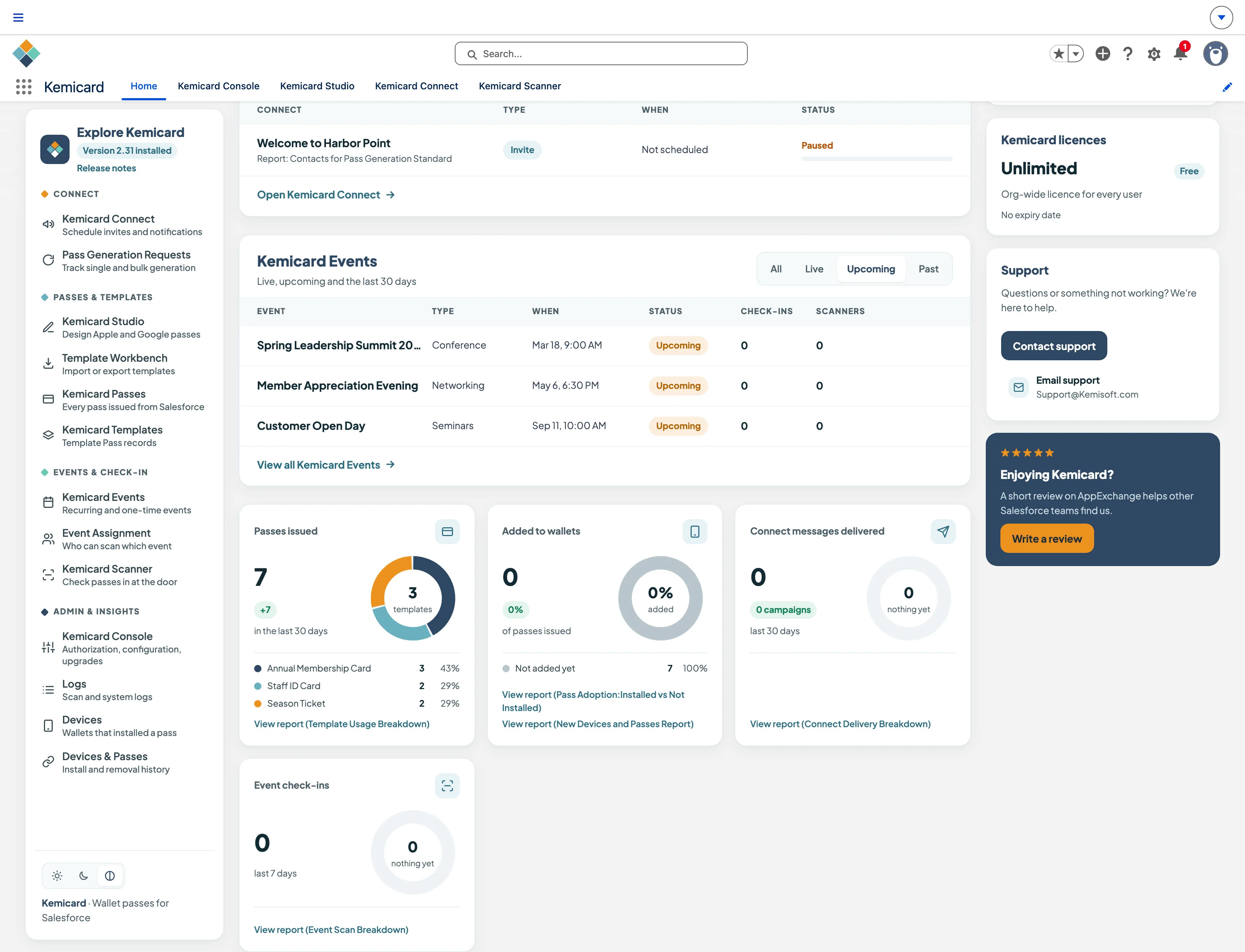
- In Kemicard Events, choose All, Live, Upcoming or Past. Each row shows the event's type, date, status, check-ins and scanners.
- For an event that is open for check-in, click Scan to open Kemicard Scanner on that event.
- Scroll to the key numbers: Passes issued, Added to wallets, Connect messages delivered and Event check-ins. Use a View report link to open the report behind a number.
Kemicard Events lists live and upcoming events and those from the last 30 days. Marketing and event teams see how many passes went out, how many reached a wallet and what was delivered, on one page.
Step 3 — The shared side panel
- Find the page in the Explore Kemicard panel on the left. Pages are grouped as Connect, Passes & templates, Events & check-in and Admin & insights, each with a one-line description.
- Click a name, for example Kemicard Console. The same panel is on the left of the Console.
- The top of the panel shows the installed version and a Release notes link.
The panel lists only the pages and records you can open, so you no longer land on a "no access" page or Salesforce's "Page doesn't exist". If a page is missing, ask your Kemicard administrator.
Step 4 — Light, Dark or Auto
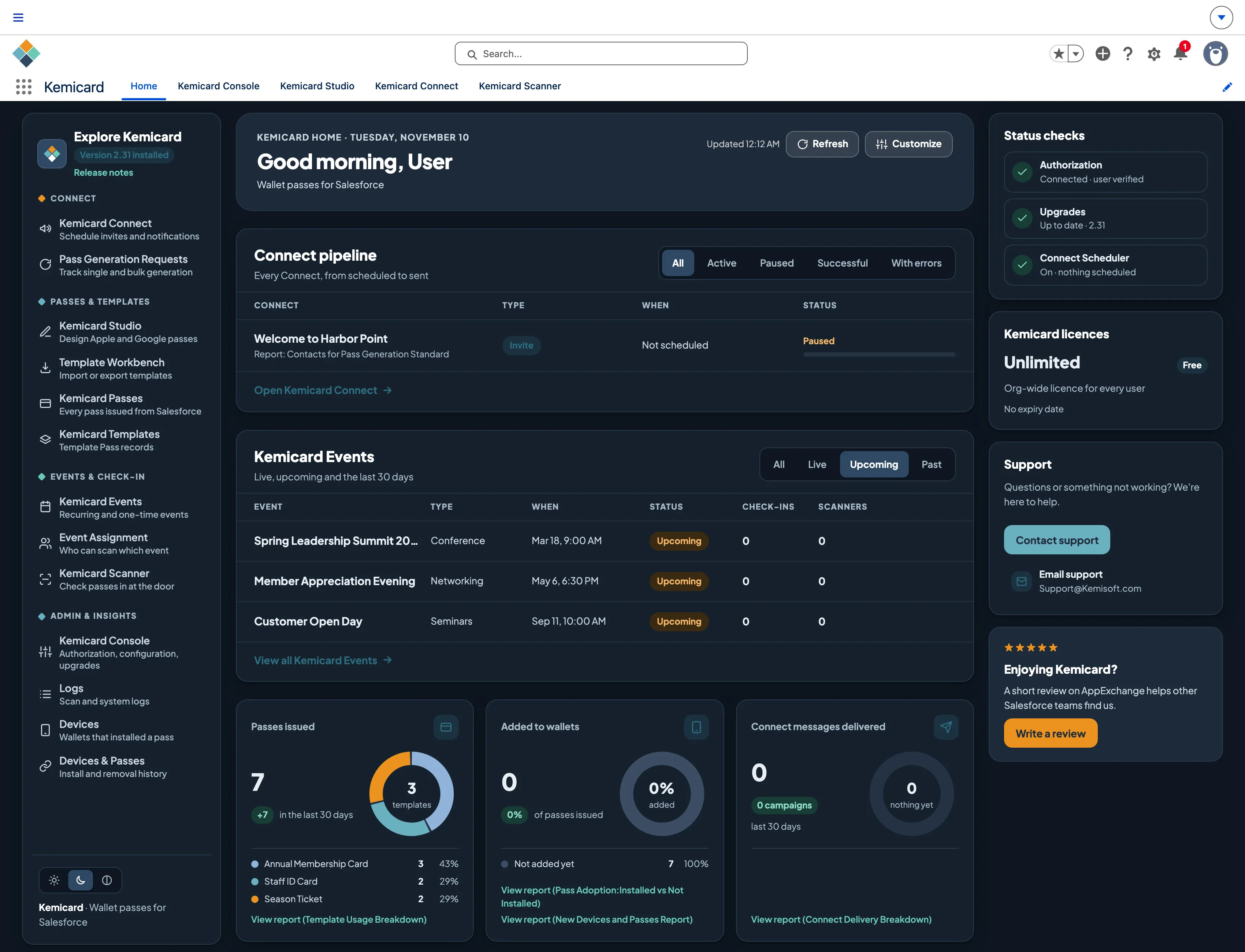
- At the bottom of the side panel, click the sun for Light, the moon for Dark or the circle for Auto.
- Every Kemicard page and dialog follows your choice.
Auto is the default and follows your device setting. Your choice is saved on this device only. Standard Salesforce headers and tabs are not affected.
What's on Home
| Area | What it shows |
|---|---|
| Explore Kemicard (left) | The installed version, a Release notes link, and the Kemicard pages you can open, grouped as Connect, Passes & templates, Events & check-in and Admin & insights. The color mode switch is at the bottom. |
| Connect pipeline | Your Connects, filtered by All, Active, Paused, Successful or With errors. Click a row to open the Connect. |
| Kemicard Events | Live and upcoming events and those from the last 30 days, filtered by All, Live, Upcoming or Past, with check-ins and scanners. Events open for check-in have a Scan button. |
| Key numbers | Passes issued, Added to wallets, Connect messages delivered and Event check-ins, with links to the matching reports. |
| Status checks (right) | Authorization, Upgrades and Connect Scheduler, each opening its Console section. Shown to users who can run upgrades. |
| Kemicard licences | A tile with your Kemicard licence. |
| Support | Contact support, and a link to review Kemicard on AppExchange. |
The Connect pipeline and Kemicard Events show six rows at a time, with next and previous buttons. Click Customize to reorder the three main sections (Connect pipeline, Kemicard Events and the key numbers); the order is saved for you on this device, and Reset restores it. Refresh reloads the figures, and Home also refreshes every five minutes while it is open.
Reports behind the key numbers
The View report links under each number, as they appear in Kemicard 2.31:
| Key number | View report links |
|---|---|
| Passes issued | Template Usage Breakdown |
| Added to wallets | Pass Adoption: Installed vs Not Installed; New Devices and Passes Report |
| Connect messages delivered | Connect Delivery Breakdown (new in 2.31, in the Kemicard reports folder) |
| Event check-ins | Event Scan Breakdown |
Who sees what
- Only pages you can open. The side panel in Home and the Console lists only the pages and records your permission sets allow.
- A clear message instead of an error. If you open a Kemicard page, record action or button you don't have access to, Kemicard shows You don't have access to …, names the permission set to ask your Kemicard administrator for, and offers Go back.
- Status checks appear only for users who can run upgrades.
- Template actions. On a Kemicard Template record, the Studio, clone and import/export actions appear only for users with Kemicard Configuration Access.
- Template designers. Since 2.31 the Kemicard Digital Pass User permission set no longer includes the Kemicard Studio and Kemicard Template Workbench tabs. Give users who design templates the Kemicard Template Configuration permission set.
- Event and Connect teams. Kemicard Event Admin now includes read access to Kemicard Logs (Scanner record type) for the check-in counts on Home. Kemicard Connect now includes read access to Pass Generation Requests and Kemicard Passes (View All) for Home and the Console's requests list.
For admins
- The Kemicard app's Home tab now shows the Kemicard Home component, and the app header is navy.
- The app's navigation bar is shorter: Home, Kemicard Console, Kemicard Studio, Kemicard Connect and Kemicard Scanner. Passes, templates, events, logs and devices are linked from the Home side panel.
- Kemicard Home can also be added to other Lightning Home pages in App Builder.
Common problems
| Problem | What to do |
|---|---|
| A page is missing from the side panel | Ask your Kemicard administrator to assign the permission set for that page. |
| Kemicard Studio or Template Workbench is missing after the upgrade | Ask your administrator for the Kemicard Template Configuration permission set. |
| Status checks are not shown | They appear only for users who can run upgrades. |
| Figures look out of date | Click Refresh. If it still fails, try again in a moment. |
| Home is dark on one computer and light on another | The color mode is saved per device. Pick Light, Dark or Auto on each one. |
More fixes in Troubleshooting & KB.
Need help? Email supportkemisoft.com (M–F, 8 am – 4 pm MST) with your Salesforce organization ID and Kemicard package version.
Sources: Kemicard 2.31 release notes and the Kemicard Home product demo (Kemicard 2.31, fictional sample data).