

Volunteer ID Cards: How Nonprofits Track and Recognize Volunteers on Salesforce

 By the Kemicard team
Volunteers are the backbone of a nonprofit. People give their time, so tracking and recognizing that time is part of running the program. Recognition is what gives a volunteer a reason to stay with your organization instead of drifting away after a few shifts.
If your nonprofit already runs on Salesforce, the card part becomes easy. A volunteer ID card is a digital card in Apple Wallet or Google Wallet that is created from the volunteer's own Salesforce record. It shows the volunteer role along with the current volunteer status. The scan at a shift is written back into Salesforce, where a Flow records the shift, so the record stays current without anyone typing it in later.
This blog covers where Salesforce stores volunteer data, how it creates a volunteer ID card, how check-in works during a shift, and how volunteers are recognized for the hours they give.
So, let's get started.
What does a Volunteer ID Card in Salesforce Mean?
A volunteer ID card in Salesforce is a digital card issued to a volunteer from their Salesforce record, and it stays useful for as long as that record is active. The card is created when the volunteer is approved, and it changes when the record changes.
A printed badge is fixed on the day it is printed. A card built on a Salesforce record carries the volunteer status as it stands now, because the status on the card is read from the status field.
So the card tracks the volunteer through the program rather than through a single shift.
How does Salesforce Store Volunteer Records?
Salesforce has no single standard home for volunteer data. Where the records live depends on which volunteer product the nonprofit installed. Two routes are in use: the Volunteers for Salesforce managed package and the volunteer management objects in Nonprofit Cloud.
Both routes record the same basic facts about a volunteer, such as role served and time worked. Volunteer ID wallet passes are one of the card types a nonprofit issues from its Salesforce records, alongside member and donor cards on NPSP. The model underneath decides which field each part of the card reads.
The Volunteers for Salesforce App
Volunteers for Salesforce (V4S) is a managed package, available free to charities, and it runs with or without the older nonprofit package. Volunteer work is recorded on a chain of four records:
- Campaign: The program or event the volunteer work belongs to.
- Volunteer Job: A child of the Campaign that defines one role, either a one-time need or an ongoing one.
- Volunteer Shift: A single occurrence of that job, with a start time plus a duration.
- Volunteer Hours: The record that links a Contact to a shift, holding that person's status for the shift and the hours worked.
Volunteer Job is a child of a Campaign, the same object behind event attendance tracking on Campaign Members. Two more records handle repeat work. Job Recurrence Schedule defines a repeating need for a job and generates its shifts, while Volunteer Recurrence Schedule assigns one Contact to several regular shifts at once.
V4S also adds volunteer fields to Contact and Lead, covering skills, notes, status and availability. No single record holds everything a volunteer ID card needs. The person comes from Contact, while the role is stored on Volunteer Job. Hours are recorded on Volunteer Hours.
Volunteer Management in Nonprofit Cloud
Nonprofit Cloud handles the same work on standard objects rather than an installed package, available in API version 64.0 and later. The object names use job position wording instead of volunteer wording, which is worth knowing before any card mapping starts.
- VolunteerInitiative: Groups the volunteer activity under one initiative.
- JobPosition: The role a volunteer fills, the Nonprofit Cloud equivalent of a Volunteer Job in V4S.
- JobPositionShift: A work shift tied to a job position or to one of its recurrence schedules.
- JobPositionAssignment: Assigns a person to a specific shift on a particular day. It carries a Status (such as Upcoming, Complete or Absent) and ActualDuration, the hours worked.
- PersonLocationAvailability: Records when a person is available at a given location.
- JobPositionQualification and PositionQualification: Define the qualifications attached to a position.
JobPositionAssignment is day-specific, so a card that shows a volunteer's next shift reads that record rather than the initiative. Qualification records carry weight later for clearance, because a position can require a qualification before anyone is assigned to it.
Wallet passes for nonprofits on Salesforce read from whichever of the two models the org already runs, so neither model has to be rebuilt before cards are issued.
Mapping the Card to the Volunteer Record
| Card field | Volunteers for Salesforce | Nonprofit Cloud |
|---|---|---|
| Volunteer name | Contact name | Contact or person account name |
| Volunteer role | Volunteer Job name | Job position on JobPositionAssignment |
| Volunteer ID | Contact record ID or a custom volunteer number field | Contact record ID or a custom volunteer number field |
| Volunteer status | Volunteer status field on Contact | A custom volunteer status field on Contact |
| Next shift | Volunteer Shift start date with the start time | JobPositionShift start date with the start time |
| Hours to date | Roll-up of completed Volunteer Hours records on the Contact | Sum of ActualDuration on Complete JobPositionAssignment records, written to a Contact field by a Flow |
| Barcode value | Contact record ID or the custom volunteer number | Contact record ID or the custom volunteer number |
Field mapping on a card template follows the pattern used for digital membership cards for Salesforce, where each slot on the card points to one field on one record. A card that carries both the role and the hours reads across more than one object, so those values are brought together with a formula field or a roll-up on the Contact before the card is designed. The slot-to-field mapping itself is done in the Kemicard template builder, one slot at a time.
Once the mapping is saved, the card shows the role stored in Salesforce on the day the volunteer opens it.
How to Create a Volunteer ID Card in Salesforce
A volunteer ID card is built from two pieces: a card template that holds the design and a Flow that decides who receives a card. The template stays fixed once it is saved. The Flow runs each time a volunteer record meets the condition set on it.
A card keyed to the Contact stays in the volunteer's wallet across every shift that person works, with the next shift field updating on the same card. A card keyed to a shift gives the volunteer a new pass for each date worked. Nonprofits running regular volunteers tend toward the first option, because the volunteer keeps one ID for as long as the record is active.
The build runs in four steps.
- Designing the template: The card layout is created in Kemicard Studio, with each slot pointing to one of the volunteer fields mapped above. Creating digital event tickets from Salesforce uses the same template and Flow pair, so the setup transfers across card types.
- Setting the issue trigger: A record-triggered Flow creates the pass when a volunteer record reaches the point that marks the person active. V4S orgs can trigger on the volunteer status field on Contact. Nonprofit Cloud orgs can trigger on the first JobPositionAssignment created for that person. Kemicard's Flow integration adds the pass creation action to Flow Builder, which is what the Flow calls.
- Delivering the card: The Flow sends an add-to-wallet link by email or SMS. The link needs no login, which suits volunteers who hold no Salesforce access of their own.
- Testing in a sandbox: The template, the trigger condition and the delivery step are checked against a test volunteer record before the Flow is activated in production.
A volunteer ID card built this way behaves like the other digital ID cards issued from Salesforce. A later change to the volunteer record changes what the card shows, with no second card issued to the volunteer.
How Volunteer Check-In Works on a Shift
A coordinator scans the barcode on the volunteer's card at the start of the shift. The scan matches the card to the volunteer record it was issued from and checks that record live, so a volunteer who is inactive, or not assigned to that shift where the scanner flow checks it, shows up at the desk. Each scan is written to Salesforce, and a record-triggered Flow sets the volunteer's status for that shift to Completed in V4S or Complete in Nonprofit Cloud. The Kemicard Scanner runs on a phone camera or a handheld reader.
How to Recognize Volunteers on Their Card
Recognition on a volunteer ID card runs off data the program already records. Hours logged against a volunteer roll up to a total, and a field on the card reads that total. The volunteer sees their own standing on the phone without asking a coordinator for it.
Two parts of the card carry recognition. The front holds the number or the label. The back holds the message and the links that go with it.
Hour Milestones on the Card
The hours total comes from completed Volunteer Hours records in V4S, or from ActualDuration on completed JobPositionAssignment records in Nonprofit Cloud. A formula field on the Contact turns that total into the recognition label the program uses, with the thresholds set by the program itself. The card template then points one slot at the hours figure, or at the label, or at both.
What the volunteer sees depends on which slot the program fills. A card built on the hours figure shows a running count. A card built on the label shows the name the program gives that level of service.
A card already saved in a volunteer's wallet changes when the hours field changes, the same mechanism behind an update reaching a membership card that is already issued. Reaching a milestone sends no replacement card to the volunteer.
What Goes on the Back of the Card
A wallet pass has two sides. The front carries the logo text, the volunteer's name, the role and the barcode. The back holds text fields that Kemicard renders as tappable links, which makes it the place for volunteer actions.
- Shift signup: A link to the page where volunteers choose their next shift.
- Hours record: A link to the page that shows the volunteer's recorded hours.
- Qualification note: Text naming what the role requires, for roles that carry a requirement.
- Recognition message: A line of thanks written by the program, tied to the level the volunteer has reached.
- Coordinator contact: The email address for the person running the shift.
Back content is editable without the pass being reissued. Changing it is done by updating the card template, which reaches cards volunteers already hold.
A volunteer opening the card after a shift reads the current hours total on the front, with the sign-up link for the next shift on the back.
Final Take
Volunteer tracking in Salesforce works because the data already exists in the org. Volunteers for Salesforce records the job and the shift behind each volunteer's hours, while Nonprofit Cloud holds the same work on its own standard objects. A volunteer ID card puts that record on the volunteer's phone, with the role on the front plus the hours total that recognition is built on.
Kemicard is a Salesforce-native application, downloaded from the AppExchange as a managed package, that creates Apple Wallet and Google Wallet passes from Salesforce records. Volunteer cards use the same template and Flow setup behind membership cards issued from Salesforce, so a nonprofit on either volunteer model can issue them without running a separate badge system. GSHAC runs Kemicard in its Salesforce org as an admin-run program, with no developer involvement.
Volunteer IDs fit best on the same plan as member or donor cards. Kemicard plans are priced by cards issued a year, starting at 5,000 cards for $3,500, so a volunteer program of a few hundred people is a small fit on its own.
Explore Kemicard
Product & solutions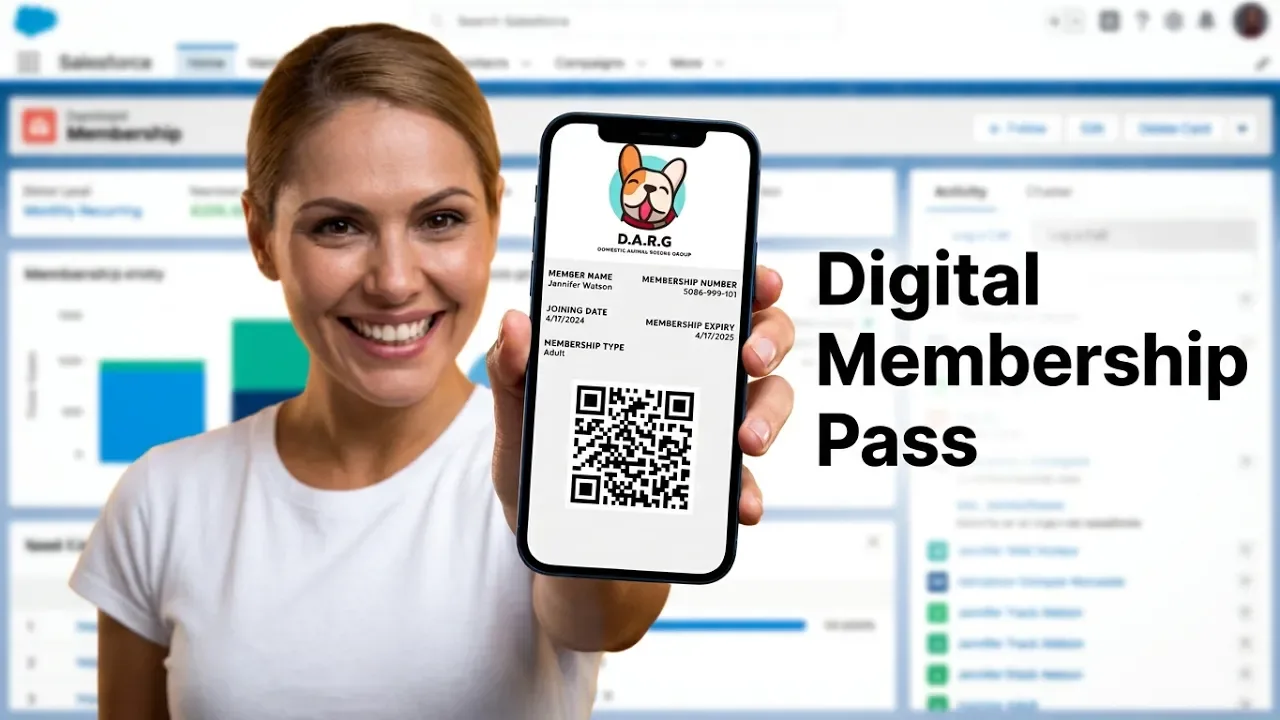
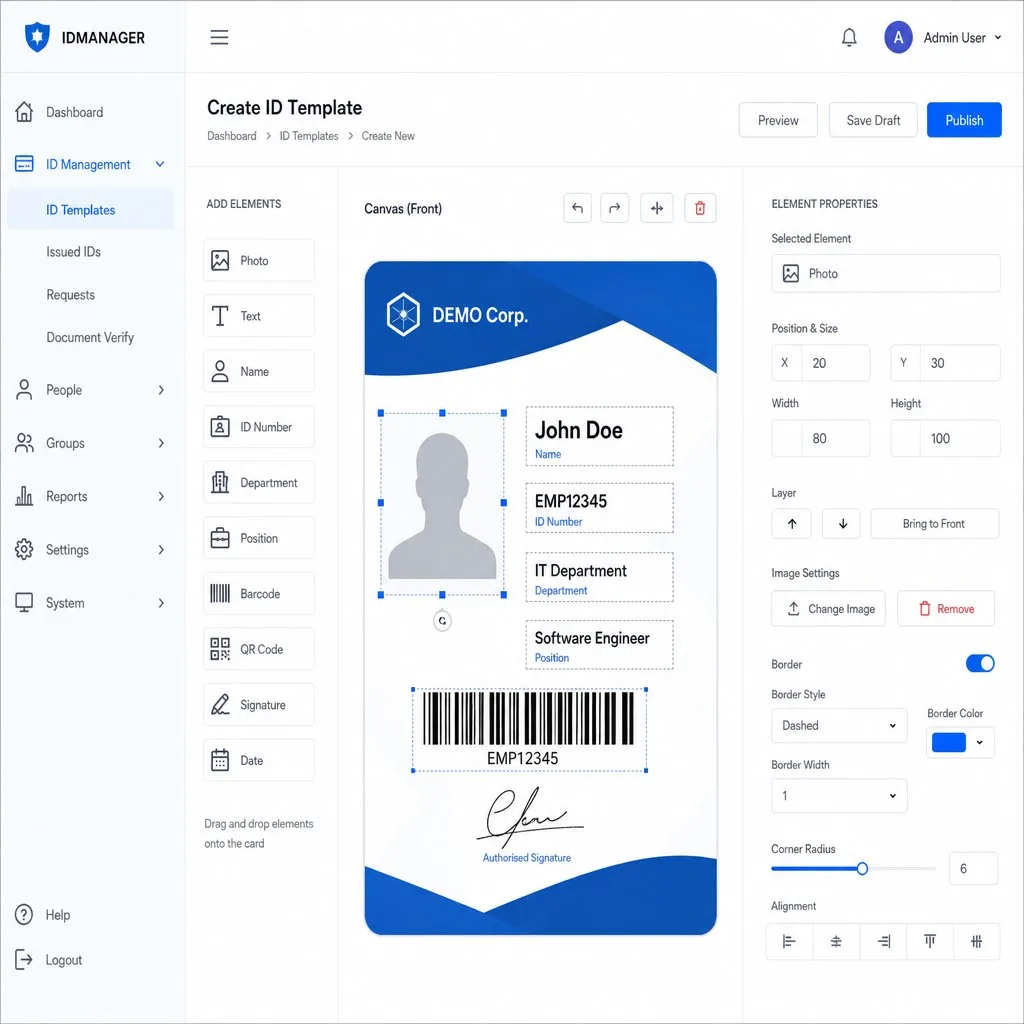
See a volunteer ID card built from your own Salesforce records
Kemicard creates Apple Wallet and Google Wallet volunteer IDs from the records a nonprofit already keeps, whether the org runs Volunteers for Salesforce or the volunteer management objects in Nonprofit Cloud. A demo walks through the template, the Flow that issues the card, plus the scan that writes the check-in back to Salesforce.
 Start the AppExchange Trial
Frequently Asked Questions
Volunteers for Salesforce ships public pages that list open volunteer jobs and let a person sign up for a shift without a login. Nonprofit Cloud orgs handle volunteer scheduling through their own site pages built on the volunteer management objects. Either route creates the record that a volunteer ID card is later issued from.
The personal site is a page V4S provides where a volunteer views their own record, including the shifts they are signed up for and the hours recorded against them. The page is reached by a link rather than a Salesforce login. A volunteer ID card can carry that link on its back, which puts the hours page one tap away.
A coordinator scans the barcode on the volunteer's card, and the scan matches the card to the volunteer record it was issued from. Each scan is written to Salesforce, and a record-triggered Flow sets the volunteer's status for that shift to Completed in Volunteers for Salesforce or Complete in Nonprofit Cloud. Kemicard's scanner and check-in setup covers the camera and handheld options for reading the code.
A wallet card shows the volunteer's name and role on the phone screen, which covers identification at a check-in desk. Printed name badges still have a place where staff and the public need to read a name across a room. Some programs run both, with the printed badge for visibility on site and the wallet card for the scan and the hours record behind it.
No app install is needed on the volunteer's side. The card is added to Apple Wallet or Google Wallet from a link, both of which ship with the phone. Coordinators work in Salesforce itself, with scanning done through the Kemicard scanner rather than a separate volunteer badge app.
Sources: Trailhead: Explore the Benefits of Using V4S, Create Job Shifts and Assign Volunteers, Create Jobs and Shifts for Recurring Events, Sign Up Volunteers Through Your Website and Customize Pages and Hand Off Your Website Integration; Salesforce.org: Volunteers for Salesforce source; Nonprofit Cloud Developer Guide: Volunteer Management Standard Objects and JobPositionAssignment.