

How Kemicard Creates, Sends, and Updates Wallet Passes Inside Salesforce
Create an Apple Wallet pass or Google Wallet pass straight from a CRM record: the record becomes a live wallet pass on your customer's phone, the pass stays in sync, and every scan reports back to Salesforce. Every step runs inside Salesforce, on the records and flows your team already uses.
This page walks the Salesforce to wallet pass process end to end: how you issue wallet passes (Salesforce-native, no middleware), how you distribute wallet passes (Salesforce sends the link by email, SMS or QR code), and how changes flow from Salesforce data to wallet passes in real time. The Salesforce wallet pass setup takes an afternoon, and Salesforce wallet pass integrations with Flow, Apex and Marketing Cloud come built in.
 Test Drive
How Kemicard Works in Six Steps
One workflow covers the whole pass lifecycle, and all of it is configured with clicks in Salesforce.
Connect
Install from AppExchange
Configure
Map fields, design pass
Issue
Trigger from a record
Distribute
Email, SMS, QR, link
Update
Real-time sync + push
Track
Scans logged to CRM
Issue, Deliver, Update — As the Member Sees It
The three steps behind a pass are invisible to the person holding it. What they see is a card that arrives, messages that arrive after it, and details that stay correct without anyone asking them to do anything.
 Harbour Point
The card. Issued from the record, delivered by link, email or QR.

On the lock screen. Every later change can announce itself.
3 Pier Street
Victoria, BC V8V 1A1
The back of the pass. The record's current state, always.
Install from AppExchange, Then Connect Salesforce to Apple and Google Wallet
One install, one OAuth approval, and Kemicard is set up to provision the Apple certificates and the Google issuer setup.
- Install from Salesforce AppExchange — install Kemicard's managed package from AppExchange in your sandbox first, then push to production.
- Approve one OAuth integration — a single approval grants Kemicard the object permissions you choose. You can revoke it any time from Setup.
- Certificates and issuer setup are handled — Kemicard provisions the Apple Wallet certificates and registers the Google Wallet issuer during setup, with no coding required.
- Everything runs inside your org — pass data lives in your Salesforce environment. No separate database to sync and no admin panel to manage.
- Sandbox install → test → production
- OAuth scopes approved by your admin
- Apple certificate provisioned by Kemisoft
- Google Wallet issuer registered for you
 City Museum
 Harborlight Aquarium
Create Your Apple Wallet and Google Wallet Pass Template Inside Salesforce
Templates are built with clicks, on screens that feel like Salesforce. No code and no external design tool.
- Pick any object, standard or custom — Contacts, Accounts, Opportunities, or a custom object like Membership__c. If it lives in Salesforce, it can drive a pass.
- Design the template once — drag and drop the logo, colors, barcode style, and field positions. The back of the pass can include offers or membership links. One template renders to both wallets.
- Map Salesforce fields to pass fields — point-and-click mapping so each pass element fetches live data from the field you map it to.
- Set formatting and fallback rules — display formats for dates and numbers, conditional fields, and fallback values for empty fields. All of it sits in the template.
Issue Passes With the Salesforce Automation You Already Use
Wallet pass automation runs on standard Salesforce triggers. Set the condition once, and every record that meets it gets a pass.
- Automate Apple Wallet passes from Salesforce — build the trigger in Flow with clicks. When a record qualifies, the pass is created and queued for delivery.
- Issue from the record page — a one-click button on the record page. When someone signs up at the front desk, staff issue their pass without leaving the Contact record.
- Bulk issuance for events and renewals — issue thousands of passes from a list view or a scheduled job. Every pass is logged on its Contact.
- The same automation manages the lifecycle — the triggers that issue a pass can also update it or revoke it later. Your admin learns one pattern and reuses it everywhere.
Distribute Wallet Passes by Email, SMS, QR, or Link, Directly From Salesforce
Kemicard generates the pass link once, and every channel delivers the same pass. Your customer taps it, and the pass is in their wallet.
Connect the pass link to any Salesforce email template. Your customer opens it and taps Add to Apple Wallet.
SMS
Deliver the short link through Marketing Cloud, Twilio, or any SMS provider. One tap installs the pass, with no app download.
Add-to-wallet link
A secure link for any record. Drop it in an email, on a portal page, or on a printed flyer.
QR code
Print a QR code or display it at check-in. Scanning installs the pass on the spot — ideal for events and on-site signups.
Push Notifications and Live Pass Updates, Triggered by Salesforce Events
Real-time wallet pass updates from Salesforce. A field change refreshes the pass in the holder's wallet within seconds, and you can attach a push notification to the same event.
- Live updates, no re-issue — tier upgrades, point balances, and renewal dates change on the pass the holder already has. Nothing to resend and nothing to reprint.
- Push notifications to the lock screen — a message connected to a Salesforce event: renewal due, points earned, or whatever trigger you define.
- One flow for both wallets — Apple Wallet and Google Wallet each receive the update through their native push channels. You configure it once.
- One-click revocation — revoke a pass from the Salesforce record, and it is removed from the wallet. The audit log keeps the history.
Lock-screen push, delivered through Apple Wallet and Google Wallet — no app required.
| Event | Pass | Time |
|---|---|---|
| Scan — entry | Gold Member | 09:14 |
| Pass updated | Gold Member | 08:02 |
| Push delivered | Gold Member | 08:02 |
| Pass installed | Gold Member | Jul 12 |
Every Install, Scan, and Update is Logged on the Salesforce Record
Each event lands as a related-list entry on the Contact or the custom object, so you report on it with the dashboards your team already has.
- Scan-back logging — QR scans update the source record with who scanned, when, and on which pass.
- Install and removal events — know when a holder added the pass to their wallet, and when they removed it.
- Native Salesforce reporting — every event is a Salesforce record. Build reports and dashboards with the tools you already own.
- Full audit trail — issuances, updates, push deliveries, and revocations are timestamped against the holder.
One Salesforce Configuration Runs Both the Apple Wallet and Google Wallet Workflows
Kemicard signs, packages, and delivers to each wallet in its native format, while your team works only in Salesforce.
Salesforce → Apple Wallet
via Apple Wallet push (APNs)
- The mapped Salesforce record fields are packaged into a
.pkpassbundle. - The bundle is signed with Apple certificates that Kemicard manages for you.
- Your customer receives the pass through the channel you chose and taps Add to Apple Wallet.
- When the Salesforce data changes, Kemicard triggers an APNs push and the pass refreshes.
Salesforce → Google Wallet
via Google Wallet API + JWT
- The mapped Salesforce record fields become a Google Wallet pass class and object.
- Kemicard signs a JWT under a managed Google Wallet issuer ID.
- Your customer opens the link or the QR and taps “Save to Google Wallet.”
- Updates flow through the Google Wallet API. The same Salesforce trigger drives both pipelines.
Frequently Asked Questions
No. The pass lives in Apple Wallet or Google Wallet, which are already on the phone. Your customer taps the add-to-wallet link once, and there is no login and no download.
Kemicard supports the integration as the vendor. When either platform updates its pass format or push requirements, the change is handled in the product, and your Salesforce configuration stays as it is.
Yes. Templates are independent, so a membership card, an event ticket, and a loyalty card can run side by side from different objects in the same org.
Yes. Geo-triggers can surface the pass or send an alert when the holder is near a location you define, such as a store or an event venue. You can configure the trigger in Salesforce with no code required.
Yes. The pass is stored on the device, so the barcode displays and scans offline. Updates and push messages are delivered the next time the phone is online.
A Salesforce admin who can build a Flow and edit a page layout can run the whole pass lifecycle — no Apex, and no external tools needed.
Pricing is based on the number of passes issued per year, not on seats, and there is a nonprofit discount. See the pricing page for full details.
Yes. The back of the pass can hold links to offers, upgrades, or referral pages, and push notifications can announce them. Each link is connected to a Salesforce field, so you can change the promotion from Salesforce directly.
Implement Kemicard Your Way
Kemicard is built for clicks-not-code setup — and you choose who does the clicking.
Your internal team
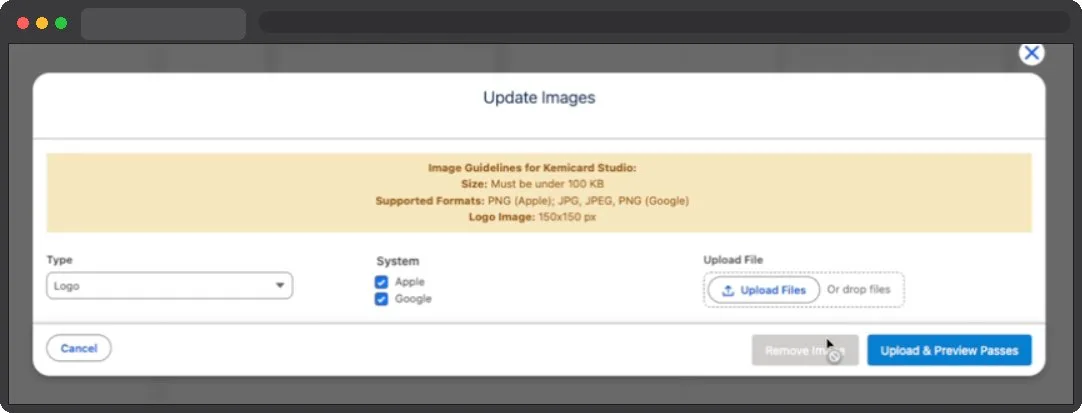
Salesforce admins implement Kemicard with the guided Installation Guide, Kemicard Studio, and sample flows — most orgs reach their first live pass in under an hour.
Our SI partners
Prefer a delivery partner? Our system integrator partners bundle Kemicard into broader Salesforce projects, from data model to rollout.
Kemisoft Professional Services
Our own team has implemented Kemicard on every Salesforce Cloud — Sales, Service, Experience, Nonprofit, Education, and Marketing Cloud — and can take you from scoping to launch.
Kemicard, End to End
A deeper look at how Kemicard works: templates, pass generation, live updates, and scanning.
More videos on the Kemisoft YouTube channel.
Further reading
From the blog
You Have Seen the Six Steps. Now Watch Them Run in Your Org.
Book a 30-minute demo, and we will walk the whole workflow on your own data model.